Overall Process Flow for Easy Rebate Module
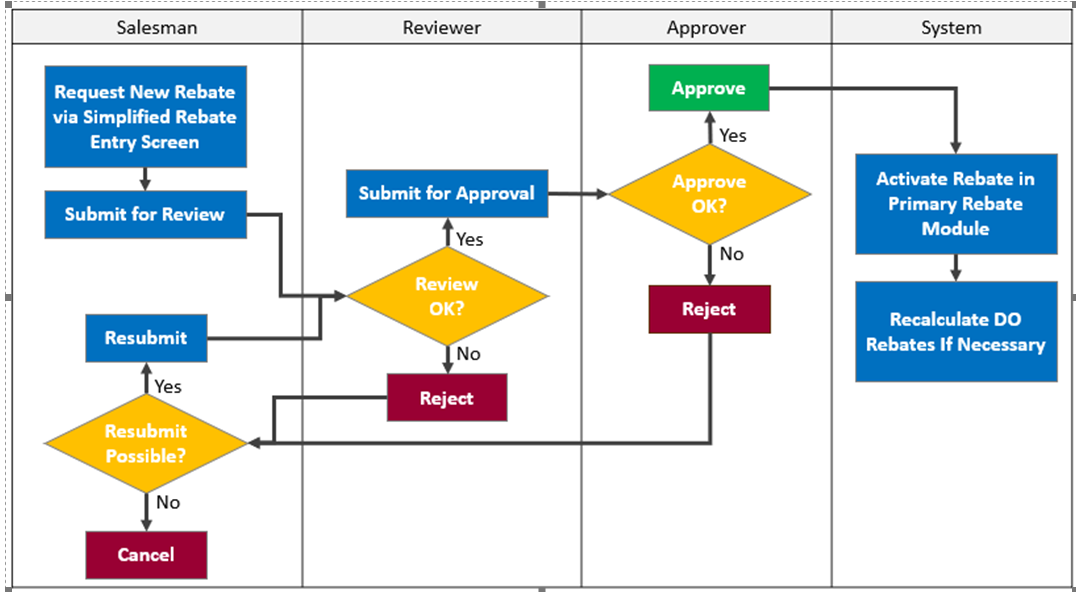
Generally, the rebate quick entry processes are as below:
- Regional Sales Team:
- key-in the rebate proposal via Rebate Quick Entry menu.
- submit the rebate proposal.
- regional sales team also can cancel the rejected proposal.
- Reviewer:
Bulk: Michael Cheah / Mohd Nazri Nordin
Bag: Ong Khang Huei
- review and recommend the rebate proposal.
- reviewer able to amend the proposed amount / to remove the selected customer from proposal.
- reviewer can reject the rebate proposal for regional sales team to amend and resubmit it again.
- Approver: Pn. Zanita Mohamed Zin
- to approve the reviewed rebate proposal.
- approver also can reject the submission.
Rebate Quick Entry menu for Regional Sales Team
Login as Regional Sales Manager.
Navigate to Rebate > eRebate Entry screen. Click on + New Easy Rebate.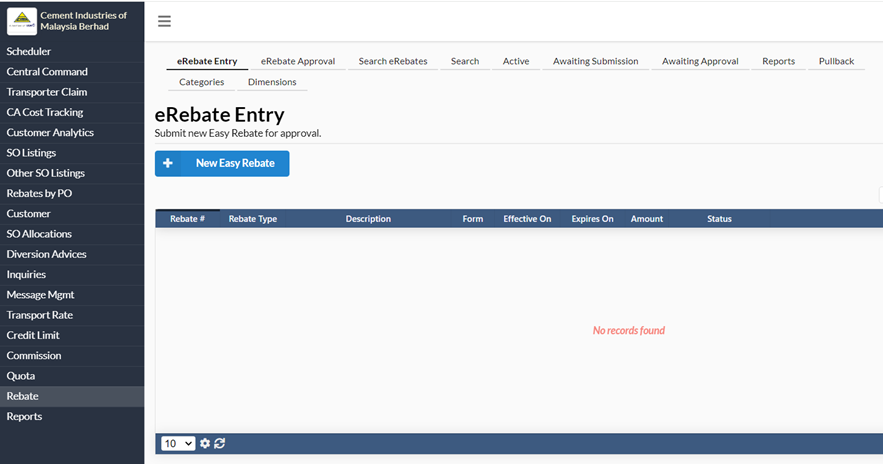
Rebate Type: FR & MRSC
- For rebate category FR & MRSC, user can select:
- 1 distributor
- Multiple customers (the same rebate amount will be applied to these selected customers)
- Next, key in the rebate amount, effective date, and expiration date (if necessary).
- User also can add justification and upload attachments (if required).
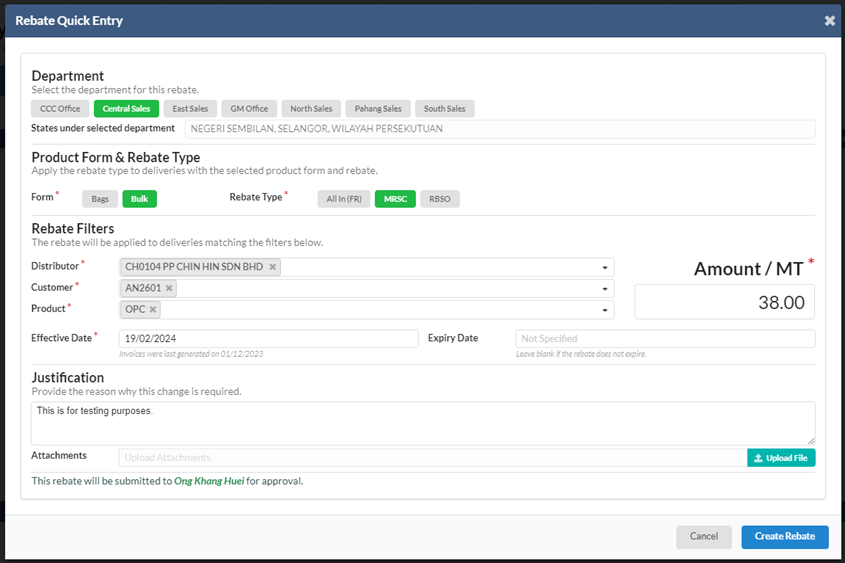
Click on Create Rebate button once done.
Before submitting, system will prompt a Manage Easy Rebate screen for user to preview the requested rebate information.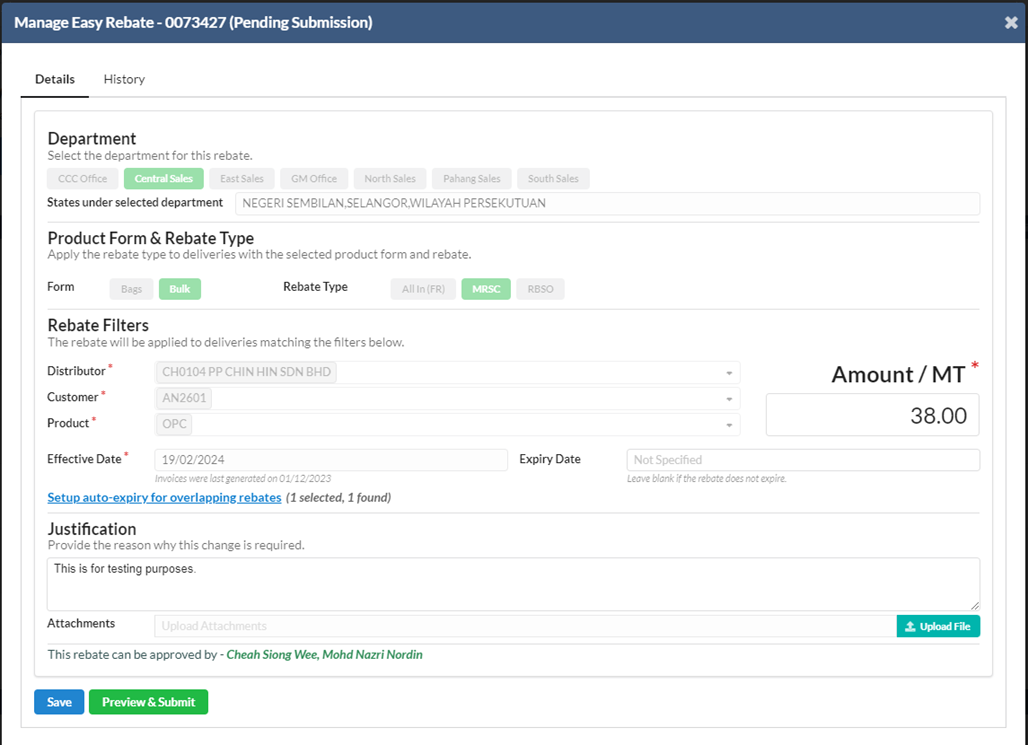
User can click on the Setup auto-expiry for overlapping rebates button to view/close the overlapping rebates.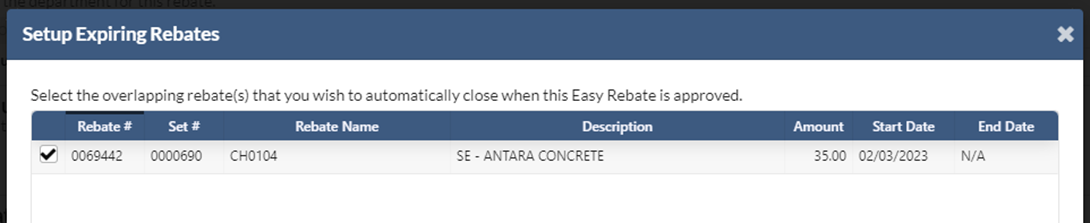
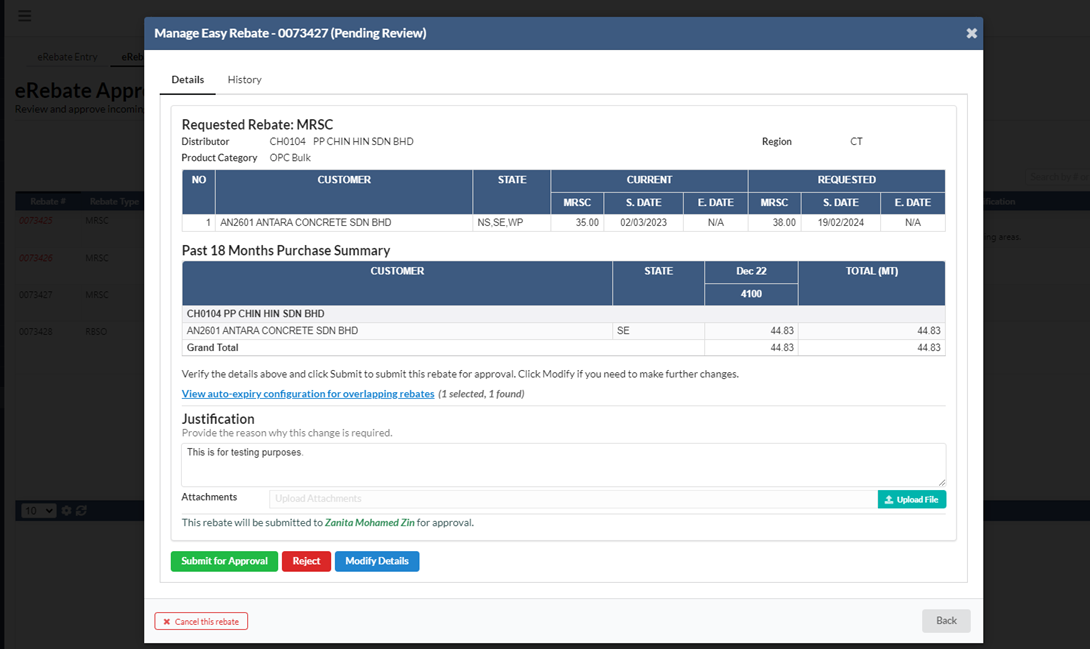
Once clicking on the Preview & Submit, system will be able to preview the requested rebate and the purchase summary.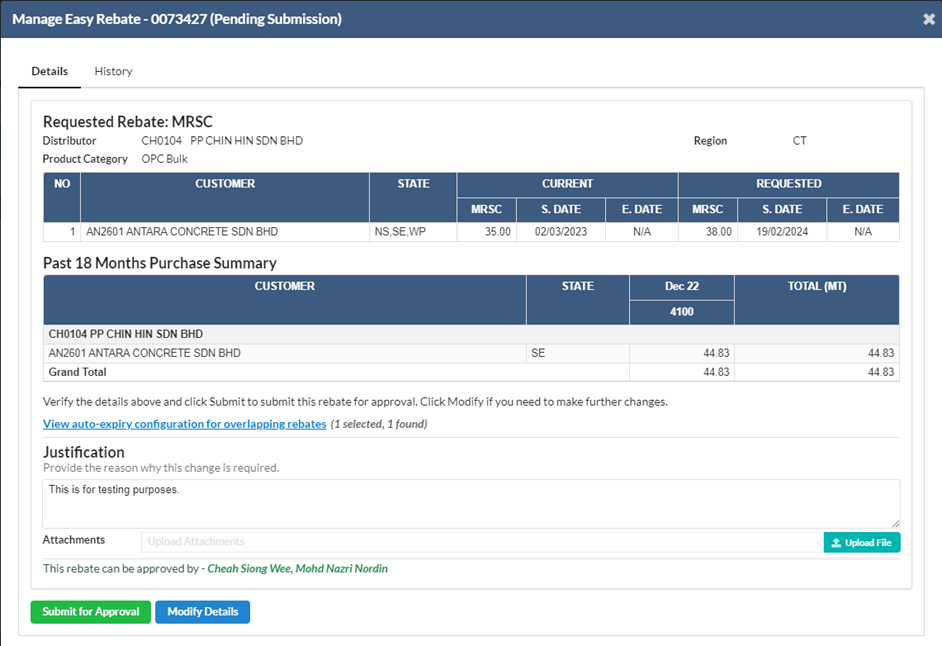
If all are OK, user can click on Submit for Approval.
Rebate Type: RBSO
- For rebate type RBSO, user can select:
- SO #. System will show SO related information such as distributor, customer and product.
- Next, key in the rebate amount, effective date and expiration date (if necessary).
- User also can add justification and upload attachments (if required).
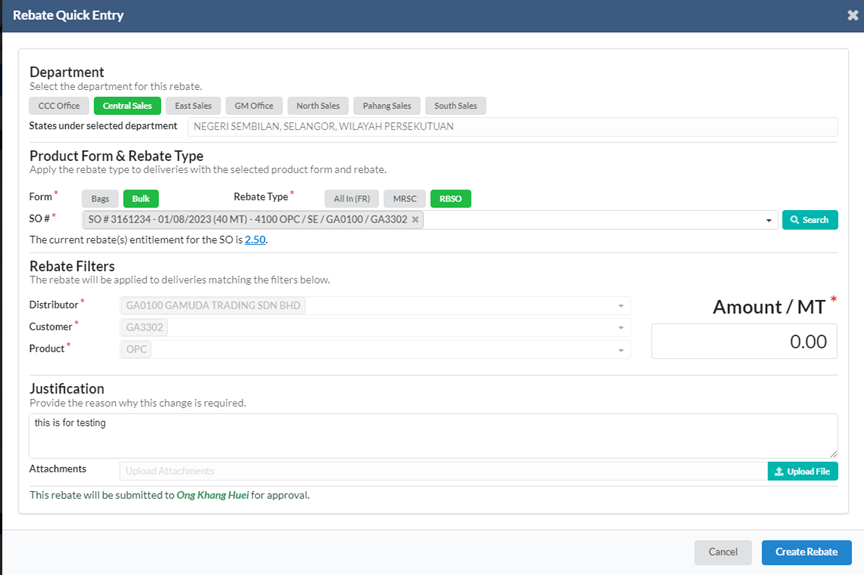
- The rest of the flow are similar to rebate type FR & MRSC.
Reviewer Menu
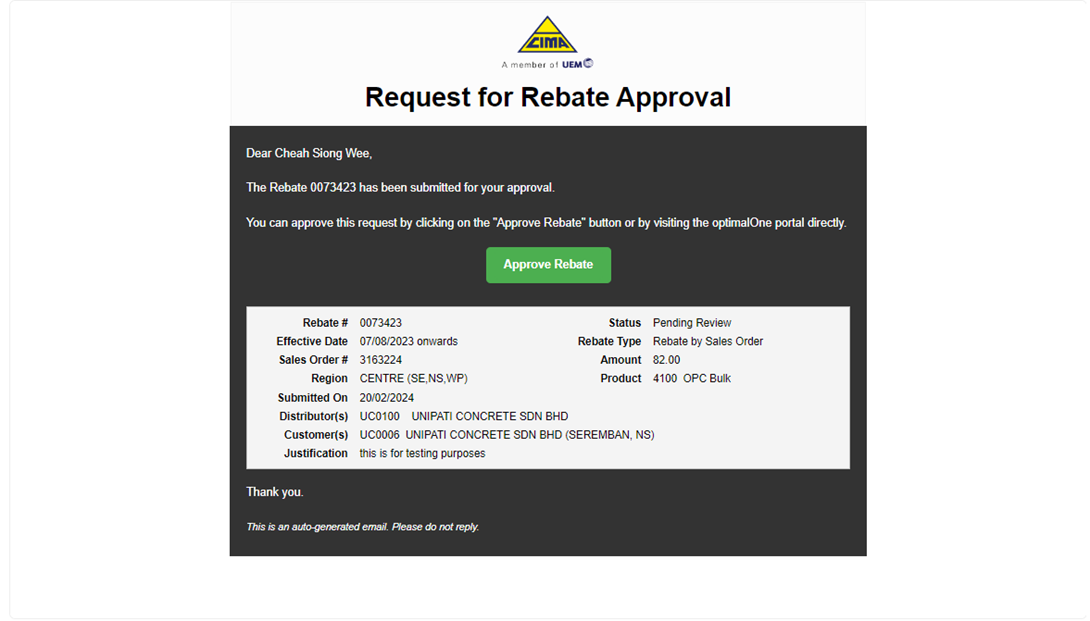
- Once submitted, reviewer will receive an email from optimalOne for the reviewer to verify the requested rebate.
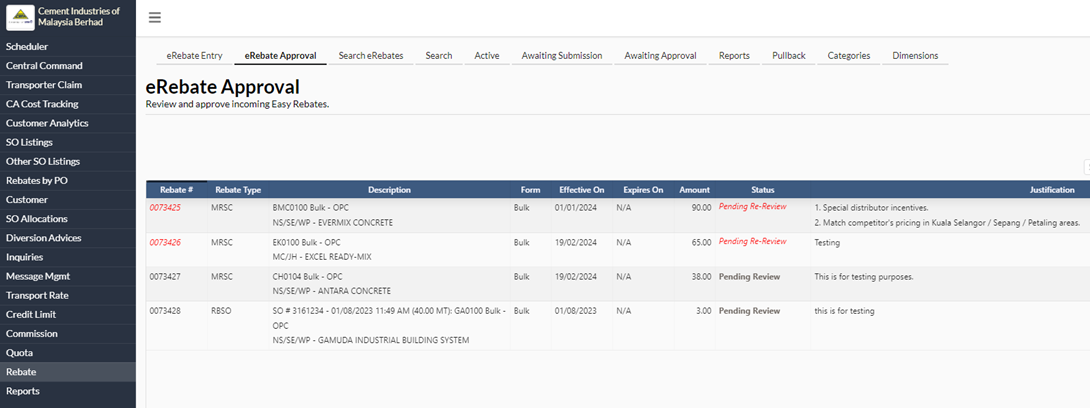
- Reviewer will login to optimalOne and navigate the Rebate > eRebate Approval.
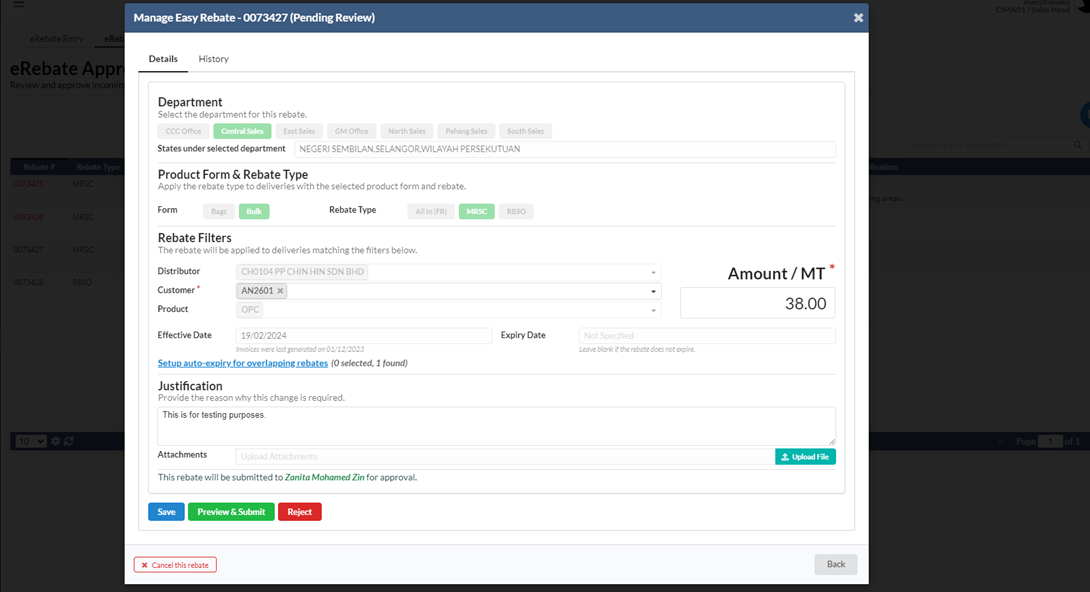
- User can review and can make changes by clicking on the Modify Details button as below:
- Change the requested amount.
- Remove the selected customer code (need to untick the auto expiry overlapping rebates first)
- Can include the justification.
- Can add attachments.
 If submission rejected by reviewer, the set can still be modified by regional sales team.
Approver Menu
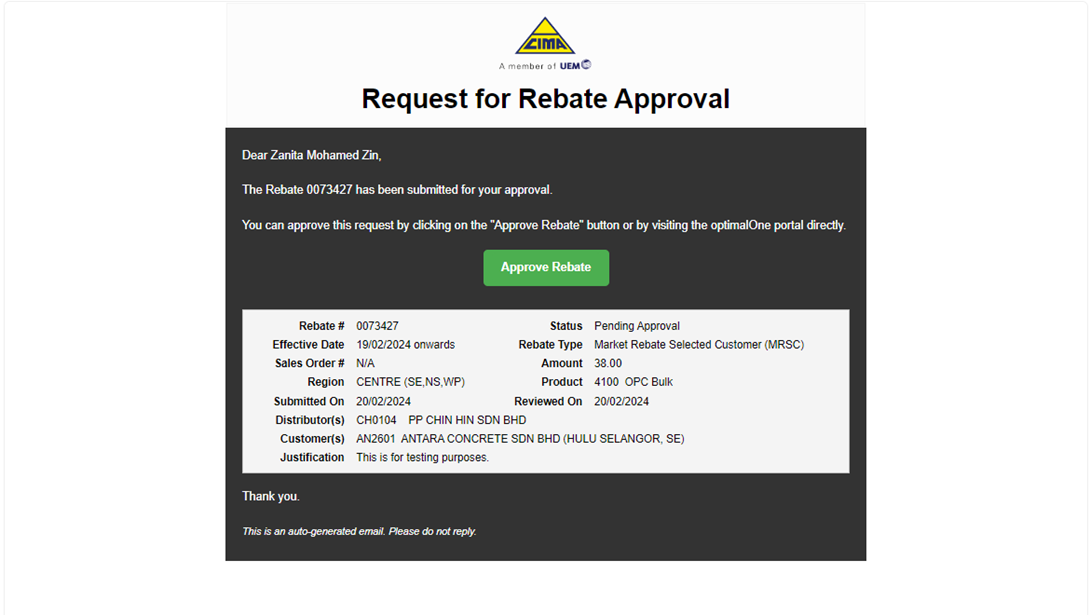
Once submitted by reviewer, system will send an email notification to Approver for them to approve or reject the requested rebate.
Approver login to optimalOne and navigate to Rebate > eRebate Approval.
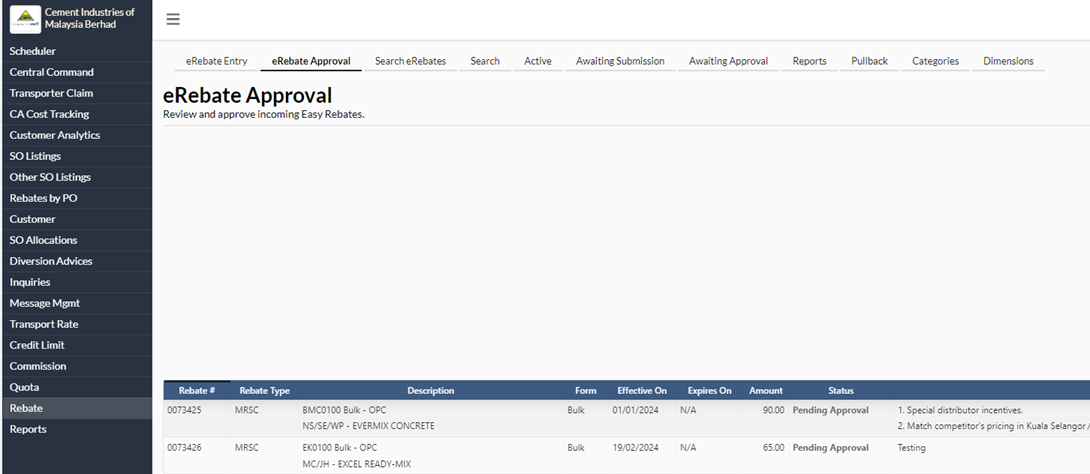
Approver can click on the Rebate to be approved. A new screen will pop up as below:
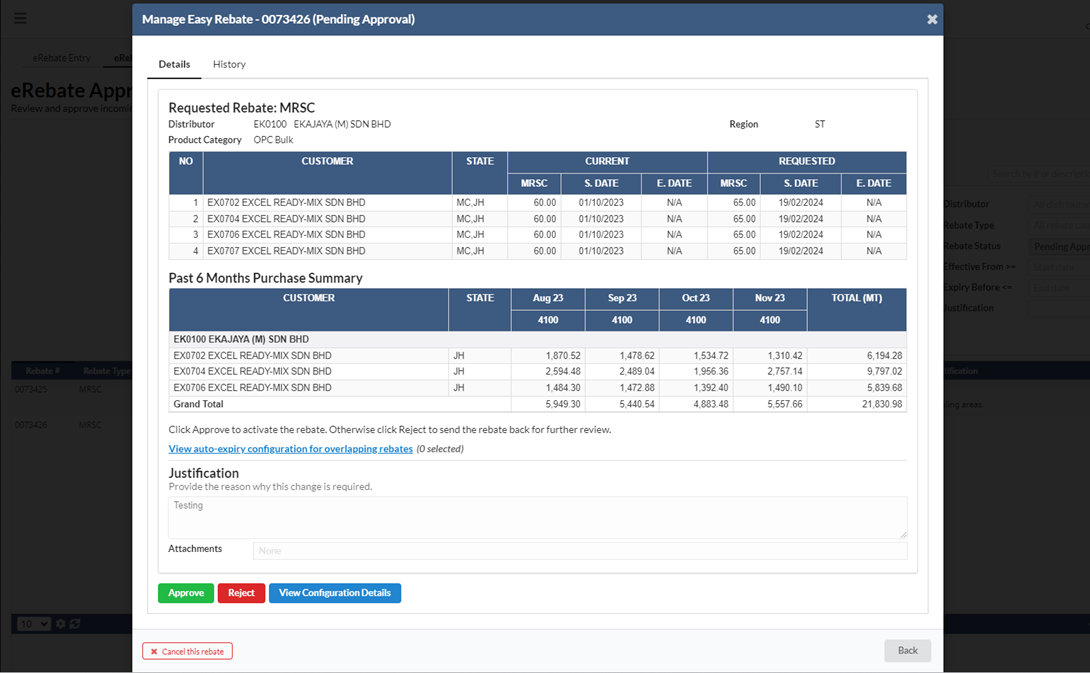
Approver can Approve or Reject the rebate request.
Notification Email
Notification email will be sent to submitter IF:
- The request was Rejected by Reviewer OR
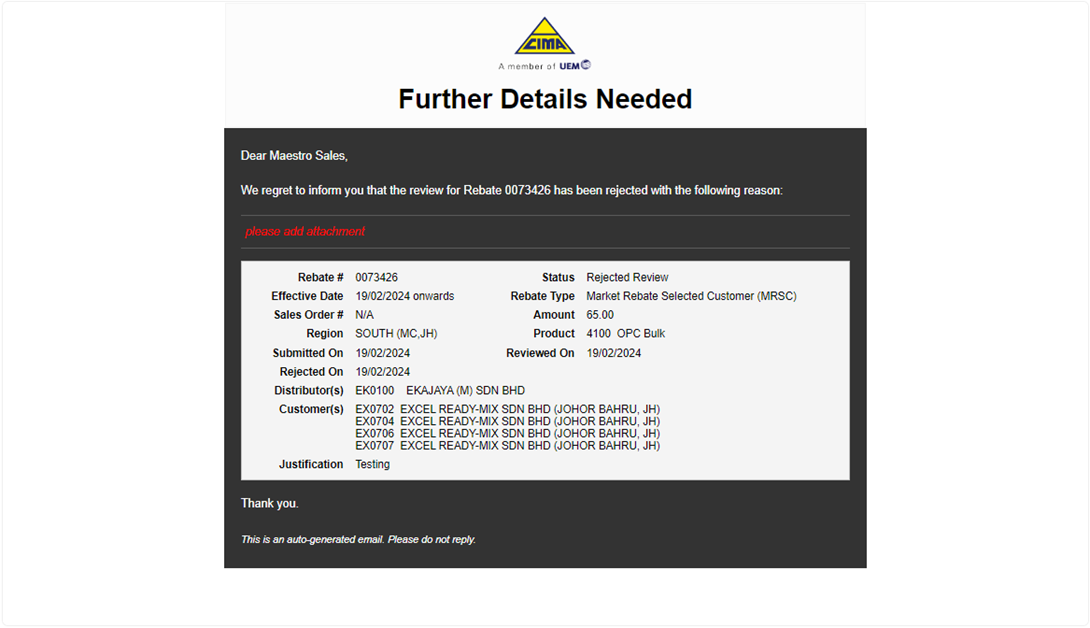
- The request was Approved/Rejected by Approver.
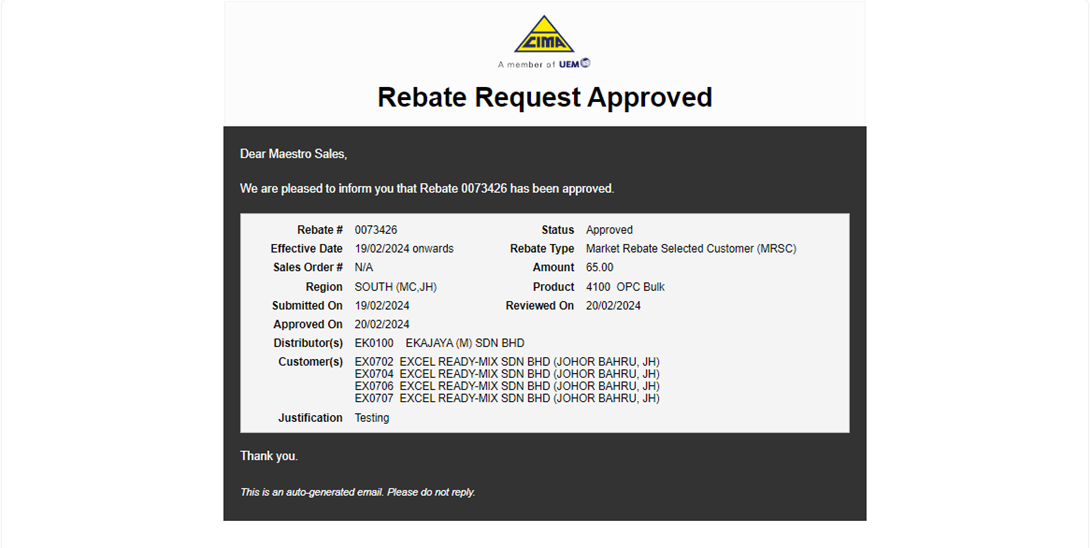
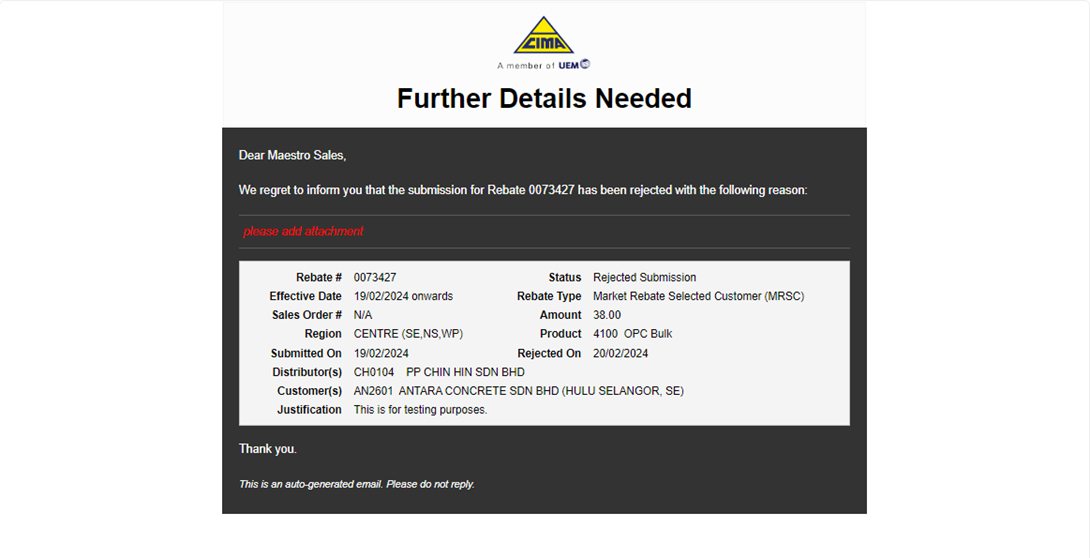
- Submitter will receive email notification from optimalOne which stating the below details:
- Request status: Rejected by Reviewer / Approved / Rejected.
- Rebate Submission #
- Rebate Type
- Distributor Code & Distributor Name
- Region
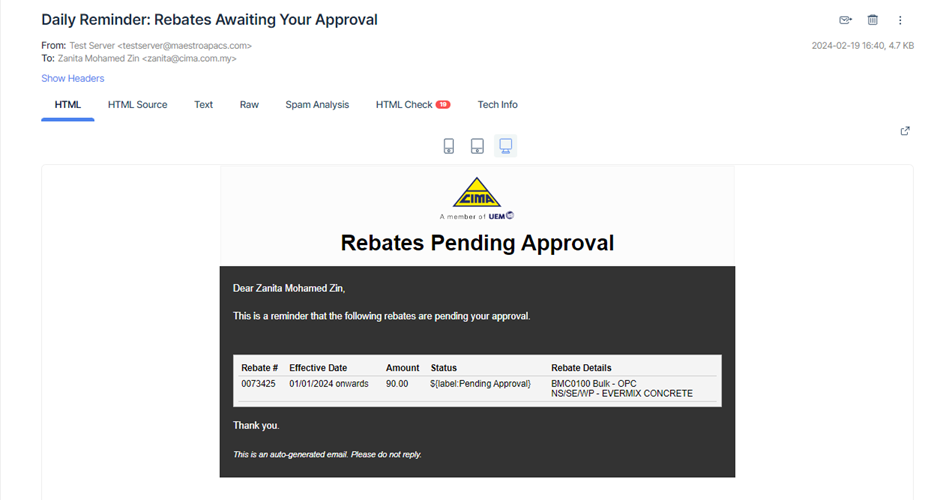
Reminder Email
- System will generate a summary and send the reminder email to:
- Reviewer
- Summary of rebate applications that pending for review.
- On daily basis at 9.00am
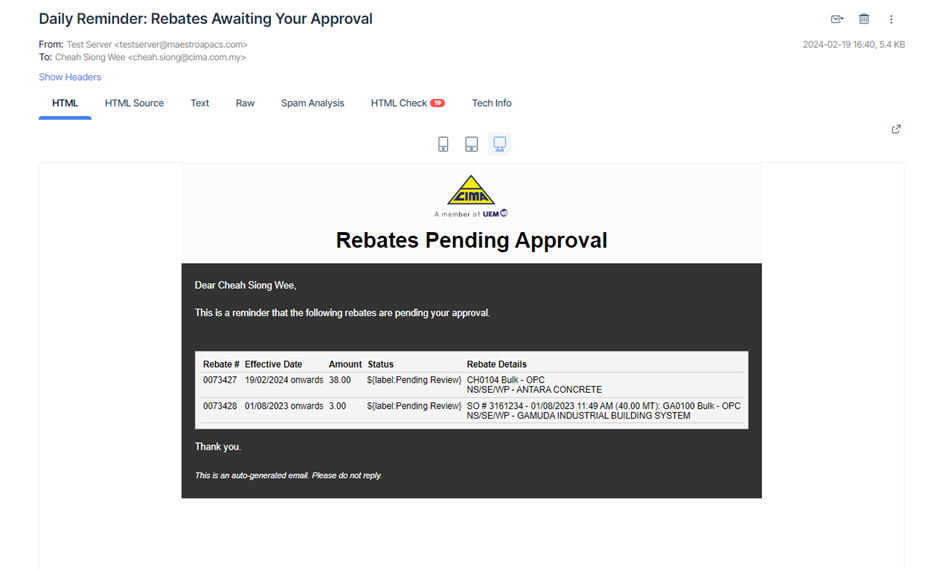
- Approver
- Summary of rebate applications that pending for approval.
- On daily basis at 9.00am