
Creating and scheduling reports is an essential part of managing your business. With our platform, you can easily create and schedule reports to help you keep track of your business performance. Here's a step-by-step guide on how to create a new scheduled report:
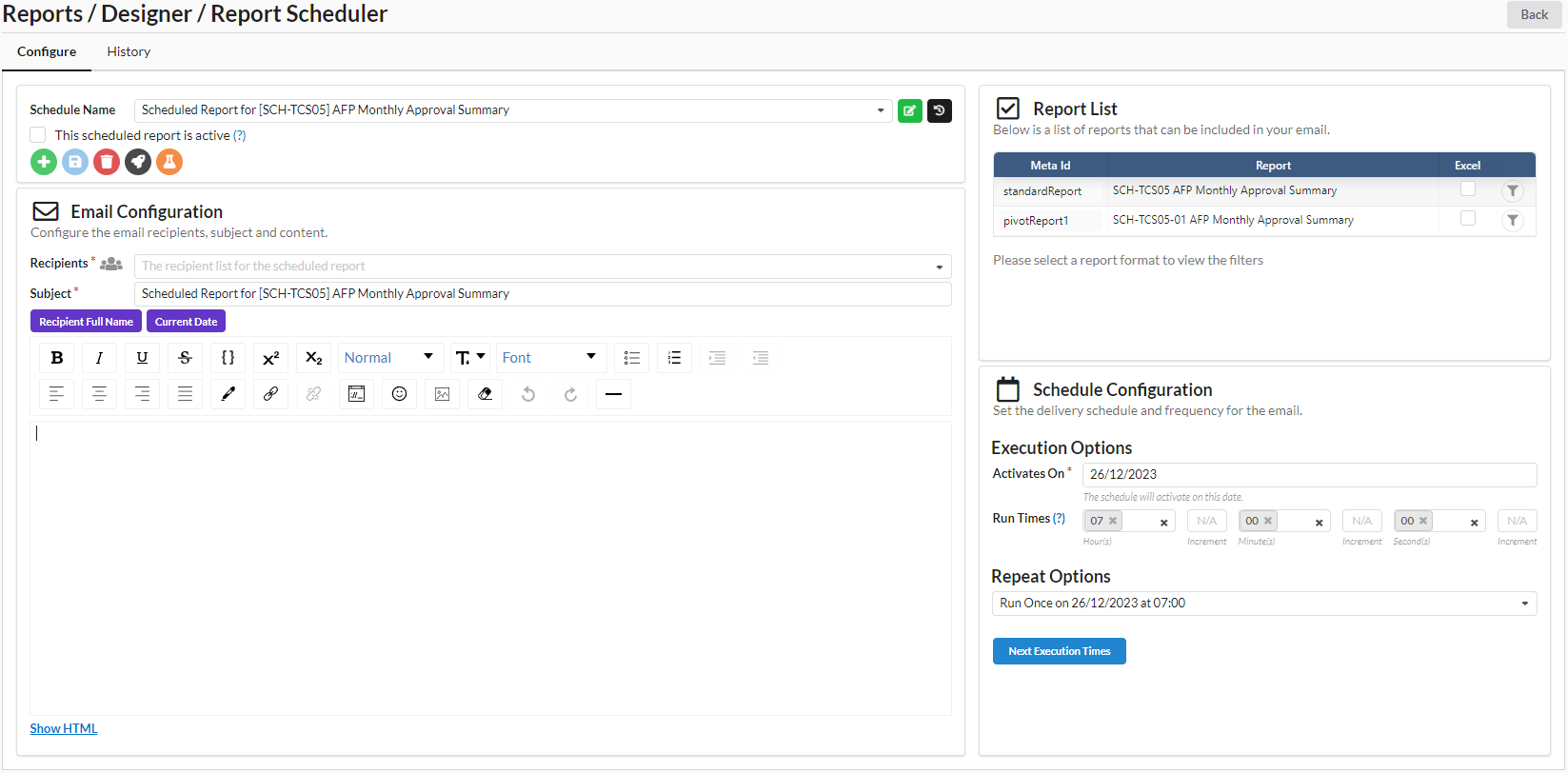
Overview of Report Scheduler UI Before we continue with the next steps, let's review the main sections in the Report Scheduler UI.
Email Configuration
This is where you specify the recipients of the report, set the subject line, and draft the body of the email that will accompany the report. You can personalize the email content using placeholders (attributes) that will be replaced with actual data when the email is sent.
Report List
This section lists all the sub-reports (i.e. variations) available for the email. You can include the sub-reports as data tables in the email body, or as Excel attachment. Schedule Configuration Here, you define when the report should be sent. You set the activation date, run times, and decide if and how the report should repeat (e.g. daily, weekly), including setting an expiry date for the schedule if needed.

STEP 1: Start a new report schedule
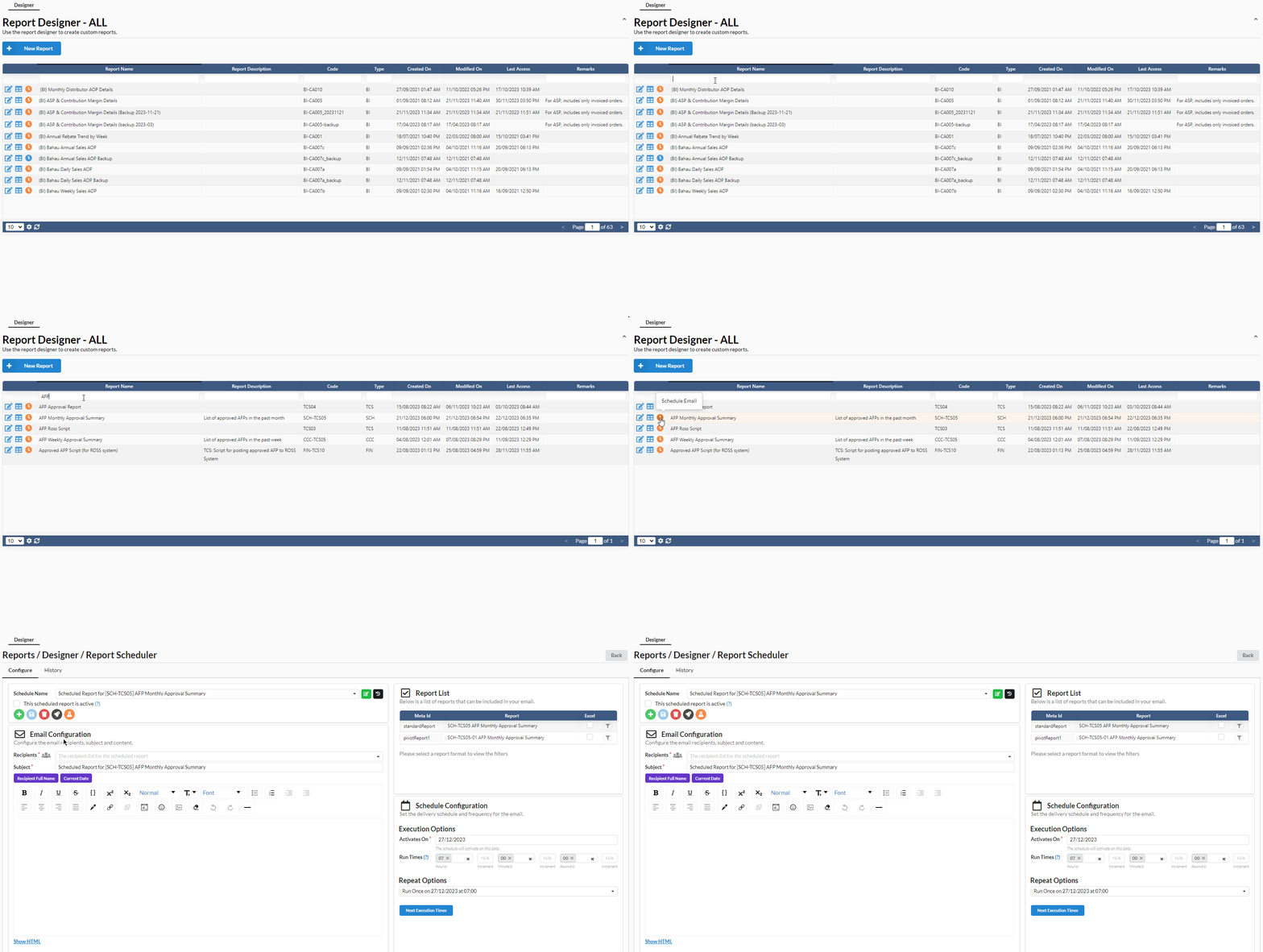
Log in to your account and navigate to the "Reports -> Designer" tab. Using the table filter, search for the report that you would like to schedule e.g. AFP.
Click on the "Schedule Email" icon next to the report name to open the Report Scheduler designer page and begin scheduling the report.
STEP 2: Specify the recipients for the email
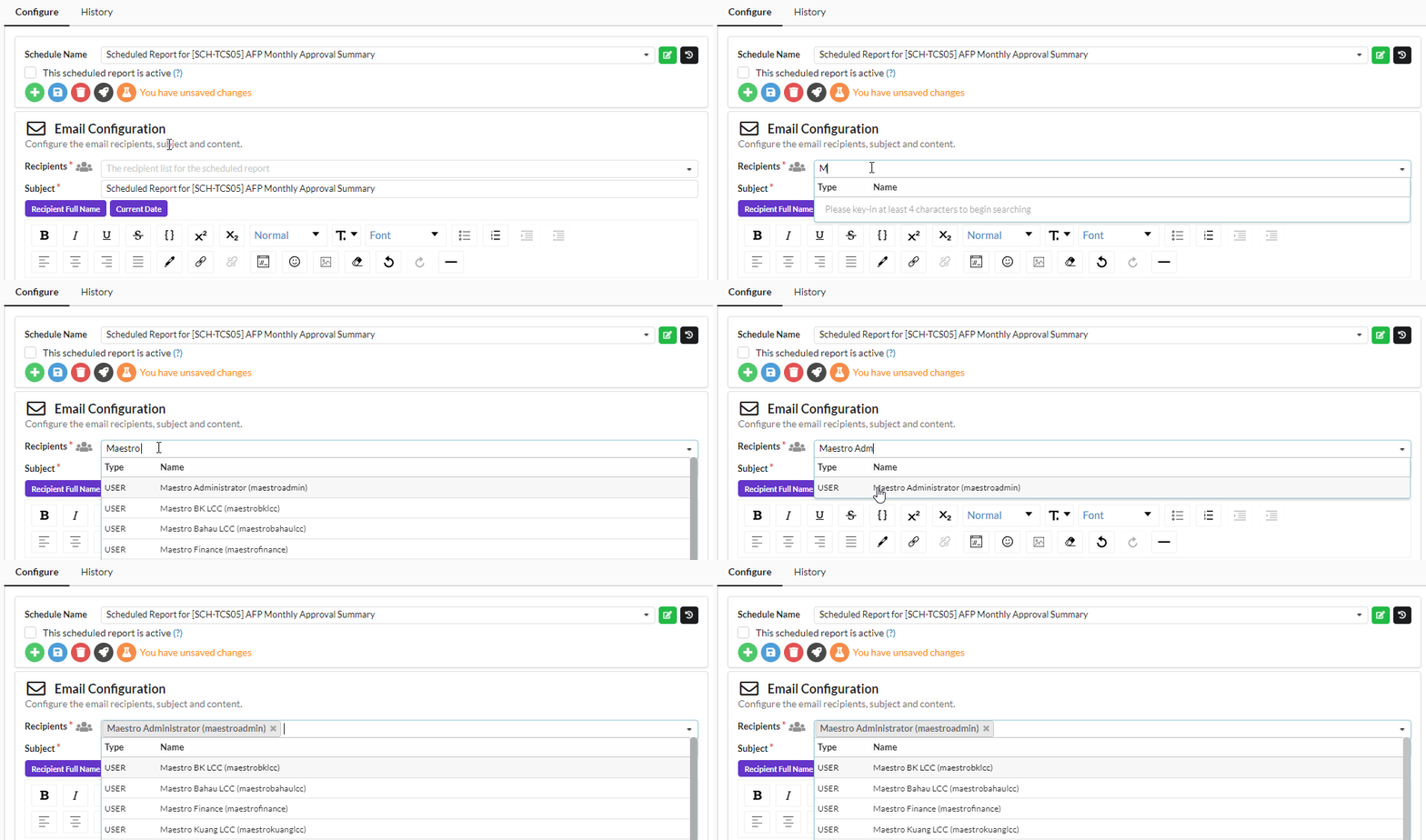
You could select the recipients by role, group, or username. For example, you could send the scheduled report to an individual user (e.g. "Maestro Admin") and also users with a specific role e.g. "Transporter Payment Approver Test".
To do that:
- First, search for and select the target user e.g. "Maestro Admin".
- Next, search for and select the target role e.g. "Transporter Payment Approver Test".
Hint: Use the search term 'role' to display the list of all available roles.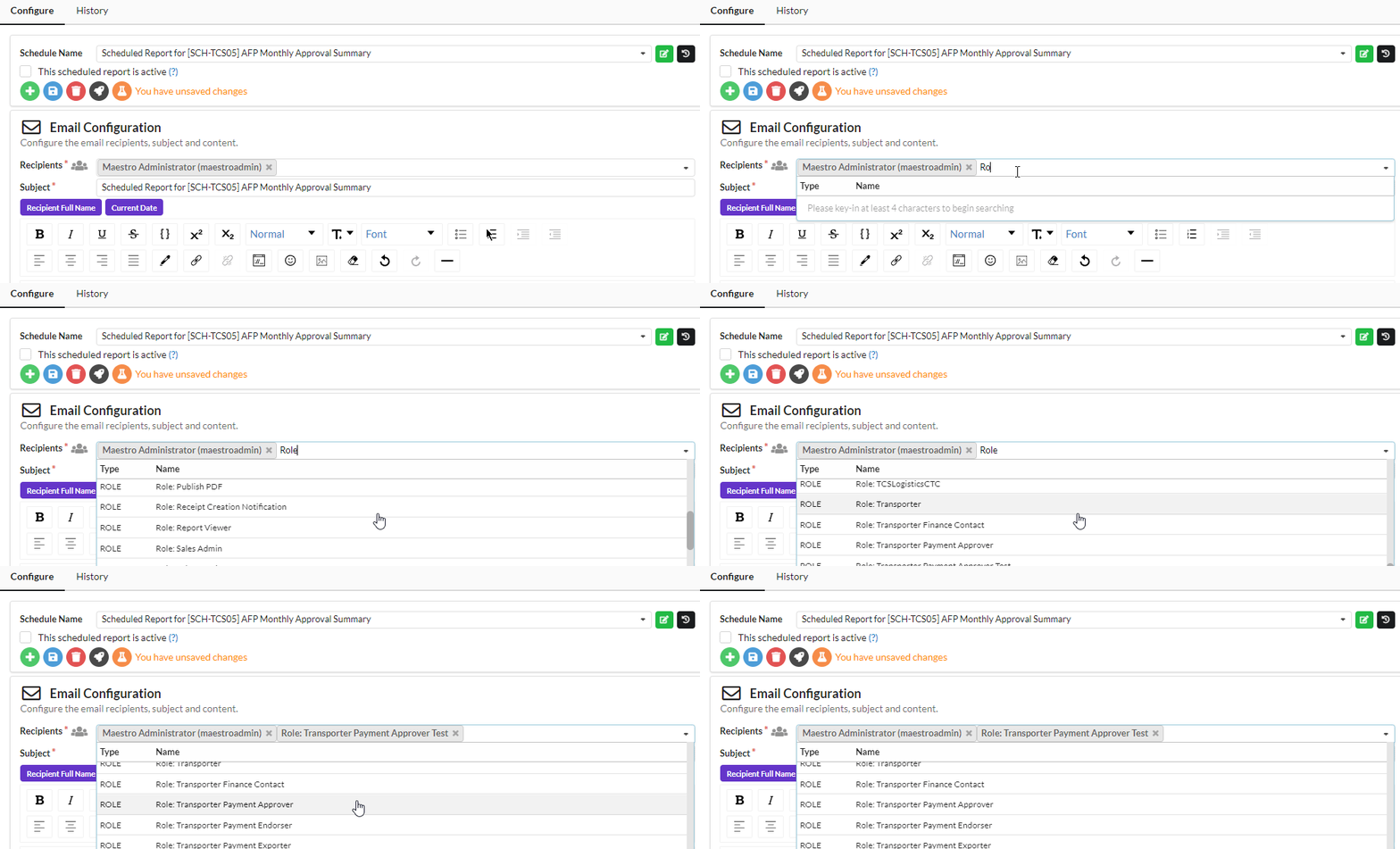
STEP 3: Turn on group email if necessary
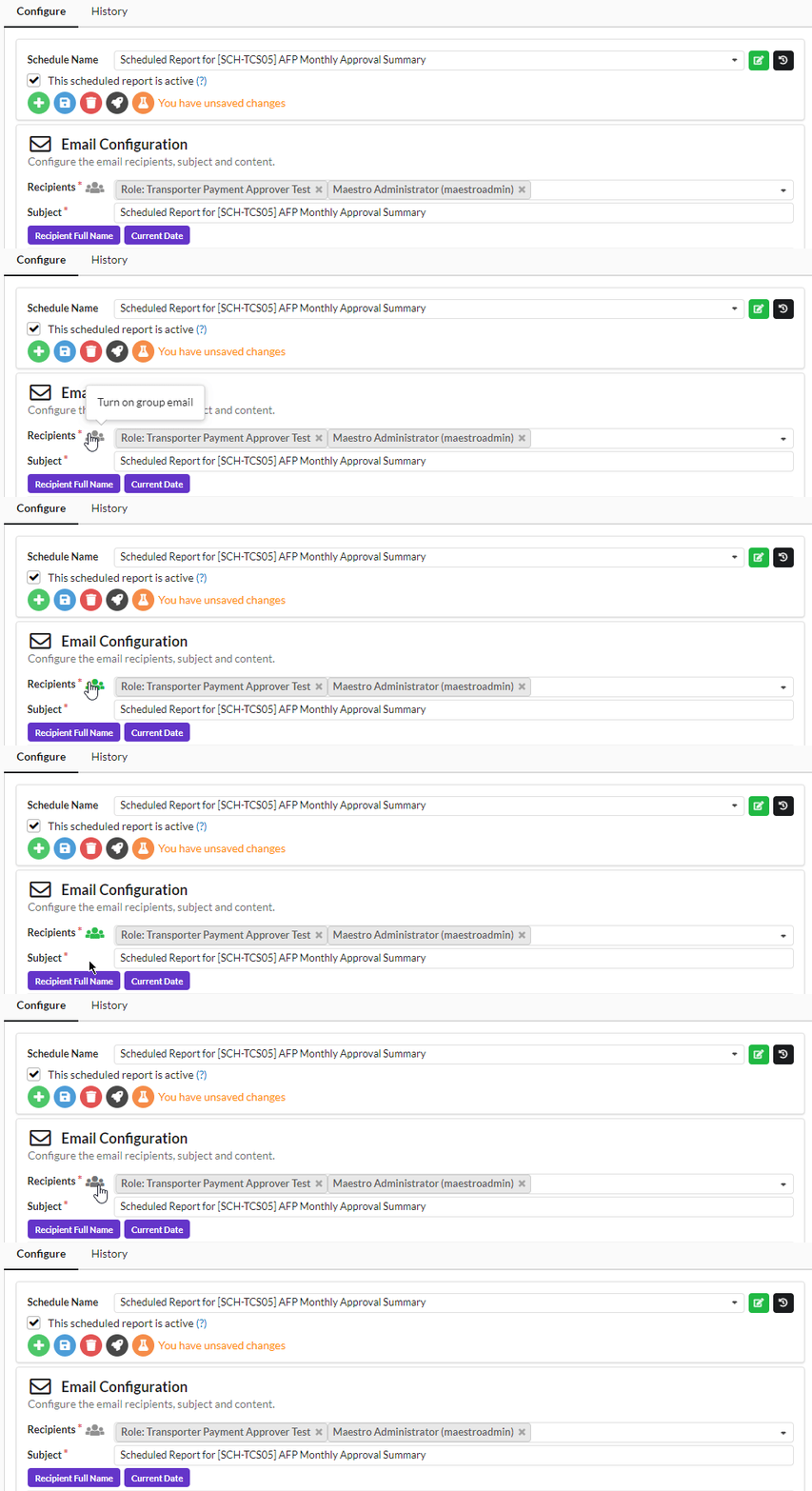
Optimize the email delivery by turning on the Group Email mode. Click on the group email icon to turn it on.
Group Email Mode


You have two options for delivering the email to the recipients.

The default option will generate and send one email per recipient. However, if you prefer to generate only one email and send it to all recipients in one shot, you can turn on the Group Email mode by clicking the icon next to the Recipients label. This would change the icon color from grey to green to indicate that Group Email is now active. To turn off Group Email, you can click on the icon again.

STEP 4: Edit the email subject
The email subject will be set to the report name by default. For clarity, you should revise the email subject to represent the content of your email more accurately.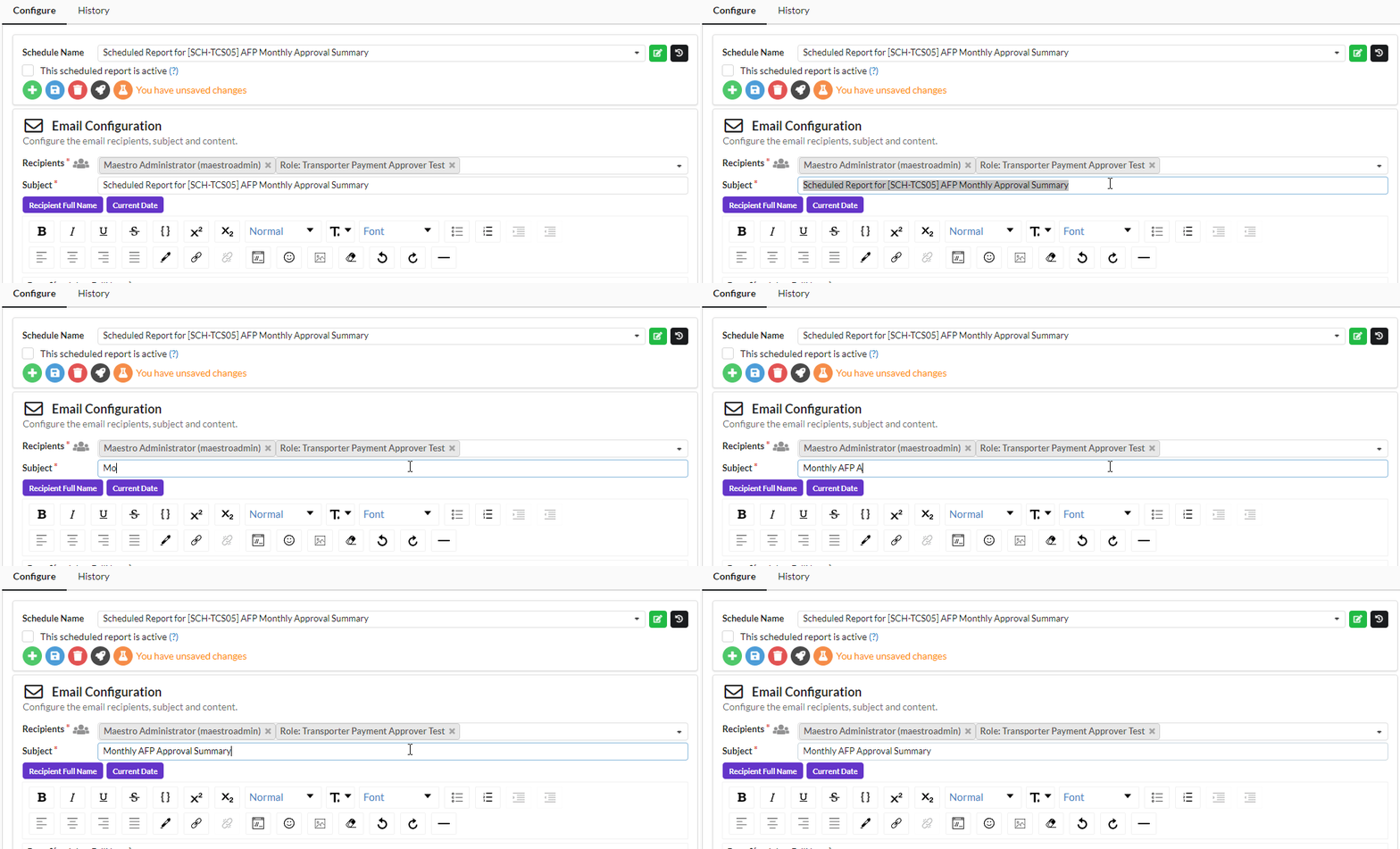
STEP 5: Compose the email content
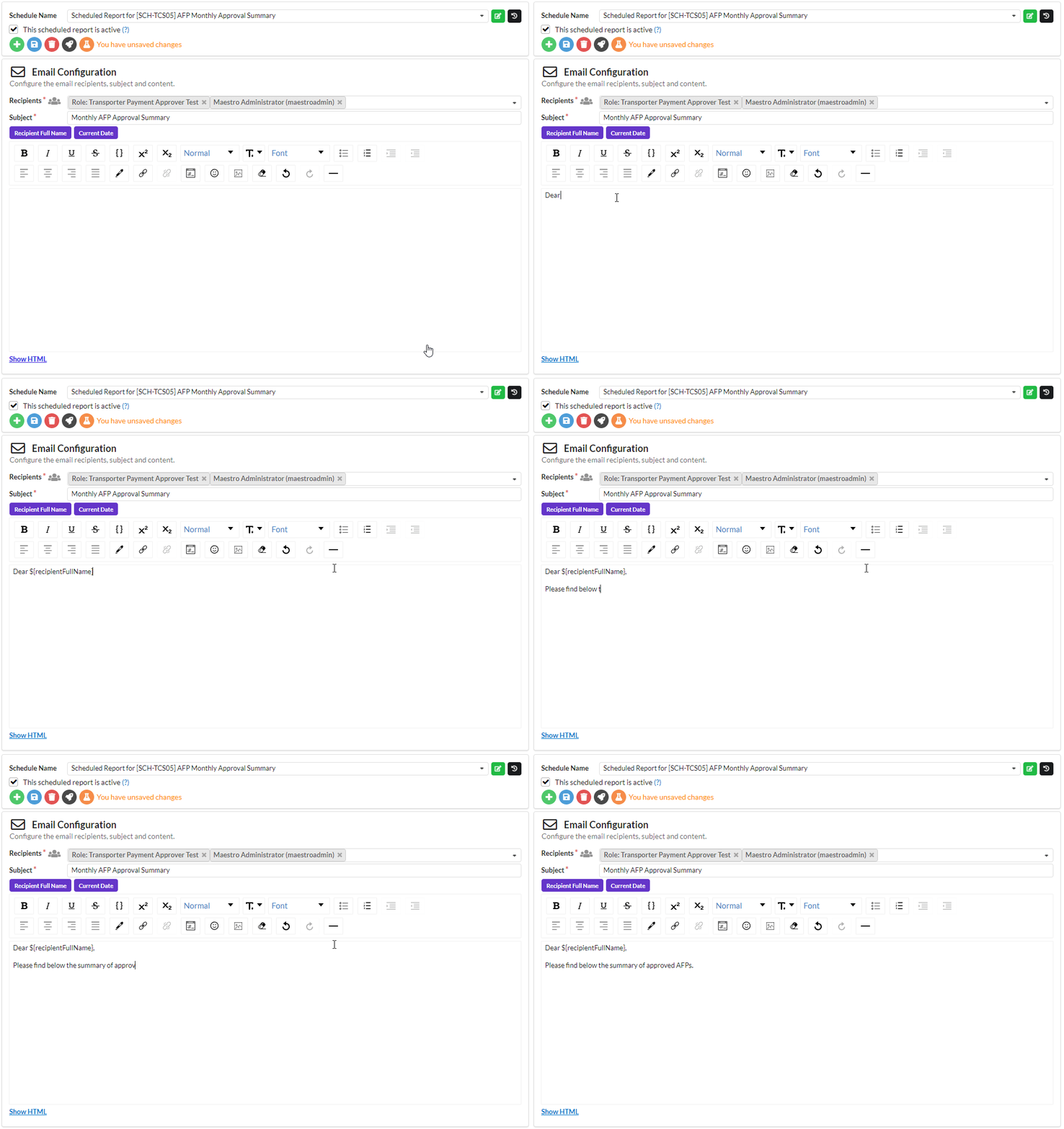
Start composing your email content. Utilize the WYSIWYG editor for formatting if needed.
You can include built-in placeholders such as the recipient's name by dragging the attribute button (purple color) to the target insert position of your email.
STEP 6: Embed the report placeholders in the email
Select and place the sub-report you wish to include in the email. You can include one or more sub-reports in the email.
To insert the sub-report in the email, from the list of sub-reports in the Report List section, click and drag the sub-report to the target insert position of your email.
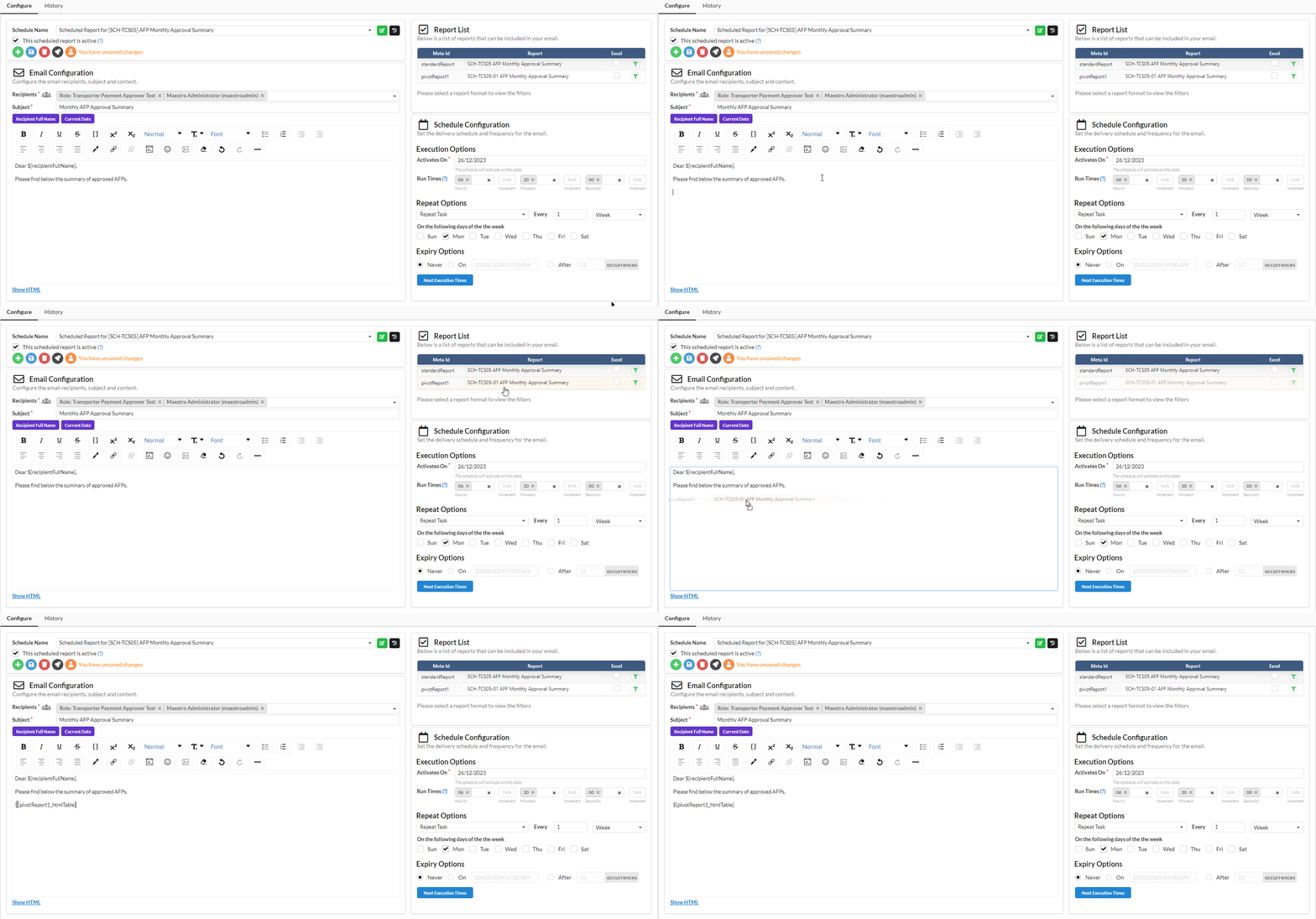
In the generated email, the placeholder will be replaced by the actual report data table.
Report List Section


This section shows all sub-reports related to the main report, including the mandatory standard report (a basic flat table of data) and additional pivot reports if any, which summarize the data into an easily analyzable format.
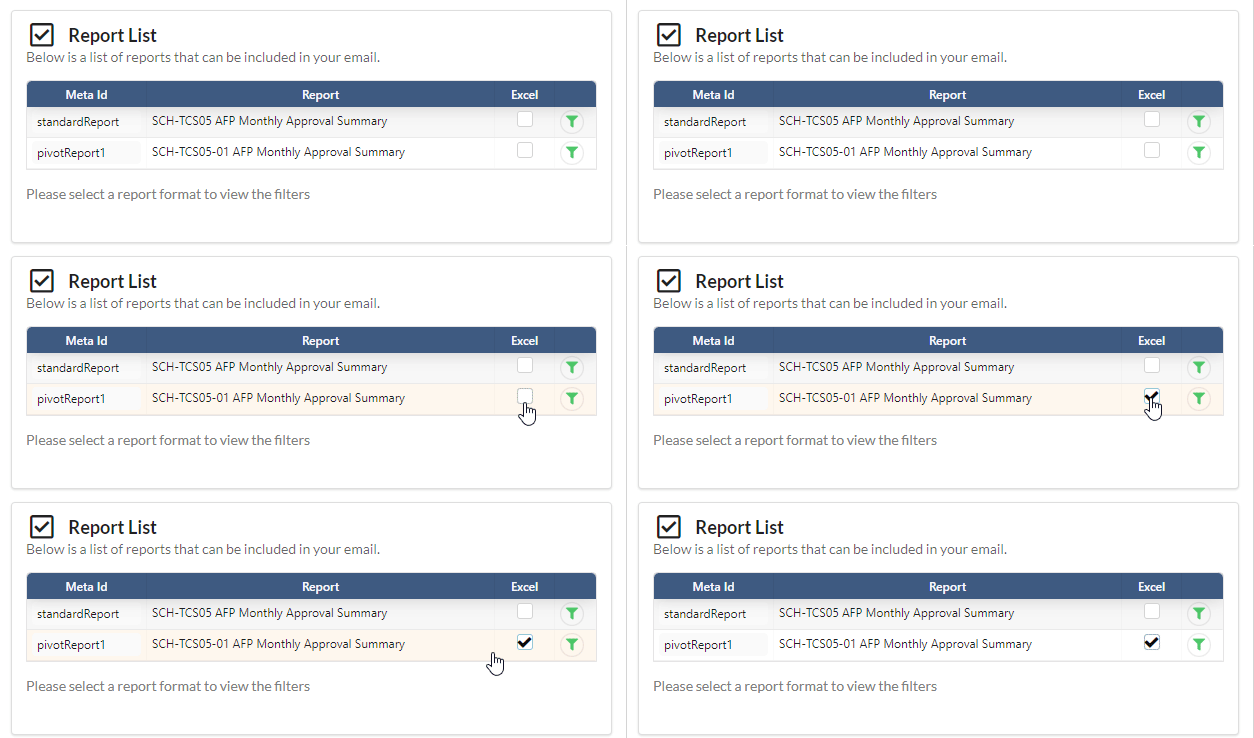
STEP 7: Attach the report as an Excel file
(optional) Check the Excel checkbox next to the sub-report name to attach it as an Excel file in the email. You can attach multiple Excel reports in the email.
STEP 8: Include the filter placeholders if necessary
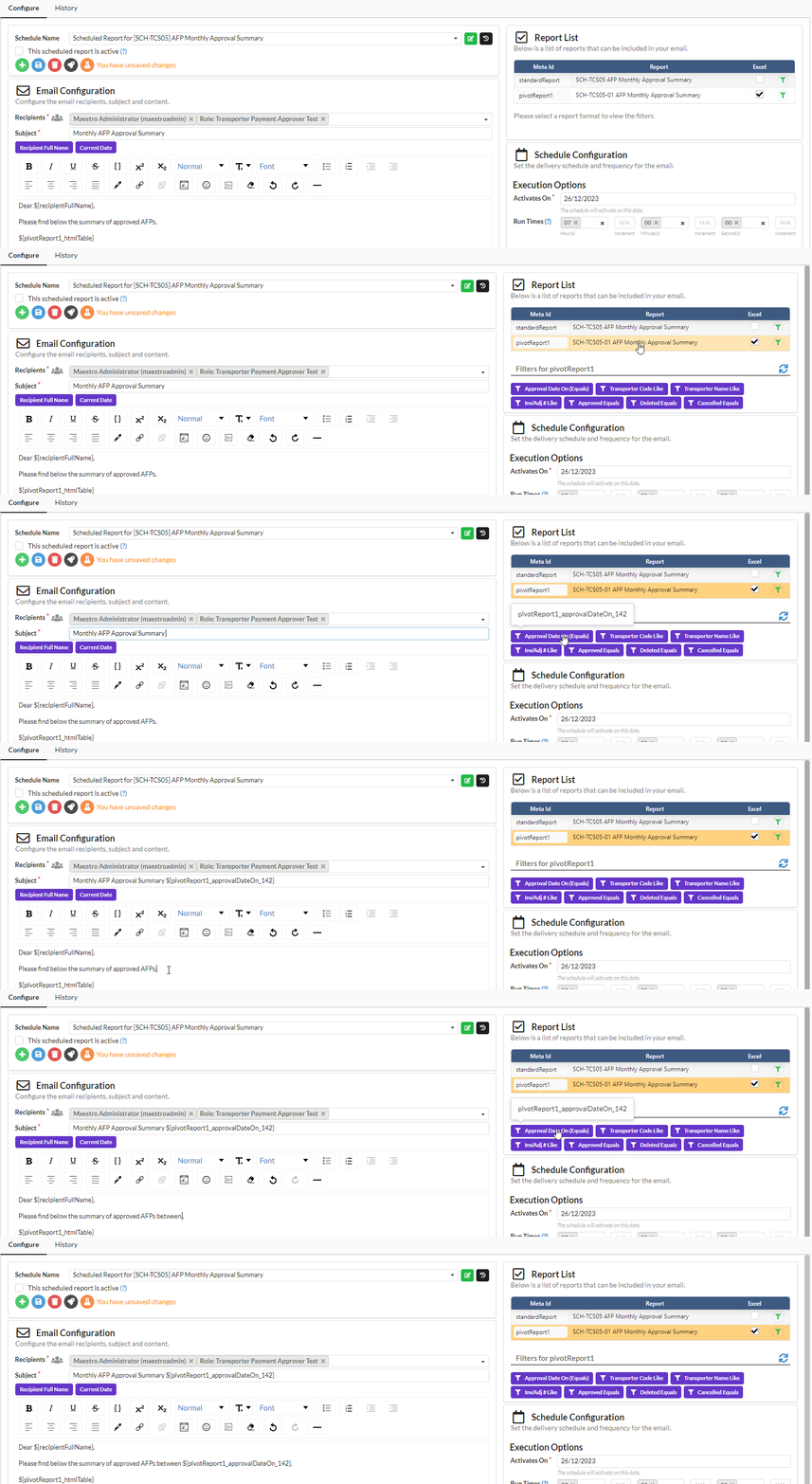
(optional) Insert the filter placeholders in the email subject and/or body. Perform this step if you need to show the value of one or more filters in your email. For example, in an email containing a report that summarizes a set of data, you would normally want to show the effective date range of the dataset e.g. 01/01/2023 - 31/01/2023.
To insert the filter placeholder, click on the sub-report containing the filters that you want to include. Then, click and drag the filter button (purple color) to the insert position of either the email subject or body.
STEP 9: Configure the delivery schedule
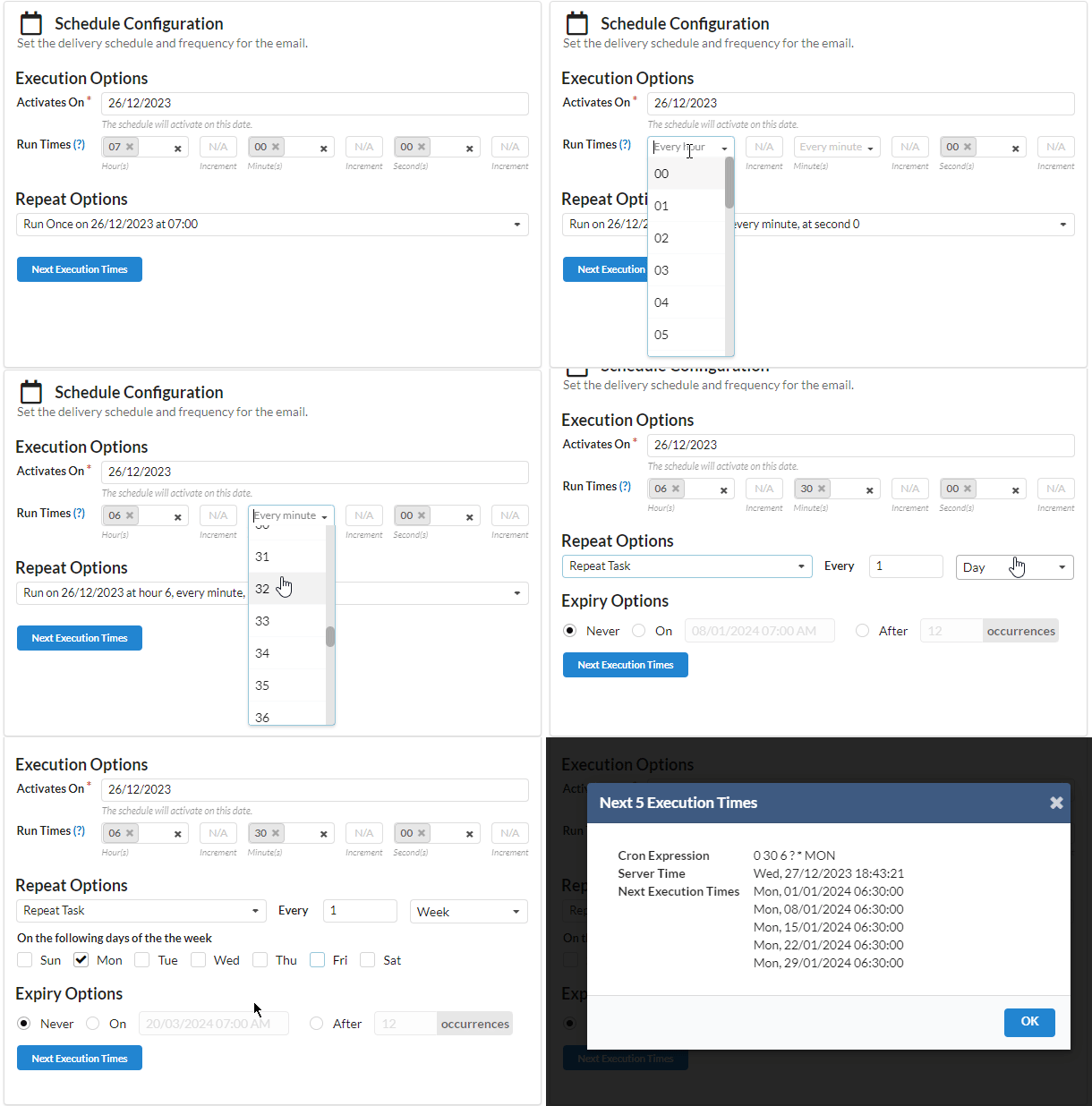
Set up the email delivery schedule to run once or recur daily, weekly, monthly, or yearly. For example, to set the schedule to run every Monday at 6:30am, you should set the run time to 06h 30m, repeat options to "Repeat Task, 1, Week", and days of week to "Mon". If you need the schedule to start in the future, just set the "Activates On" date to when you want it to begin.
To preview the schedule times, click the "Next Execution Times" button.
For more details on the various scheduling options, refer to the "Configure the report schedule" article.
STEP 8: Review and Activate
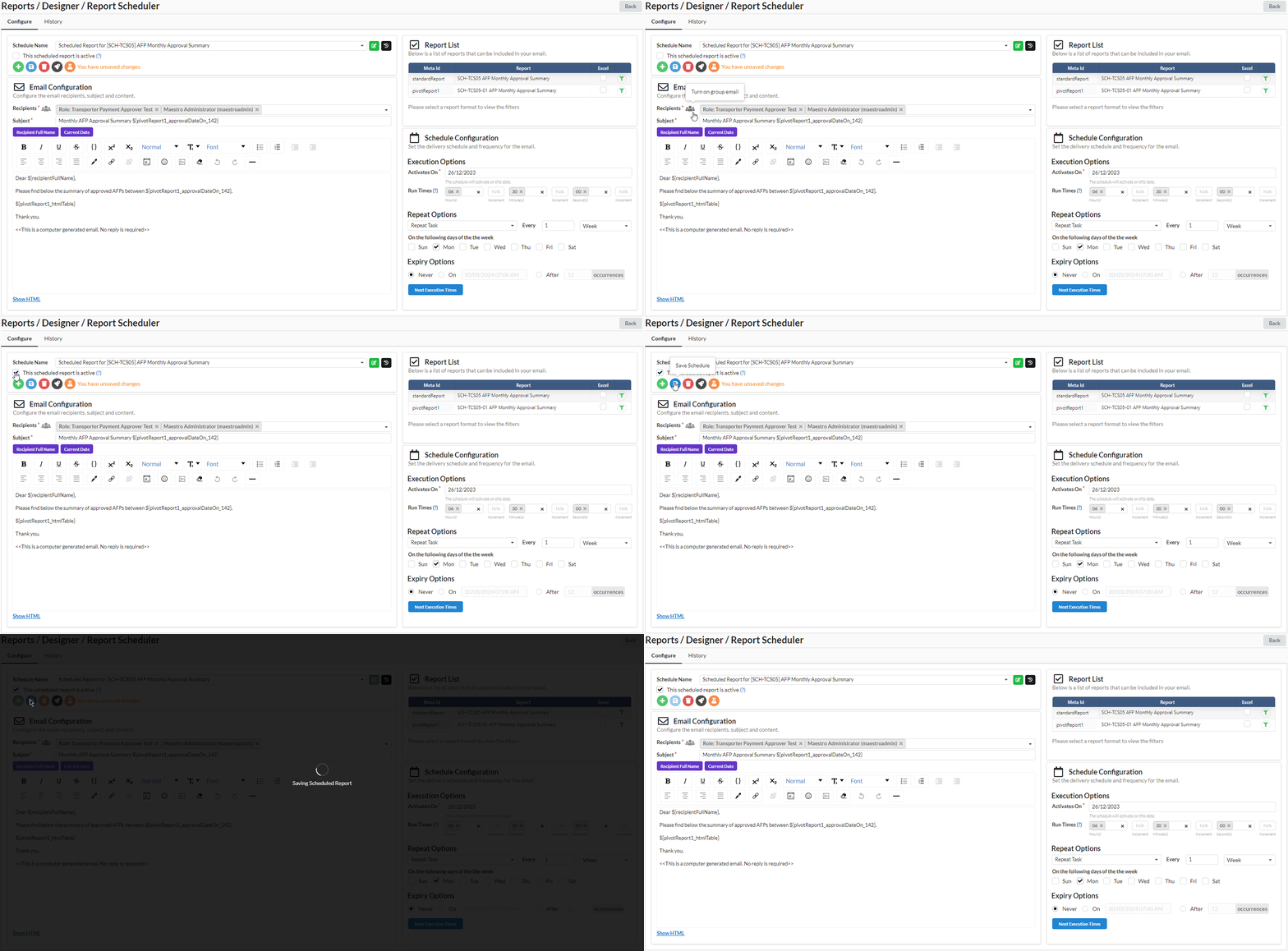
Review your settings to ensure everything is correct. Then, activate the schedule by checking the 'This scheduled report is active' option. Don't forget to save your settings.
By following these simple steps, you can create and schedule reports that will help you stay on top of your business performance. If you encounter any issues while creating or scheduling reports, our customer support team is always available to assist you.