1. Indicate that a lorry has started to load
Step 1: Find the lorry
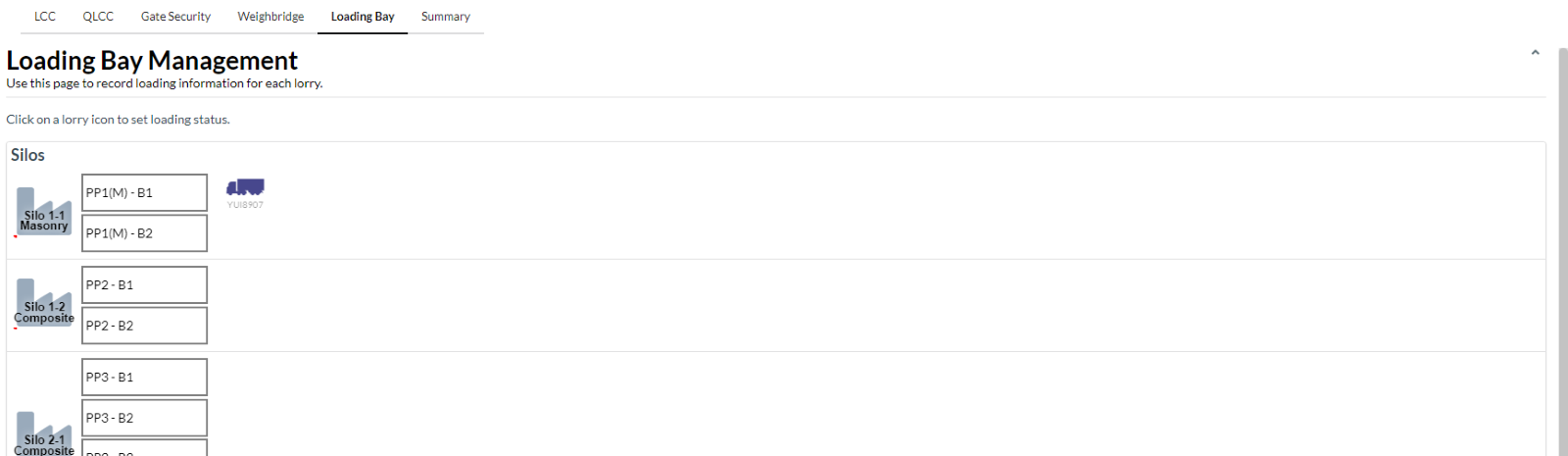
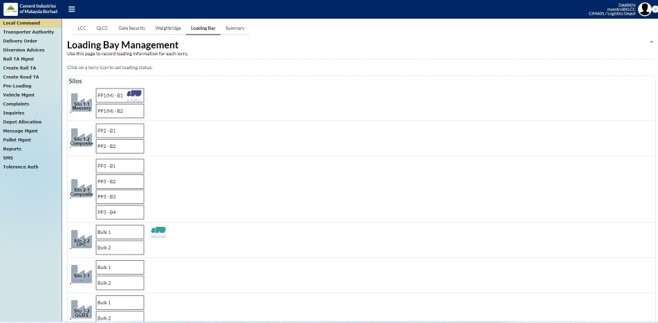
When a lorry has started the loading process, find the lorry in the graphical overview and click on it. The information about the lorry will pop-up.
Step 2: Verify Lorry Information
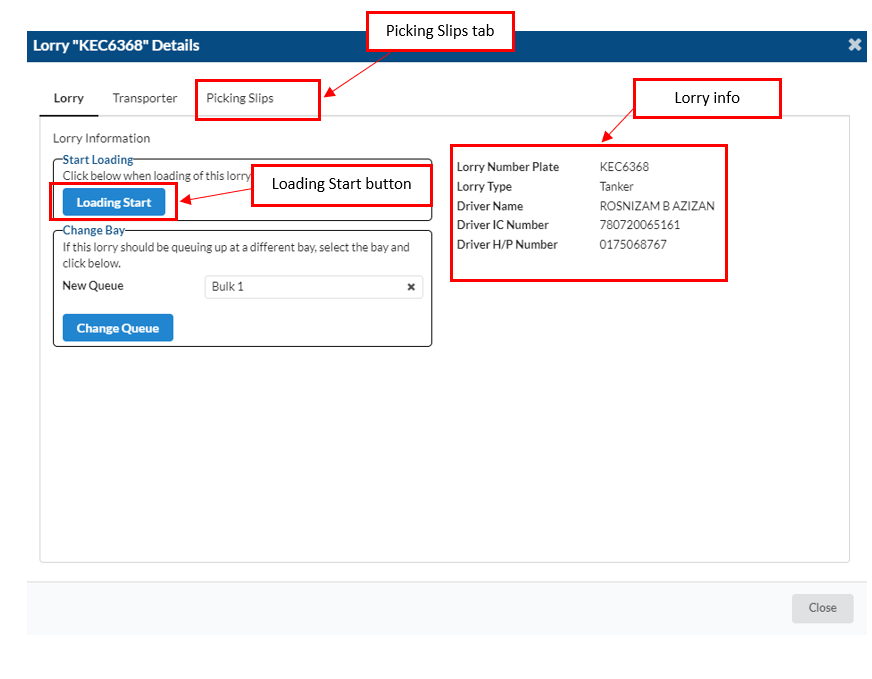
You can verify that the lorry and the picking slip information is correct.
Step 3: Indicate loading start
Find the "Start Loading" section under the "Lorry" tab. Click on the "Loading Start" button.
Note that in the graphical overview, the lorry will move to inside the loading bay. This information is also relayed to local command.
2. Indicate that a lorry has completed loading
Step 1: Find the lorry
Click on the lorry in the correct loading bay. The information about the lorry will pop-up.
Step 2: Verify lorry information
Check that the lorry and the picking slip information is correct.
Step 3: Indicate loading end
Find the "Done Loading", "Ready for Weighbridge" section under the "Lorry" tab. Click on the "Done Loading" button. The lorry will disappear from the graphical overview.
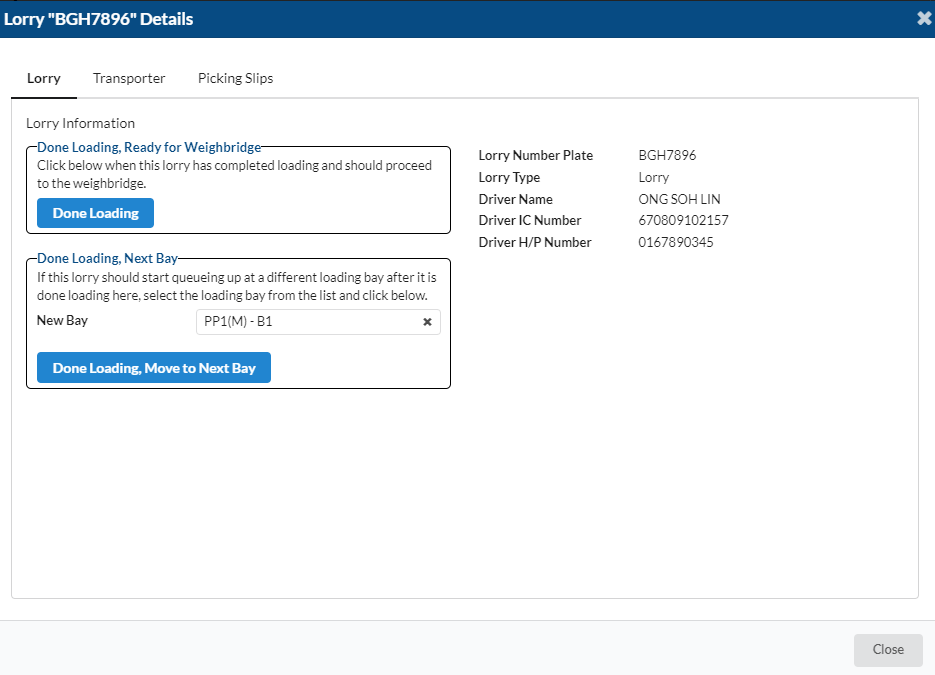
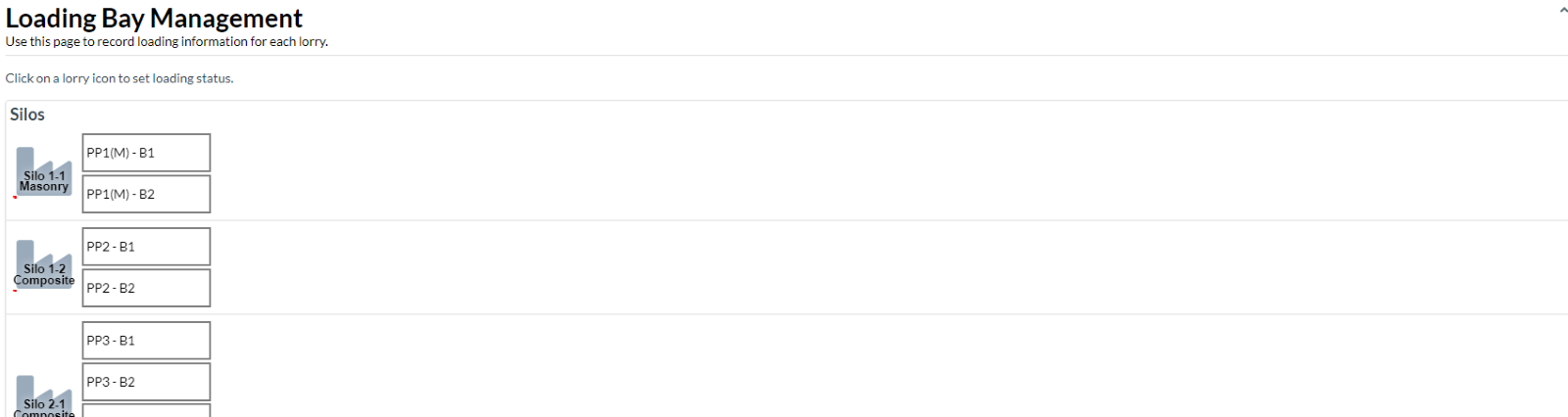
After clicking Done Loading button, the lorry/tanker icon will disappear from graphical overview.
3. Indicate that a lorry is changing queue
If a lorry is supposed to queue up for a particular loading bay (e.g Loading Bay), but needs to change loading bays (change to Loading Bay 2 because Loading Bay 1 has to close because of problems), that needs to be indicated in the system.
Step 1: Find the lorry
Find the lorry that should change queue and click on it. The information about the lorry will pop up.
Step 2: Verify lorry information
Check that the lorry information is correct
Step 3: Indicate loading end
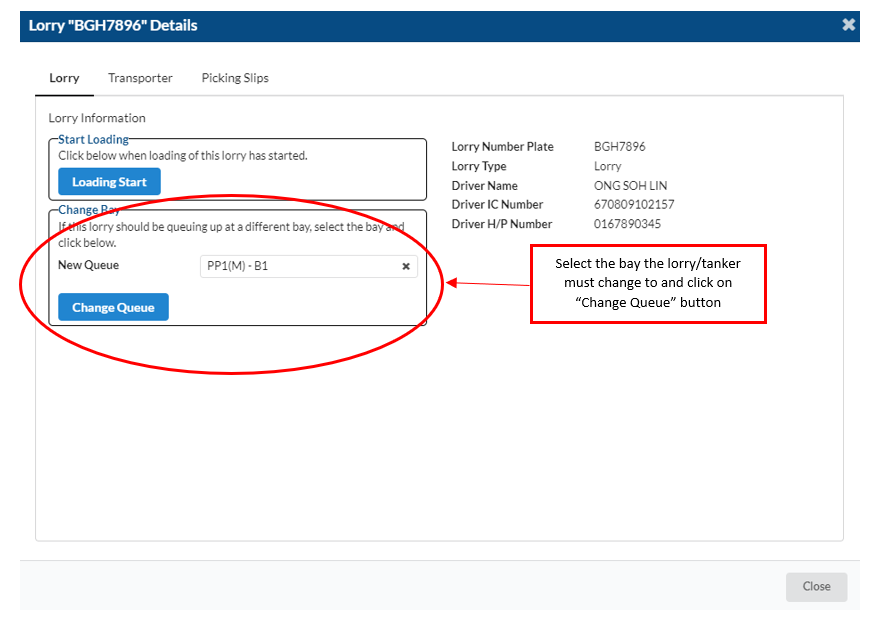
Find the "Change Bay" section under the "Lorry" tab. Select the new loading bay under the "New Queue" drop down box. Click the "Change Queue" button.
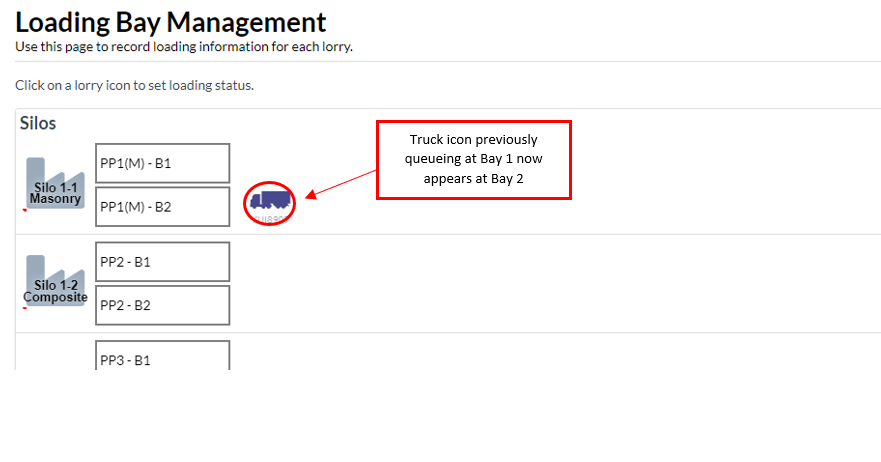
You will notice that in the graphical overview, the lorry will move to the end of the new queue.