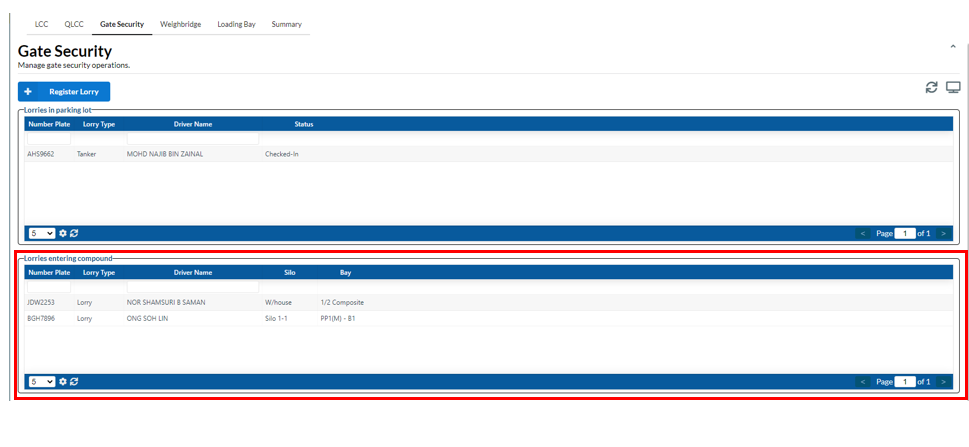
Lorries that should enter the compound will appear in Table 2( Lorries entering compound). When a lorry appears at the compound entrance and hands over their IC and documents for checking, you can click on the lorry in the table 2. The box "Confirm Lorry Movement" will appear.
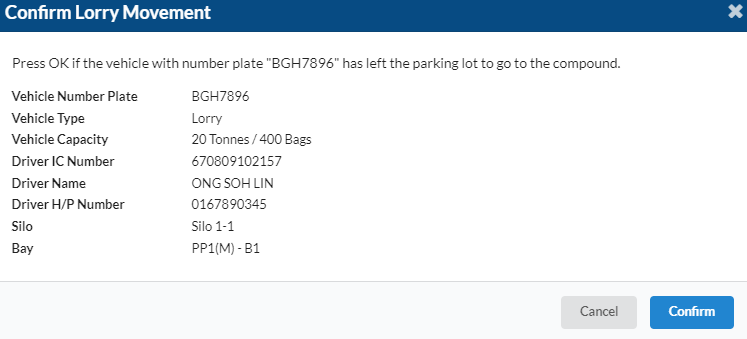
You can review the lorry and driver information. Once everything looks okay, click "Confirm" to accept.
Weighbridge
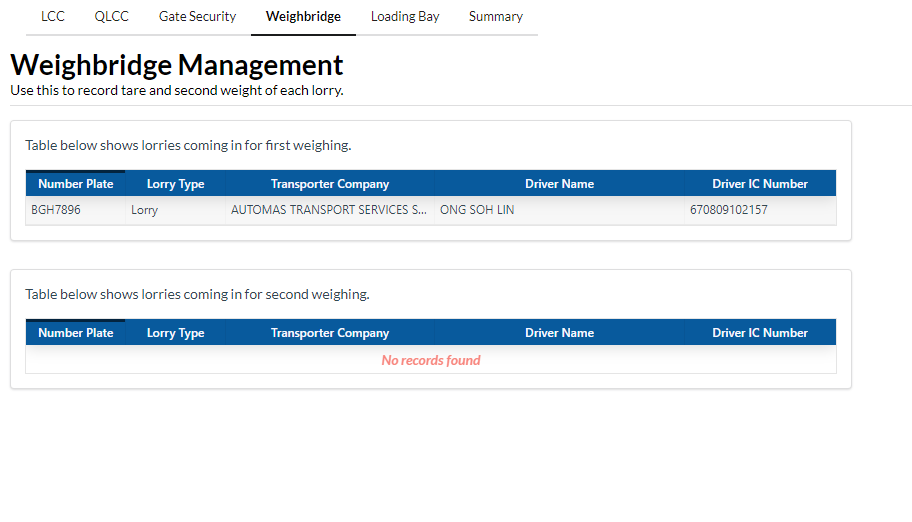
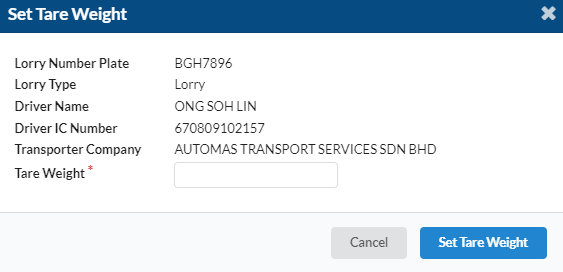
When the lorry movement has been confirmed, you need to take the first weight. You can click on the lorry in the table 1. The dialog box "Set Tare Weight" will appear.
User needs to set the tare weight for the lorry. Then click on "Set Tare Weight" button.
Loading Bay
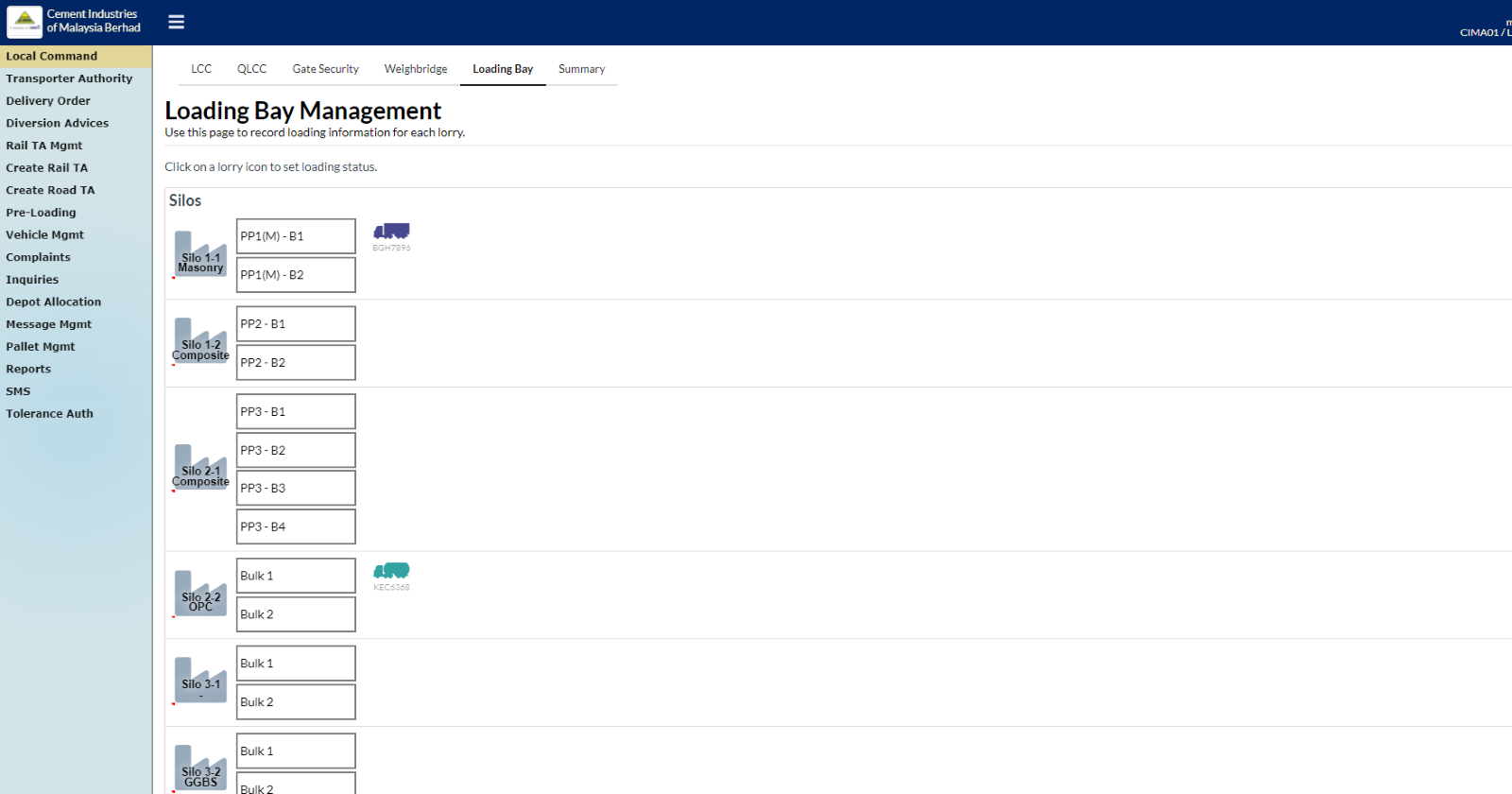
When the first weight is already set, you need to navigate to Loading Bay tab which is under Local Command page. Click on the intended lorry icon and a new dialog box will appear.
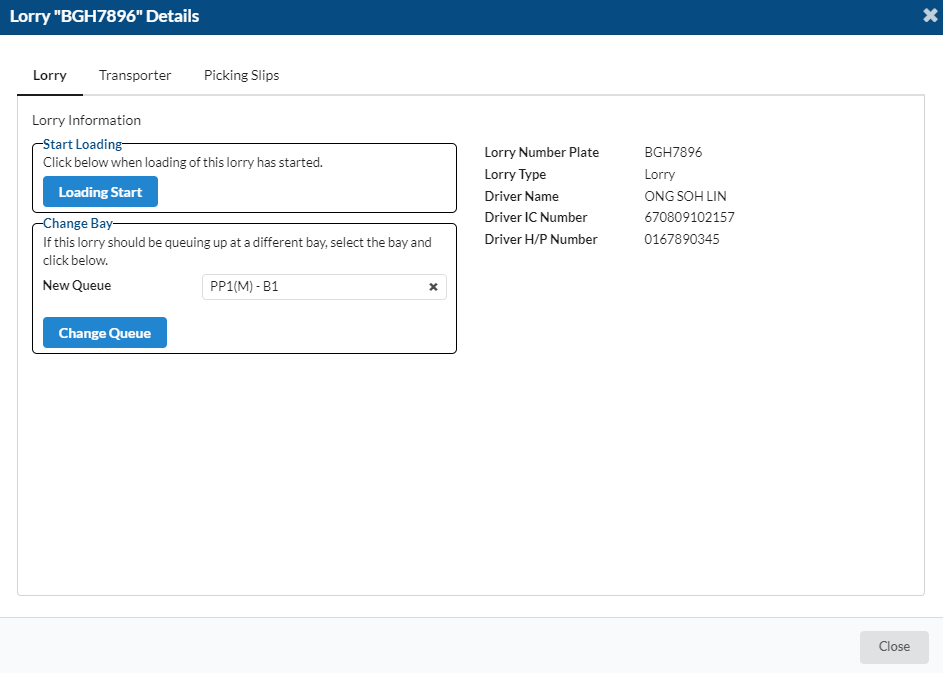
Click on "Loading Start" button which is under Start Loading table. Other than that user can change queue by clicking on the dropdown list next to "New Queue" then click "Change Queue" to change a different bay.
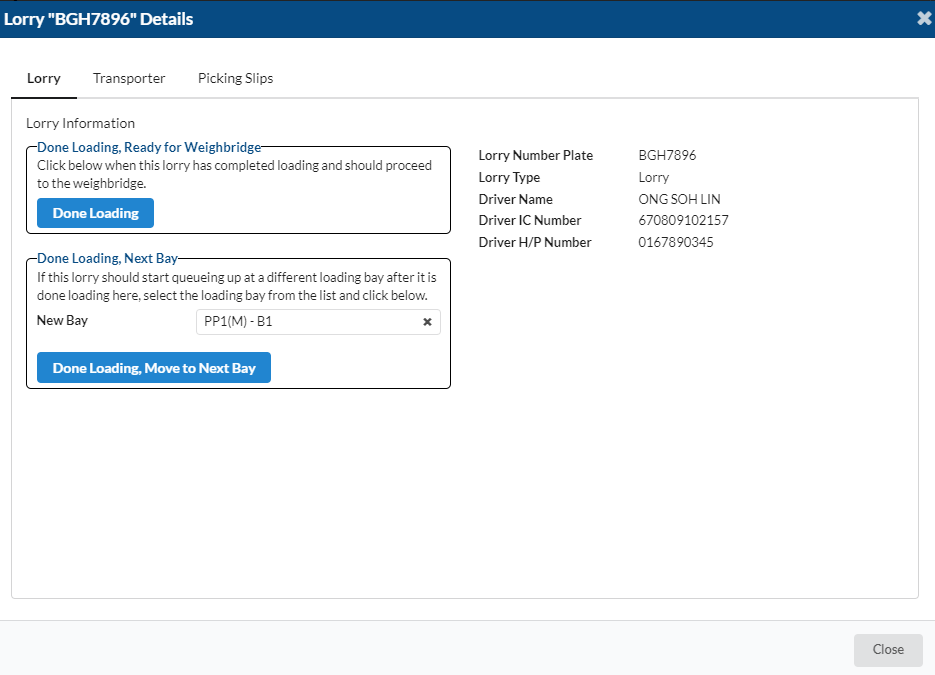
Next, click on the lorry icon again after start loading and a bew dialog box for the lorry will appear.
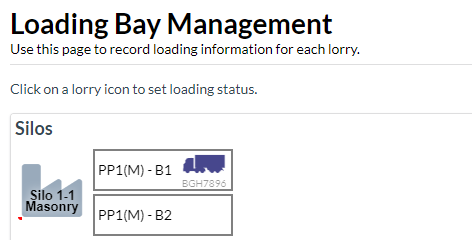
Click on "Done Loading" button to complete the loading.
Next, go to Weighbridge tab to set the second weight

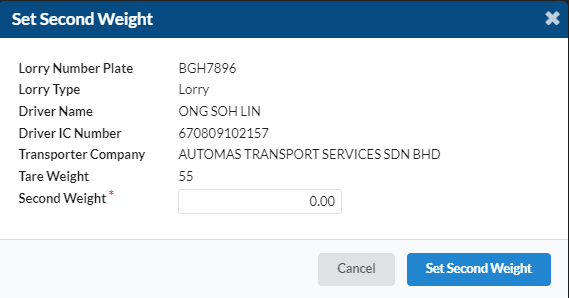
A "Set Second Weight" dialog box will appear for user to set the second weight. Click on "Set Second Weight" button.