1. Registering Lorry entering Parking Lot
Step 1: Register lorries entering parking lot
When a new lorry enters the parking lot, you can register the lorry in the system.
a. Click the "Register Lorry" button
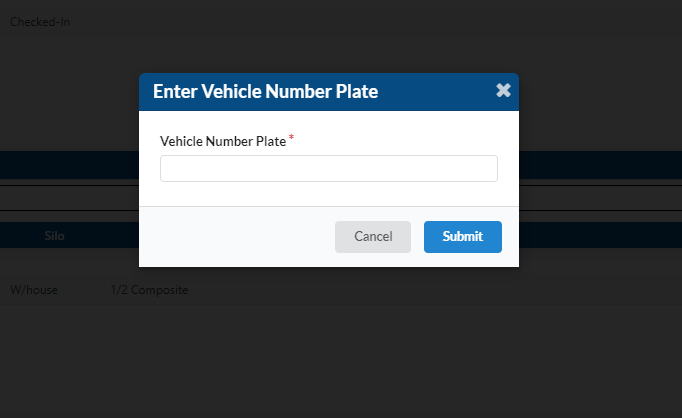
b. The "Enter Vehicle Number Plate" box appears.
c. Enter the number plate in the "Vehicle Number Plate" box.
d. Click "Submit".
There are then two possibilities:
A. FIRST TIME VEHICLE REGISTRATION (If this is the FIRST TIME the lorry/tanker is being registered in the system
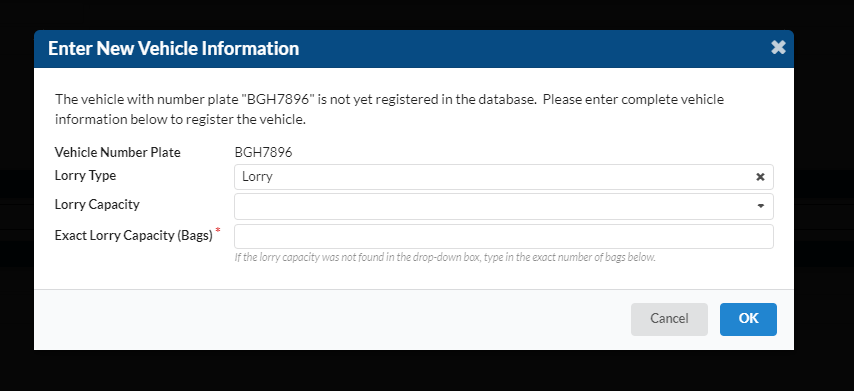
i. The "Enter New Vehicle Information" box pops up.
ii. Select a lorry type (Tanker or Lorry) by clicking at the arrow of the drop-down
box
iii. Select the capacity (size) of the vehicle by clicking at the arrow of the drop-down box.
iv. Click "OK" to register the lorry for the first time.
Next, enter the driver IC Number and click "OK".
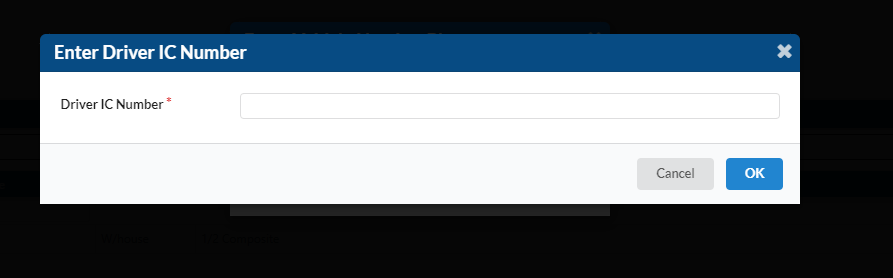
Here also are two possibilities. The system checks for the driver IC number in the database and prompts Gate Security to enter New Driver information if there's no match with existing records:
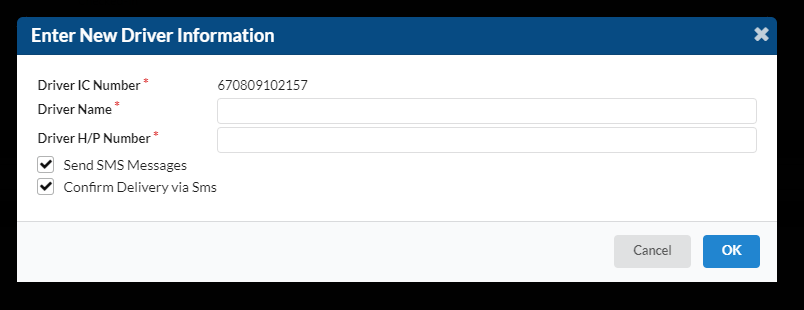
1. FIRST TIME DRIVER REGISTRATION (If this is the first time the driver being registered in the system)
i. The "Enter New Driver Information" box pops up.
ii. Type in the driver name and Click "OK".
After clicking OK, a confirmation box pops up to confirm registration detaails of both vehicle and driver.
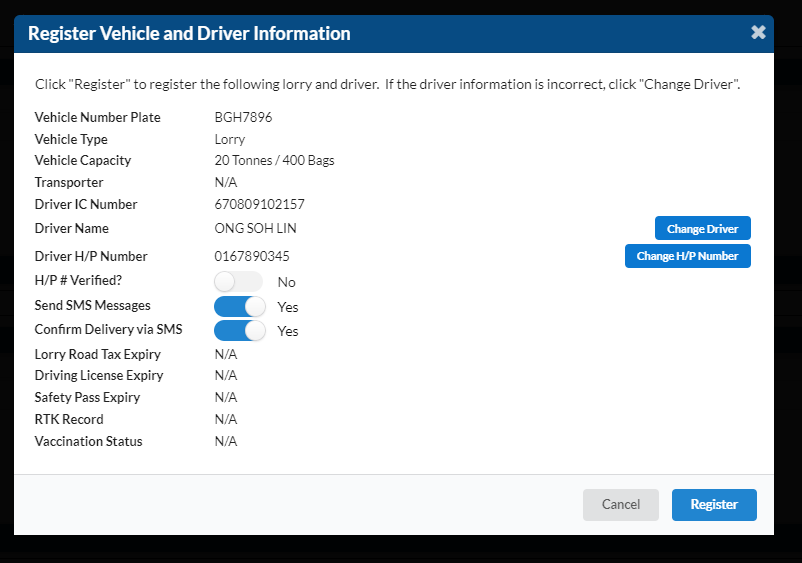
- Check the details in this box and if the driver's details are incorrect, you can change the details here.
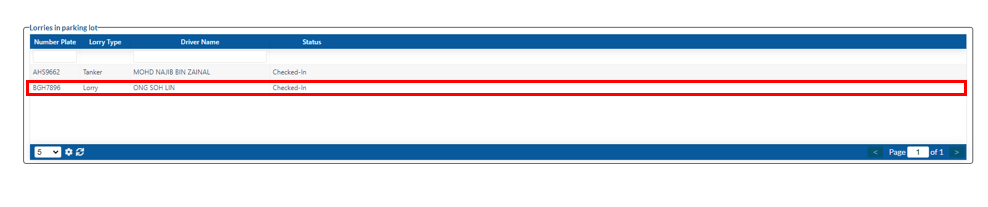
- Click "Register" to confirm details and the registration is now completed and the information is now available in the "Lorries in Parking Lot" section/table.
2. DRIVER REGISTERED ALREADY (If this driver has been registered before):
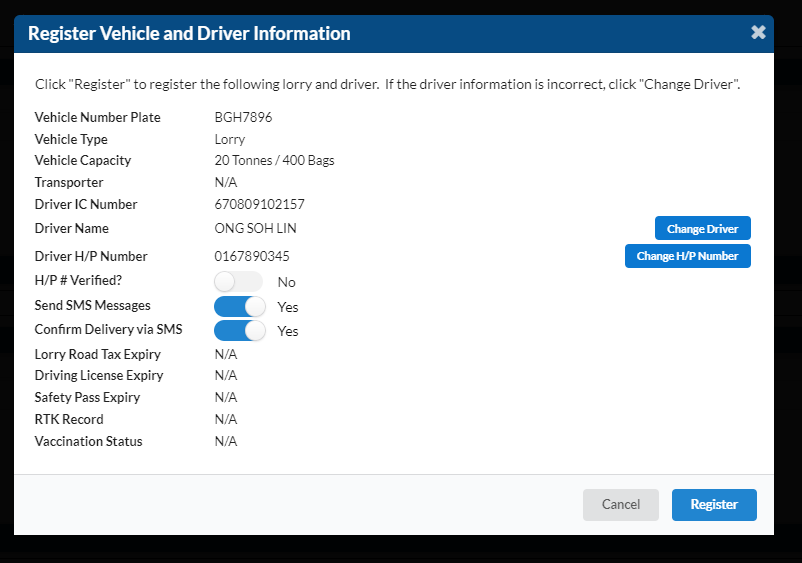
If the driver has been registered before, you will be greeted with the "Register Vehicle and Driver Information" dialogue box after you enter the driver's IC number
The system will check in the database for the driver's information and if the data is available, the system will retrieve the information and confirmation of registration can be done immediately.
B. VEHICLE ALREADY REGISTERED:- (If this vehicle has been registered before):
The system will already have the information about the lorry and driver and the same step as the previous section applies. Confirmation of vehicle and driver will be immediately requested.
The system will check and retrieve the vehicle information and since both vehicle and driver information are already available, the system will pop up the "Register Vehicle and Driver Information" box. Review the vehicle and driver information. The driver can be changed if it is a different driver by clicking on the "Change Driver" button. If all the information is correct, click "Register"
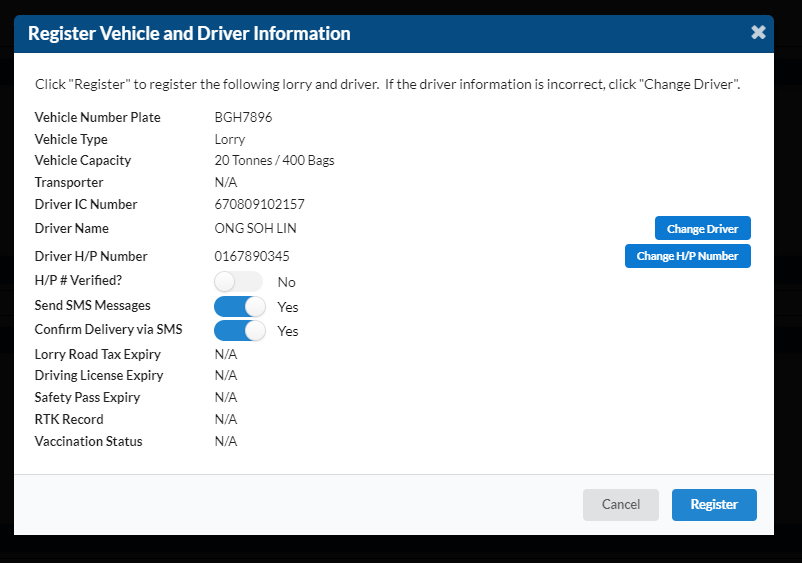
Once this is complete, the lorry and the driver will be registered. The lorry will appear in Table 1 (which shows the "Lorries in the parking lot").
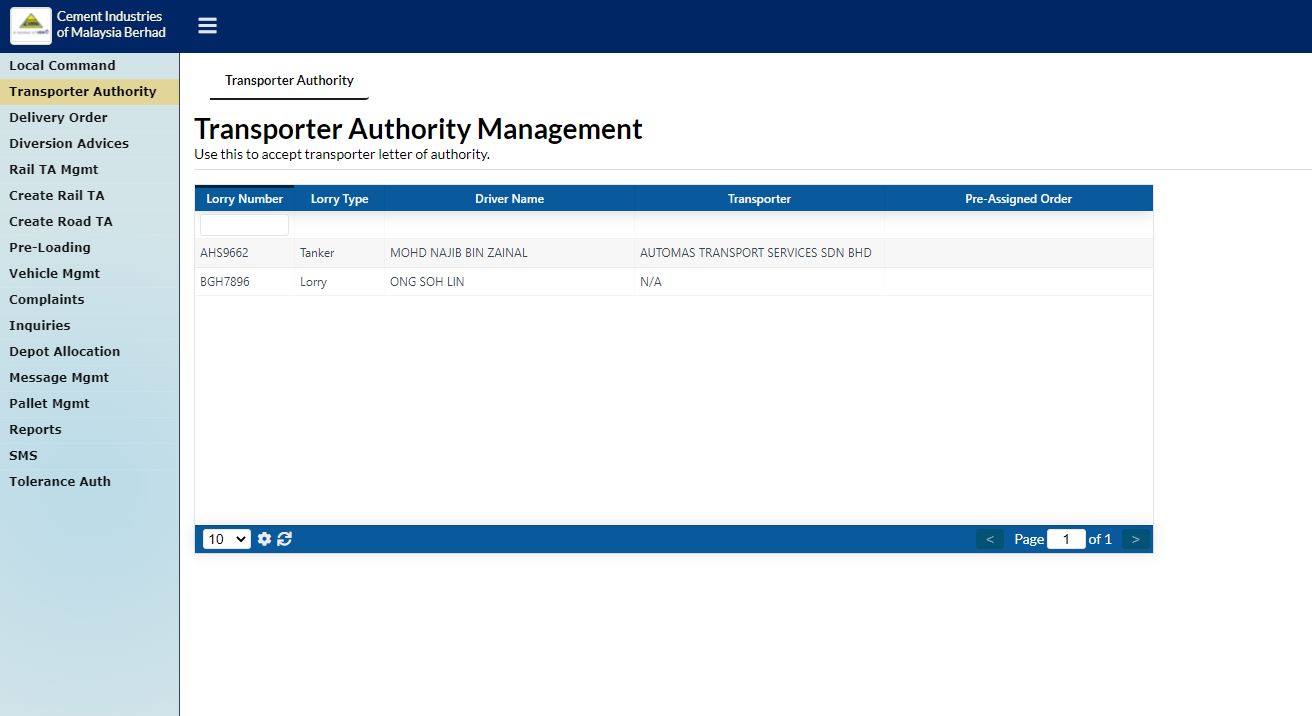
Transporter Authority
After registering lorry, navigate to "Transporter Authority" page. Click at any intended registered lorry.
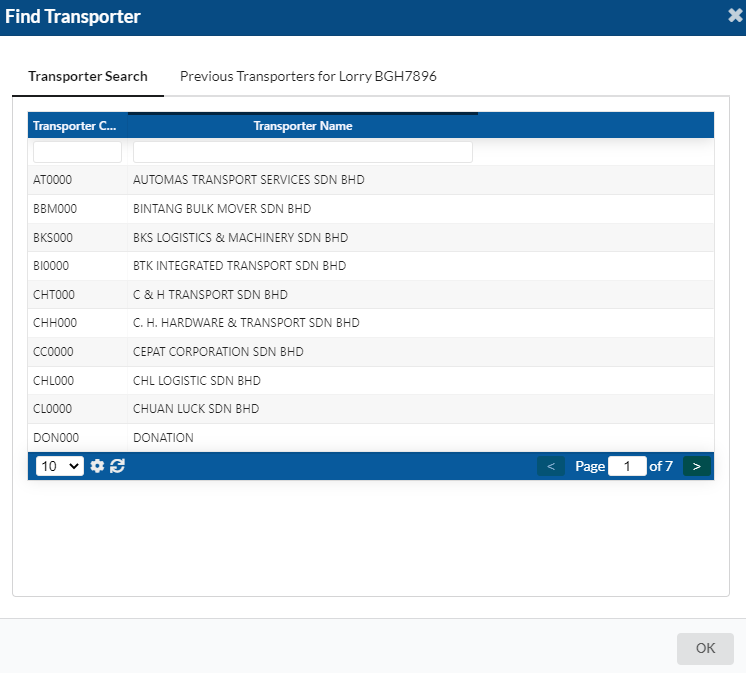
The "Find Transporter" dialog box will appear for user to search the transporter name that available on the list. Click at any intended transporter name.
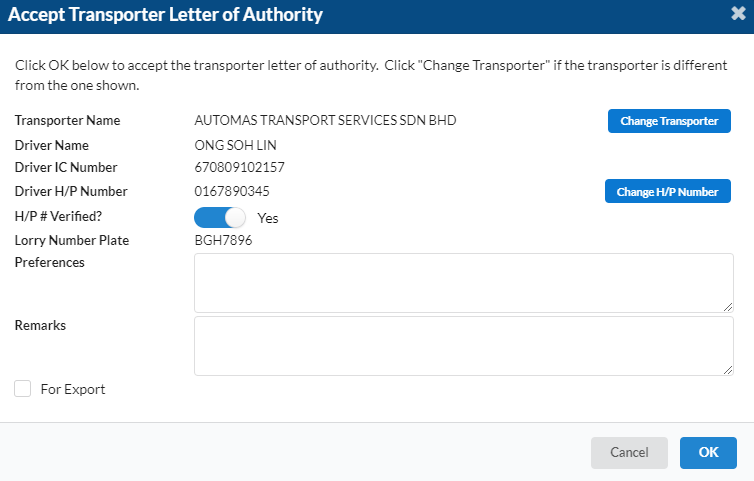
A new dialog box will appear for user to accept the transporter authority. There are two action boxes which are "Change Transporter" button and "Change H/P Number" button. User has to click on "Change Transporter" button when there is no transporter name on the dialog box. User also needs to verify driver H/P number by clicking "Yes" next to Driver H/P Number. Then, click OK to accept the transporter letter of authority.
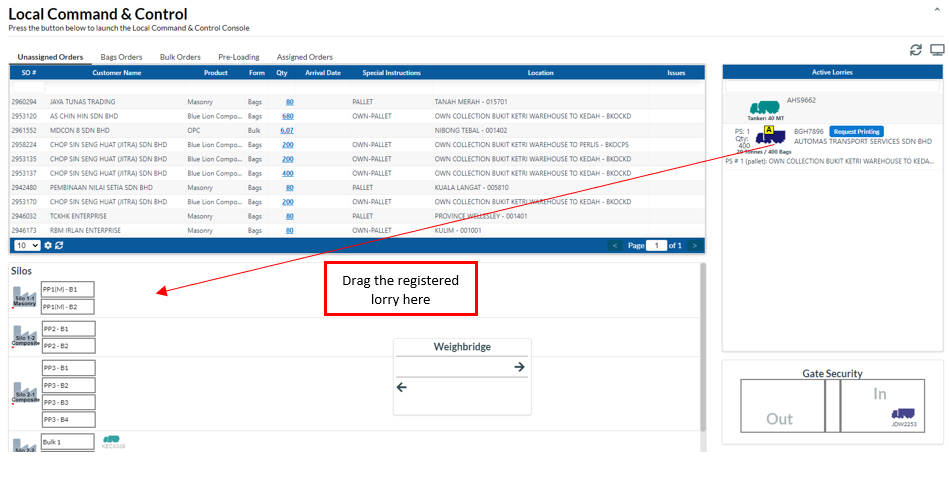
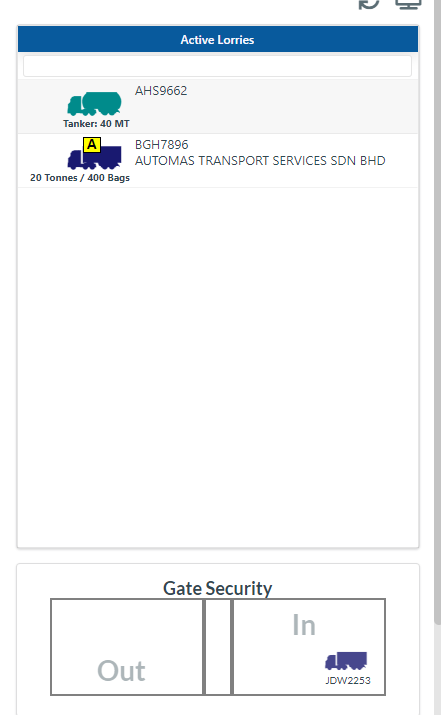
Go back to Local Command page (default home page). You will see a lorry that is already registered and authorized just now.
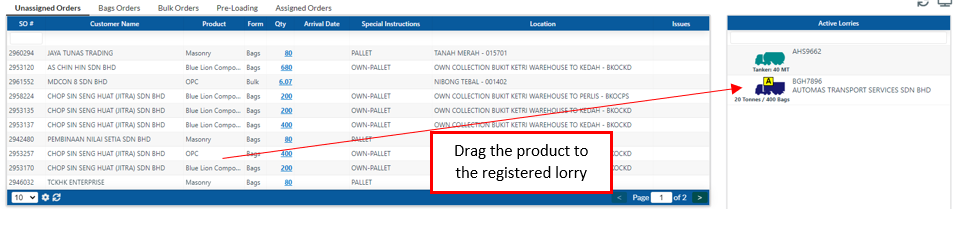
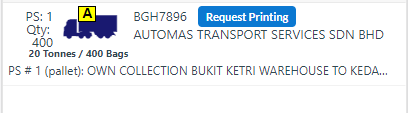
User has to drag the products to the registered lorry which is under Active Lorries area.
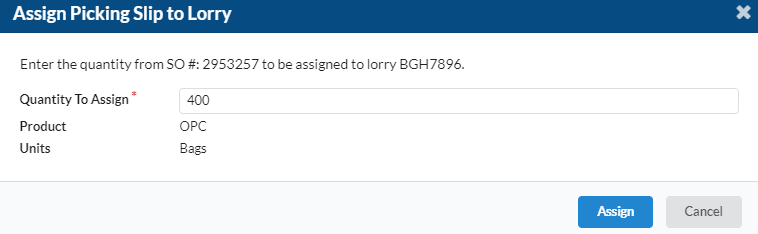
A new dialog box will appear to assign the picking slip to lorry. Then, click "Assign" button.
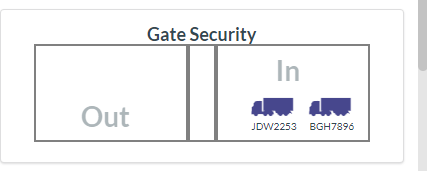
After that, drag the registered lorry to the Silos section. You can see the lorry is in the gate security.