
1.1 Transporter Home Page
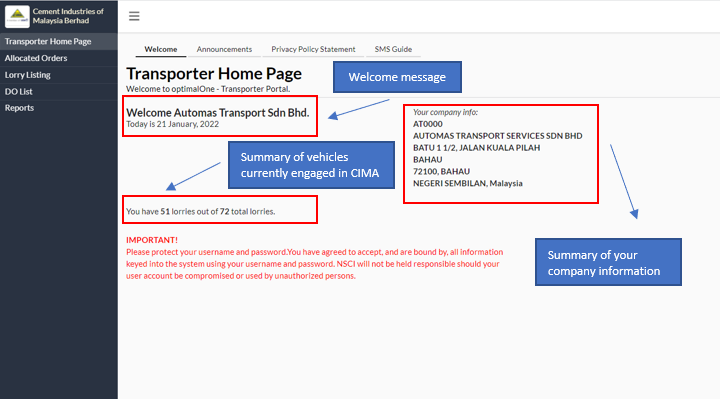
The Transporter Home Page welcomes you to your Distributor Portal, and includes the following:
- Welcome message
- Today's date
- A status summary of vehicles registered which are active/inactive
- A summary of your company information
- Top and left navigation buttons
1.1.1 Home Page - Top Navigation Buttons
Next to the Home Page button, there is an Announcement button.
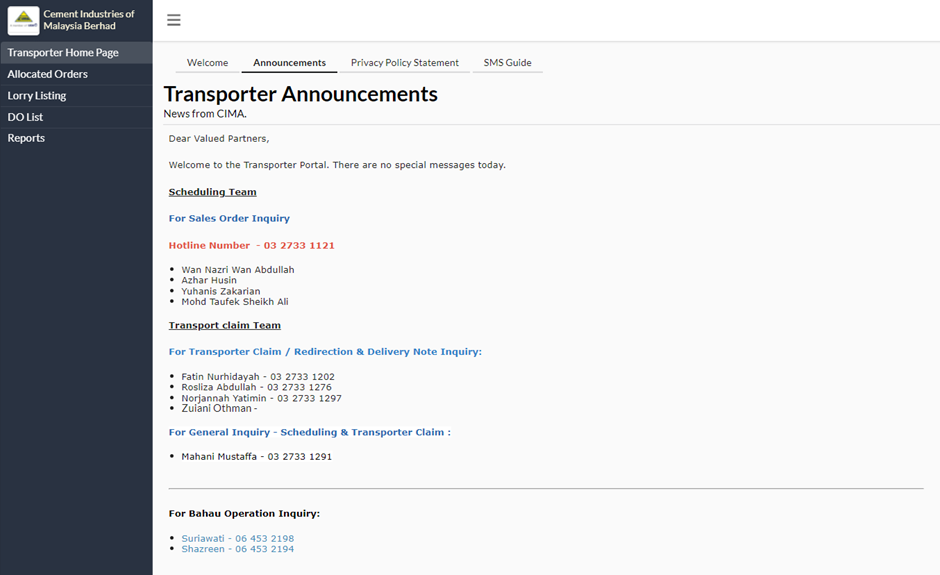
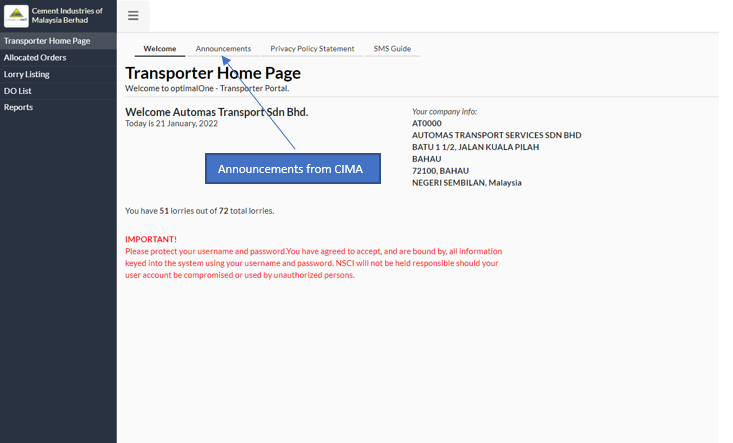 When you click on the Announcements button, you arrive at a page with CIMA's latest announcements and updates for you. An important page to visit regularly, your CIMA representative will discuss with you the kinds of information posted for you on this page.
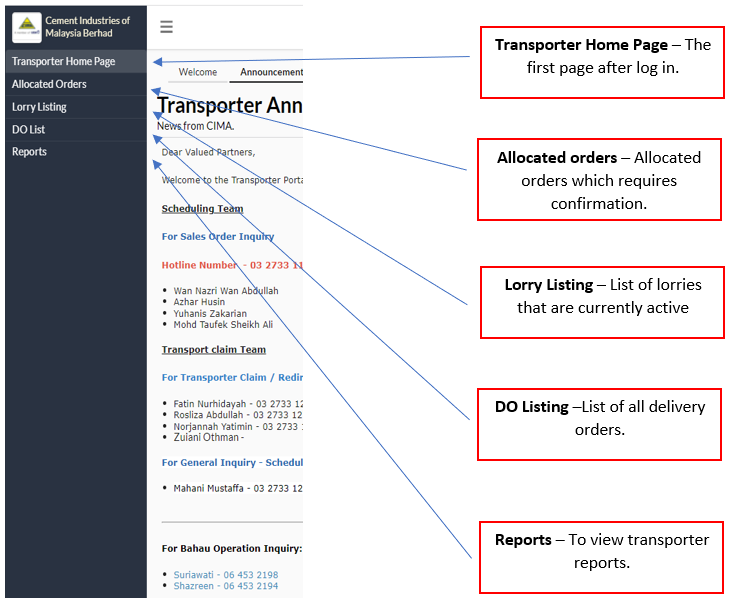
1.1.2 Home Page - Left Navigation Button
In the Home Page, the button on the left column take you to areas and functions within the Transporter Portal as described below:
1.2 Allocation
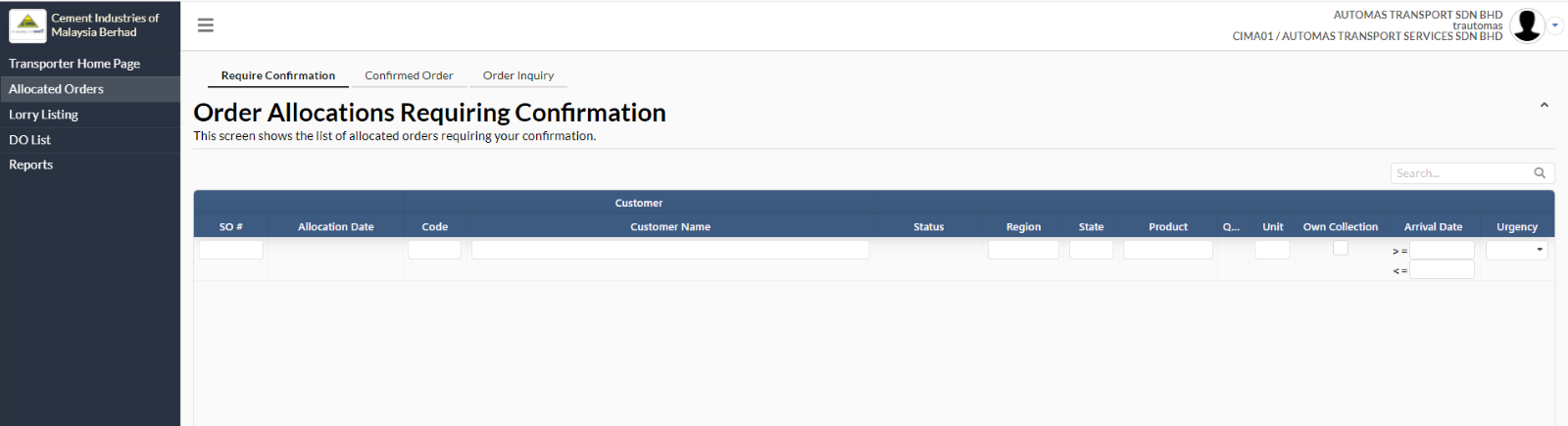
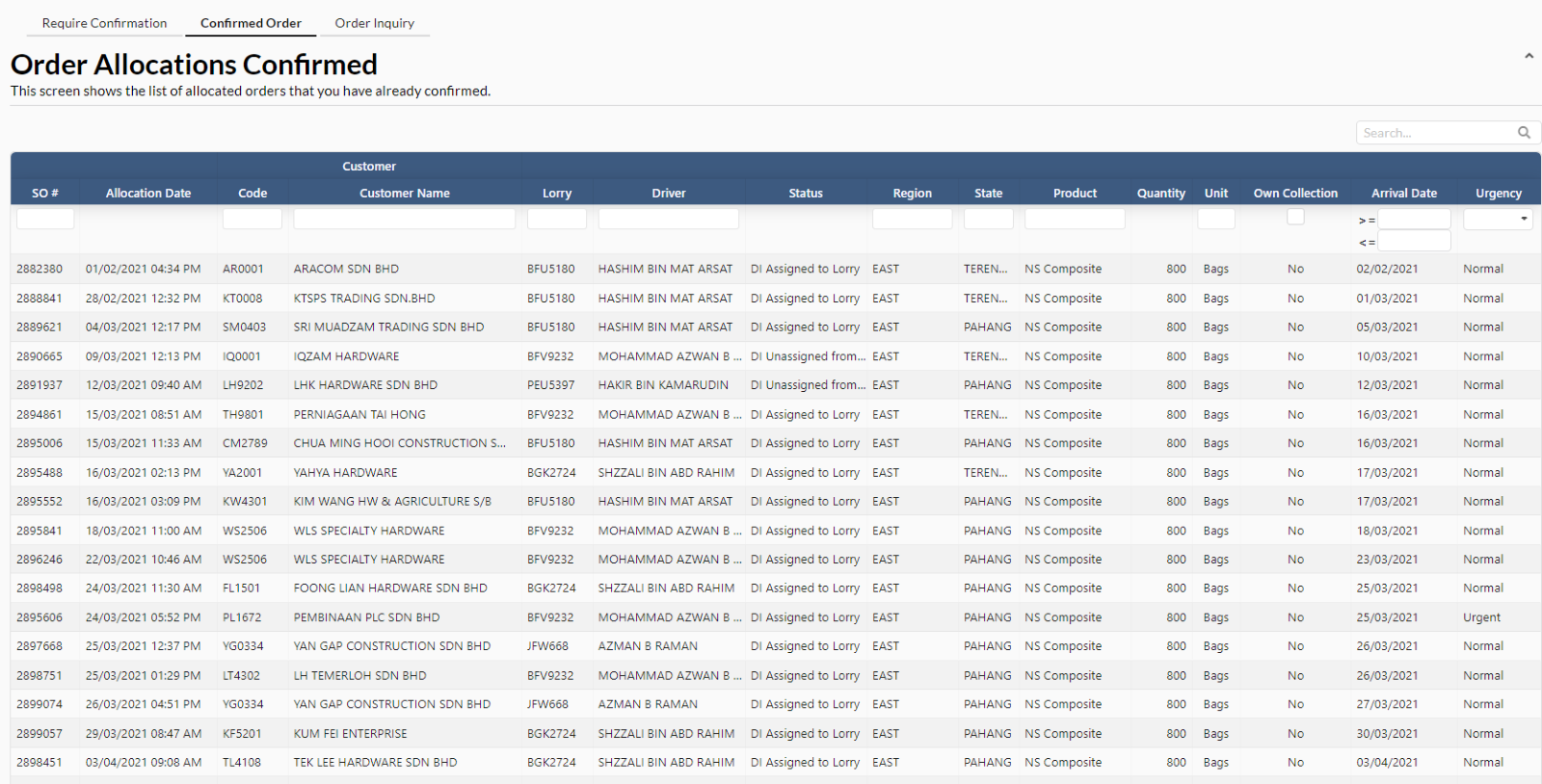
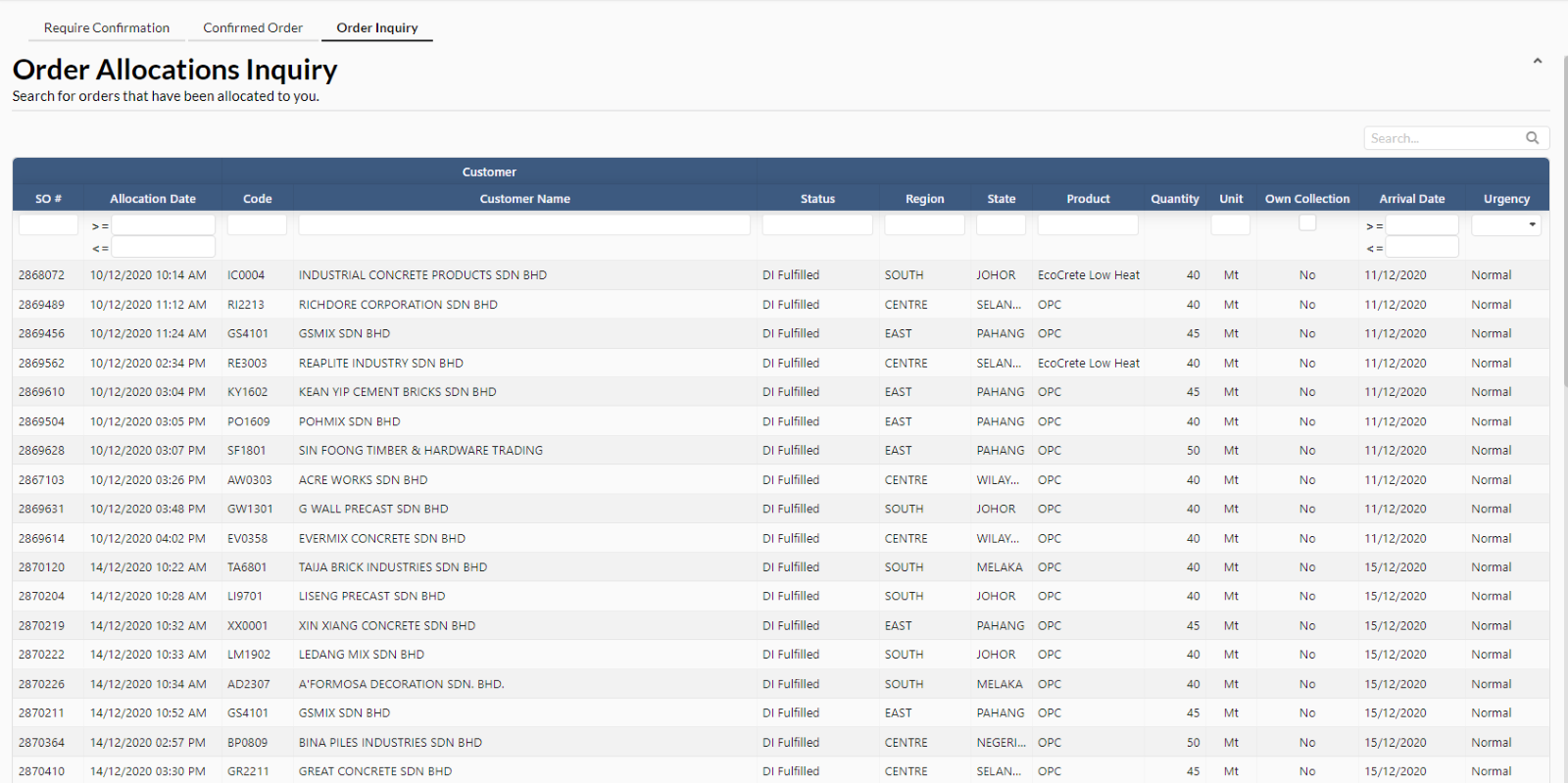
The allocation section contain information of list of orders that requires confirmation by CIMA. Fill in the required information SO Number, Code, Customer Name, Region, State, Product, Unit, Own Collection, Arrival Date and Urgency to search.
There are altogether three buttons associated with the Allocation button. These are:>
- Require confirmation
- Confirmed order - The list of allocated orders that already been confirmed
- Order Inquiry - Search for orders that have been allocated to you
1.3 Lorry Listing
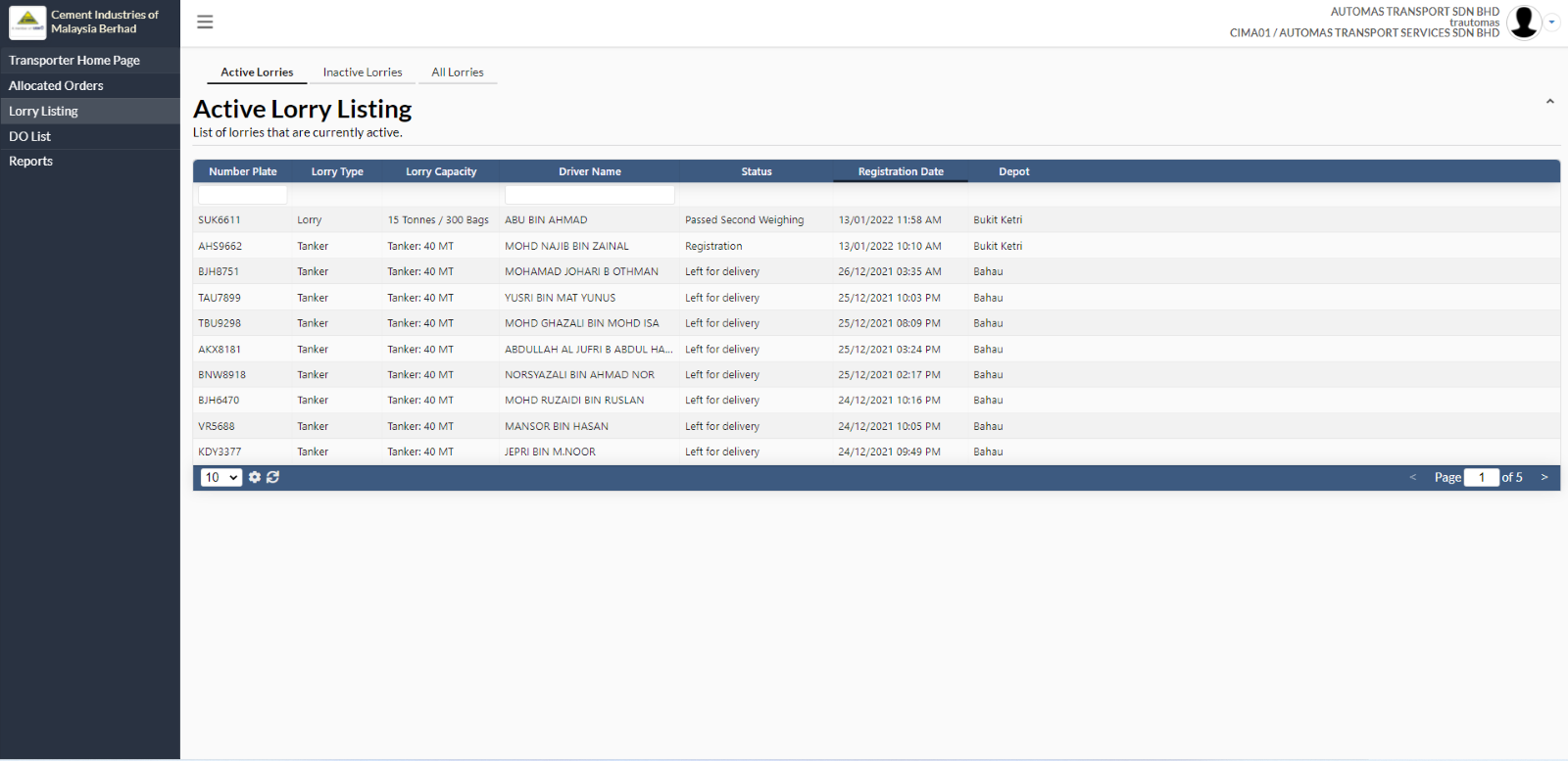
The Lorry Listing section contains information on the status of all your vehicles engaged by CIMA. Click on the Lorry Listing button and you will be presented with the Active Lorries Listing view which lists all the lorries which are currently engaged in a live activity.
There are altogether three buttons associated with the Lorry Listing button. These are:>
- Active Lorries (default page when clicking on lorry listing)
- Inactive Lorries (middle button)
- All Lorries (third button)
1.3.1 Active Lorry Listing
To reiterate the Active Lorry Listing page lists all the lorries which are currently engaged the live activity. The information available in the table are:>
# | Item | Description |
1 | Lorry Plate Number | Lorry Plate Number |
2 | Lorry Type | Tanker or Lorry |
3 | Lorry Capacity | The capacity of the lorries in tonnes for tankers and in tonnes and bags for lorries |
4 | Driver Name | The Driver’s name |
5 | Status | The last activity the lorry has just completed. The types of status are further described in next section. |
6 | Registration Date | The date the latest activity took place |
7 | Depot | The depot the lorry is dealing with |
1.3.2 Type of status for Lorries/Tankers
The following table describes each status which a lorry/tanker may have assigned to them during the process of cement delivery.
Status | Description |
Registration | The vehicle has reached the depot and registered with Gate Security and is waiting to be assigned further instruction. The vehicle is usually waiting in the parking lot outside the depot. |
Announce Call | CIMA has identified an order to be delivered by the vehicle and has initiated a call to the lorry to pick up his picking slip and enter the depot compound. |
Pass Gate | The lorry has taken his picking slip and reported to Gate Security for permission to enter compound and is proceeding to the Weighbridge to get his first weight. |
Queuing for Loading Bay | The lorry has taken his first weight and has moved on to the Loading Bay. The lorry is now waiting to begin loading of cement into the vehicle. There are occasions when lorries/tankers are requested to take on cement from more than one bay. Every time this happens, the status will show that the lorry will “Queue for Loading Bay”, “Start Loading” and lorry will “Queue for Loading Bay” again and “Start Loading” again. |
Start Load | The loading process has started |
Queue for Second Weighing | The lorry/tanker has completed loading process and is now waiting to be weighed for the second weighing. |
Passed Second Weighing | The lorry/tanker has passed second weighing and is heading out to Gate Security. |
Waiting for DO | The lorry/tanker is cleared by Gate Security to wait in the parking lot for the Delivery Order/Note. |
Left for Delivery | Lorries/Tankers have received their Delivery Orders/Notes and have left CIMA to deliver cement to the customer. |
Deregistration | For lorries/tankers which for whatever reason, leaves the parking lot without any cement after registering themselves with CIMA, they are deregistered and are classified as inactive. |
Delivered | For lorries/tankers which have successfully delivered the cement to the customer and have produced evidence of successful delivery, these lorries/tankers are also classified as inactive due to it not have any more active tasks to complete with CIMA. |
1.3.3 Details of record
In the the list of records, users of the Transporter Portal can click on a particular record to view more details of the lorry and important points of the picking slip of the order.
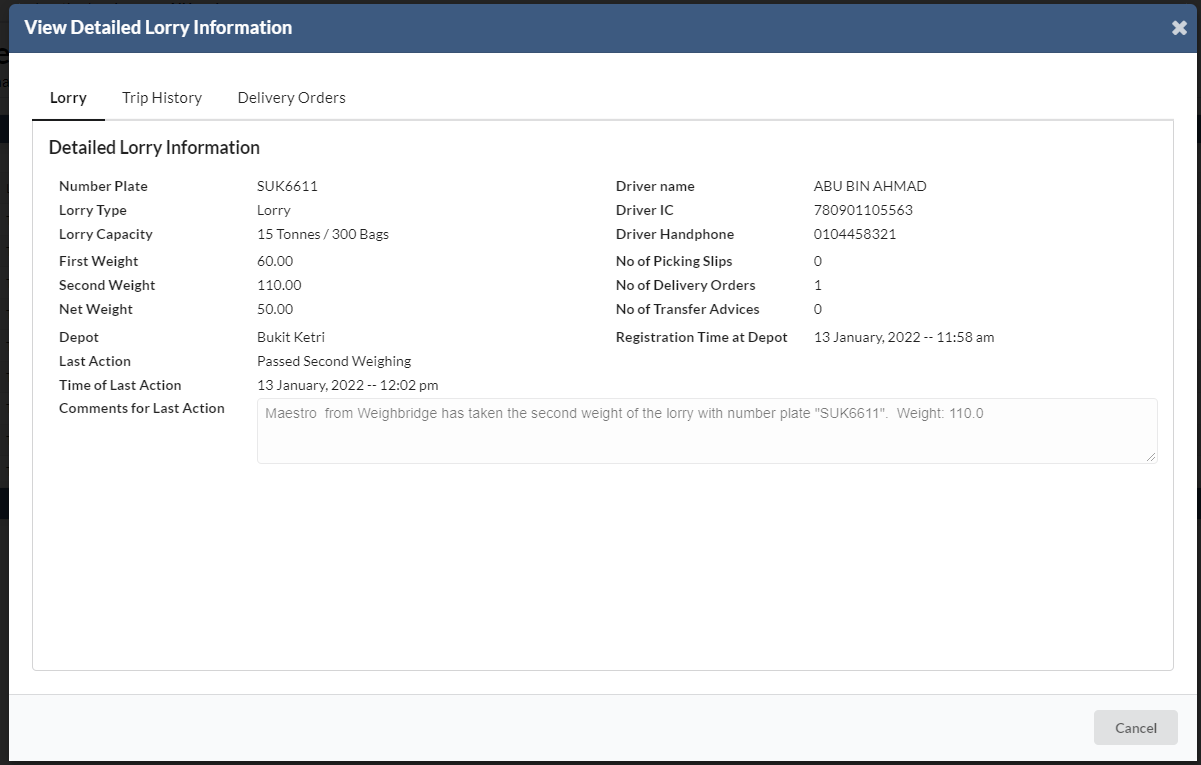
Click on one of the records in the list to open the View Detailed Lorry Information.
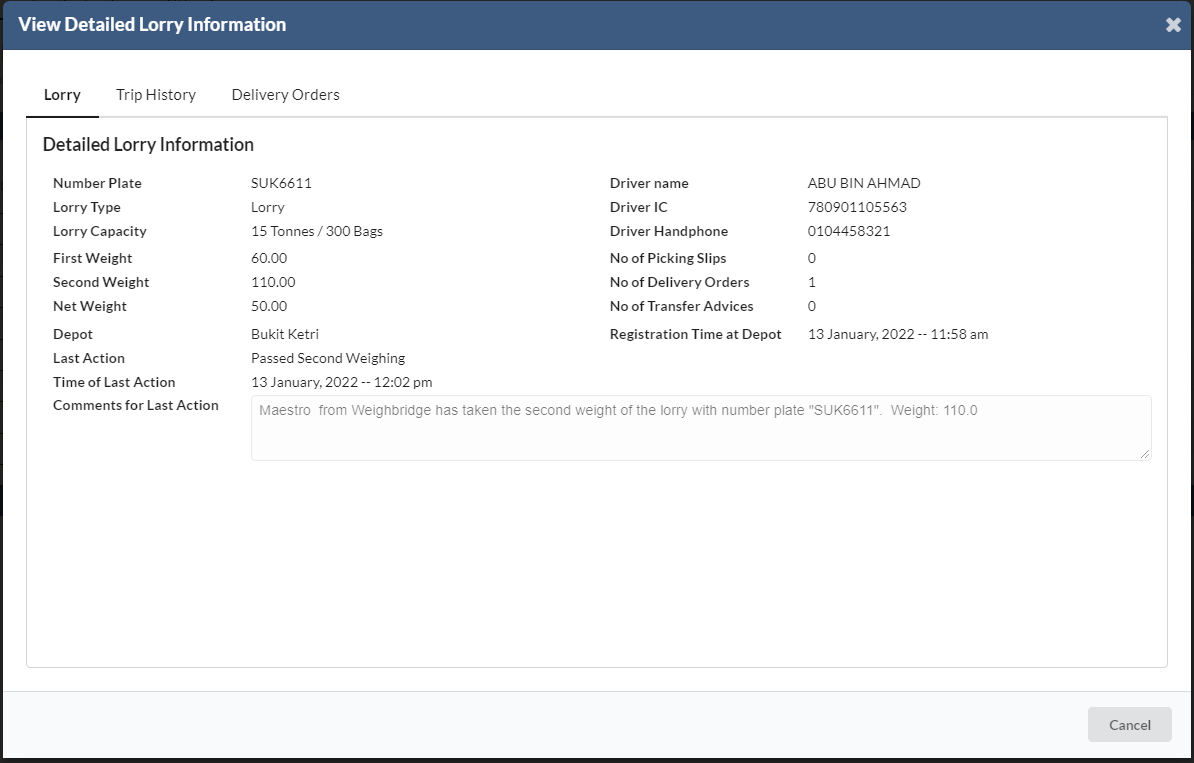
There are some additional information viewable when clicking on a specific record. These are:
# | Item | Description |
1 | No of Picking Slips | Number of Picking Slips assigned to lorry/tanker |
2 | No of Delivery Orders | Number of Delivery Orders assigned to lorry/tanker |
3 | First & Second Weight | First and second weight information are also shown |
4 | Driver IC | The driver’s identity card number |
5 | Last Comments | This is a more complete description of what activity the lorry/tanker has just completed and who facilitated the process. |
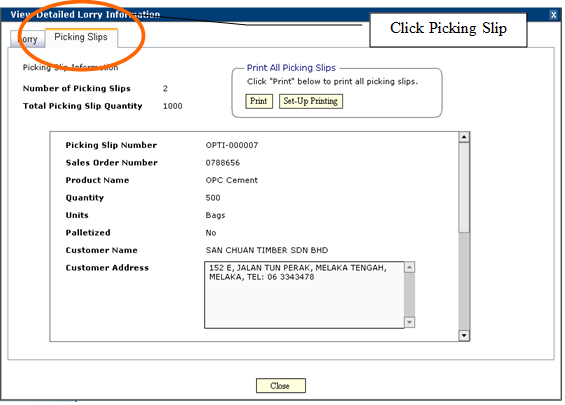
Users can also view picking slip information by clicking on the picking slip tab.
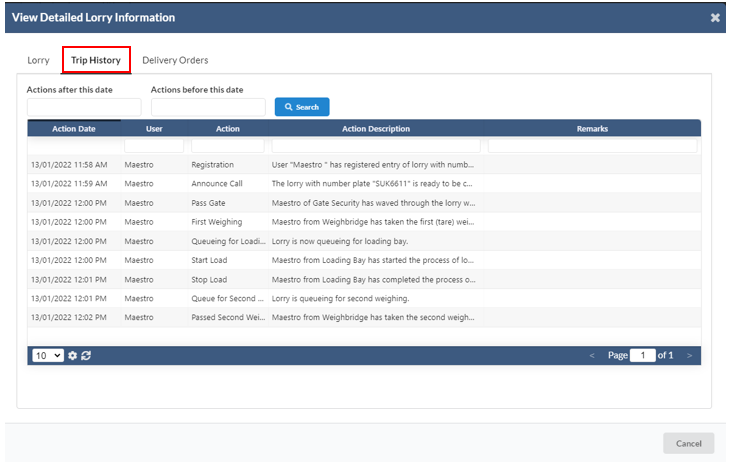
User can view the trip history for a particular lorry by clicking on the button.
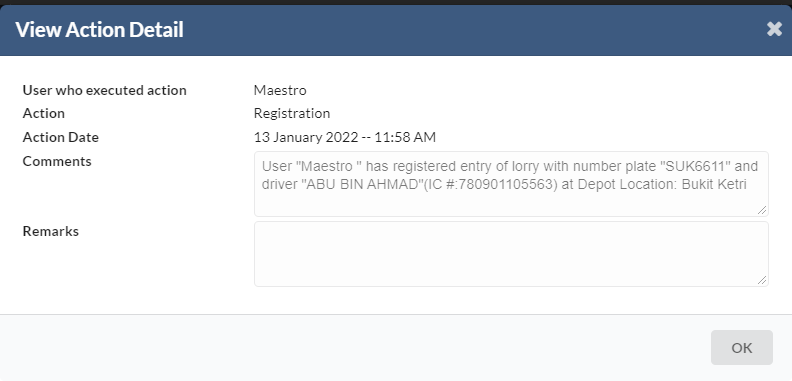
Click on one of the records in the list to open "View Action Details"
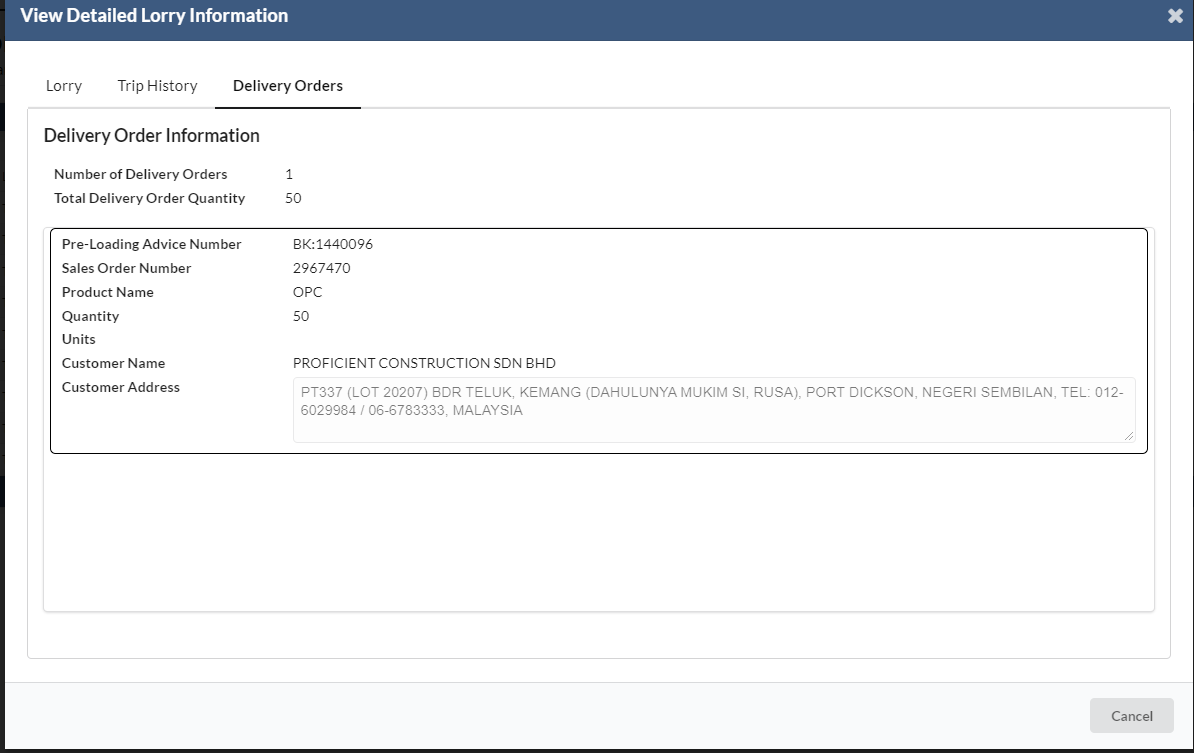
User can view the Delivery Order Information as well for a particular lorry.
1.3.4 Inactive Lorry Listing
The next button is the Inactive Lorry Listing.
Click on the button to view the list of lorries/tankers which are classified as inactive.
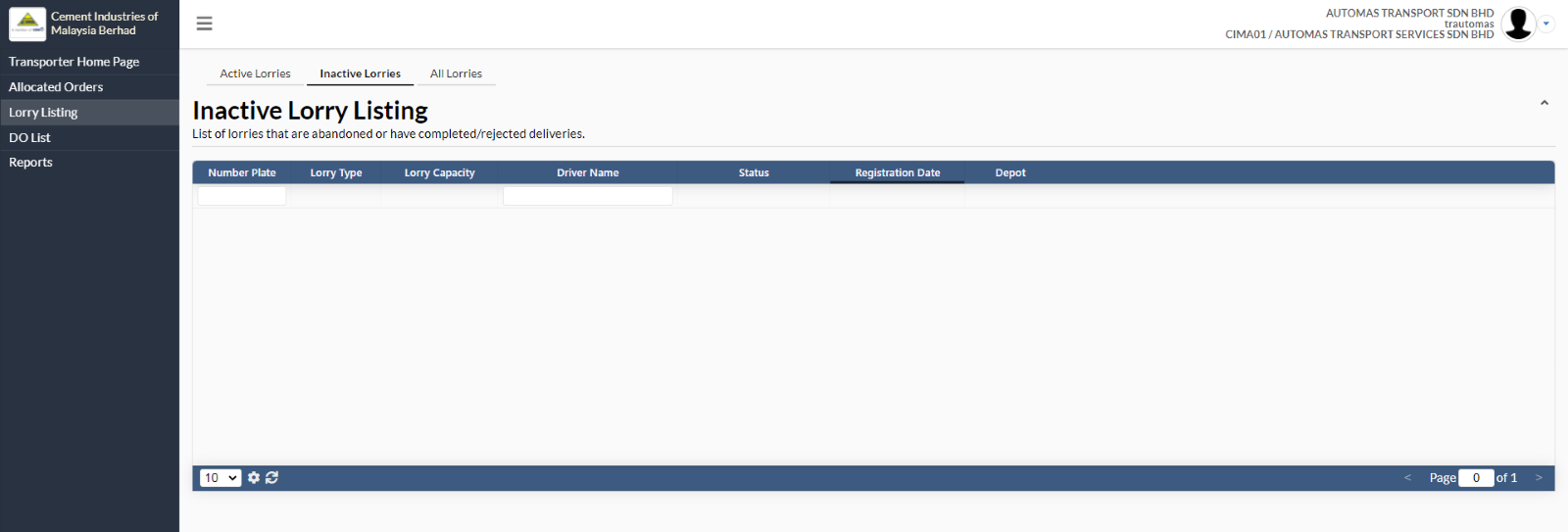
These lorries were registered with CIMA and their details were captured by the optimalOne system. They are classified as inactive when they leave CIMA without cement (deregistering themselves) or when they have to completed delivery to the customer or made a delivery which was rejected by the customer.
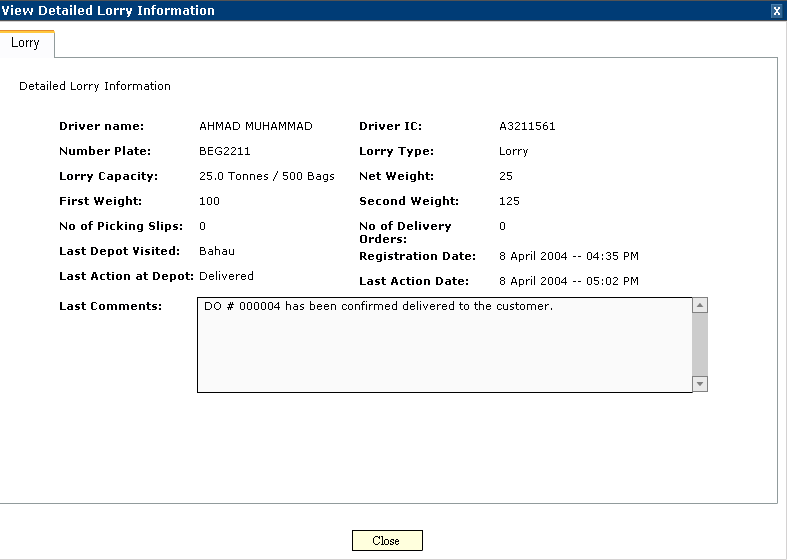
Clicking on the records will pop up the "View Detailed Lorry Information" window again but this time no information on the Picking Slip are made available and the relevant last comments Information is provided to give users greater understanding of the status of lorries/tankers.
1.3.5 All Lorries
The all lorries button offers a complete listing of all your vehicles captured by the optimalOne system recently with their corresponding status in one single view.
Click on the All Lorries button to view all the records.
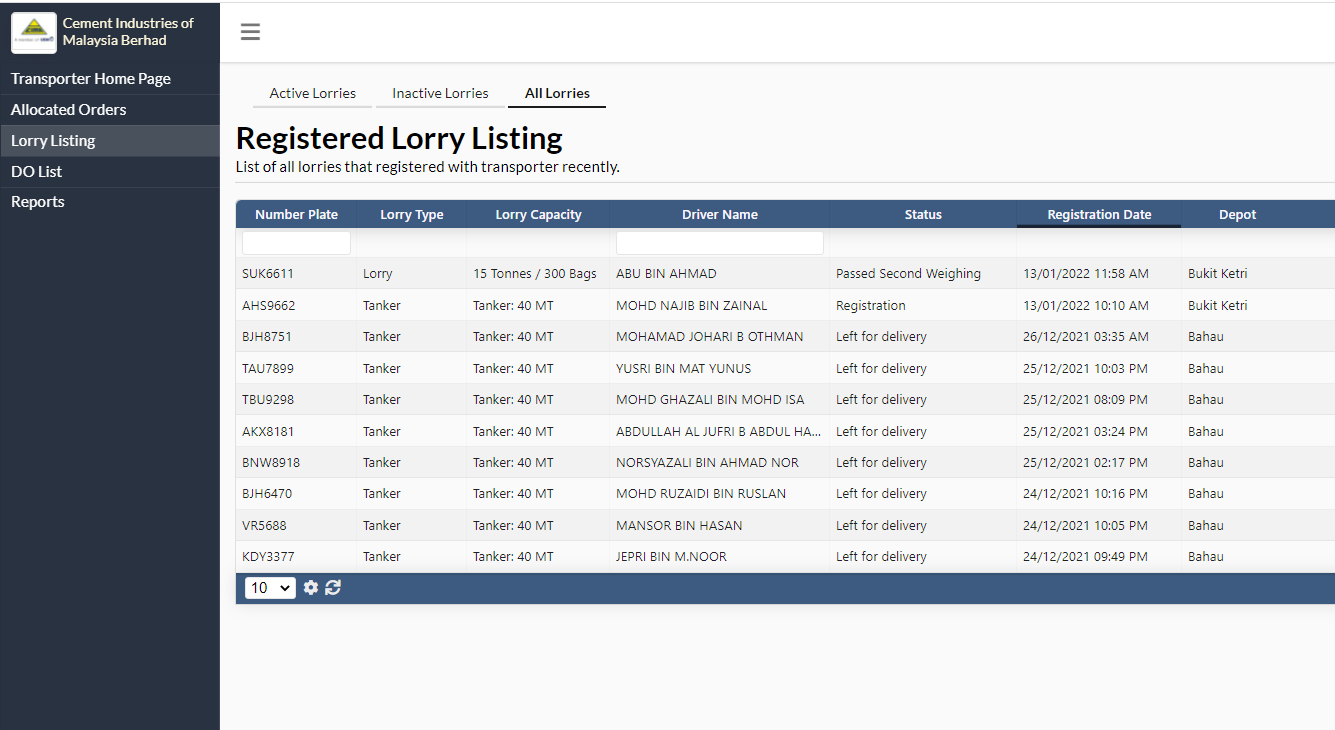
You will still be able to view detailed information by clicking on any of the records on the table.
1.4 DO List
The DO List tab consist six sub-tabs which are:
1. Recently Created
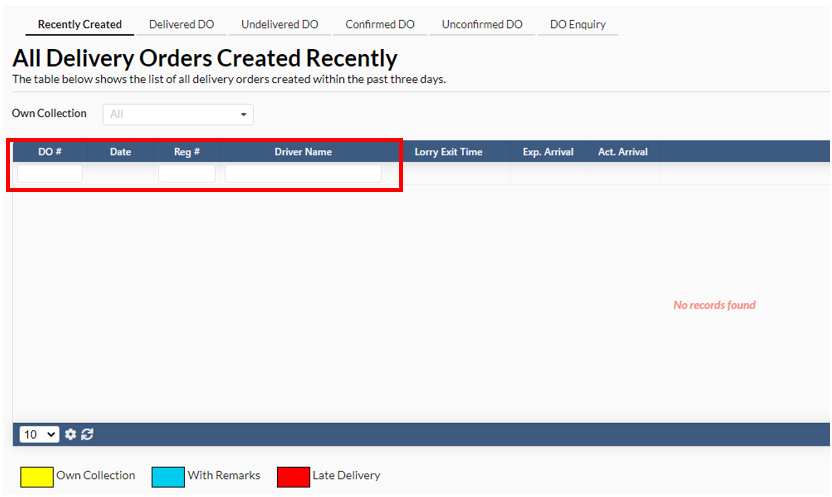
a. In this tab, user can view the list of all delivery orders that has been created in the past three days.
b. User can click on the Own Collection drop-down list to choose an option. 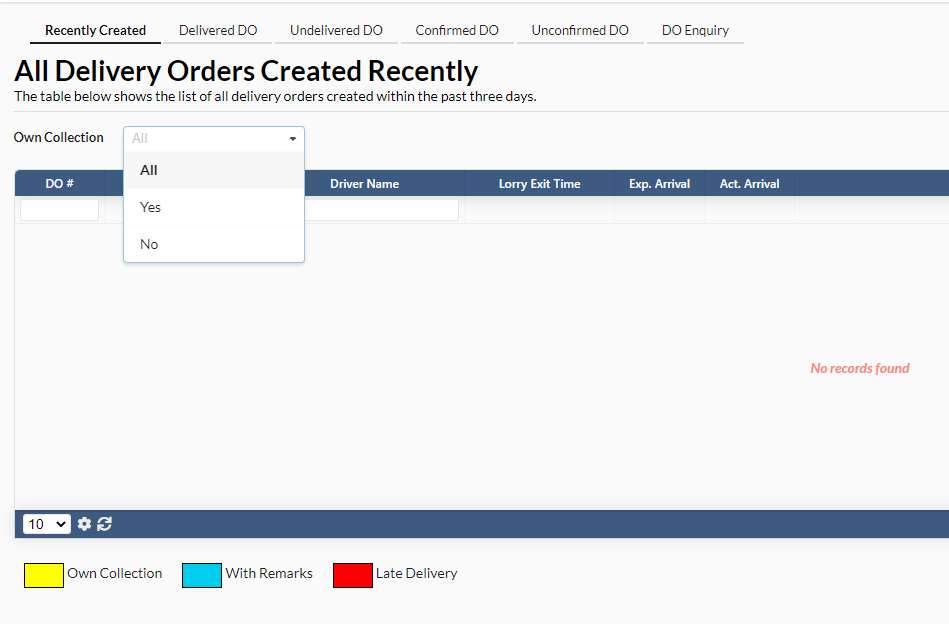
c. User can search for a particular order using the parameter.
2. Delivered DO
a. In this tab, user can view the list of all delivery orders that have been confirmed delivered by the transporter.
b. All the comments on the particular order is categorized into three different colours which are:
i. Yellow - Own collection
ii. Blue - With remarks
iii. Red - Late Delivery
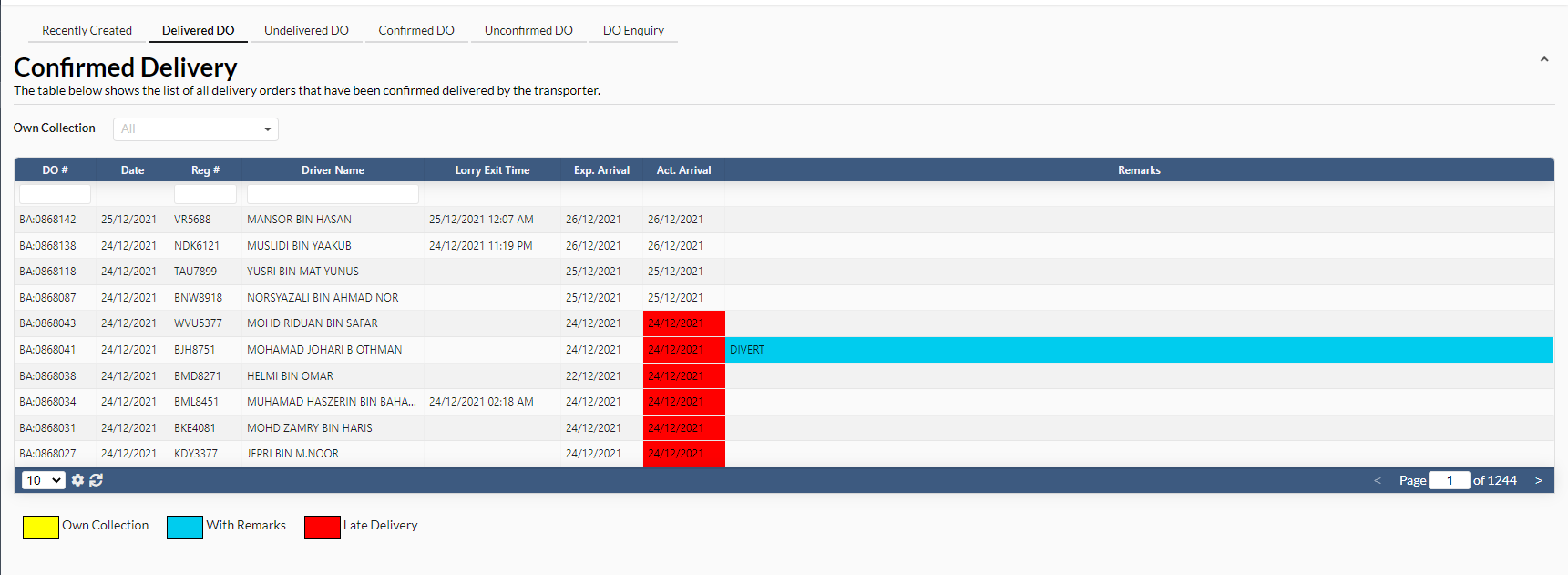 c. To view the delivery order information, user need to click on one particular order.
d. A new dialog box will appear for the user to view the details

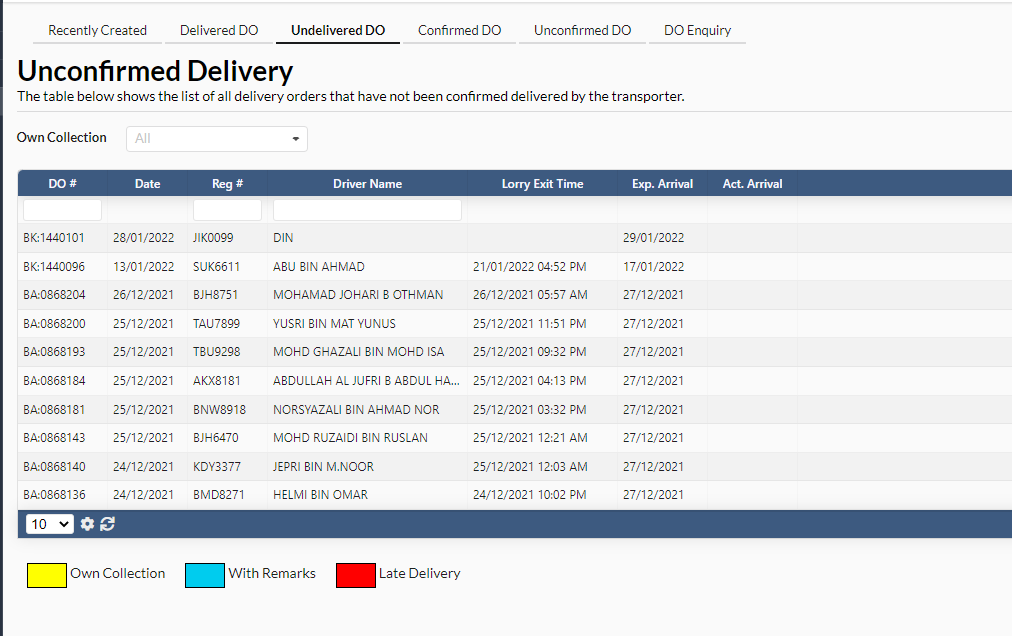
3. Undelivered DO
a. In this tab, user will be able to view the list of all delivery orders that have not been confirmed delivered
transporter.
4.Confirmed DO
a. In this tab, user can view all the delivery orders that has been confirmed recently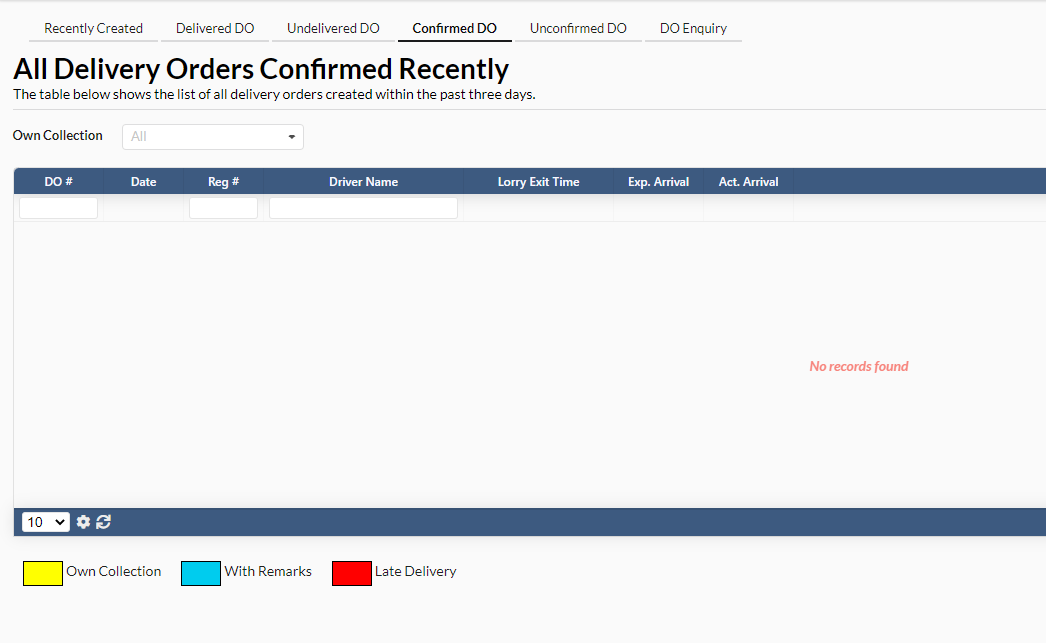
5. Unconfirmed DO
a. In this tab, user can view the list of delivery order that has not been confirmed. 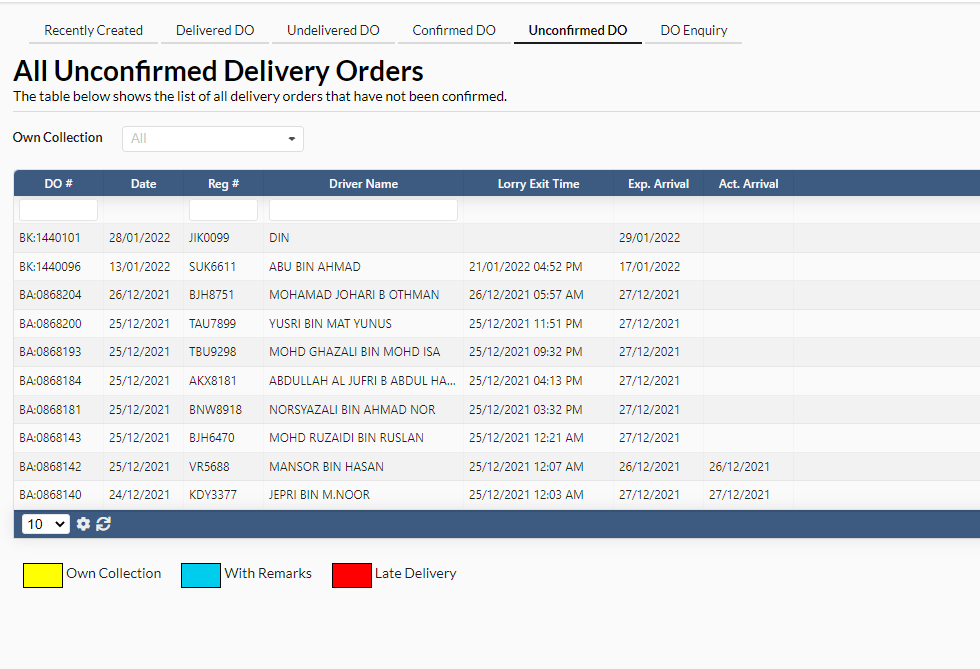
b. To confirm the order, user need to click on one particular order from the list.
c. A new dialog box will appear where the user can click the "Confirm DO" button to confirm the order.
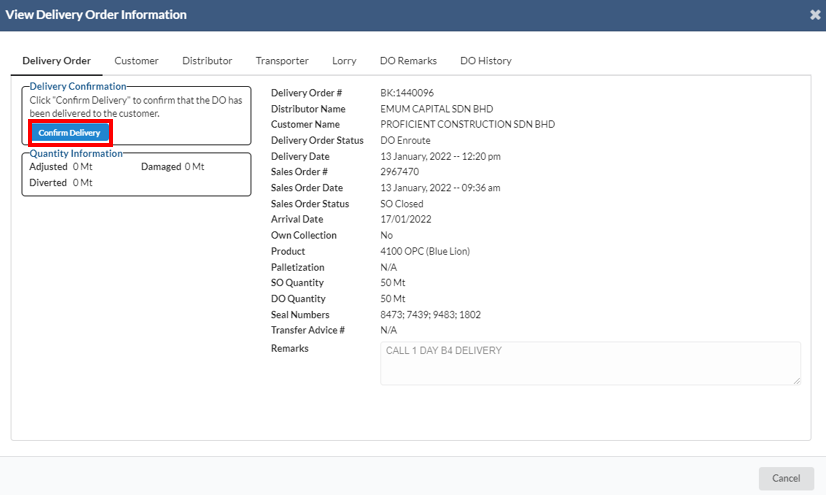
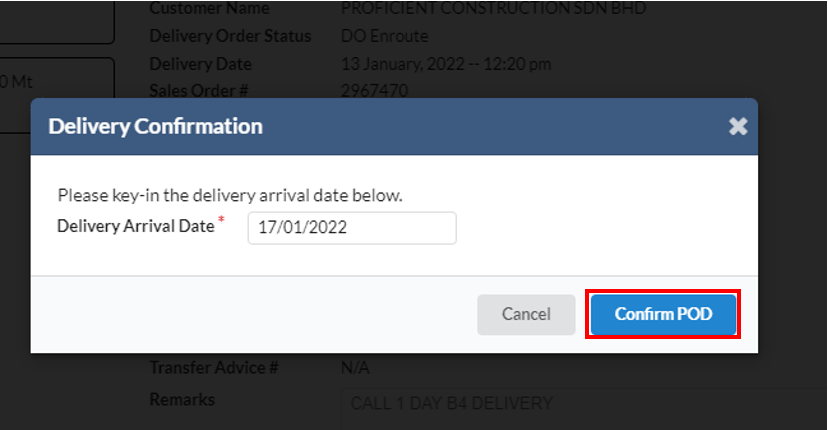
d. Upon clicking the button, a new confirmation dialog box will appear where the user have to click on "Confirm POD" to finalize the process.
1.5 Reports
The Reports are for the user to view available distributor reports of CIMA. When you click on the View File Help button, you arrive at a new tab where you can refer to the Report Viewer General Guidelines.
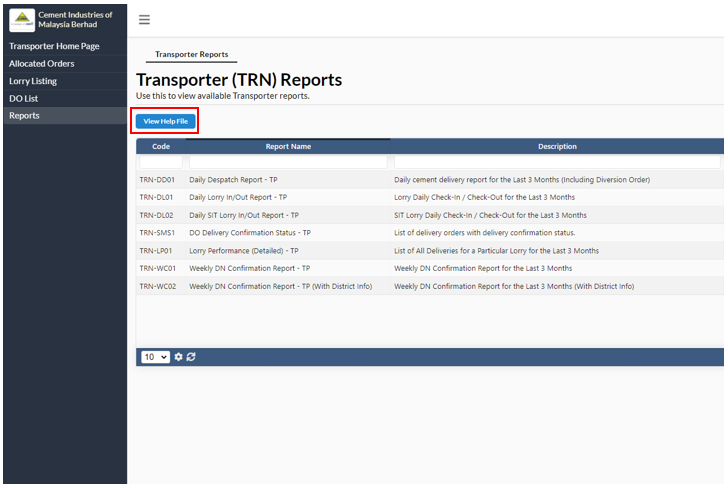
To view the report, user need to click on one of the report names and you will arrive at a new tab where you can view the report. User can print the report by clicking on the Print File option at the top left to export to the file to pdf by clicking on the Export to Excel button.
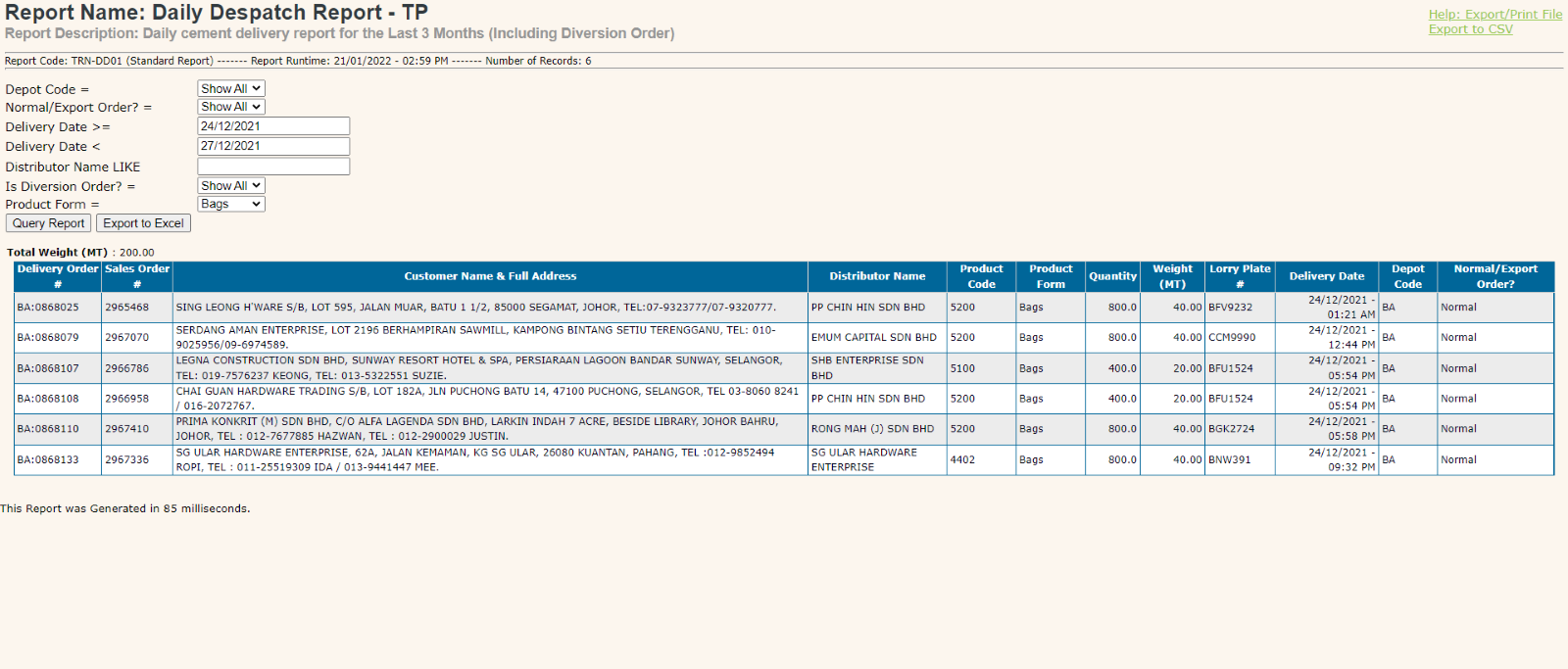 example of the report
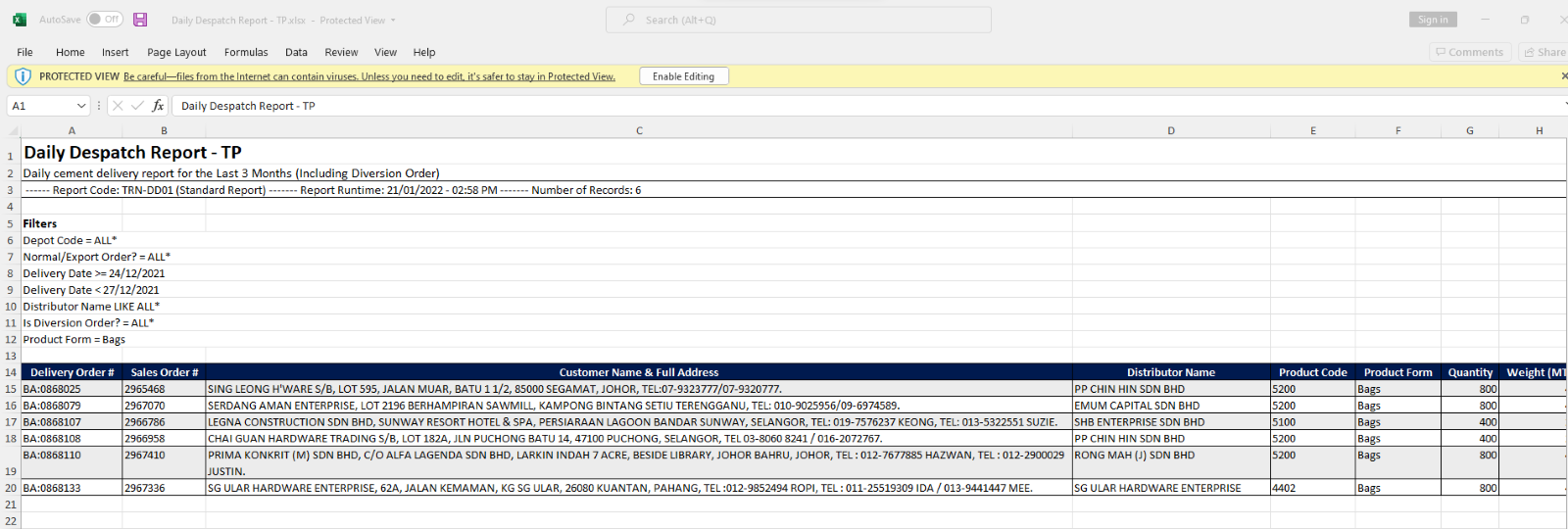
example of the exported report on Excel