1. Register Car
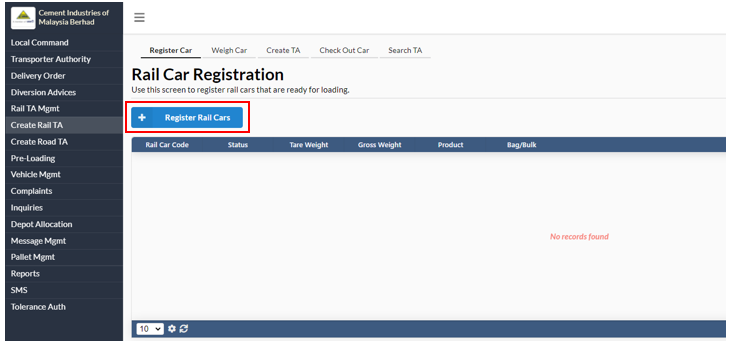
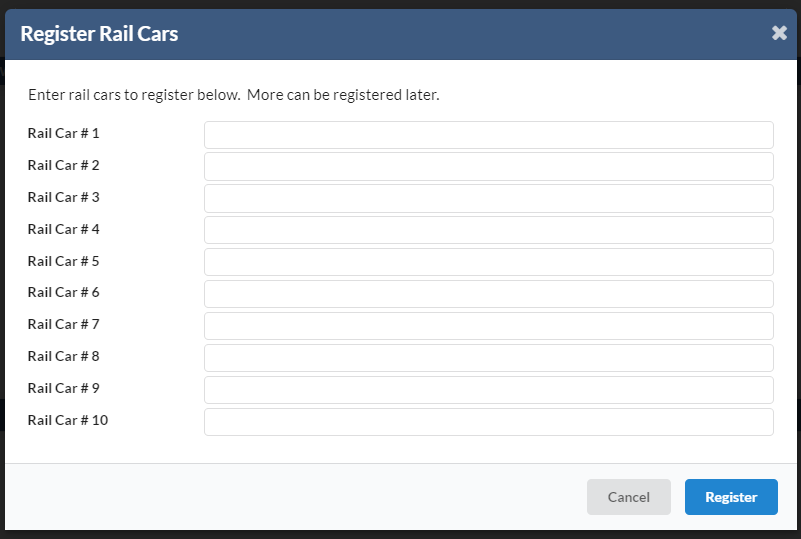
User can register rail car’s here that are ready for loading. To register, user need to click on the Register Rail Cars button. Once it's clicked, a new dialog box will appear where the user can add the rail cars to register.
2. Weigh Car
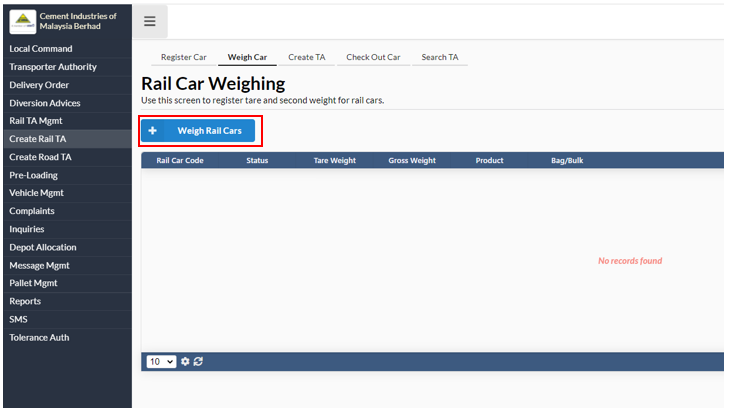
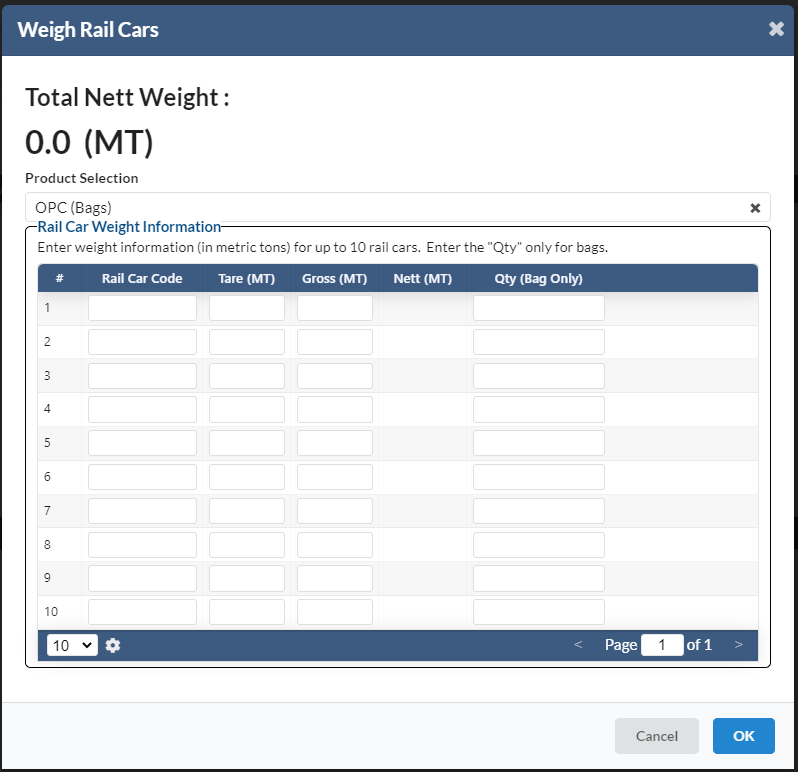
User can register tare and second weight for rail cars. To add the weight details, user need to click on the Weigh Rail Cars button. A new dialog box will appear for the user to enter weight information (in metric tons) for up to 10 rail cars.
3. Create TA
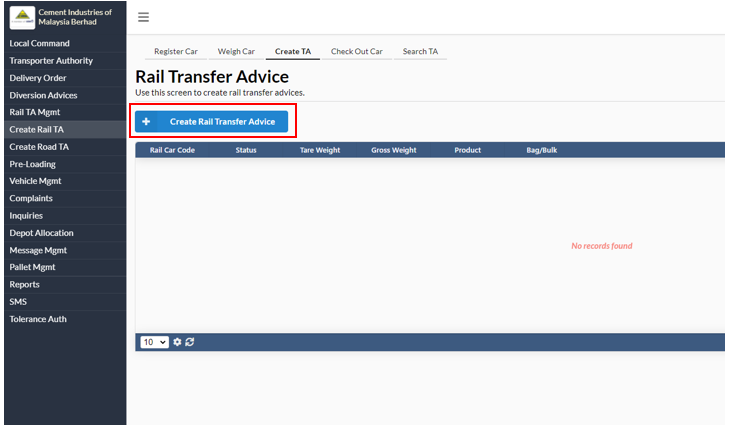
In this tab, user can create rail transfer advices. To create, user need to click on the Create Rail Transfer Advice button. A new dialog box will appear with two tabs which are Rail Transfer Advice and Rail Car Selection.
- Rail Transfer Advice
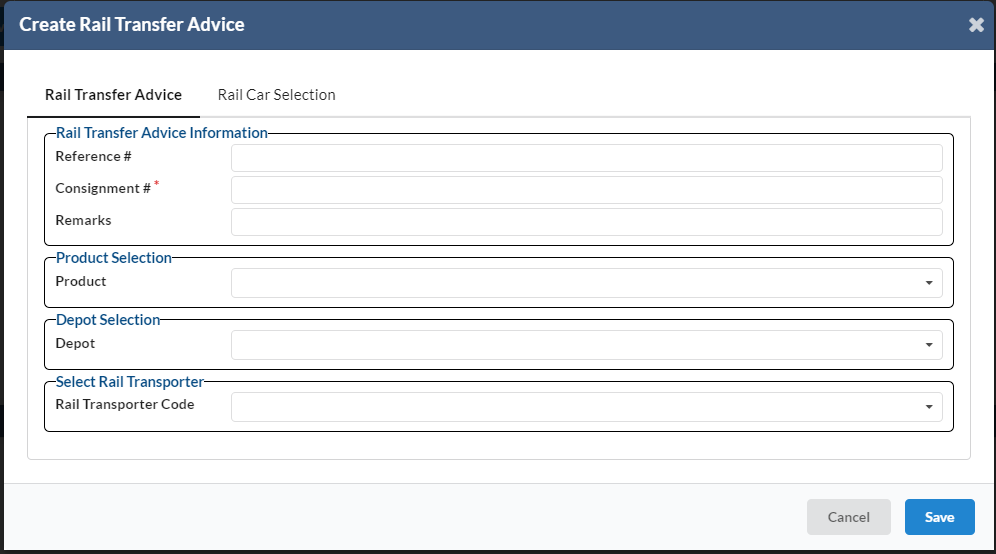
User need to enter rail transfer advice information, product selection, depot selection and rail transporter. User can use the dropdown list to choose for the product selection, depot selection and selection of rail transporter.
- Rail car selection
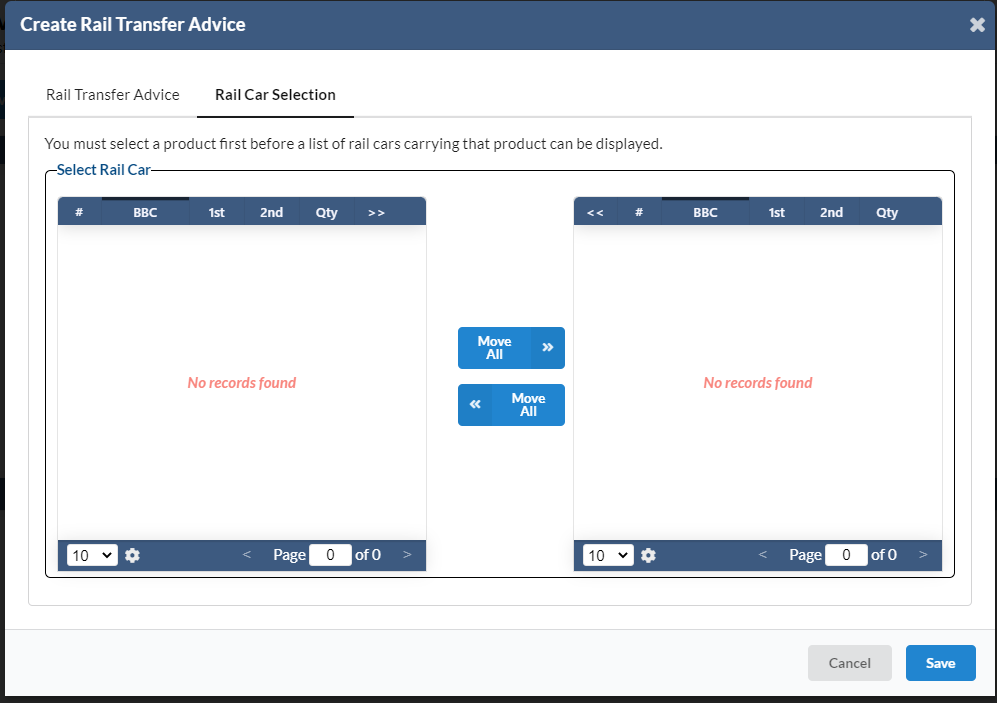
User need to select a product first before a list of rail cars carrying that product can be displayed.
4. Check out car and Search TA
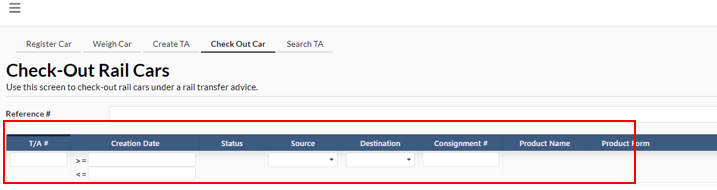
User can check-out rail cars under a rail transfer advice. User can search for records by filing in either:
- T/A
- Creation Date
- Source
- Destination
- Consignment