1. Rail Transporter Management
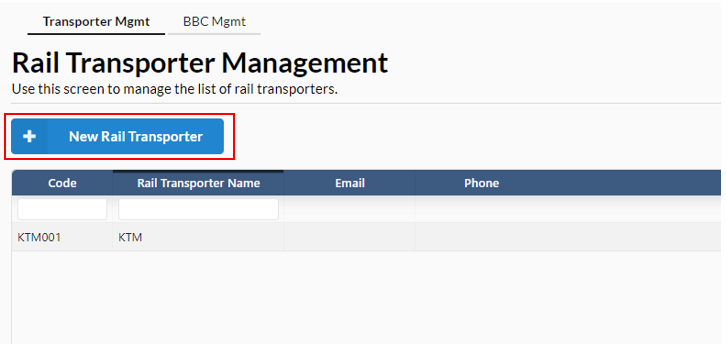
In this page, there’s two tabs. When user navigates to transporter management, they can manage the list of rail transporters. User can create a new rail transporter by clicking on the New Rail Transporter button.
After clicking, a new dialog box will appear where the user has to fill in information like:
- Rail transporter code
- Rail transporter name
- Cell phone
- Address line 1
- Address line 2
- Post code
- City
- State
- Country
- Phone
- Fax
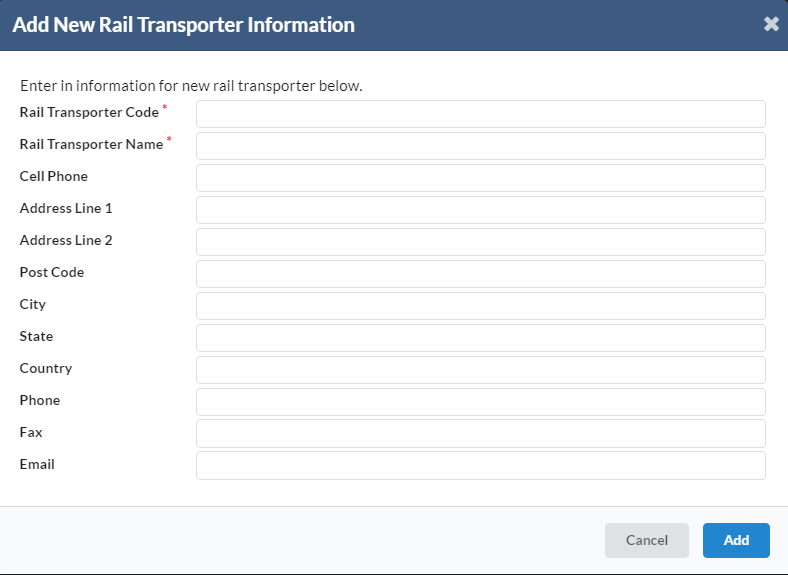
Once done, user need to click on the Add button to proceed to the next step.
View/ Edit
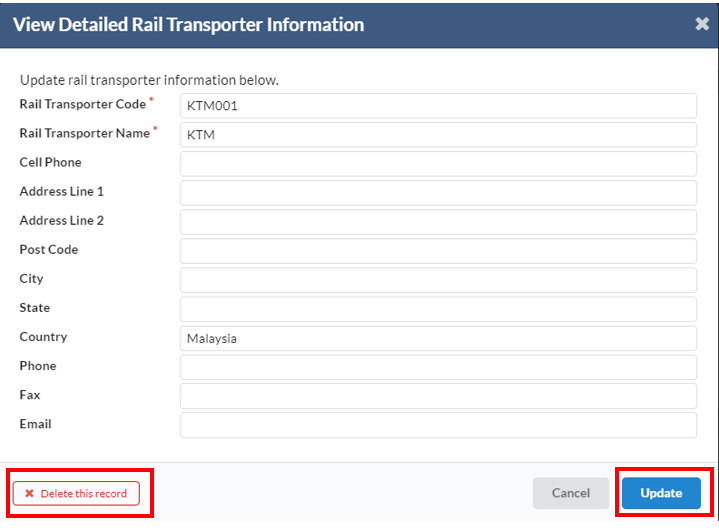
User can view/ edit the rail transporter’s information by clicking on the rail transporter list. A dialog box with the information will appear, user can make changes to the information and click the Update button to continue. If the student wants to delete the record, then click the Delete this record button at the bottom left.
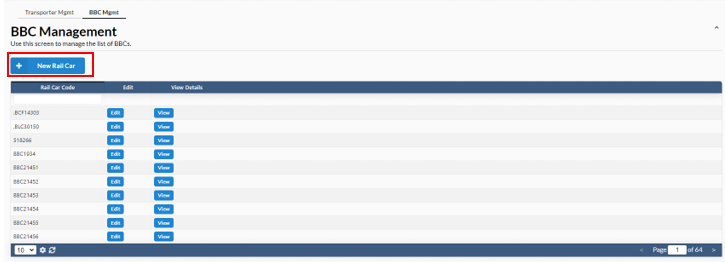
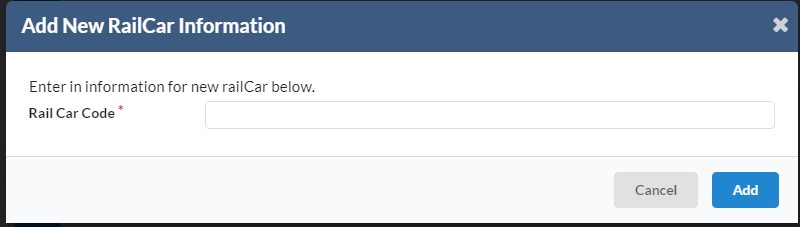
Whereas if user navigates to BBC Management, user can add a new rail car. User can manage the list BBC’s here. To create a new rail car, user need to click on the new rail car button. A new dialog box will appear for the user to enter the new rail car information.
View/Edit
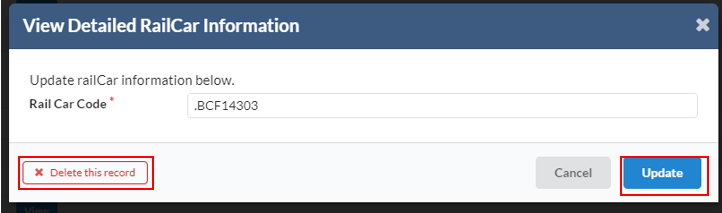
User can view/ edit the rail car information by clicking on the rail car list. A dialog box with the information will appear, user can make changes to the information and click the Update button to continue. If the student wants to delete the record, then click the Delete this record button at the bottom left.