1. Delivery Orders
Local Command can create, view and print, confirm, and search for Delivery Orders (DO).
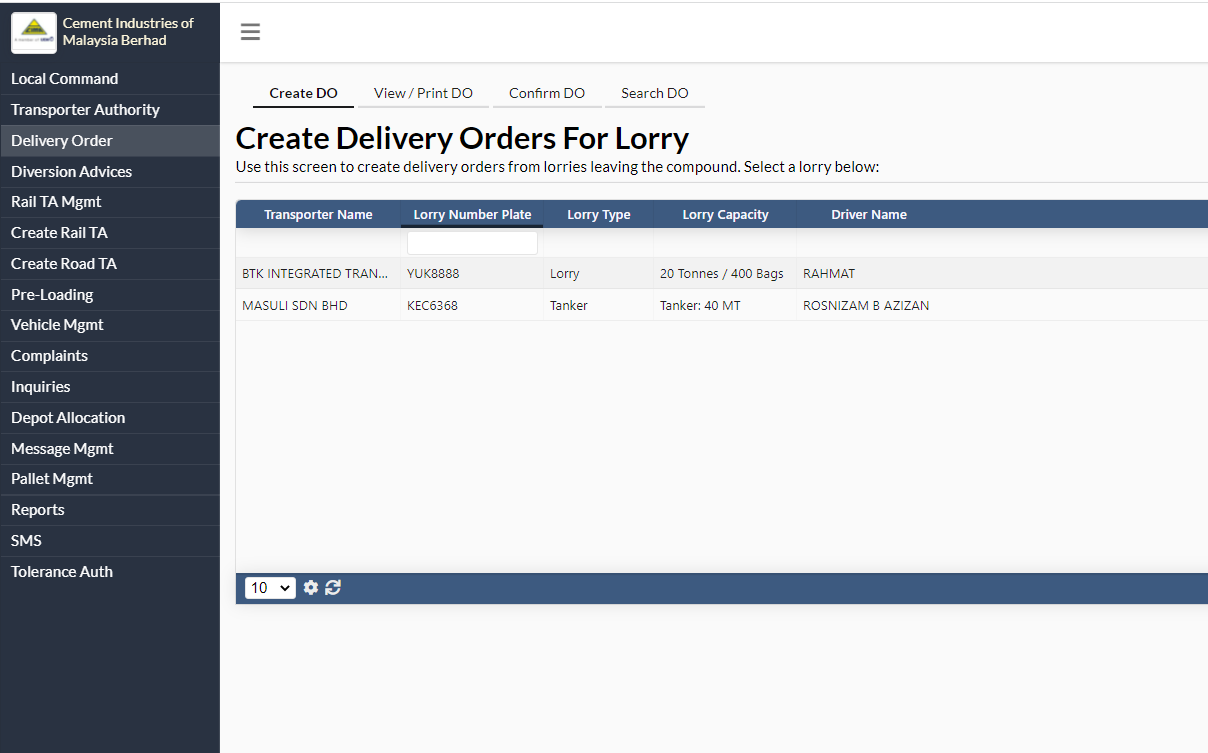
Local Command can create, view and print, confirm, and search for Delivery Orders (DO).
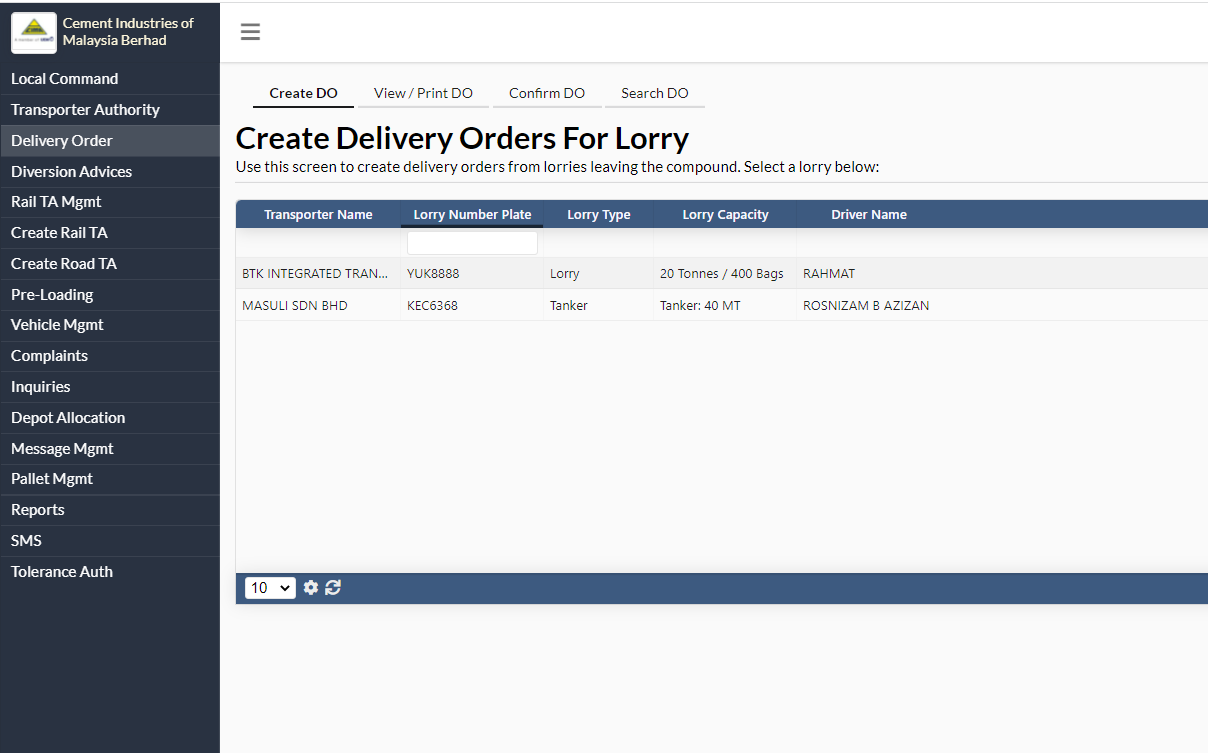
Step 1: Create Delivery Order for Lorry
Click on “Delivery Order” on the left side of the screen. Under the “Create DO” tab is a table with a list of lorries that have not yet received their DO. Click on a lorry, and a window “Create Delivery Orders from Picking Slips” pops up. Here you can create all DOs for a particular lorry.
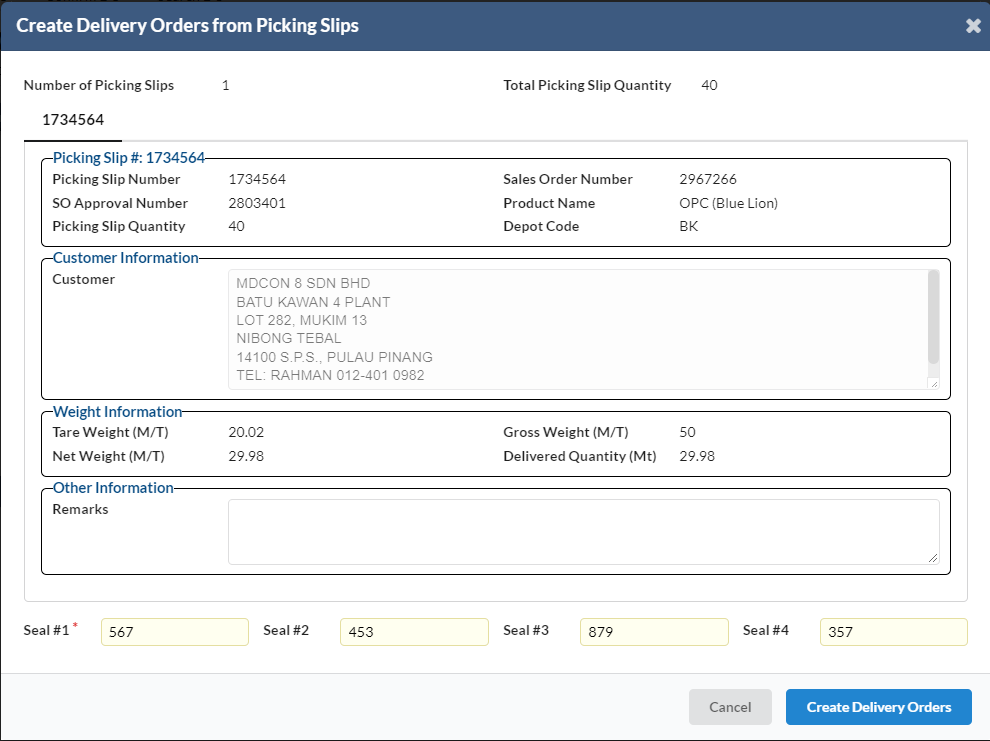
Upon creation of the DO, you can now View and Print all the DOs, either all at once or one by one.
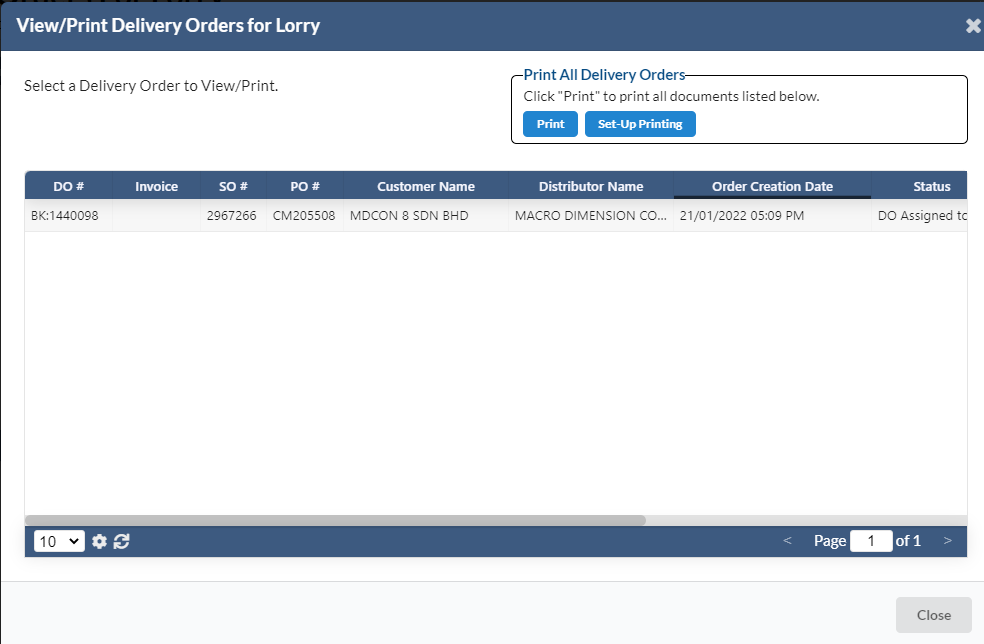
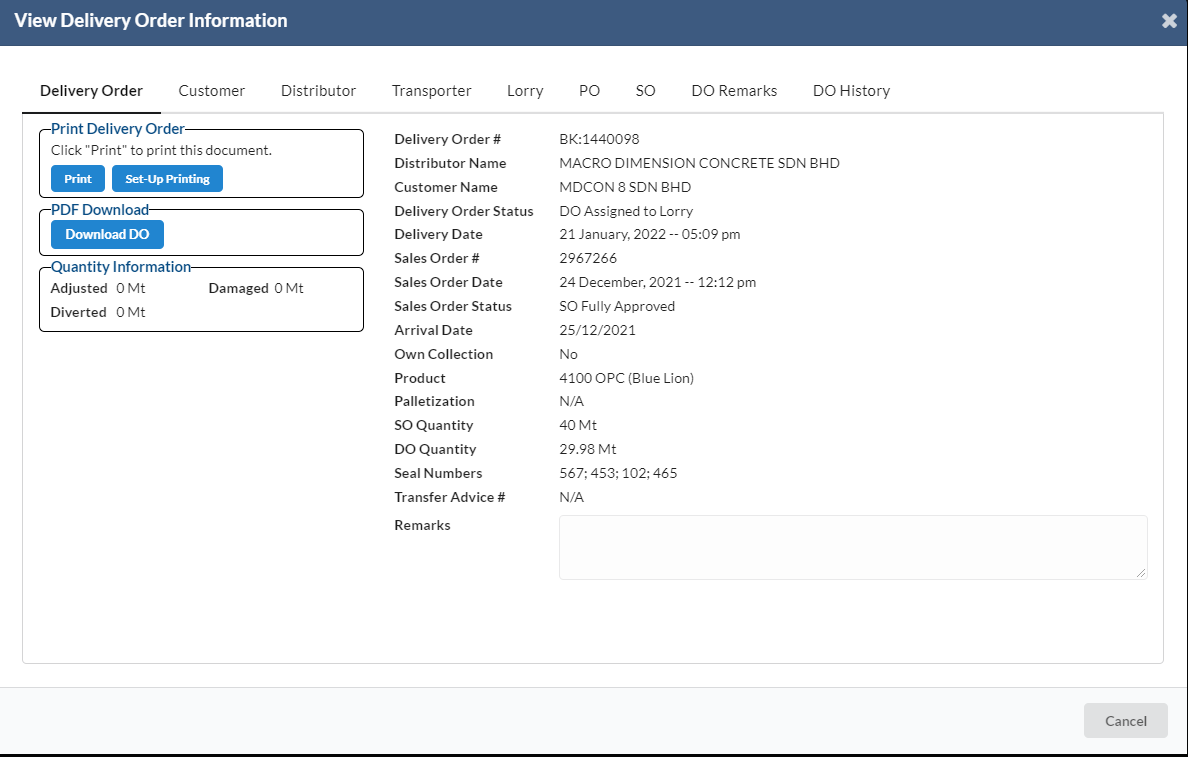
To print one DO at a time, click on a DO record in the list, the window “View Delivery Order Information” pops up, and you can also print from here when you click “Print”.
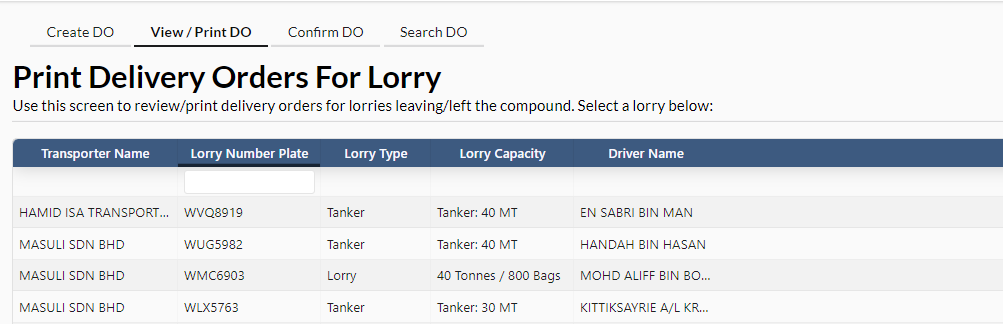
Step 2: View/Print DO
Once a DO is CREATED but not yet printed, the record is moved to the View/Print DO page. You can click on the View/Print DO button next to the “Create DO” button to review all the DOs created but not yet printed.
Step 3: Confirm DO
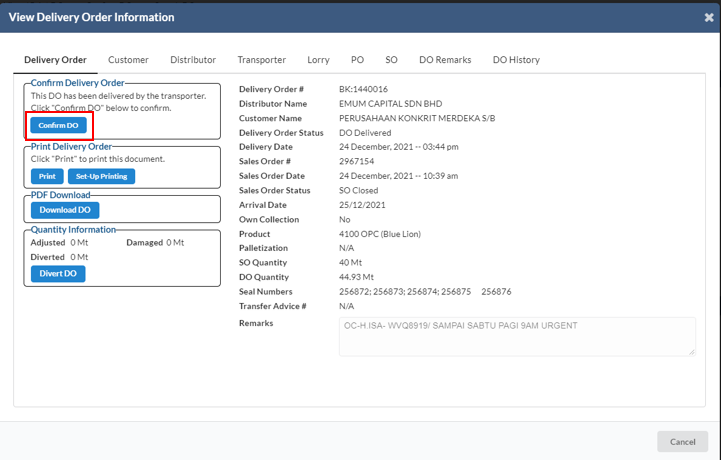
Delivery Order fulfilled can be updated in optimalOne at the Confirm DO section.
Click on Confirm DO button and click on the DOs which have been delivered. You can then confirm that the DO has been delivered here by clicking the “Confirm Delivery” button.
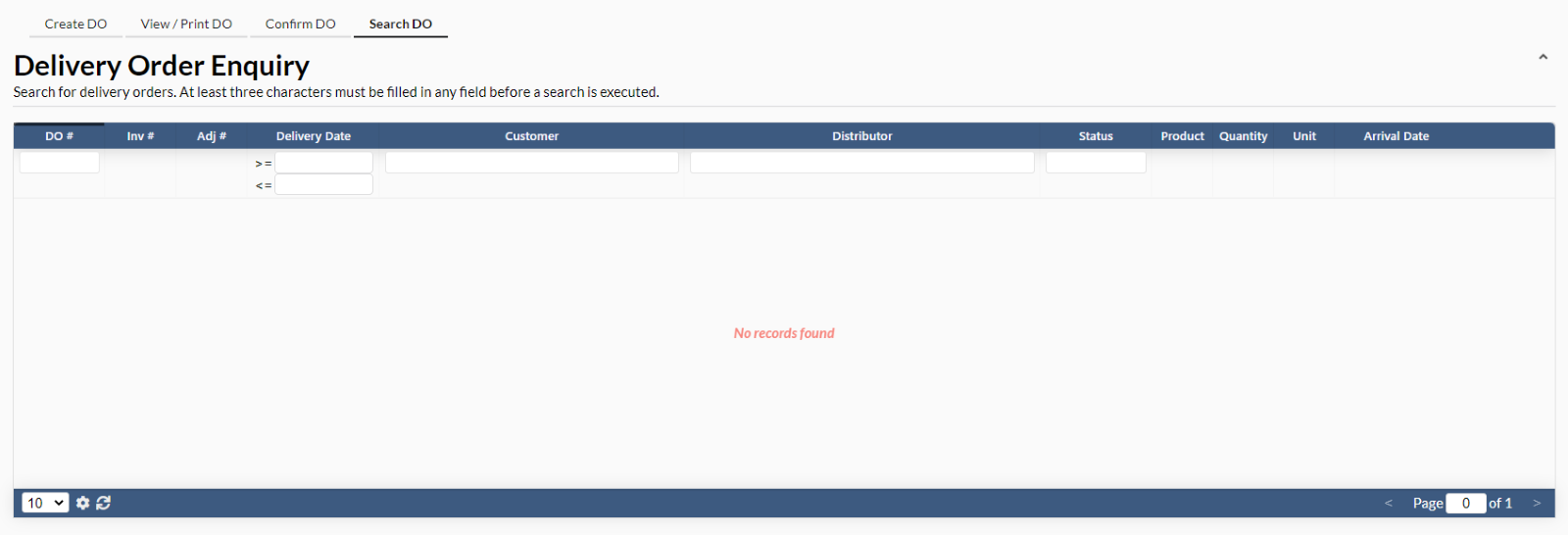
Step 4: Search DO
You can also search DOs in optimalOne. Click on the Search DO button and enter either DO#, Customer Name, Distributor Name or Order Status information in the fields given. You can also search for orders which are created after and/or before specific dates.