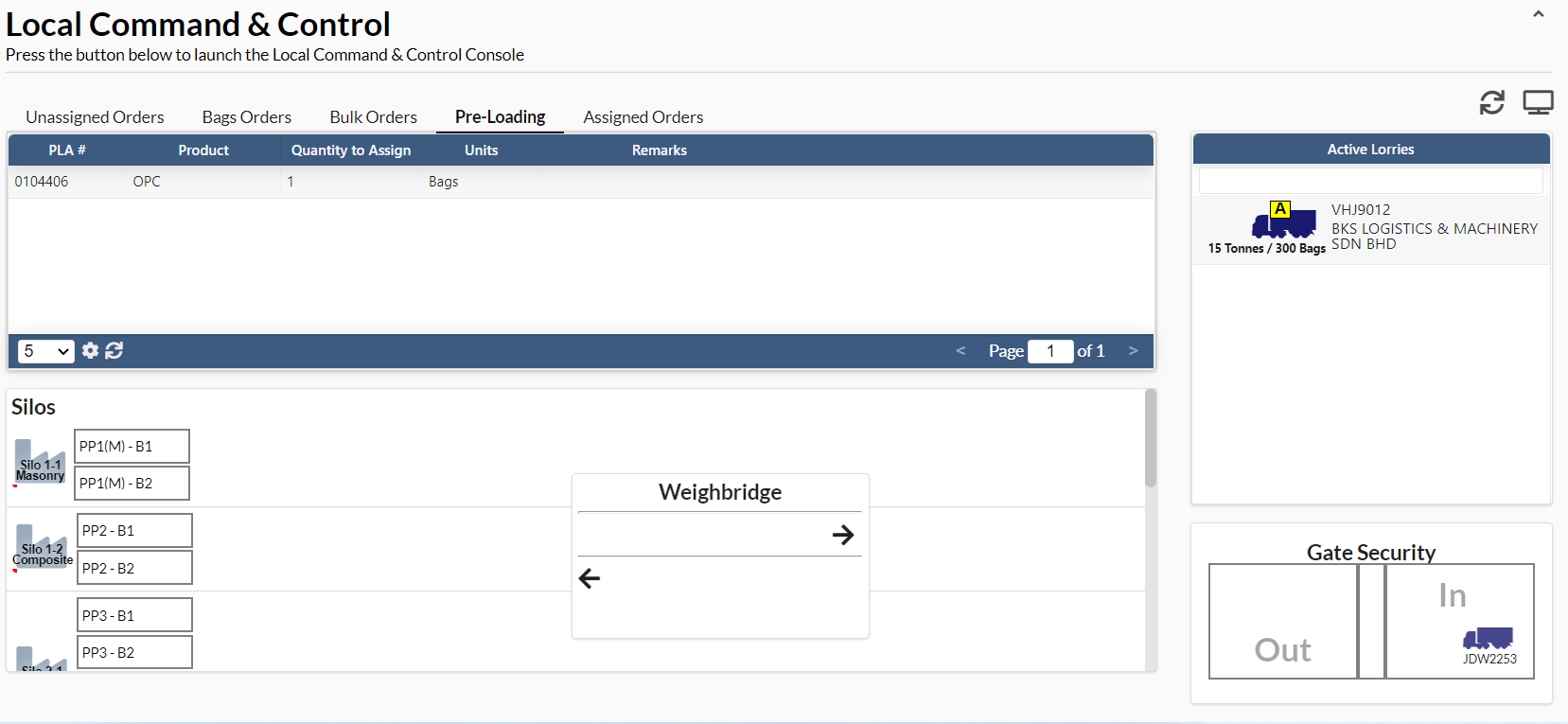
1. LCC
Upon clicking Log In, the LCC portal will display the home page as shown below.
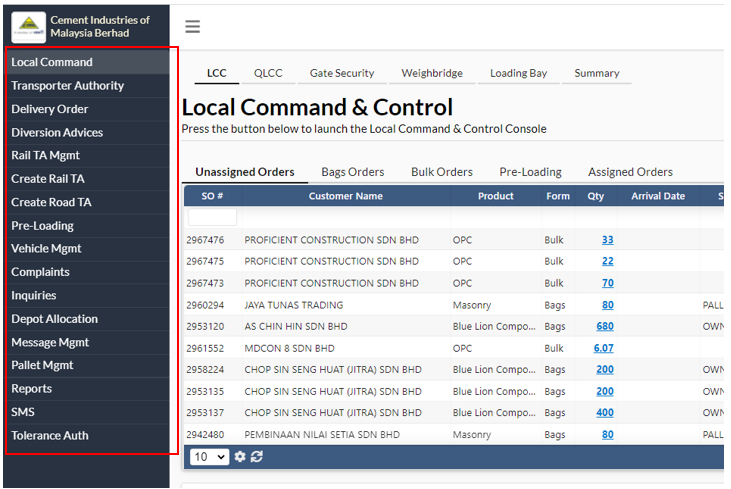
On each page in the LCC Portal, there are buttons in the left column to help users perform tasks like assigning orders to lorries, creating pre-loading advices, and calling lorries.
2. Verifying Transporter Collection Orders
When a lorry driver presents their Transporter Collection Order, you can indicate this in the system.
Step 1: Go to the Transporter Authority Page
Click the “Transporter Authority” button on the left side of the screen.
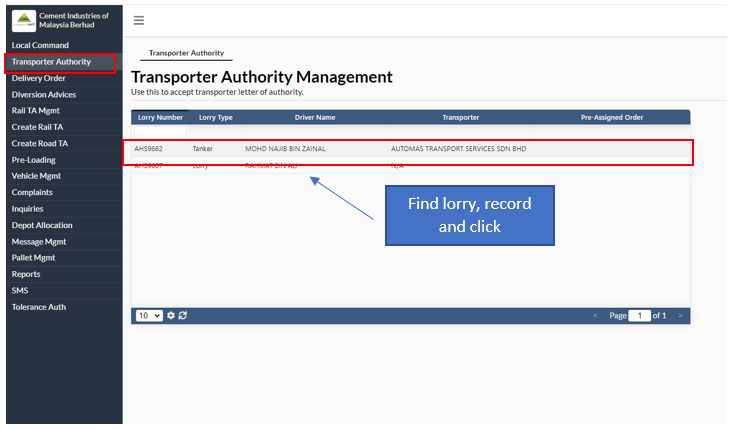
Step 2: Find the lorry
Find the lorry in the list of lorries that show up in the table. Click on the relevant lorry. There are two possibilities:
- The lorry has registered before. Proceed to Step 4: Verify lorry information
- This is a first-time lorry. Proceed to Step 3: Find the transporter
Step 3: Find the transporter
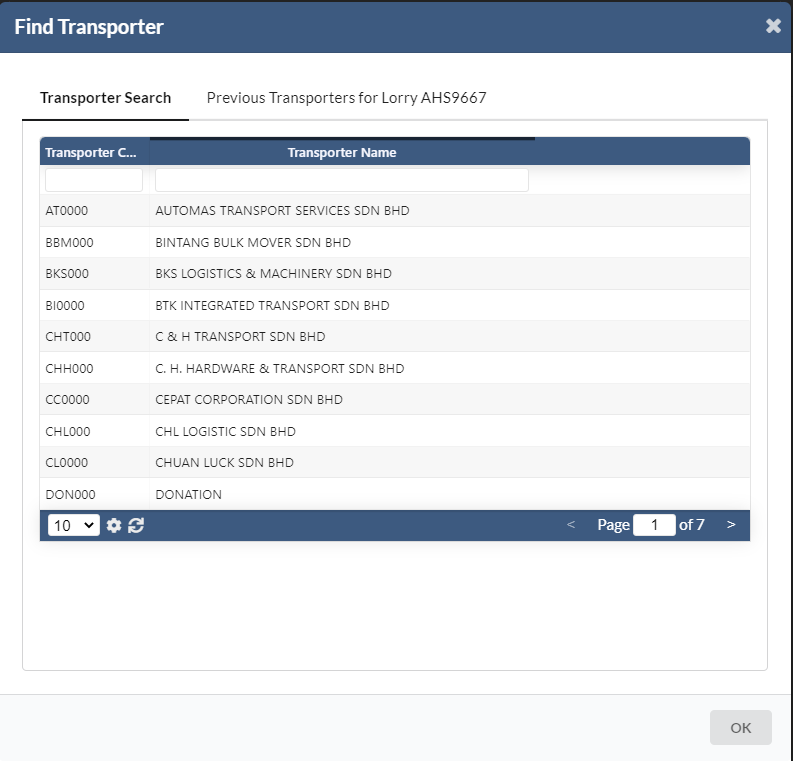
To find a transporter, user should click on one of the transporters from the list and a box “Find Transporter” pops up. The task is now to find the transporter that the lorry is representing in the system, in the ‘Find Transporter’ window. This can be done by typing out known details about the transporter such as the transporter name in the fields available. As you type out the information, the search results table in the bottom half will display any transporters found that matches information you have typed out.
Once you see the transporter that matches the name specified in the collection order, click on the transporter, then proceed to Step 4: Verify lorry information.
An example of this step is also shown below. In the example, we assume the lorry driver is representing a transporter named “Now Express Sdn Bhd”. To find the transporter in the list, we typed “Express” in the transporter name, and the system displayed the transporters that have the name “Express” in their names. Once this appears, we click on the transporter in the list, and proceed to Step 4.
Step 4: Verify lorry information
A box titled “Accept Transporter Letter of Authority” appears, as shown in the picture below. In this box, check that the lorry and transporter information is correct.
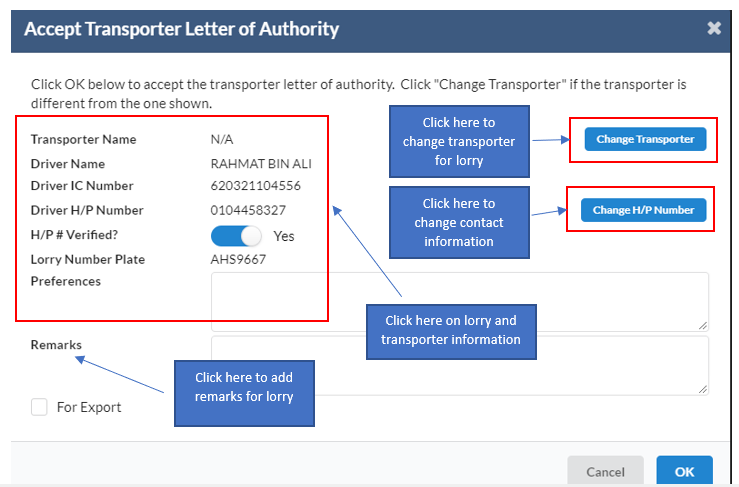
In this window, the three buttons on the right are:
Change Transporter. It is possible that the transporter shown is incorrect because the lorry is now representing a different transporter. In this case, click on “Change Transporter” button, and proceed to back to Step 3: Find the transporter above.
Change Preferences. If the lorry has preferences in location, click on “Change Preferences” button, and type in the location preferred. Example is: Penang.
Change Remarks. If there are remarks on the lorry, click on “Change Remarks” button, and type in the remarks on the lorry.
After you have confirmed that all the information in this window is correct, click “OK”. The lorry will disappear from the list in the Transport Authority Management table.
3. Managing Local Lorry Movement
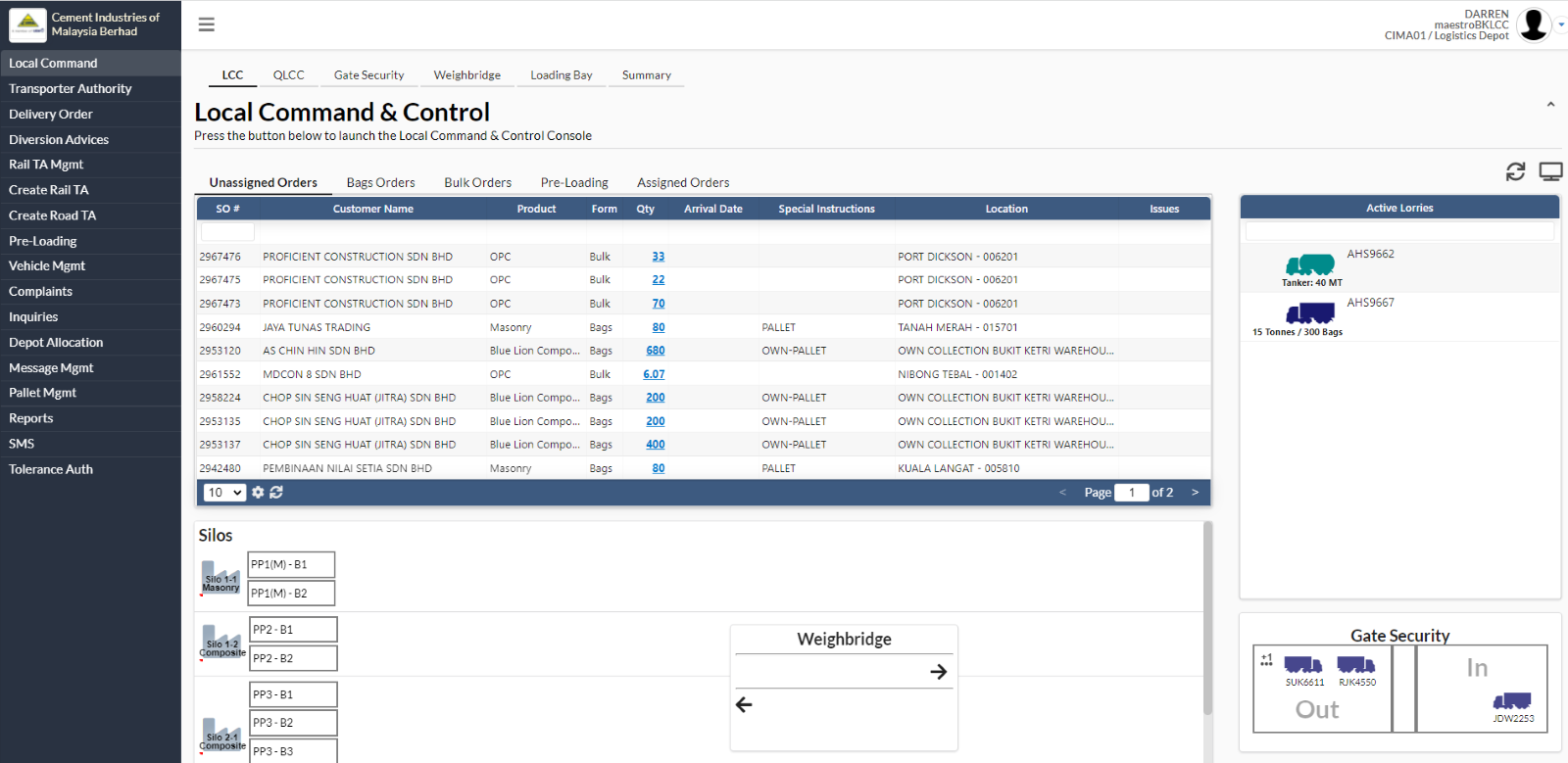
Three main process takes place here which are:
- Queue of lorries/tankers will wait to enter and exit compound at the Gate Security.
- Queue of lorries will wait to be loaded at the Loading Bay.
- Queue of lorries/tankers will wait to be weighed at Weighbridge.
Notice there are 6 tabs altogether in Local Command Tab. They are:
- Local Command Control
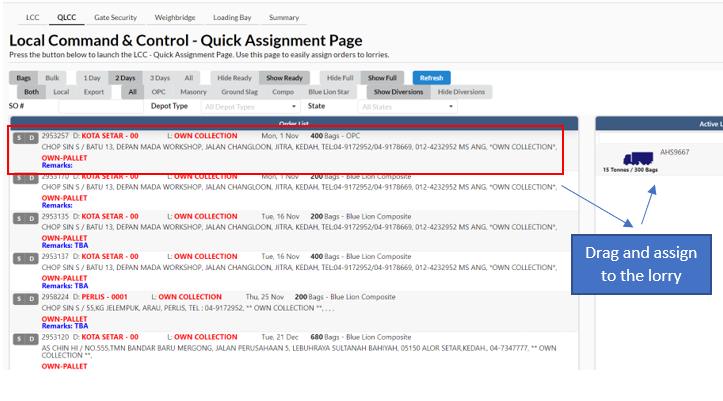
- Local Command Control-Quick Assignment Page
In this page, user can easily assign orders to lorries. They have a few information which they can choose to filter the list of orders.

User can easily drag a particular order and assign it to the lorry.
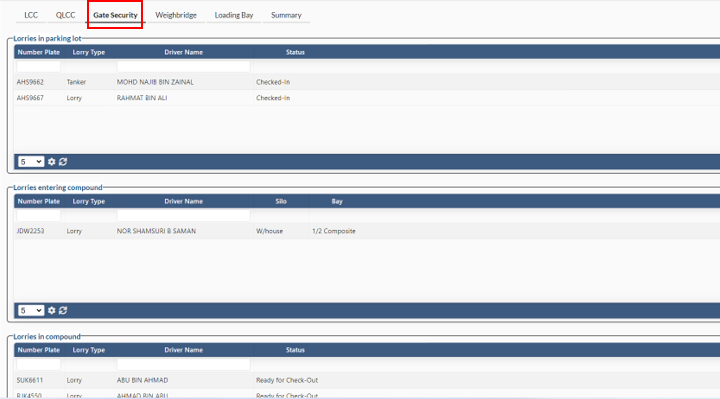
- Gate security
In this page, user can manage security gate operations. All lorry activities can be tracked here such as lorries in parking lot, lorries entering compound and lorries in compound.
User can register a new lorry by clicking the Register Lorry button.
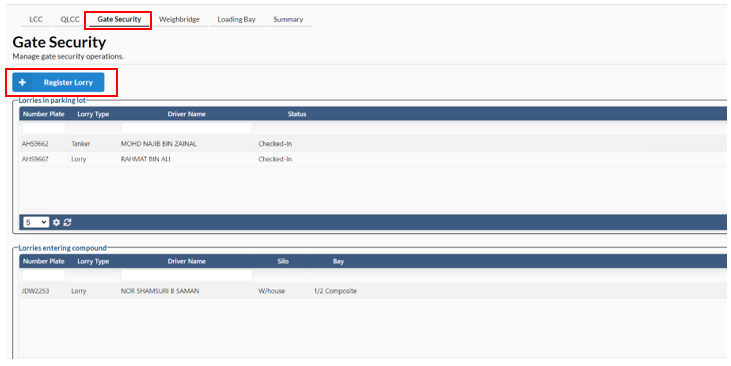
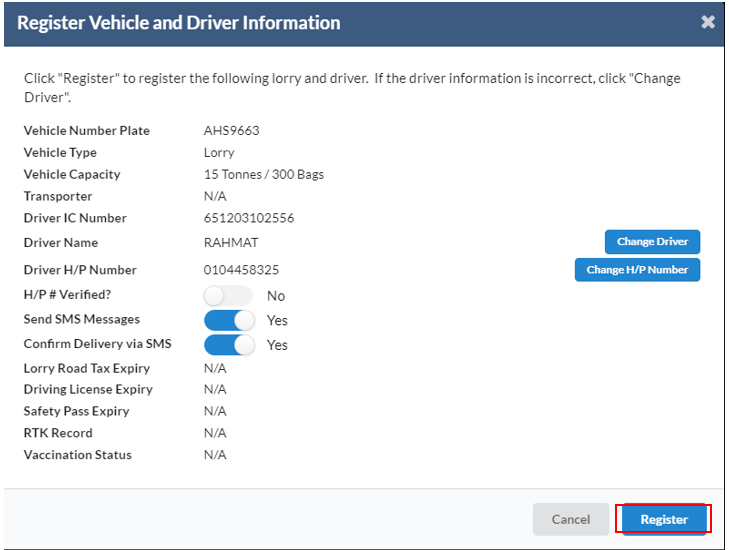
Once clicking on the button, user will see a new dialog box where you have to fill in lorry and driver details such as:
- Vehicle number plate
- Lorry type
- Lorry capacity
- Exact lorry capacity bags
- Driver IC number
- Driver Name
- Driver HP Number
Now, user can check the information's thoroughly before clicking the Register button.
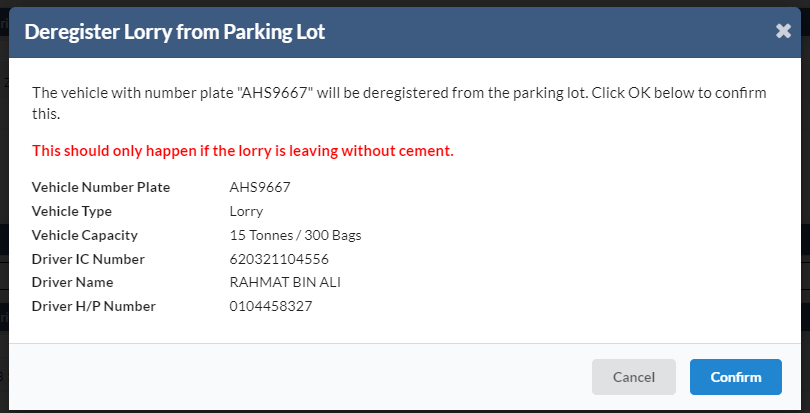
If the user wants to de-register the lorry, they can click on their chosen lorry from
Lorries in parking lot section. A new dialog box will appear where they can press Confirm to proceed with the de-registration.
- Weighbridge
In this page, user can tare and second weight of each lorry. User will be able to see two tabs in this page which is the table that shows the list of lorries that is coming in for first weighing and second weighing.
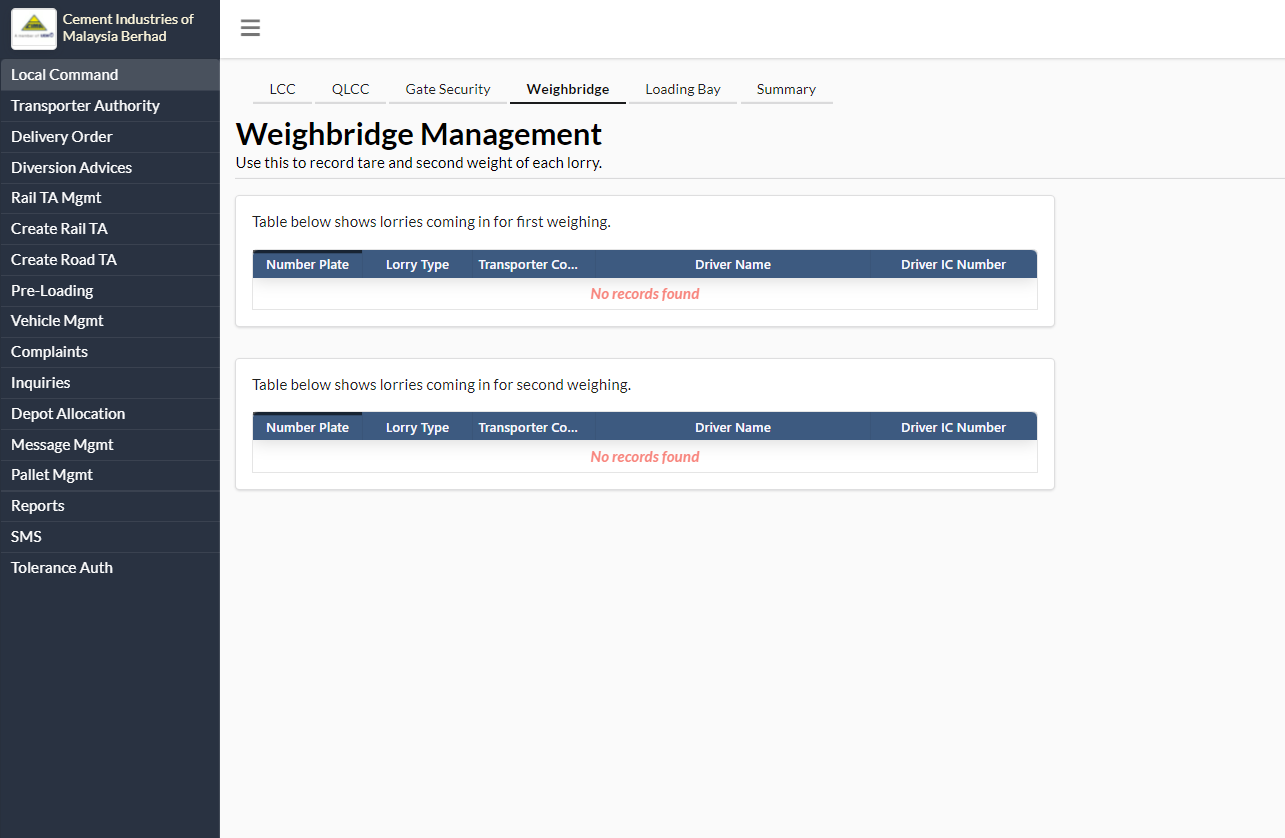
Once a lorry is in to check its first weight, user need key in the tare weight and click Set Tare Weight button.
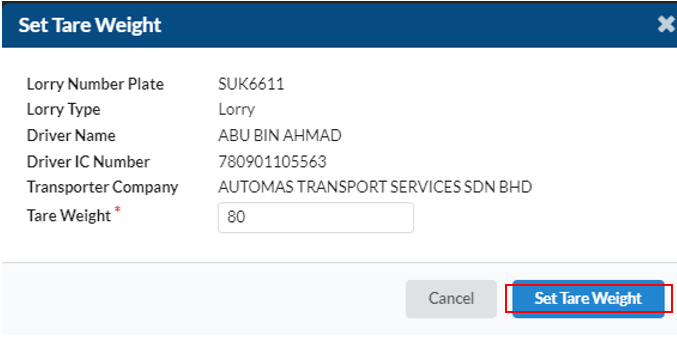
Now, they lorry will go to load the products and come back for the second weight. User need to repeat the same step as the first weight.

- Loading Bay
In this page, user can record loading information for each lorry. To load the lorry, user need to click on the lorry icon to set the loading status.
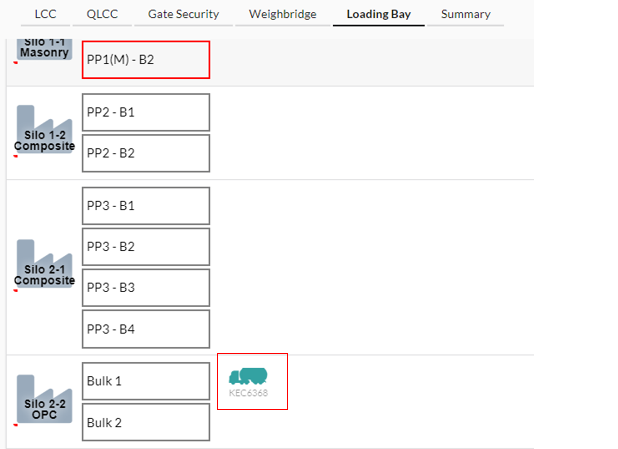
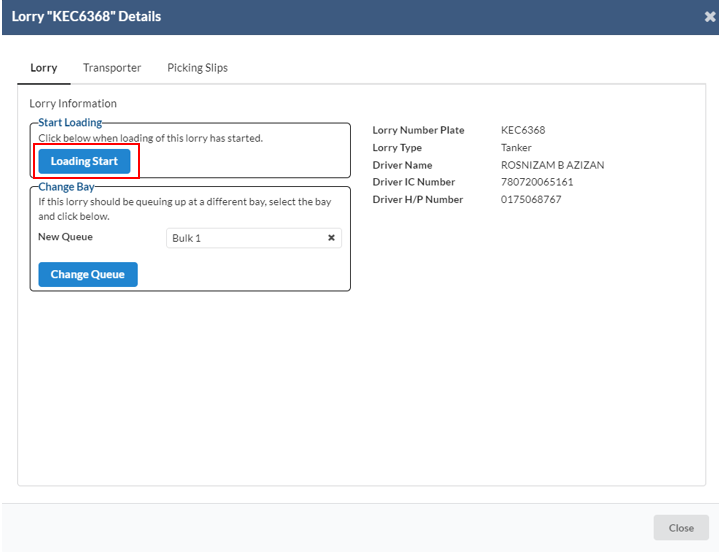
Once clicking, a new dialog box will appear where the user has to click the Loading Start option to start the loading the process.
When the lorry has completed the loading, user need to click the Done Loading button to send the lorry for its second weight setting and then they lorry will be at the gate security queue to go out.
- Summary
In this page, user can view the summaries of lorries in the depot.
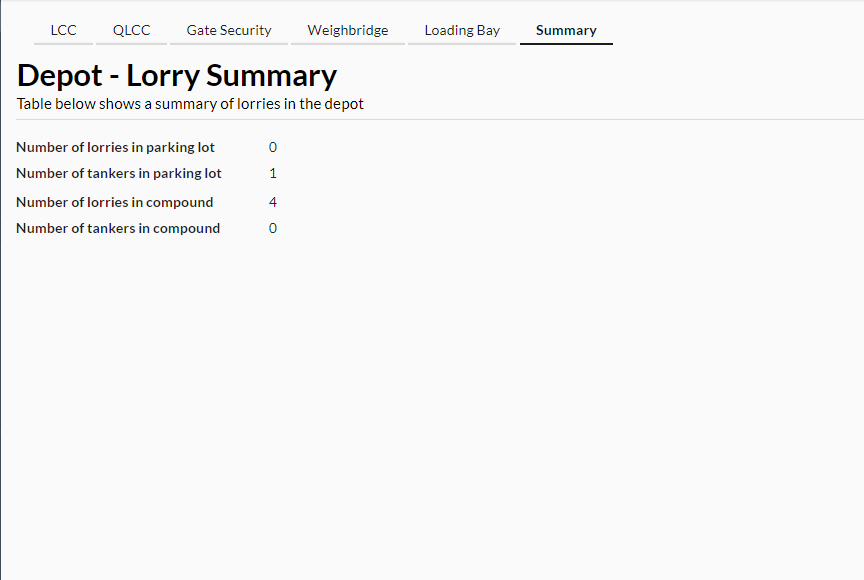
Lorry locations on the Local Command & Control Console
In this window, you can see lorries and tankers at all major points in the depot:
Parking lot
- Lorries details (including number plate, transporter company, number of picking slips currently assigned to lorry, total quantity of cement currently assigned to lorry, lorry capacity, location preferences, and any additional remarks)
Gate Security:
- Queue to enter compound
- Queue to leave the depot
Weighbridge:
- Queue to be weighed for first weight
- Queue to be weighed for second weight
Silos:
- Queue to be loaded at Bay
- Current lorry loading at Bay
Lorry Information
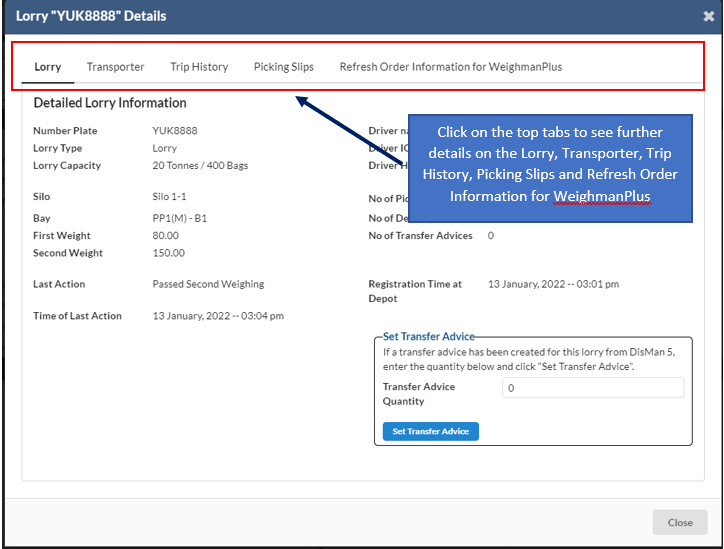
You can also click on any lorry on this screen and a window will pop up with more information about the lorry such as the lorry details, transporter details, and currently assigned picking slip. As shown in the picture below, you can click on each of the tabs to view further details on Lorry, Transporter, Trip History, Picking Slips and Refresh Order Information for WeighmanPlus. After you finish viewing the details on the lorry, click Close at the bottom of the window.
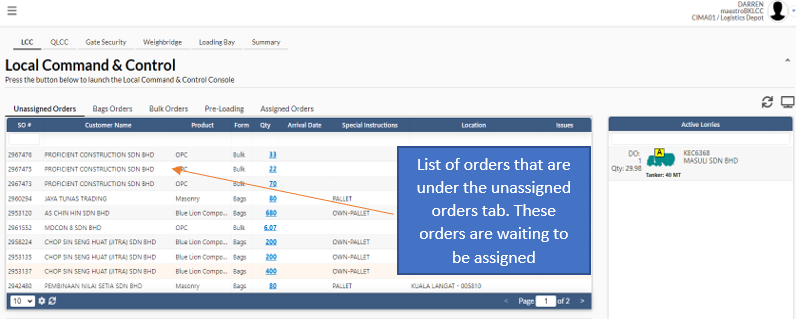
Sales orders in Local Command & Control Console
On the top left of the screen, you can view a list of sales orders that are waiting to be assigned to a lorry. By clicking on a different tab, you can also see a list of pre-loading advices that should be processed.
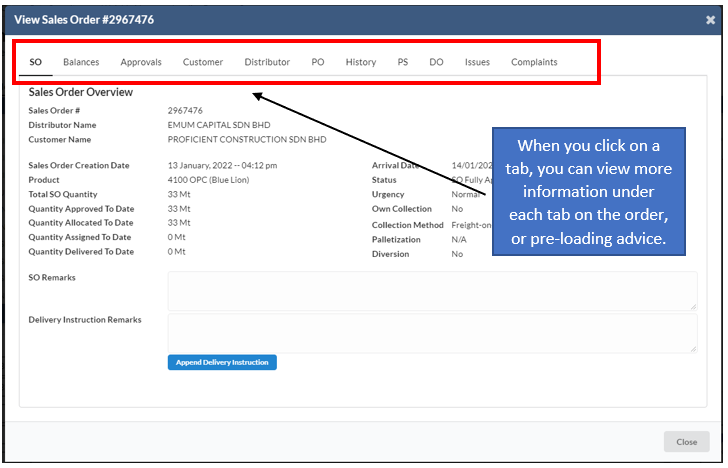
Click on any row in the list and a window will pop up with more information about the sales order, or pre-loading advice. You can click on each of the tabs in the window to view that particular information on the order or advice. Click OK to close the window when you finish viewing.
Step 3: Assigning sales orders (as picking slips) to lorries/tankers in parking lot
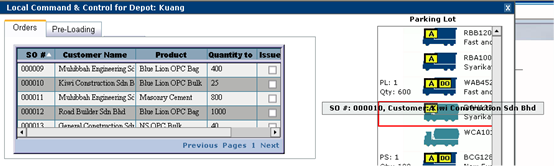
You can assign a sales order to a lorry by dragging that order to the lorry. To do this, ensure the “Orders” tab is selected in the top-left section of the screen.
Use your mouse to CLICK, HOLD and DRAG an order to a lorry or a tanker in the parking lot.


The box “Assign Picking Slip to Lorry” appears, and is as shown below. Type in the quantity and seal number to be assigned to the lorry. Note that the process is similar to assigning a pre-loading advice to a lorry.
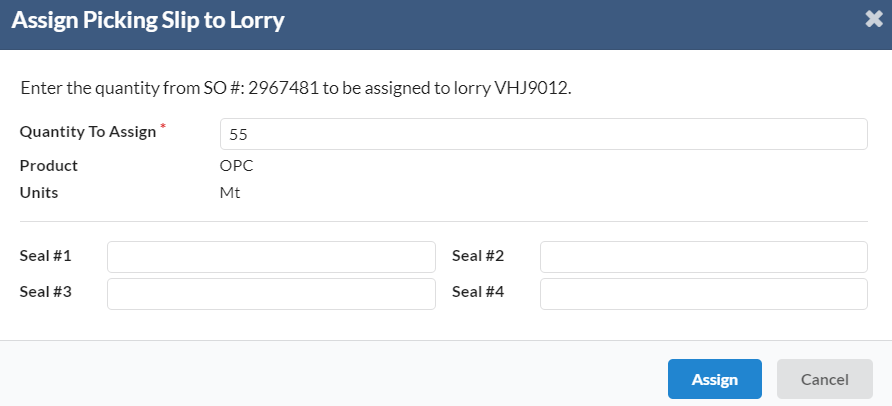
To complete the assignment, click “OK”.
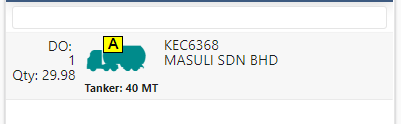
Notice that in the parking lot, numbers now appear on the left-side of the lorry you assigned picking slips to. It will indicate how many Picking Slips (PS) have been assigned, total quantity of cement currently assigned to the lorry, the lorry capacity, location preferences (if any), and additional remarks (if any).
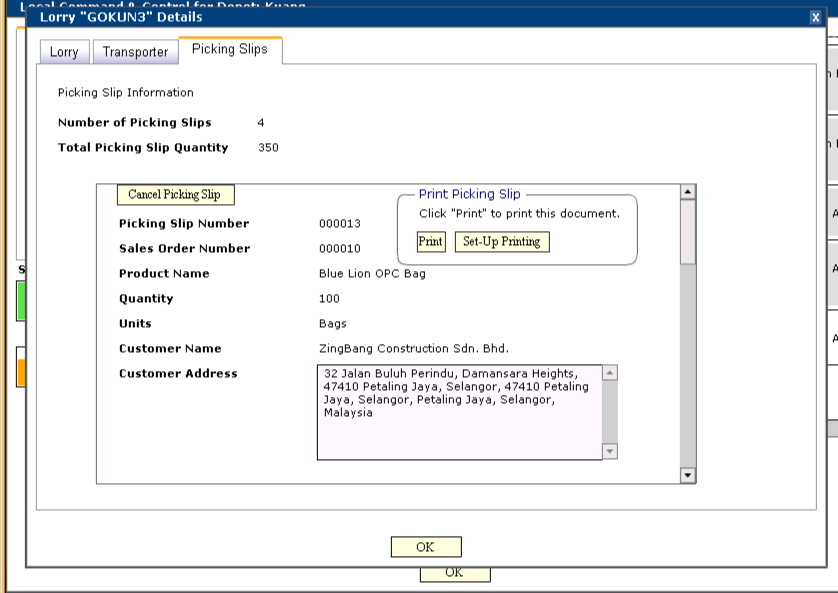
You can also review the picking slips that have been assigned to a lorry at any time by clicking on the lorry, and then clicking on the “Picking Slips” tab. As shown below, you can view, cancel, and print all picking slips as well. Click “OK” when you are finished reviewing the lorry details.




Step 4: Assigning a lorry to a loading bay
When the traffic situation in the depot allows another lorry to start moving through the depot, you need to assign the lorry to a loading bay.
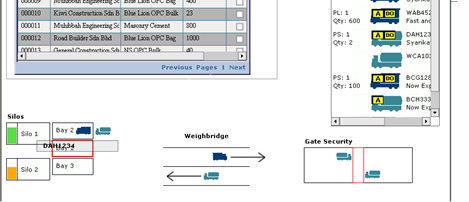
Click and drag a lorry to an appropriate loading bay. The lorry will disappear from the parking lot list, and appear queued up at Gate Security to enter the compound. The lorry will now be called to enter the compound.


3. Managing Pre-Loading Advices
Local Command can decide to create pre-loading advices at any time. Follow the steps below to create and assign pre-loading advices.
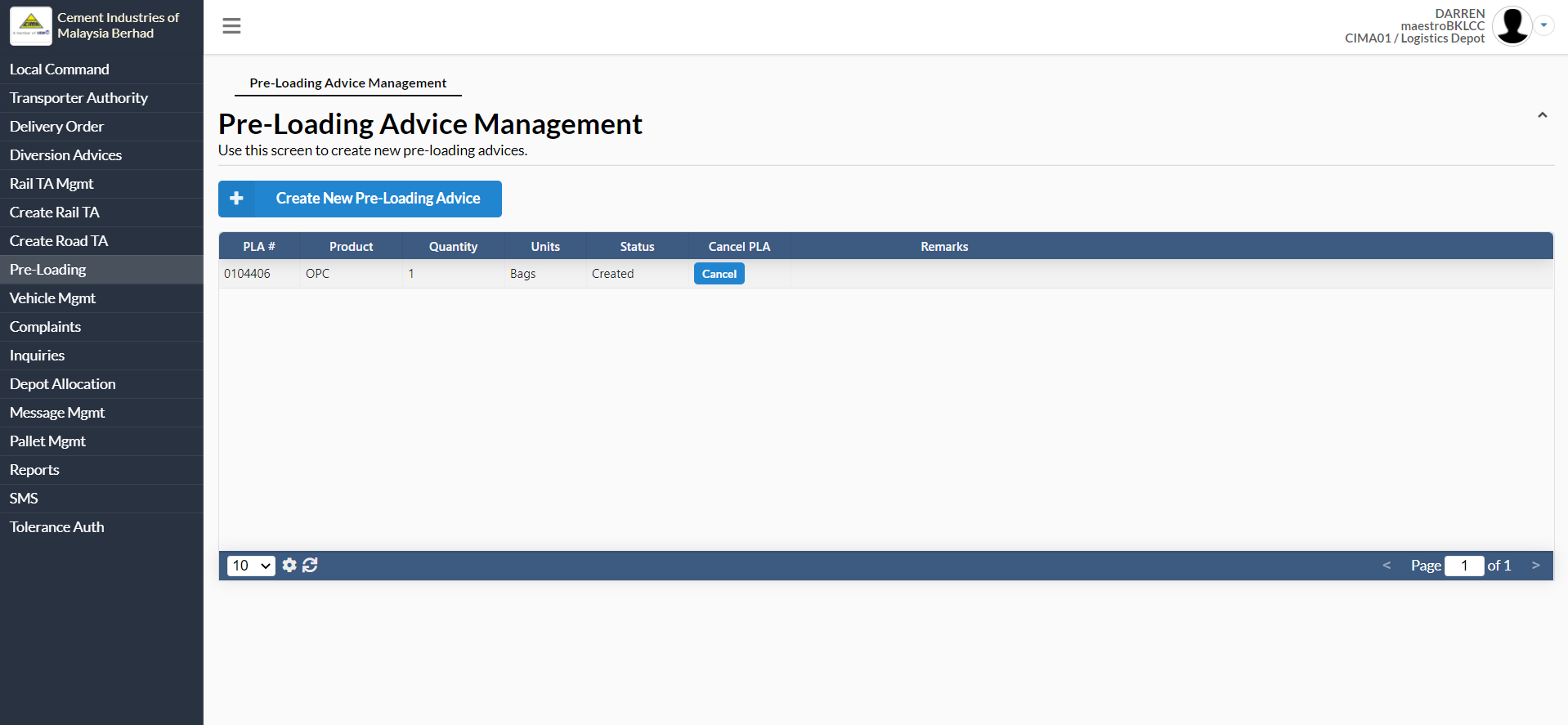
Step 1: Go to the Pre-Loading Advice Management page
Click on “Pre-Loading Advices” button in the left navigation column. This should take you to the “Pre-Loading Advice Management” page which is the default page.
Step 2: Create a new pre-loading advice
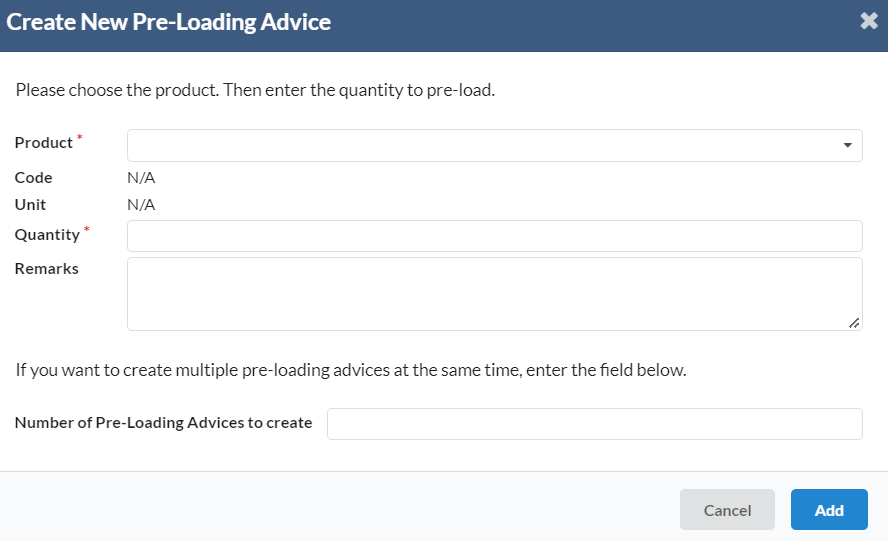
Click on “Create New Pre-Loading Advice”. Type in the quantity of product to pre-load. You can also create a batch of pre-loading advices with the same quantity by entering the number of advices to generate in the field marked “Number of Pre-Loading Advices to create” (e.g. 5, as shown below). When all the information has been entered and checked, click “OK”.
Step 3: Cancelling pre-loading advices
You have the option to cancel a pre-loading advice by clicking on the “Cancel” button in the table. When you do this, another box appears asking you to confirm the cancellation. Click “OK” to confirm the cancellation.
Step 4: Assigning the pre-loading advice to a lorry
You can assign pre-loading advices to lorries in a very similar way as assigning sales orders. Simply drag a pre-loading advice from the “Pre-Loading” tab in the Local Command and Control Console. Refer to the section “Managing Local Lorry Movement” for more information.