
1. Rebate Overview
Rebates are organized by rebate sets. For example, refer to the following diagram.
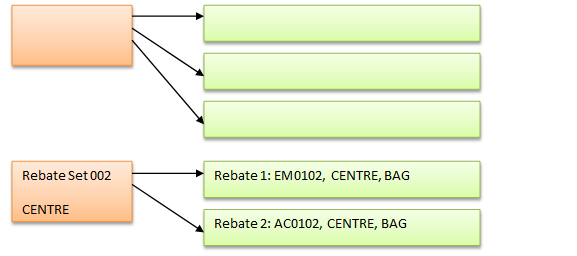
Figure 1: Example rebate sets configuration
A rebate set contains many rebates. You can organize rebate sets and rebates any way you wish. In the example given above, a rebate set has been created just for the North Region. Underneath this rebate set, we have three rebates, each applying to different distributors.
- Approvals
Approvals are done at the rebate set level. Thus, an entire rebate set is either approved or rejected at once. Once approved, the rebate set will immediately be in effect. Any backdated rebates calculation will be initiated at this point.
- Updating the Rebate Set
Once a rebate set has been approved, the rebate details such as amounts and start dates are frozen. However, if they need to be amended, the rebate set can be updated. When you update a rebate set, the rebate set is copied into a temporary rebate set. This rebate set can be modified as you wish prior to submission for approval.

The original rebate set (Rebate Set 001) remains active while Rebate Set M-001 (the copy) is being updated. The updates do not take effect until they are approved.
2. Rebate Flow Diagram
The following diagram summarizes the rebate flow.
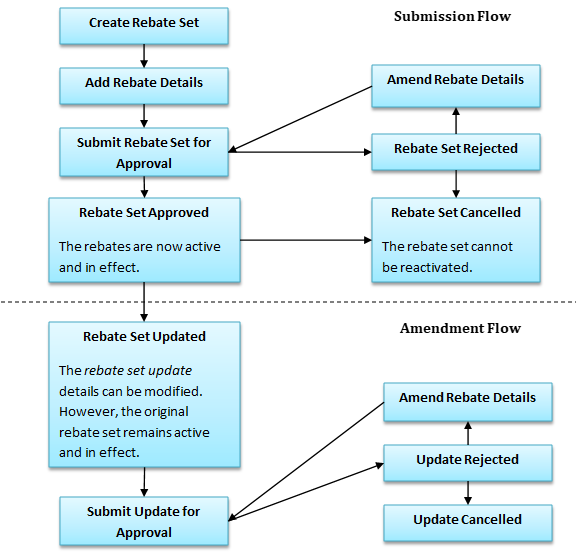
Figure 2: Rebate module process flow
3. Rebate Intricacies Explained
3.1. List of Rebate Type
The table below shows the list of all rebate types in the optimalOneTM rebate module.
No | Rebate Category | Dimensions | Sub-Rebates | Volume Rebate? | Exclusion Condition? | Aggregate Strategy |
1 | Market Rebate (MR) | Depot Code, Distributor, District, Packing Type, Product Category, Region, SO Quantity, State | PPI/SPPI | No | FR, FP, RBPO | Max |
2 | Market Rebate Selected Customer (MRSC) | Customer, Depot Code, Distributor, District, Packing Type, Product Category, Region, SO Quantity, State | MR | No | FR, FRWC, FP, RBPO | Max |
3 | MRSC Fixed (FMRSC) | Customer, Depot Code, Distributor, District, Packing Type, Product Category, Region, State |
| Yes | FR, FRWC, FP, RBPO | Max |
4 | PPI | Distributor |
| No | SPPI, RPBO | Max |
5 | Standard PPI (SPPI) | Distributor |
| No | RBPO | Max |
6 | Additional PPI (APPI) | Distributor, District, Packing Type, Product Category, Region, State |
| No | RBPO | Max |
7 | Program | Customer, Depot Code, Distributor, District, Packing Type, Product Category, Region, SO Quantity, State |
| No | FR, FP, RBPO | Sum |
8 | Special | Customer, Depot Code, Distributor, District, Packing Type, Product Category, Region, SO Quantity, State |
| No | FR, FP, RBPO | Sum |
9 | Fixed Rebate (FR) | Customer, Depot Code, Distributor, District, Packing Type, Product Category, Region, SO Quantity, State | PPI/SPPI | Yes | FR, RBPO | Max |
10 | Fixed Rebate With Commission (FRWC) | Customer, Depot Code, Distributor, District, Packing Type, Product Category, Region, SO Quantity, State | MR | No | FR, RBPO | Max |
11 | Fixed Price (FP) | Customer, Depot Code, Distributor, District, Packing Type, Product Category, Region, SO Quantity, State | PPI/SPPI | Yes | RBPO | Max |
12 | Rebate by PO (RBPO) | Sales Order |
| No |
| Max |
13 | Offset Rebate | Customer, Distributor, District, Packing Type, Product Category, Region, State |
| No | RBPO | Min |
14 | Volume Incentive (VI) | Distributor, Product Category |
| Yes | FR, FRWC, FP, RBPO | Max |
15 | Project Incentive (PI) | Distributor, Customer, Depot Code, Product Category, Packing Type, Region, State, SO Quantity |
| Yes | FR, FP, RBPO | Sum |
16 | *Balance Commission (BC) | Distributor |
| No | SBC,RBPO | Max |
17 | *Standard Balance Commission (SBC) | Distributor |
| No | RBPO | Max |
Table 1: List of rebate types in the rebate module
The meaning of each column is explained further in the following table.
Column Name | Definition |
Rebate Category | The name of the rebate type. This is the name displayed in the rebate selection UI and the various rebate reports. |
Dimensions | The dimension filters that are applicable for the rebate type. |
Sub-Rebates | Indicates whether the rebate amount is inclusive of other rebates. For example, based on the table, for Market Rebate (MR), the amount keyed-in by the user will be inclusive of the PPI value as well, provided that the order is eligible for both MR and PPI. For example, suppose an order has the following eligible rebates: MRTotal = RM50 PPI = RM4 The balance MR will be calculated as follows: MRBalance = MRTotal – PPI = RM50 – RM4 = RM46
|
Volume Rebate? | Indicates whether or not the rebate is a volume rebate. For volume rebate, it will only be considered for inclusion once the order tonnage is between the start and end volume of the rebate. |
Exclusion Condition? | Excludes the rebate if any of the rebates shown under this column exist in the eligible rebates list. For example, suppose a delivery order is eligible to get MR, PPI & Fixed Rebate. The MR rebate will be dropped since the Exclusion Condition for MR consists of the Fixed Rebate. Initial Rebates Eligibility = MR, PPI & Fixed Rebate Final Rebates Eligibility = PPI & Fixed Rebate |
Aggregate Strategy | Indicates the strategy to use to handle multiple rebates match of the same type. Max Strategy: When there are multiple rebates matches of the same type, select the one with the largest value. Sum Strategy: When there are multiple rebates matches of the same type, sum them up. |
3.2. Rebate Selection Process
Generally, for a delivery order, the eligible rebates are selected based on the delivery date. The following example describes this fact further.

In this example, based on the delivery date,
- DO #BK1 will be eligible for RB #1
- DO #BK2 will be eligible for RB #1 and RB #2
- DO #BK3 will be eligible for RB #1, RB #2 and RB #3
- DO #BK4 will be eligible for RB #1 and RB #3.
Some other facts on the date used to select rebates:
- If the delivery order is a diversion order, then the original order’s delivery date will be used to select the rebates. For example, suppose a DO # BA:7777123 delivered on 1/6/2011 is diverted on 1/7/2011, the system will still use the original delivery date 1/6/2011 to select the rebates for the diversion order.
- If the delivery order was created from a pullback exception SO, the system will use the sales order date instead of the delivery date to select the rebates. The pullback process will be explained further in the subsequent sections.
For reference, the overall rebates selection process is illustrated in the following diagram:
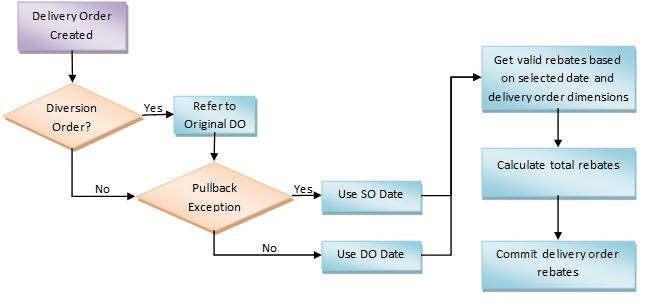
Figure 3: Flow diagram for rebates selection process
1. Organization of Rebate Functionality
Rebate management is accessed via the “Rebate” left navigation item. The top navigation buttons are: 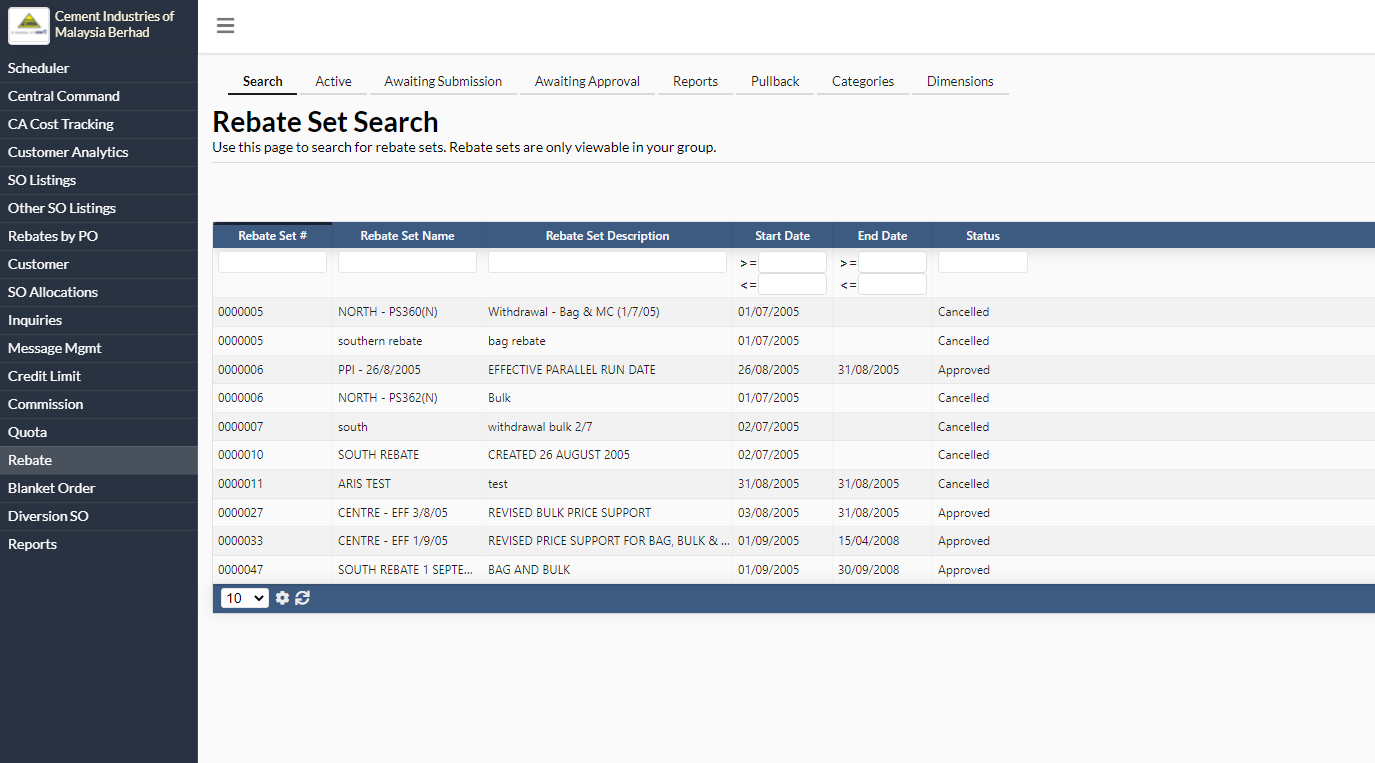
Figure 4: The Rebate Navigation Menu
Top Navigation | Description |
Search | Search specific rebate sets/rebates based on the given search parameters such as rebate set/rebate number, set name and start/end date. |
Active | List of rebate sets that are currently active and in effect. |
Awaiting Submission | List of rebate sets which have been created/updated/rejected and are awaiting submission or cancellation. New rebate set is also created from this page. |
Awaiting Approval | List of rebate sets that have been submitted for approval. |
Reports | View rebate summary report with constraints such as departments, status and rebate dates. |
Pullback | List of newly created/rejected rebate pullbacks that have not been submitted for approval. New rebate pullback is also created from this page. |
Categories | Manage rebate categories |
Dimensions | Update rebate dimensions |
Table 4: Description of each top navigation menu
2. Performing Common Actions in Rebate Module
2.1. Creating New Rebate Set
To create a new rebate set, click on the Awaiting Submission tab. Next, click on ‘Create New Rebate Set’ button. Input the rebate details and select the departments that you want to allow to view the rebate set. The list of departments that you can select will depend on your user settings. Click Add when you are done. 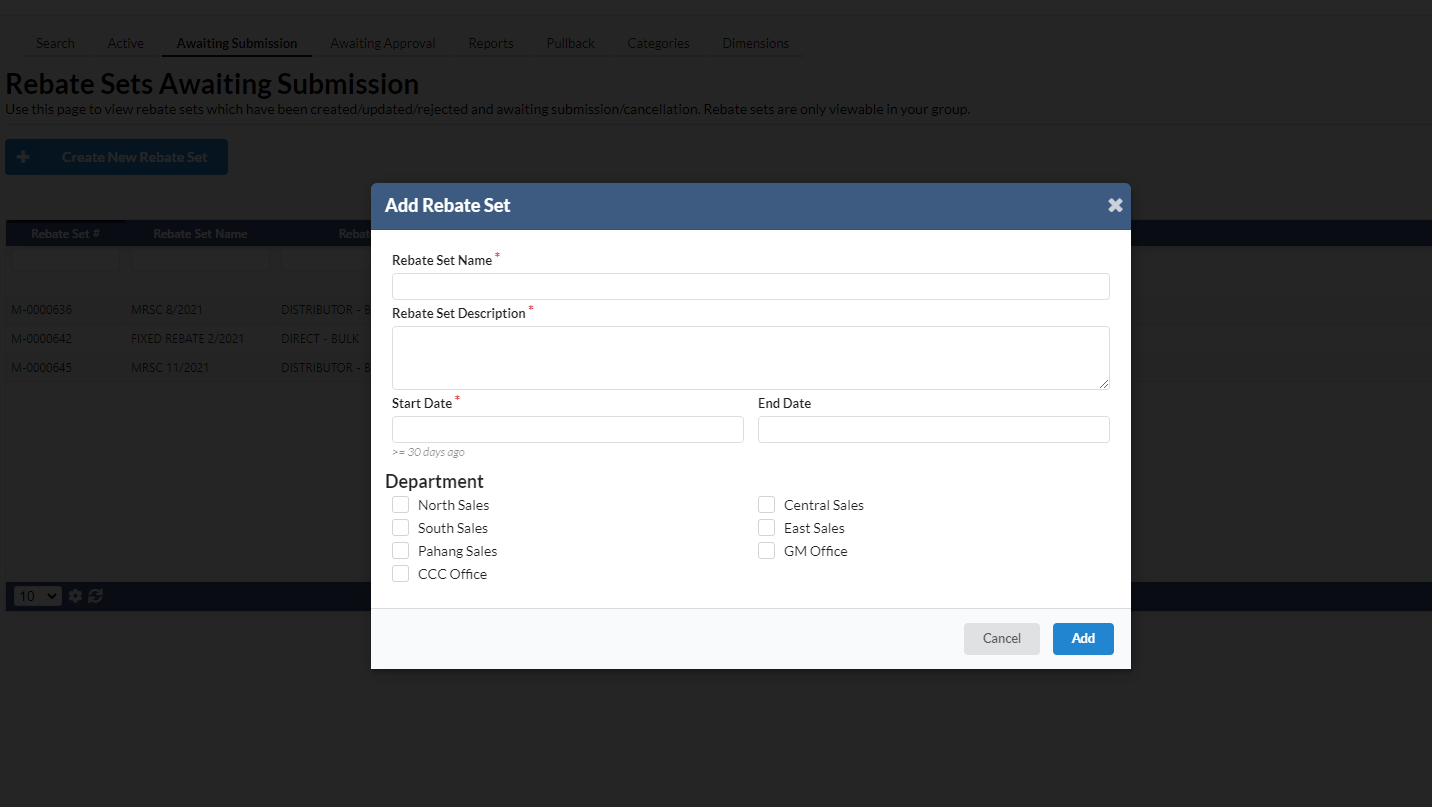
Figure 5: Create new rebate set popup dialog
Once the rebate set is created, the ‘View Rebate Set Info’ popup will immediately load so that you can proceed to edit the rebate set details.
2.2. Viewing/Editing Rebate Set Details 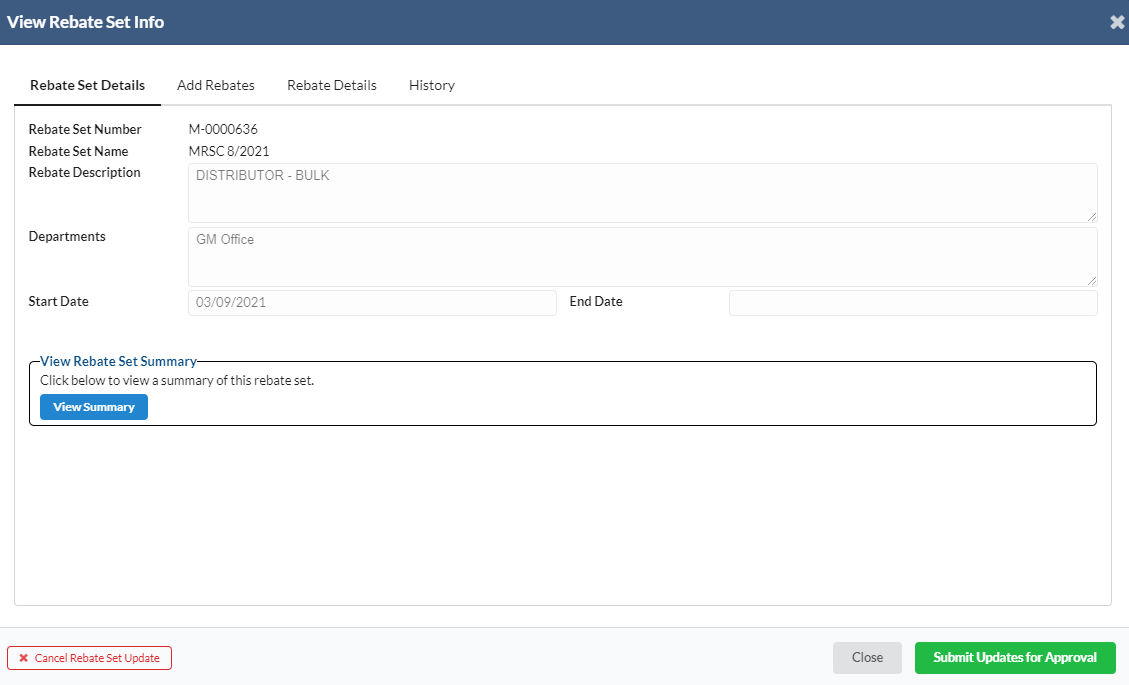
Figure 6: The Rebate Set Details tab
After a rebate set is added, the “View Rebate Set Info” popup dialog will immediately load to allow you to update the rebate set details. You can also open this popup by clicking on the record in the rebate set listing.
The following describes the purpose of each tab in the ‘View Rebate Set Info’ popup dialog.
- Rebate Set Details – This tab shows the general rebate set details such as set name & description, departments and start/end date of the rebate set. You can also perform actions such as submitting, closing or cancelling the rebate set. Additionally, you can view the rebate set summary report to quickly review the rebates configuration for this set. Depending on your access rights, you may not be able to access some of the functions shown in this tab.
- Add Rebates – This tab shows the list of rebates that you can choose to add to the rebate set.
- Rebate Details – This tab allows you to view/edit the list of rebates that have been added to the rebate set.
- History – This tab shows the past actions that have been performed on the rebate set.
2.2.1. Adding Rebates to the Rebate Set
A rebate set may contain many types of rebates such as Market Rebate, Market Rebate Selected Customer, Program, Special, Fixed Rebate and Fixed Price. These rebates in turn can be further specified by dimension filters such as Depot code, Distributor, Product, Region, State and Packing Type. In general, if dimensions are not specified, then the rebate set will be applicable to all deliveries.
You can add particular types of rebates in Add Rebates tab and review the details in the Rebate Details tab. All action on a rebate record is kept in the History tab. 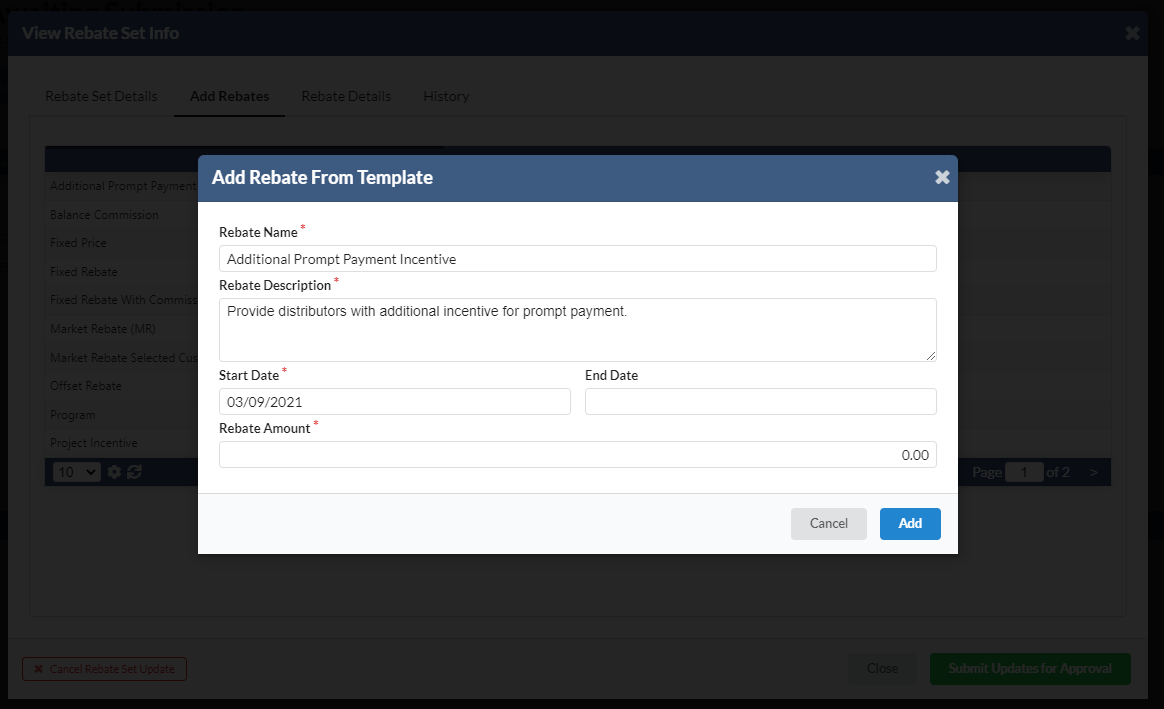
Figure 9: Add Rebates tab
- To add a rebate, under the Add Rebates tab, click on the type of rebate that you wish to add. Key-in the rebate information such as name, description, start/end date and the rebate amount in the popup dialog that appears next. Click Add when you’re satisfied with the details.
- Once the rebate is added, The View Rebate Info popup dialog will immediately load to allow you to further update the rebate details.
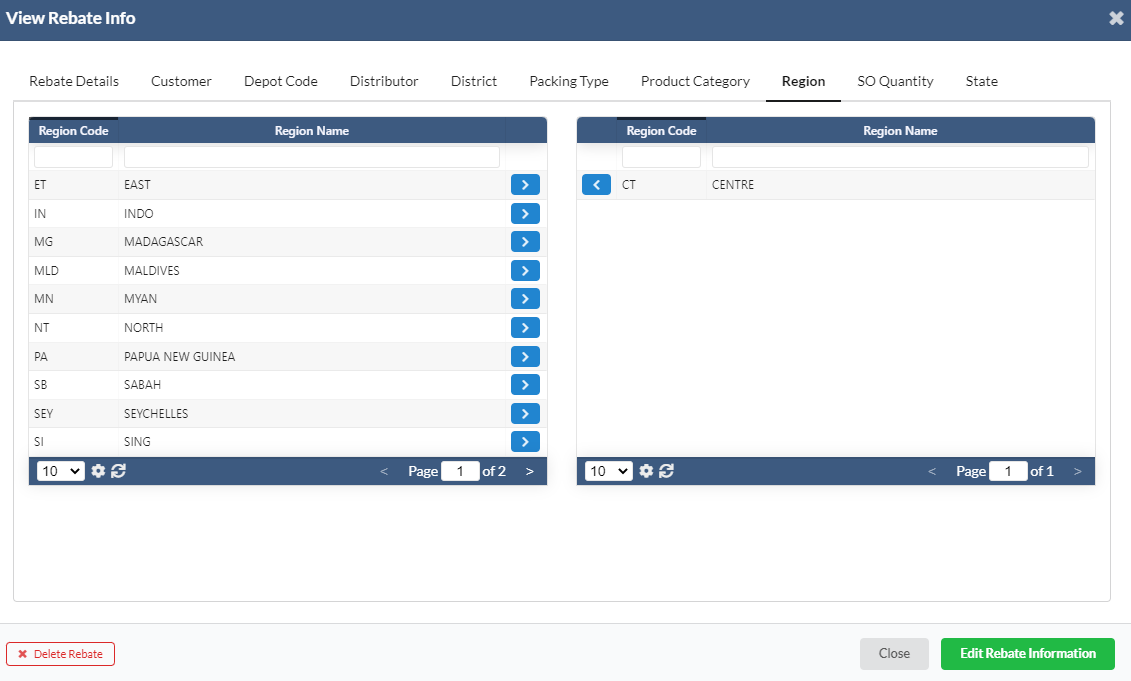
- Except for the first tab, the rest of the tabs in this popup dialog correspond to the dimension filters that are applicable for this rebate. Key-in the dimension values as necessary to control when this rebate will be applied to a delivery order. For example, if you want this rebate to be applicable to orders to the Centre region only, then under the Region tab, search for the Centre region item in the unselected filters table on the left and click the “>>” button to select and move it to the selected filters table on the right.
- Some rebates such as Project Incentive and Fixed Rebate require you to key-in the start/end volume parameters. For these rebates, the rebate will only be applicable on a delivery once the total order volume for the selected dimension filters is within the specified start and end volume.
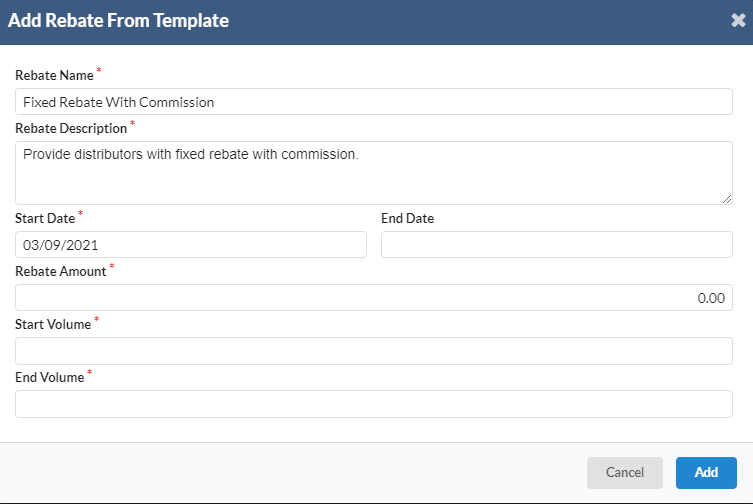
- For example, suppose a Project Incentive rebate has been defined with the following parameters and dimension filters:
- Start Date: 01/01/2012, End Date: Not Specified i.e. Open Ended
- Dimension Filters – Distributor: CH0100, Customer: CH0452
- With these settings, the rebate will only be applied to the delivery for Distributor CH0100 & Customer CH0452 once the total delivered volume from 01/01/2012 for Distributor CH0100 & Customer CH0452 is between 1000MT and 10000MT.
2.2.2. Viewing the Rebate Set Summary Report
Prior to submitting the rebate set for approval, you can view the rebate set summary report to verify the values of the rebates in the set. Go to Rebate Set Details tab and click the View Summary button to run the report.
2.2.3. Submitting Rebate Set for Approval
- Once you are satisfied with the details you’ve added to the rebate set, you can submit the set for approval. To do this, go to the “Rebate Set Details” tab, input the “Submission Remarks” and click the “Submit Rebate Set for Approval” button.
- Once a rebate set is submitted, it will appear in the Awaiting Approval listing.
2.3. Approving the Rebate Set
Once a rebate set has been submitted for approval, the record will appear in the Awaiting Approval page. Only the user with appropriate access rights (e.g. GM of Sales) can click on the record in this view to approve/reject rebate request. Others can only view the record. 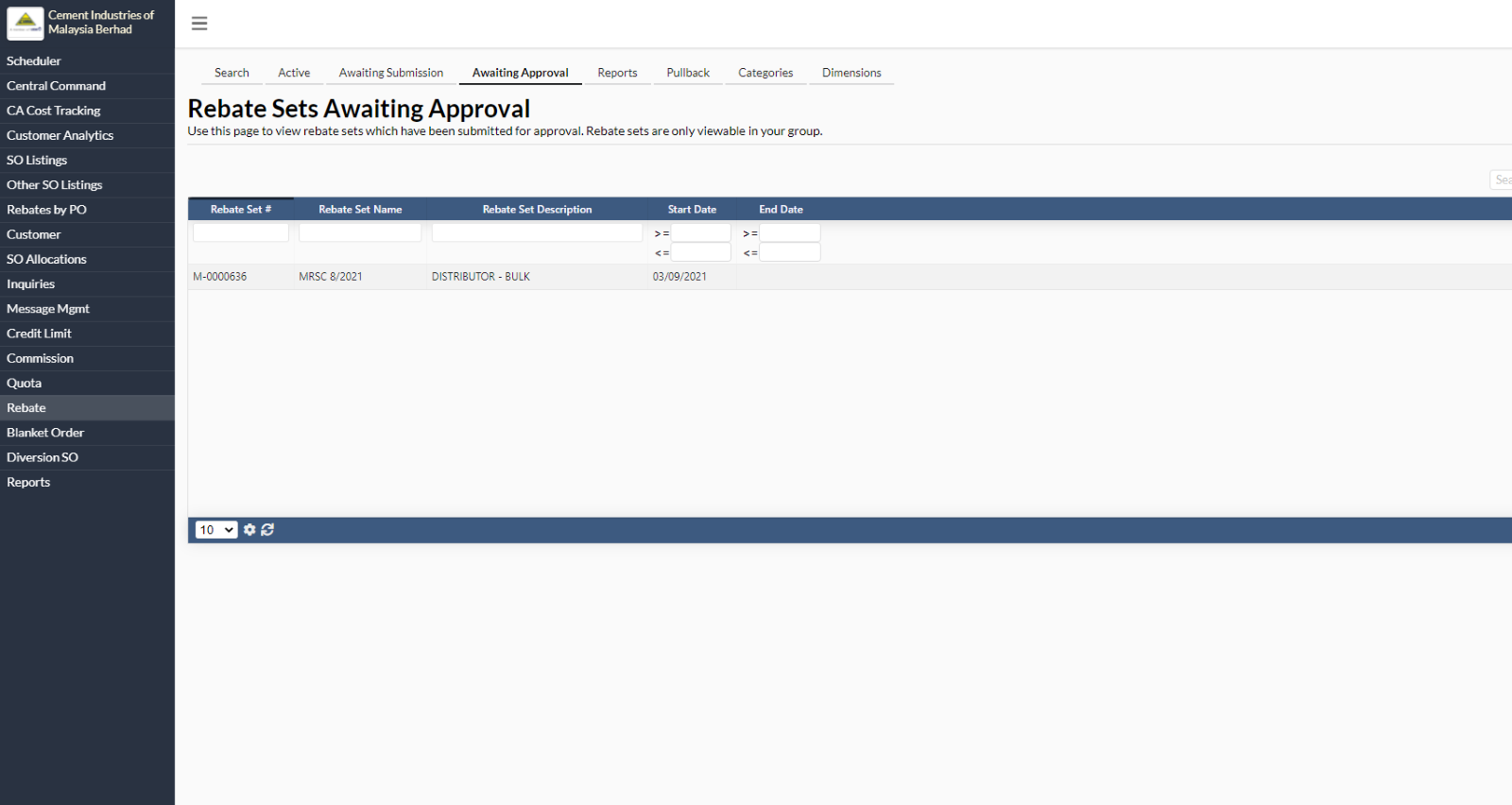
Figure 13: Awaiting approval page showing rebate sets that need to be approved
Once a rebate set is approved, it will immediately become active and if necessary, backdated rebates calculation requests will be sent to the processing queue. The rebate set record will also appear in the Active listing. However, if the rebate set is rejected, then the record will re-appear in the Awaiting Submission listing for further action by the submitting user.
2.4. Updating Existing Active Rebate Set
Sometimes, there is a need to change a rebate set which is currently in effect. Click on any record in the Active listing and submit the rebate set for update. Once the rebate set is submitted for update, it will appear in the ‘Awaiting Submission’ listing. Click on the rebate set again to update the details as required. Once you’re satisfied with the changes, submit the updated rebate set for approval.
2.5. Viewing Rebate Report
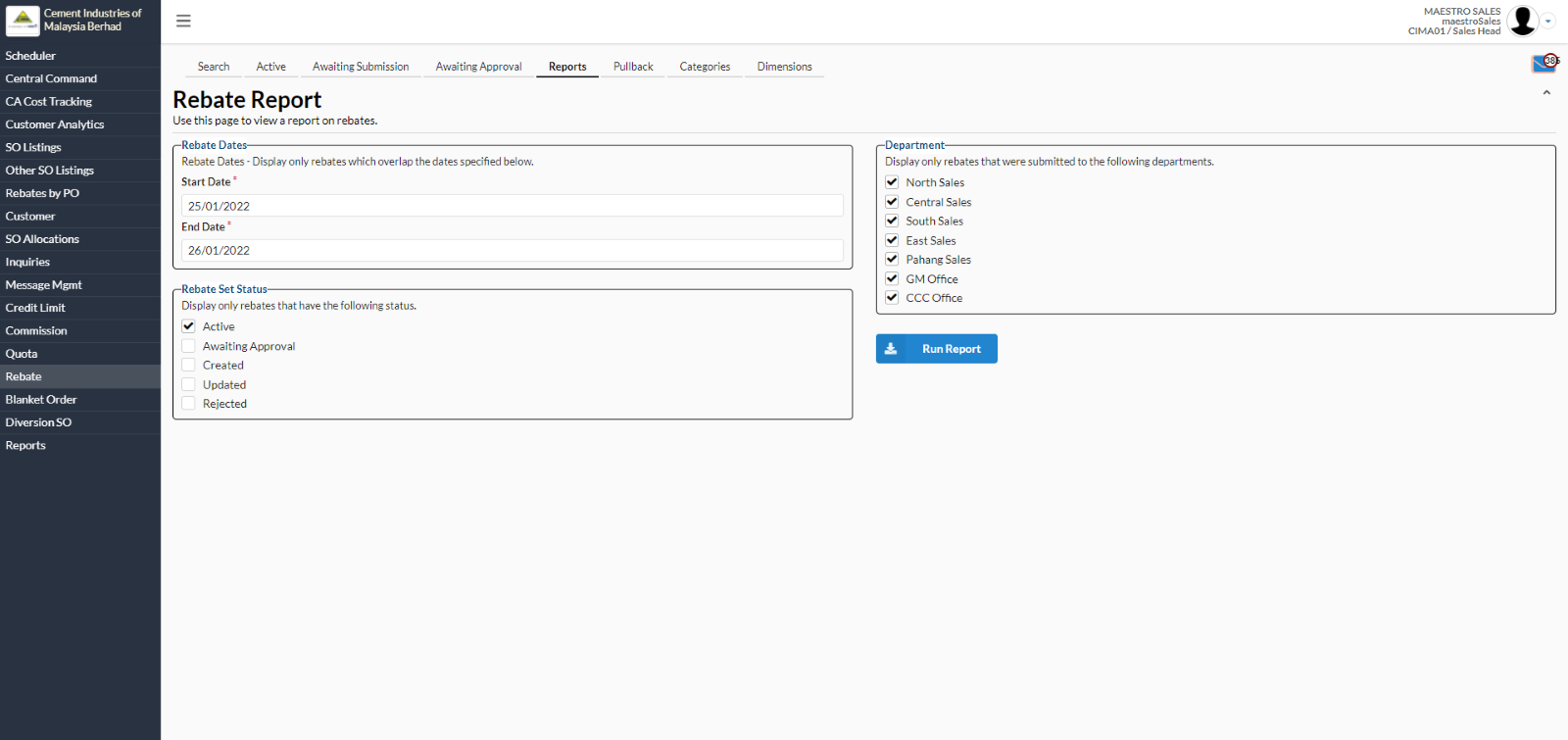
Figure 14: The Rebate Report Page
You can run the rebate report to quickly an overview of the aggregate sum of all applicable rebates between a date range, filtered by specific statuses and departments. The resulting report looks similar to the individual rebate set report except that instead of just the rebates under the rebate set, it will show results from applicable rebates across all rebate sets within the specified range.
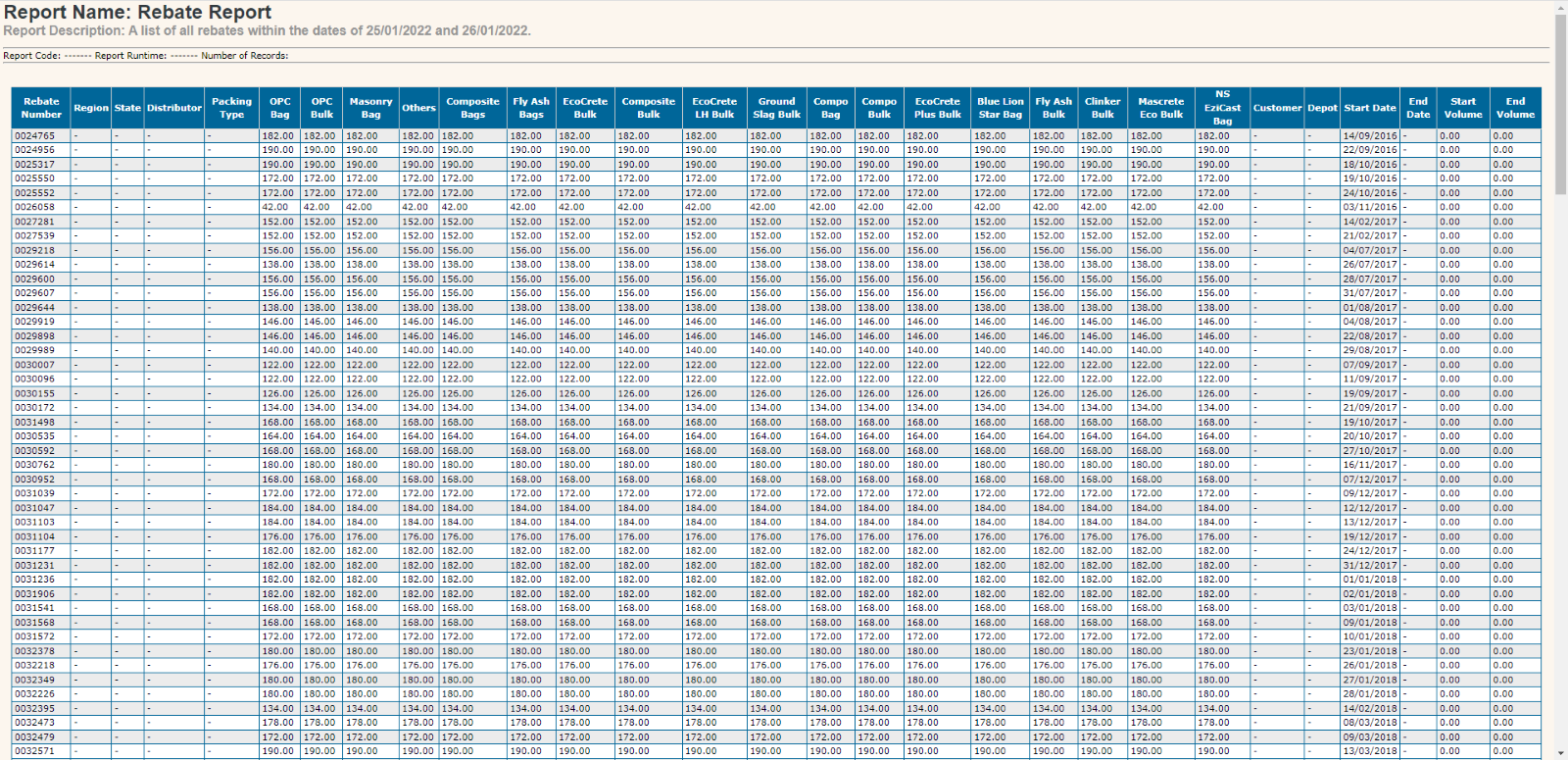
Figure 15: Sample rebate report from 1/11/2011 to 1/12/2011