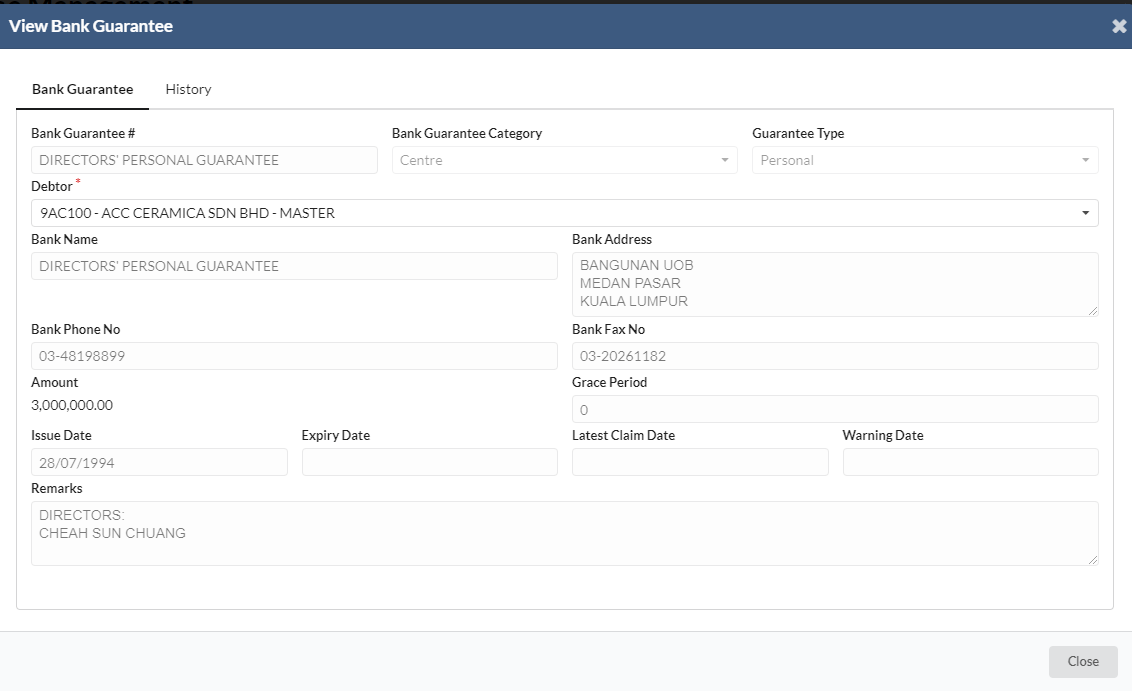
1. SO Inquiry
At any time, you can find an order in the system by going to the Sales Order Enquiry page and search for an order.
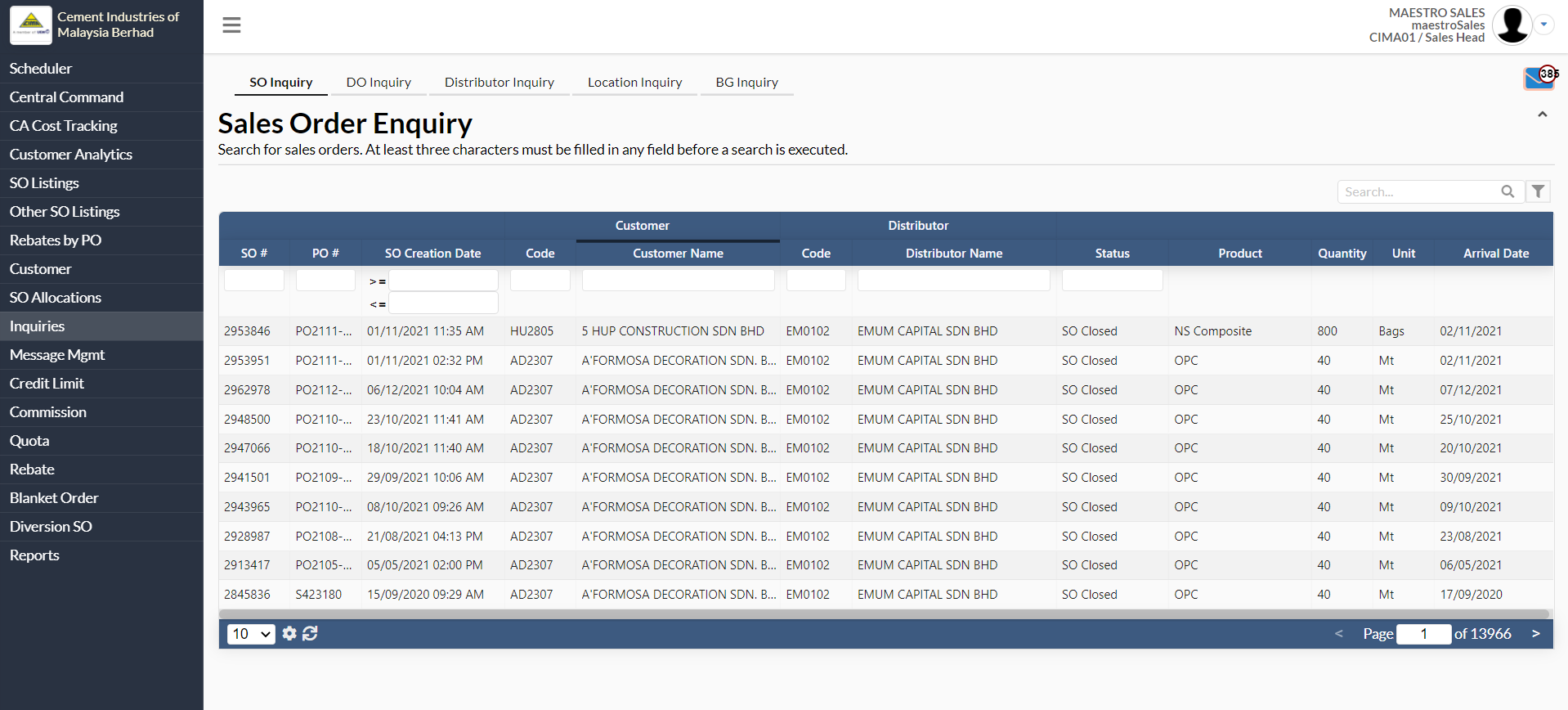
- Click on the Inquiry button in the left column
- Enter any of the fields with relevant information to find a SO.
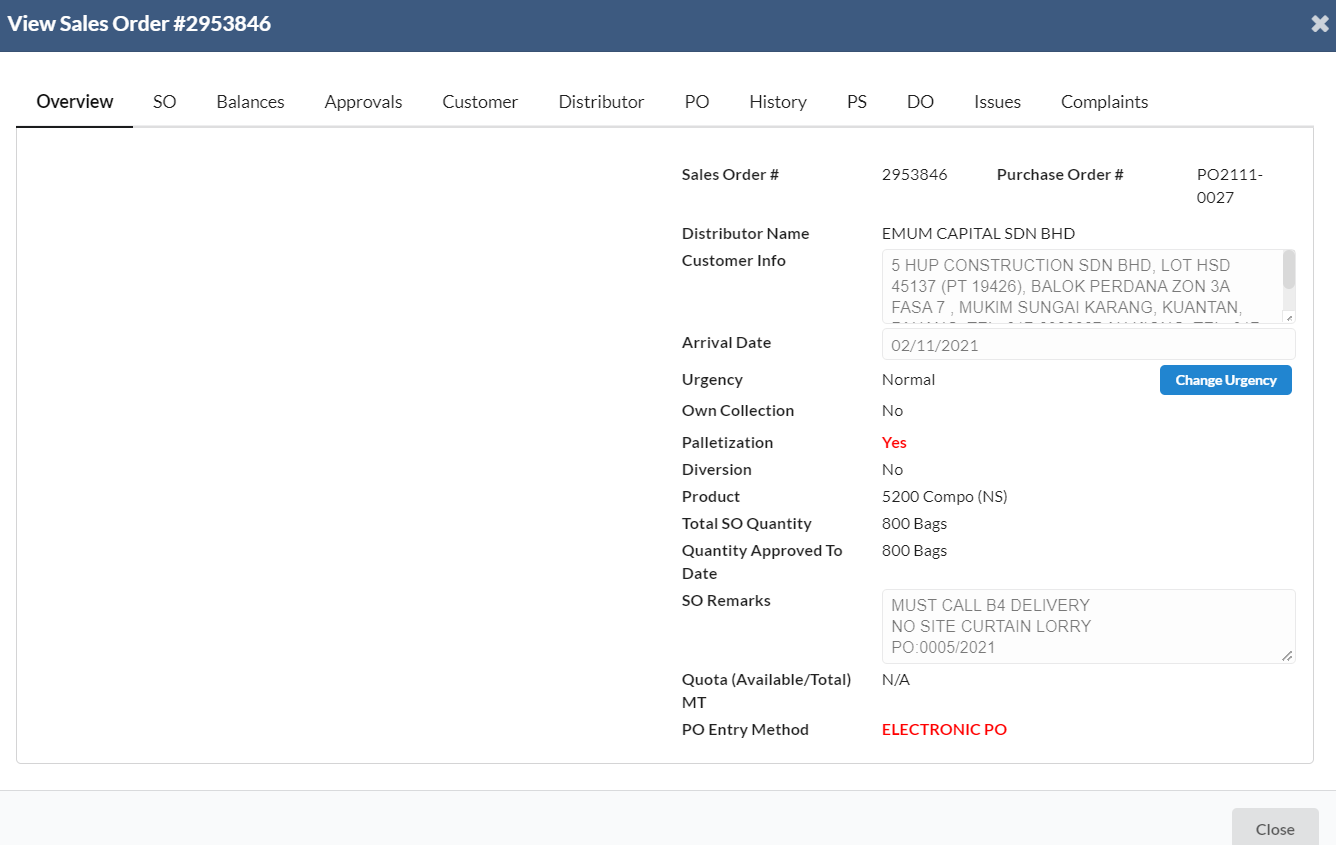 - A new dialog box will appear for user to view the sales order details.
- The tabs available in this view are as follows:
# | Tab Name | Description |
1 | Overview | Displays salient points of order for Sales team’s quick and easy reference. Also contains action boxes to
|
2 | SO | This is the Sales Order tab. Click on this to see specific information related to the Sales Order. Also contains action boxes to
|
3 | Balance | The Balance tab displays current balances and kick-back quantities. |
4 | Approvals | The Approvals tab displays all approvals for this sales order, including cancelled approvals. |
5 | Customer | Customer information tab. |
6 | Distributor | Distributor information tab |
7 | PO | Displays PO# and area for Sales team to add in remarks |
8 | History | Displays a table which shows all the actions that have been done on this sales order. |
9 | PS | Displays all the detailed picking slip and lorry information. |
9 | DO | Displays a table of all delivery orders that have been created under this sales/purchase order. |
10 | Issues | A facility to capture any issues which may arise for each particular order |
11 | Complaints | A facility to capture any complaints made by customer/distributor |
2. DO Inquiry
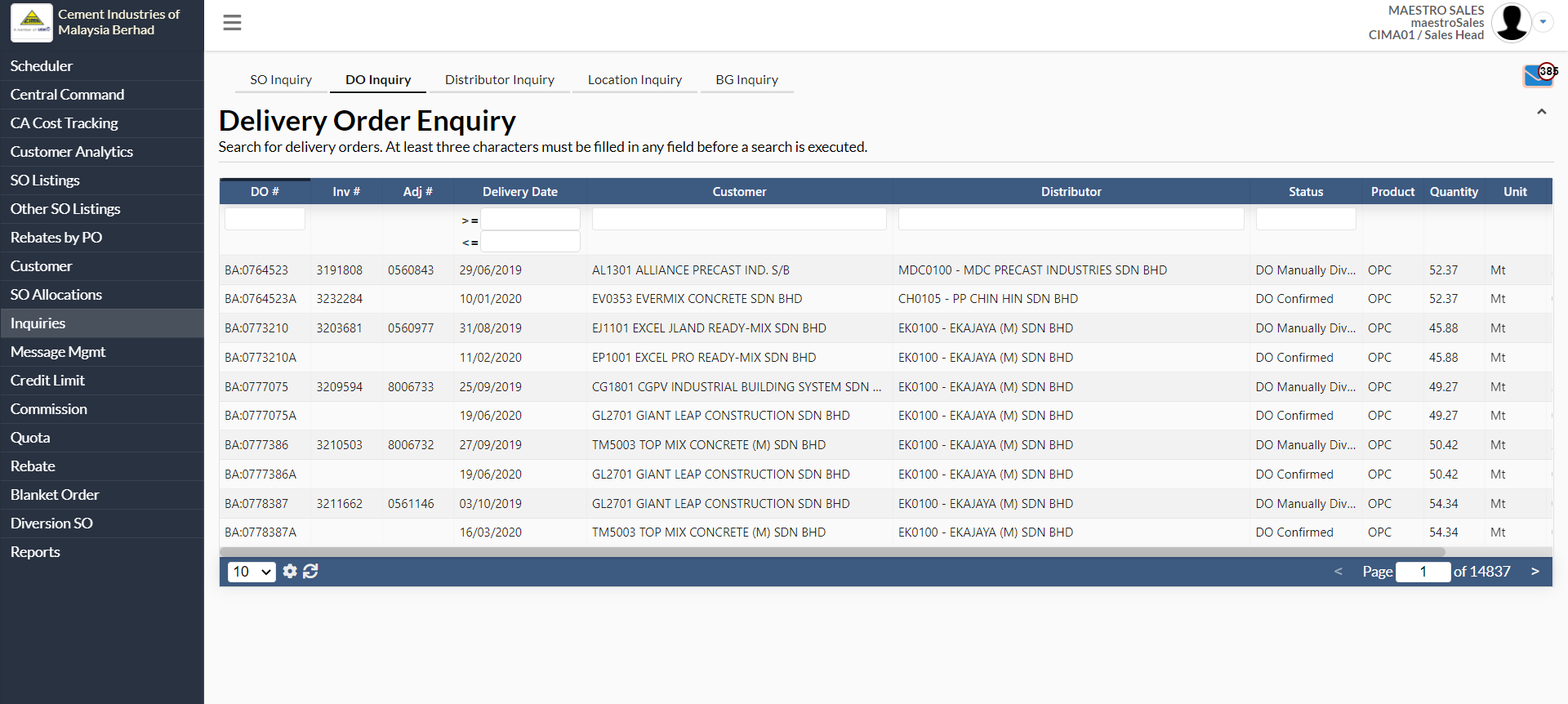
- Click on the Inquiry button in the left column
- Enter any of the fields with relevant information to find a DO.
- To search debtor, navigate to Inquiry -> Distributor Inquiry
- User can search for debtor by using search parameters as below:
- Code
- Debtor Name
- Tier
- User can also click on the bar next to Any Address Line or the bar next to Select Company.
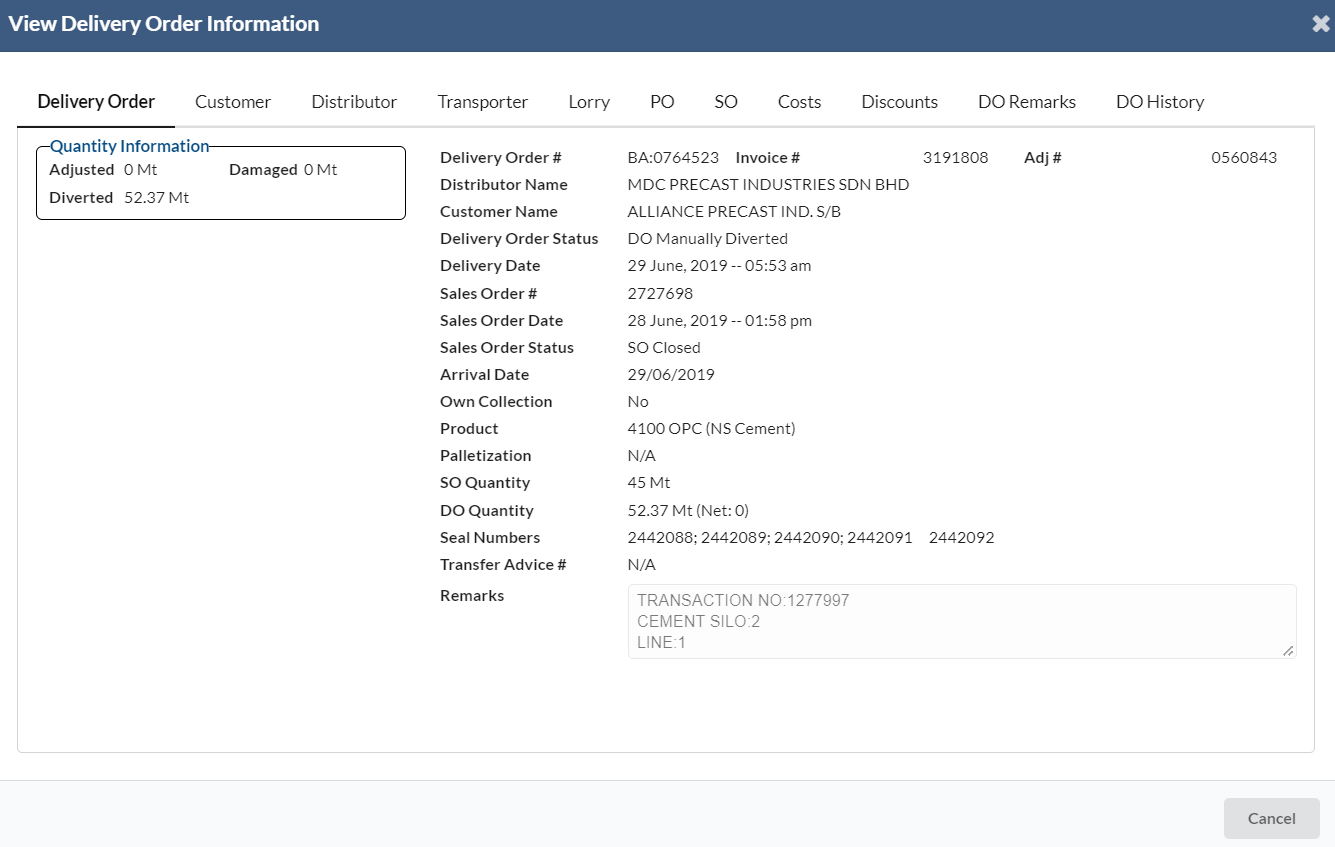
- A new dialog box will appear for user to view the delivery order information.
- The tabs available in this view are as follows:
# | Tab Name | Description |
1 | Delivery Order | Displays all the delivery order information including quantity information. |
2 | Customer | Allow to view specific information related to the Customer. Also contains action box to
|
3 | Distributor | Distributor information tab. |
4 | Transporter | Transporter information tab. |
5 | Lorry | Displays all the detailed lorry information including no of picking slips. no of delivery orders, no of transfer advices and etc. |
6 | PO | Displays all the messages that have been submitted for this purchase order. Also contains action boxes to
|
7 | SO | This is the Sales Order tab. Click on this to see specific information related to the Sales Order. Also contains action boxes to
|
8 | Costs | Displays all the prices, discount and costs. |
9 | Discounts | Displays a table which shows all the rebates that have been applied on this particular delivery order. |
10 | DO Remarks | Displays the delivery order remarks. |
11 | DO History | Displays a table which shows all the action that have been taken on this DO. |
3. Distributor Inquiry
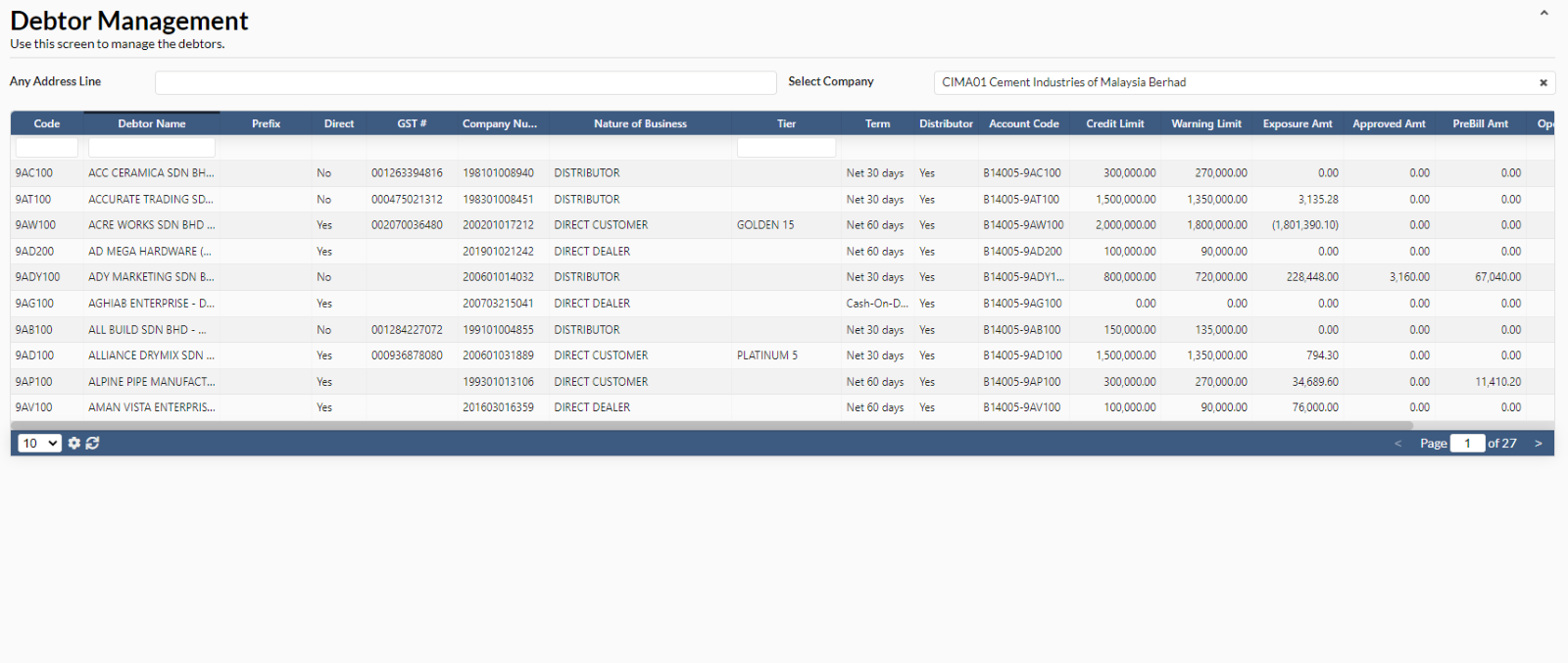
- To view debtor information, user has to select at any debtor name.
- A new dialog box will appear for user to view the debtor information.
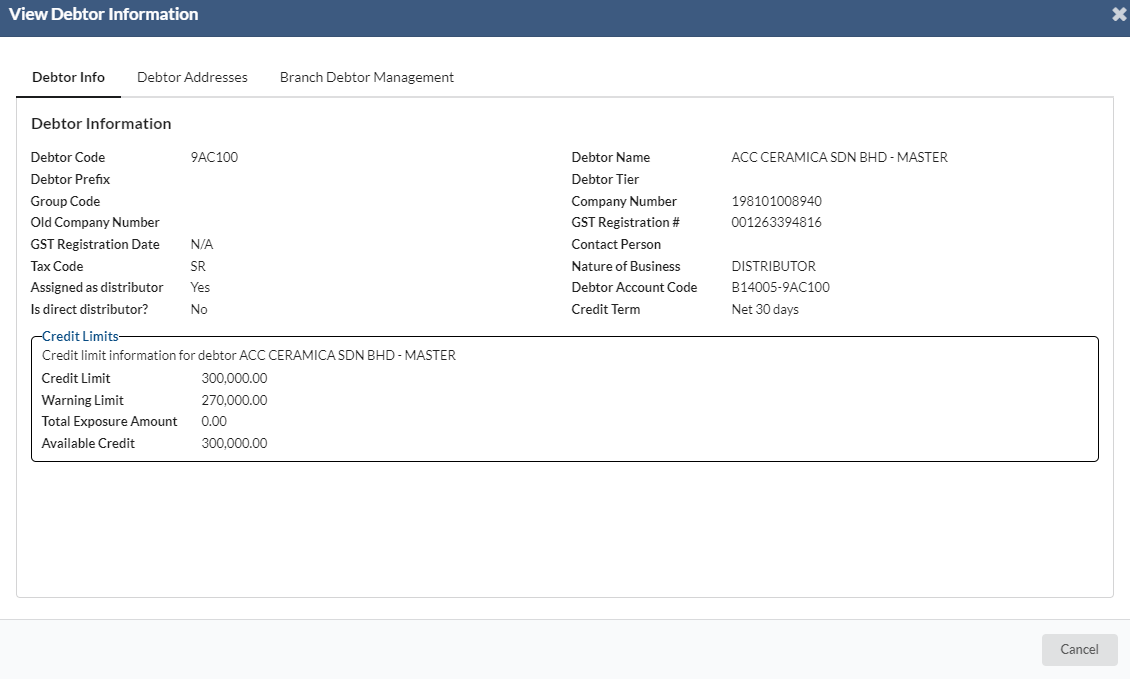
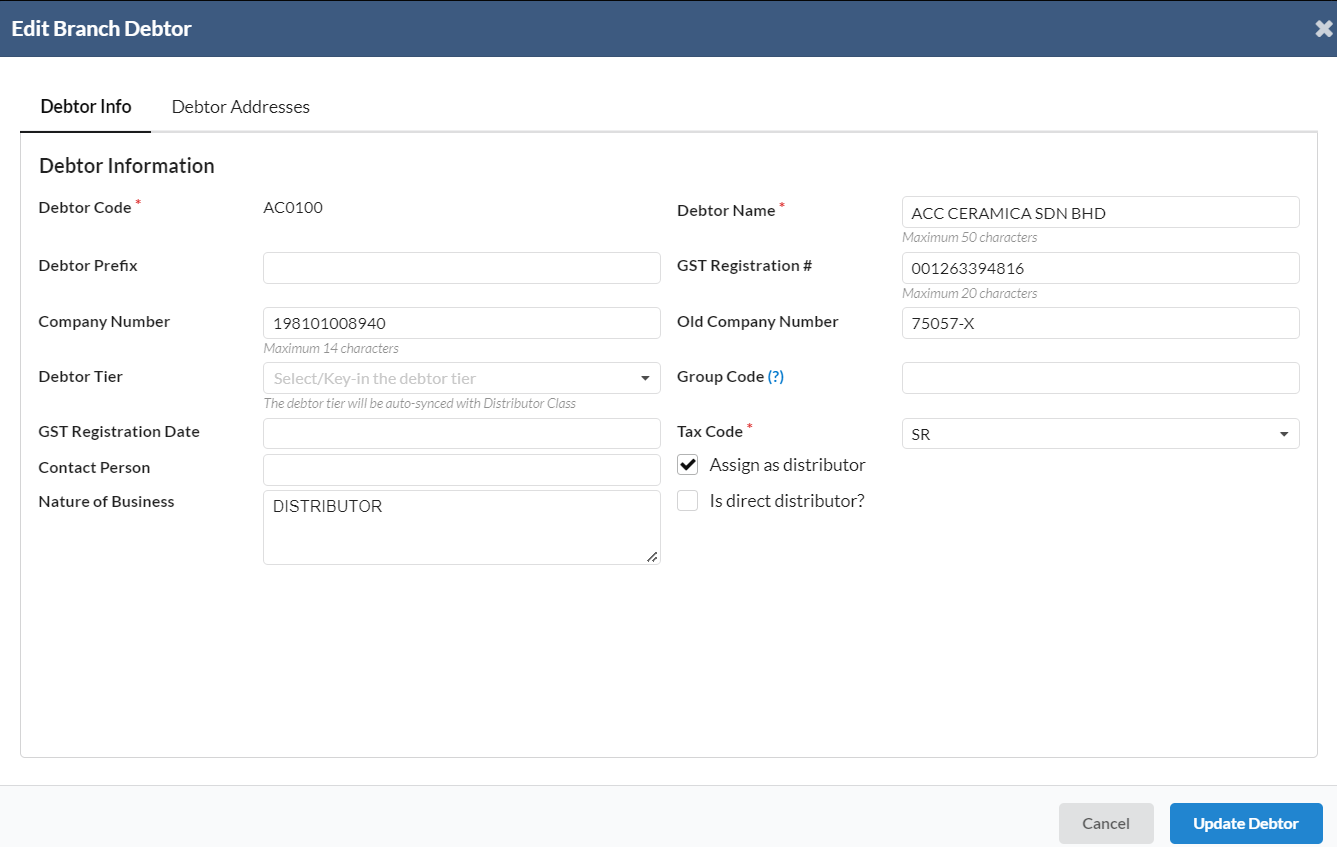
- Under "Branch Debtor Management" tab, user can edit the particular debtor information.
- User needs to click on the green color icon which is next to "AC0100" under Code column.
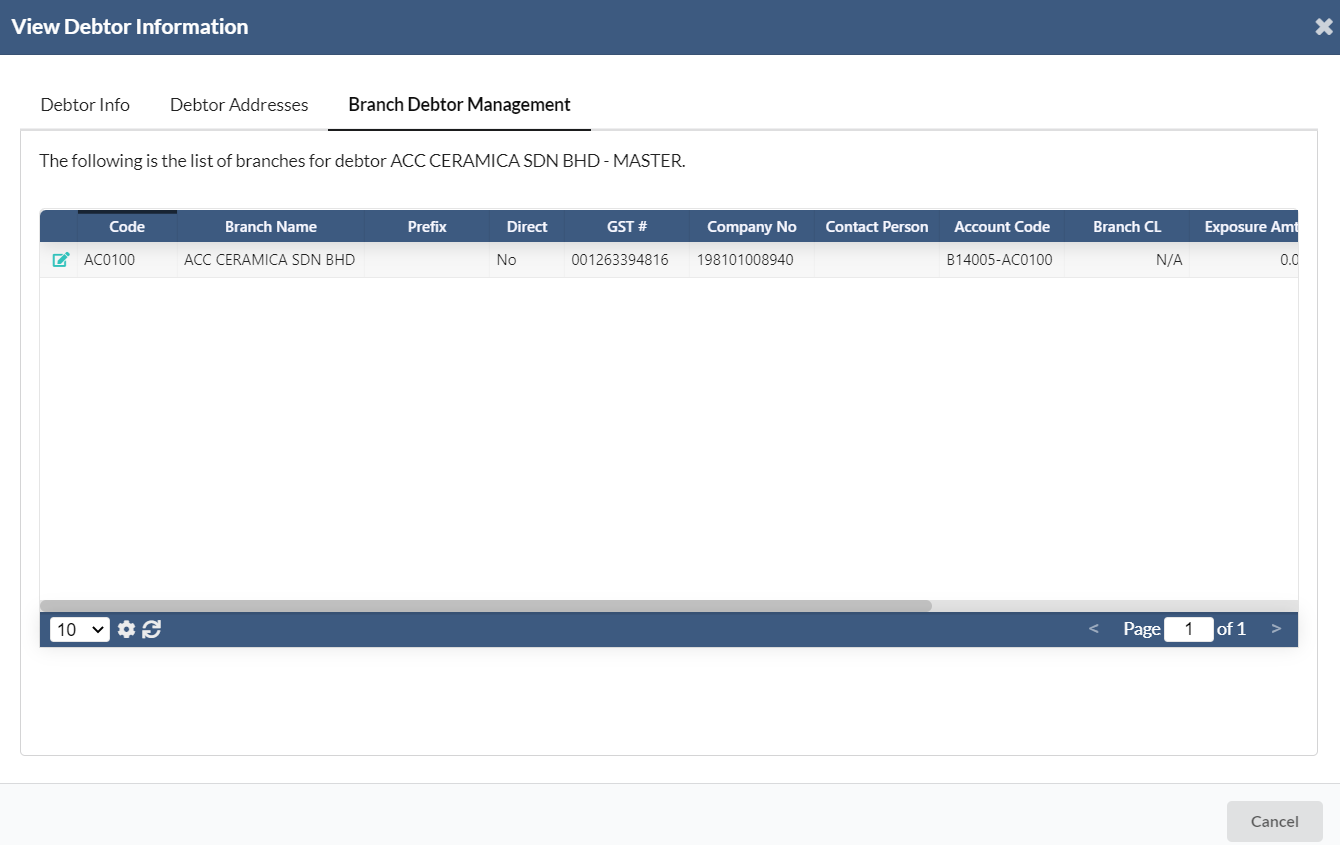
- A new page will appear for user to edit the debtor information.
- User can edit the debtor information under "Debtor Info" tab or edit debtor address under "Debtor Addresses" tab.
- Click on "Update Debtor" button to save the changes.
4. Location Inquiry
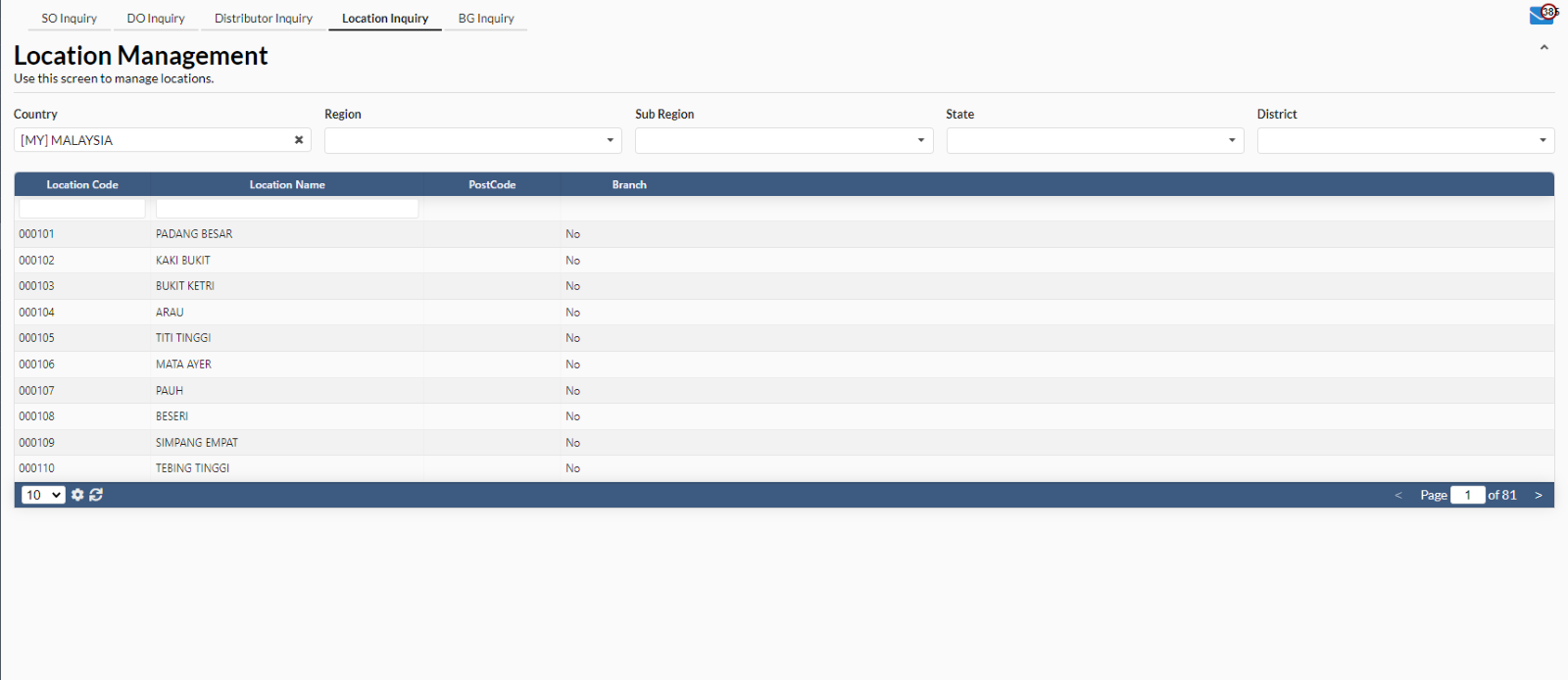
- To view location details, navigate to Inquiry -> Location Inquiry.
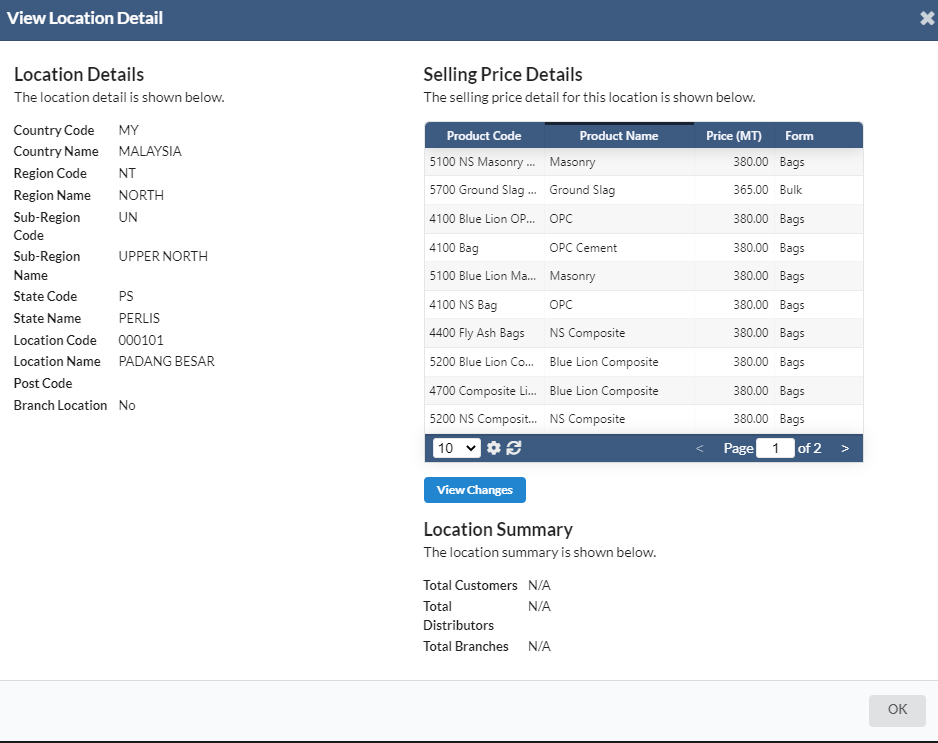
- Select at any location name. A new dialog box will appear for user to view the location information.
- User needs to click on “View Changes” button.
- A new dialog box will appear for user to select the available products for location.
- Click on “View Changes” button again after finished selecting the product name.
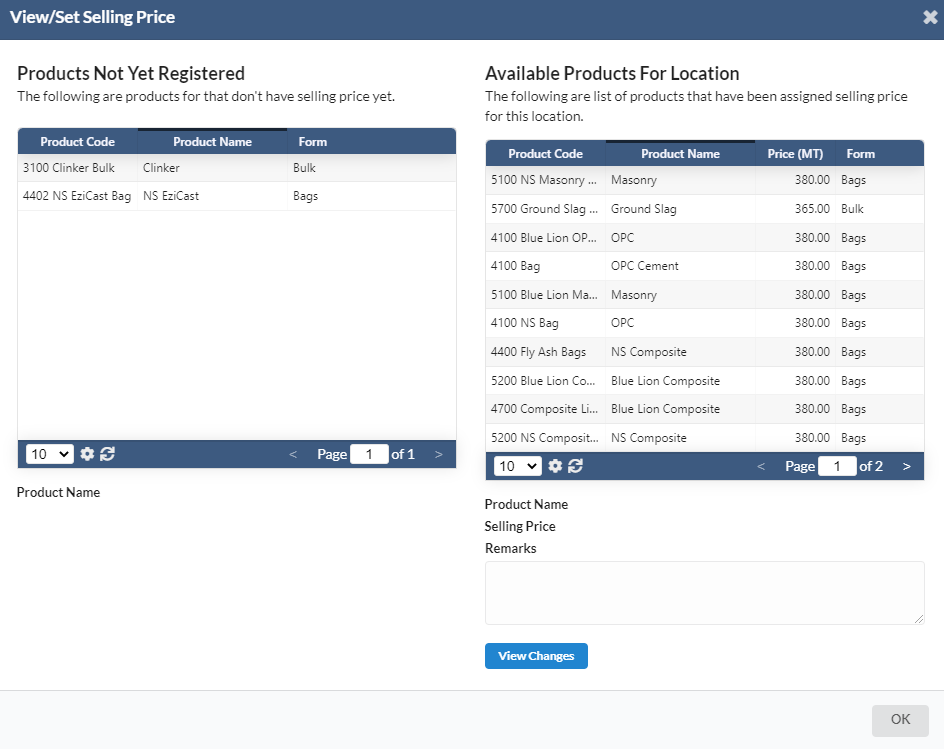
- A new dialog box will appear for user to view the changes of selling price.
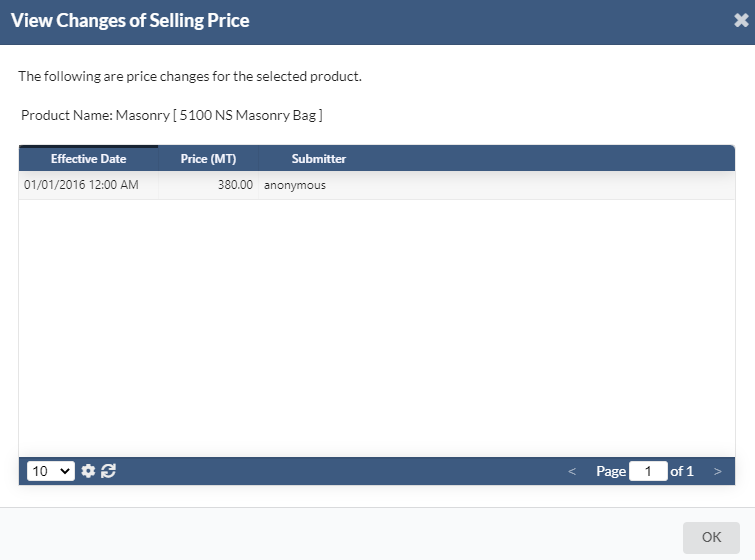
- User can search for location by using search parameters as below:
User can search for debtor by using search parameters as below:
- Country
- Region
- Sub Region
- State
- District

5. BG Inquiry
- To view details of bank guarantee, navigate to Inquiry -> BG Inquiry.
- User has to select at any debtor name.
User can search for debtor by using search parameters as below:
- Bank Guarantee#
- Debtor Code
- Debtor Name
- Bank Name
- Expiry Date
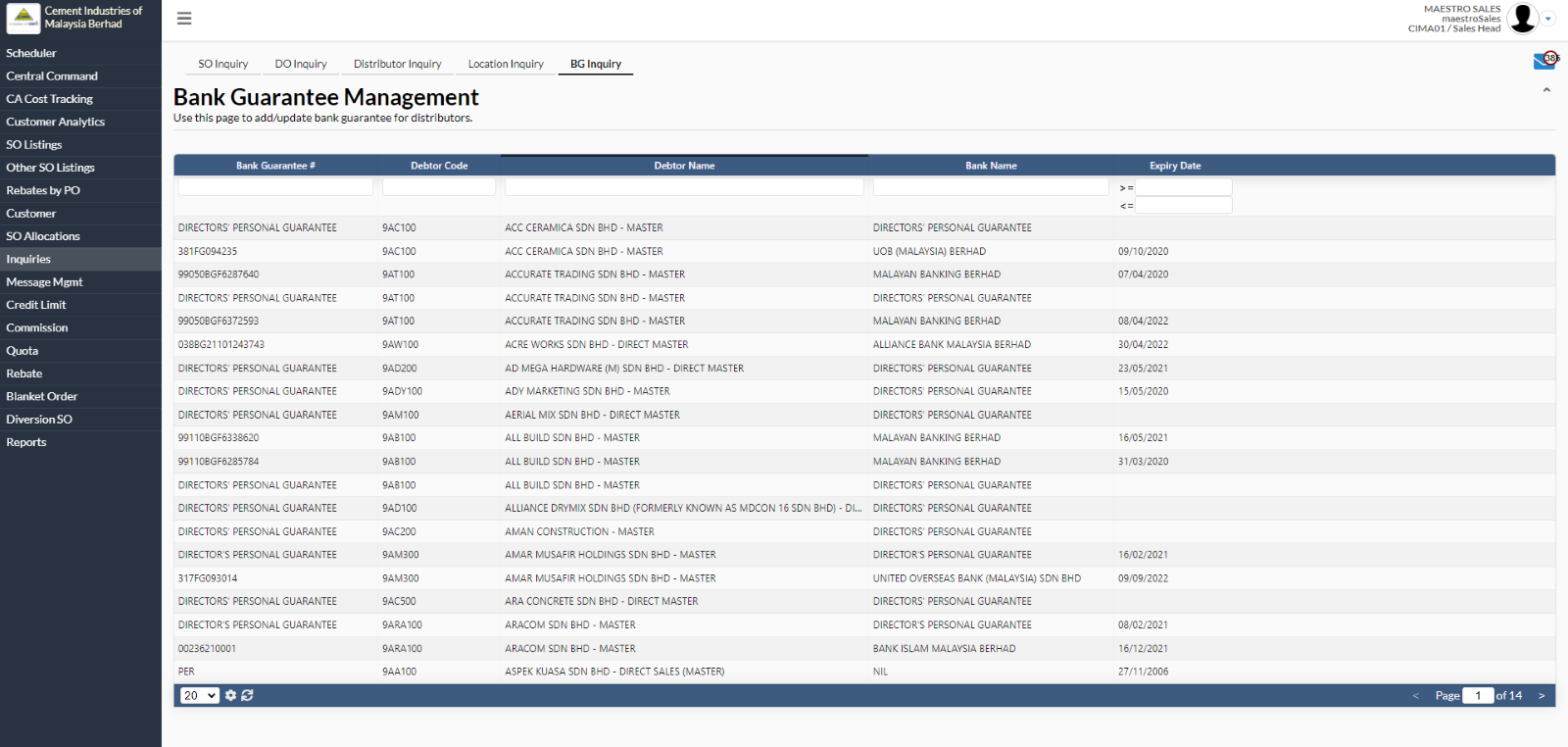
- A new dialog box will appear for user to view the details and history of bank guarantee.