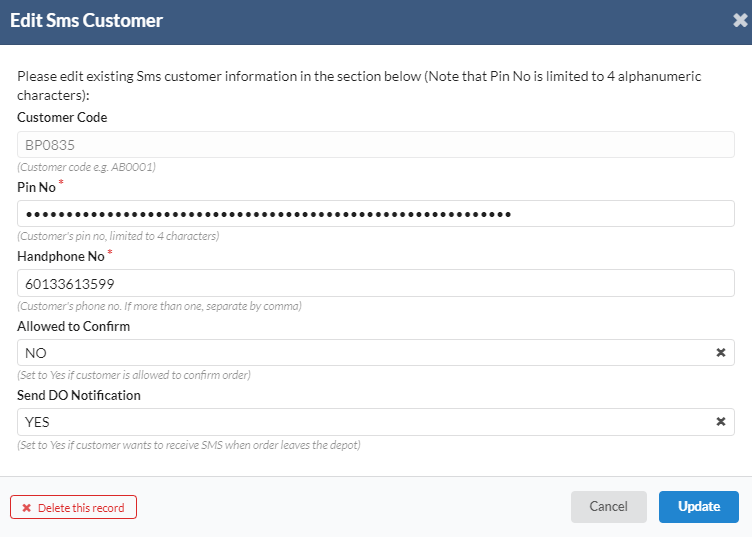
1. Awaiting Approval
- To view the details of purchase order, user needs to select any customer name.
- A new dialog box will appear for user to view the details for purchase order
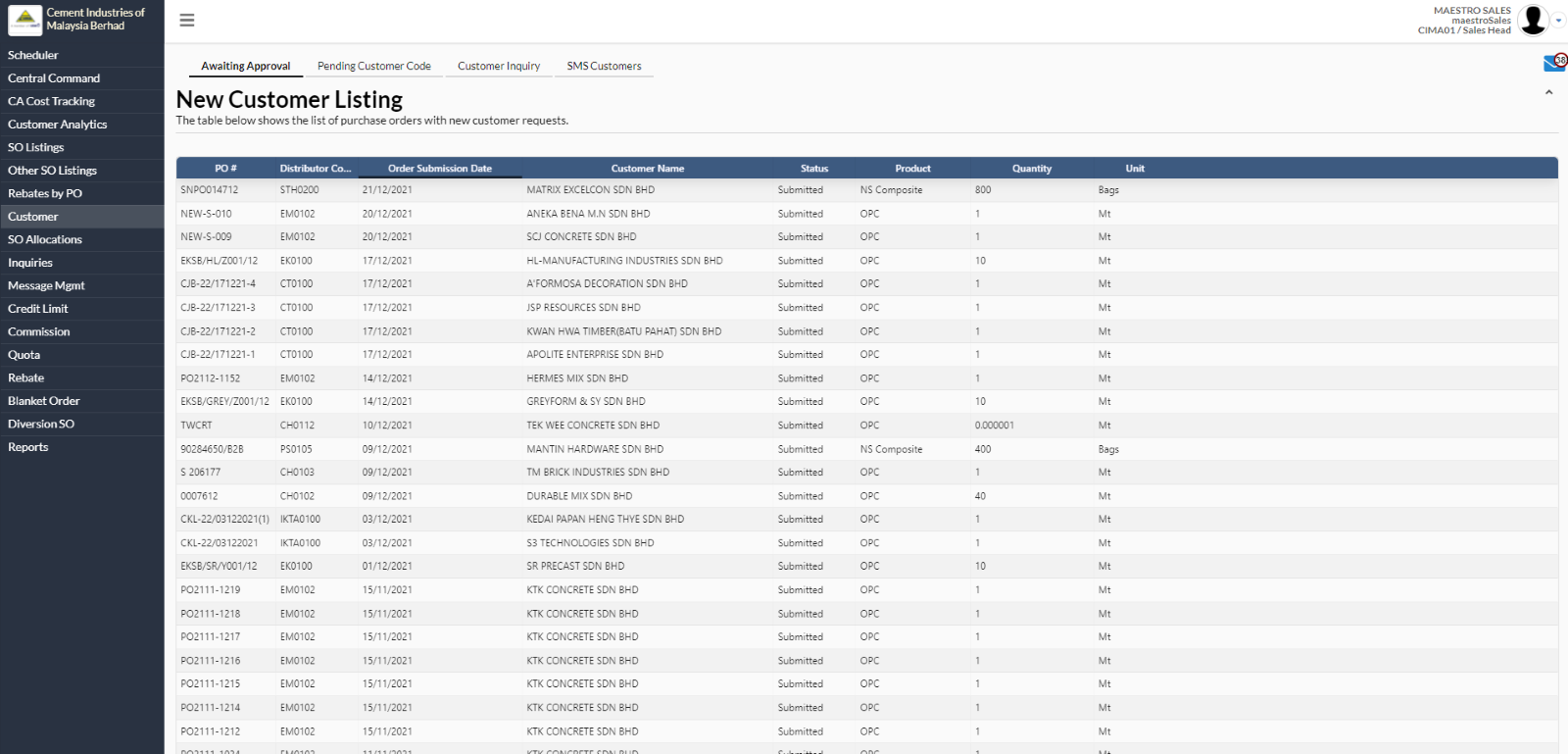
- User has to select customer location.
- A new dialog box will appear for user to choose the location.
- Click on “OK” button to confirm the location.
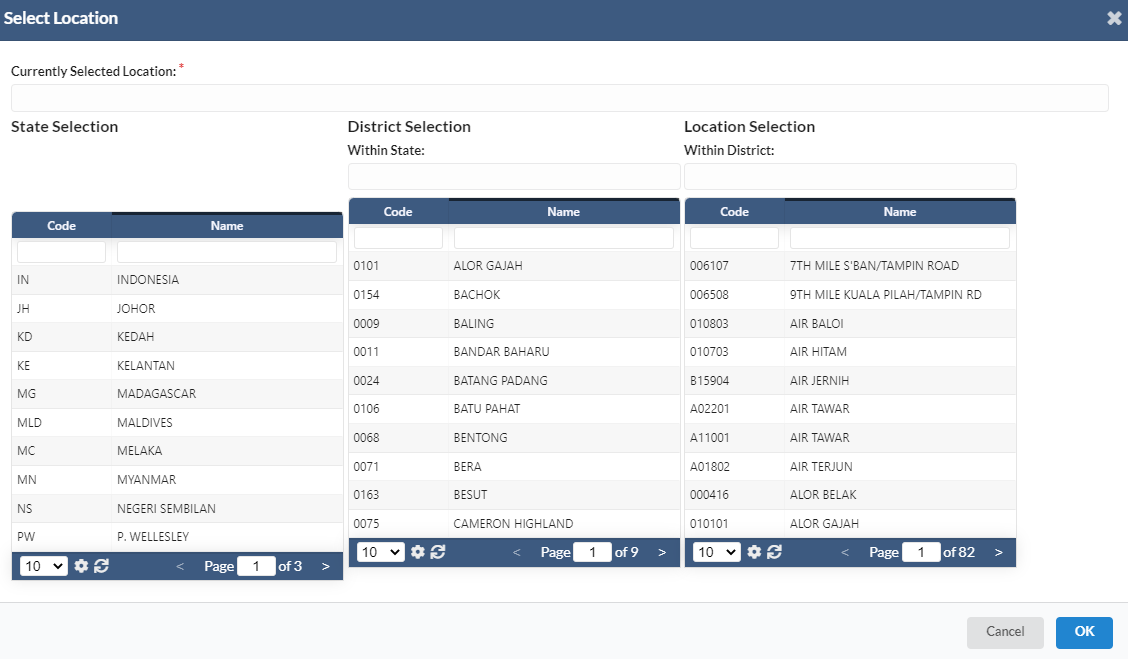
If there are any changes have been made, user has to click on “Save” button to save the changes.
User can approve or reject the PO by clicking on “Reject” or “Approve” button.
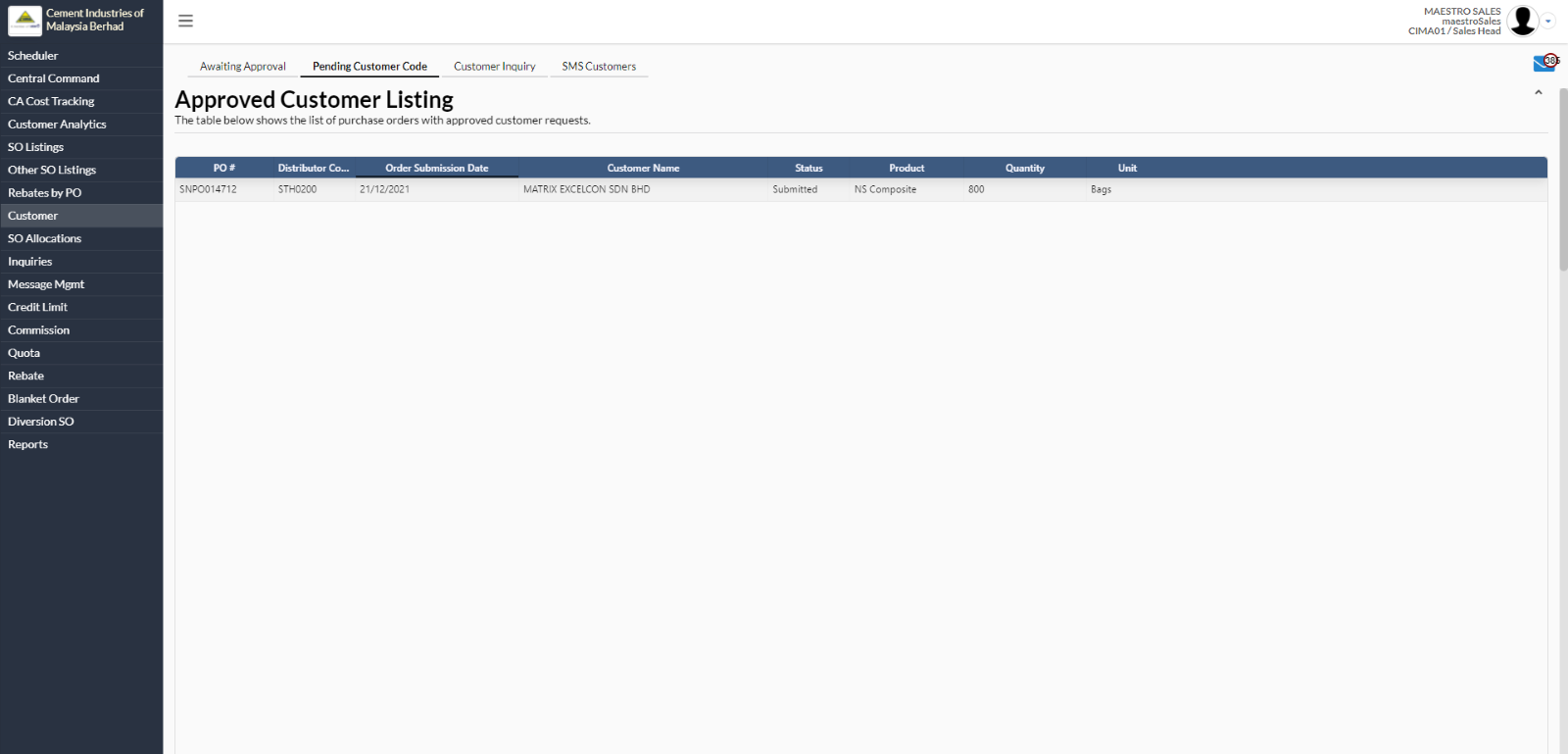
2. Pending Customer Code
- To view the details for PO, select at any customer name. A new dialog box will appear
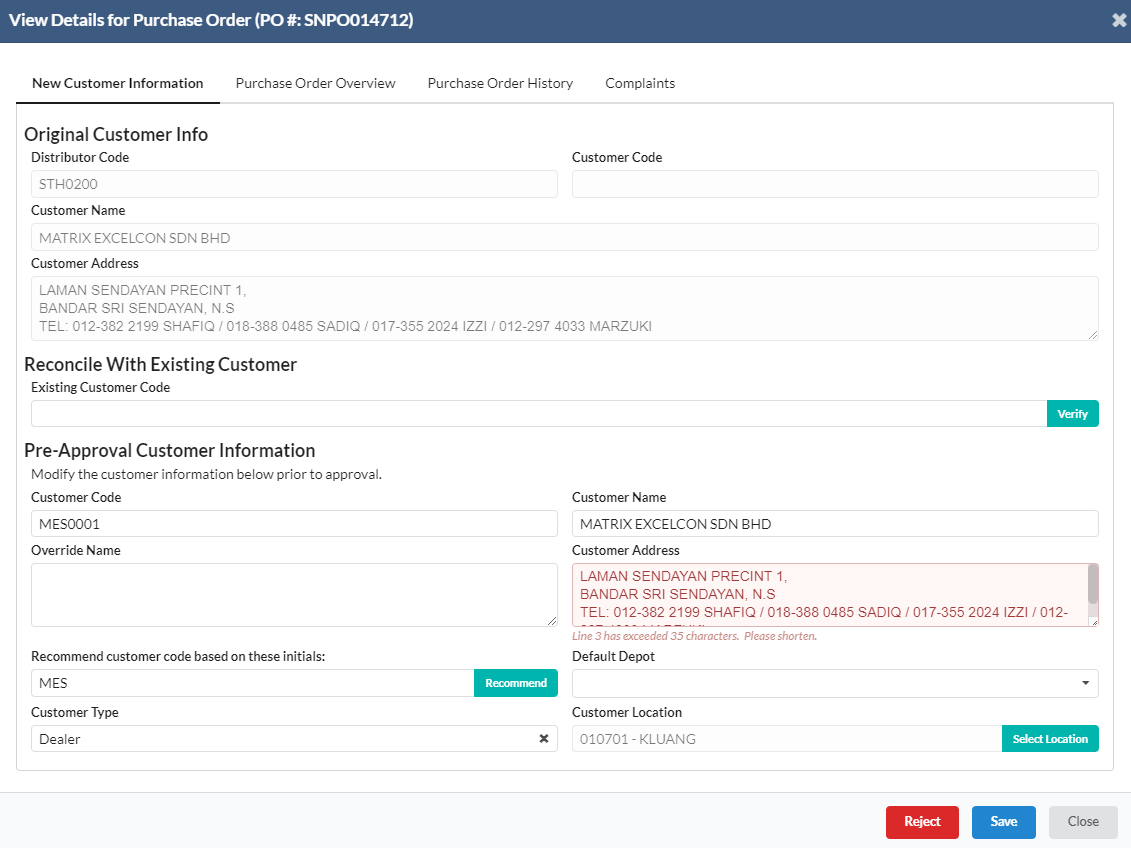
- User needs to enter the customer code for the particular purchase order.
- For existing customer, user needs to enter the customer code in the "Existing Customer Code" field under "Reconcile With Existing Customer" area whereas for new customer, user needs to enter customer code in the "Customer Code" field under "Pre-Approval Customer Information" area.
- User can click on “Reject” button to reject the PO or click on “Save” button to save the changes if there are any changes have been made.
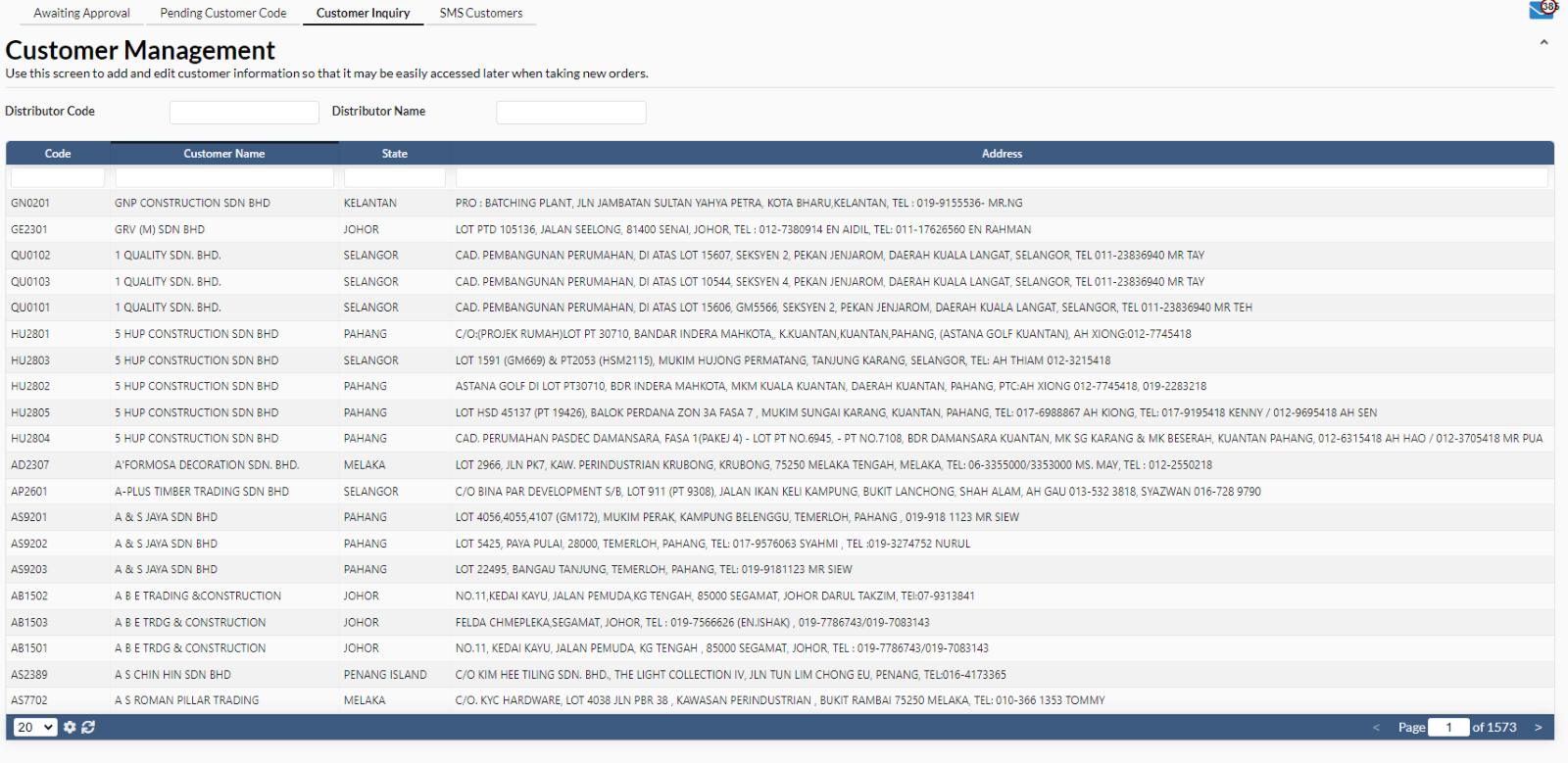
3. Customer Inquiry
- In Customer Inquiry tab, user can search for customer by using the search parameters as below:
- Code
- Customer Name
- State
- Address
- To view the customer information, user has to select at any customer name.
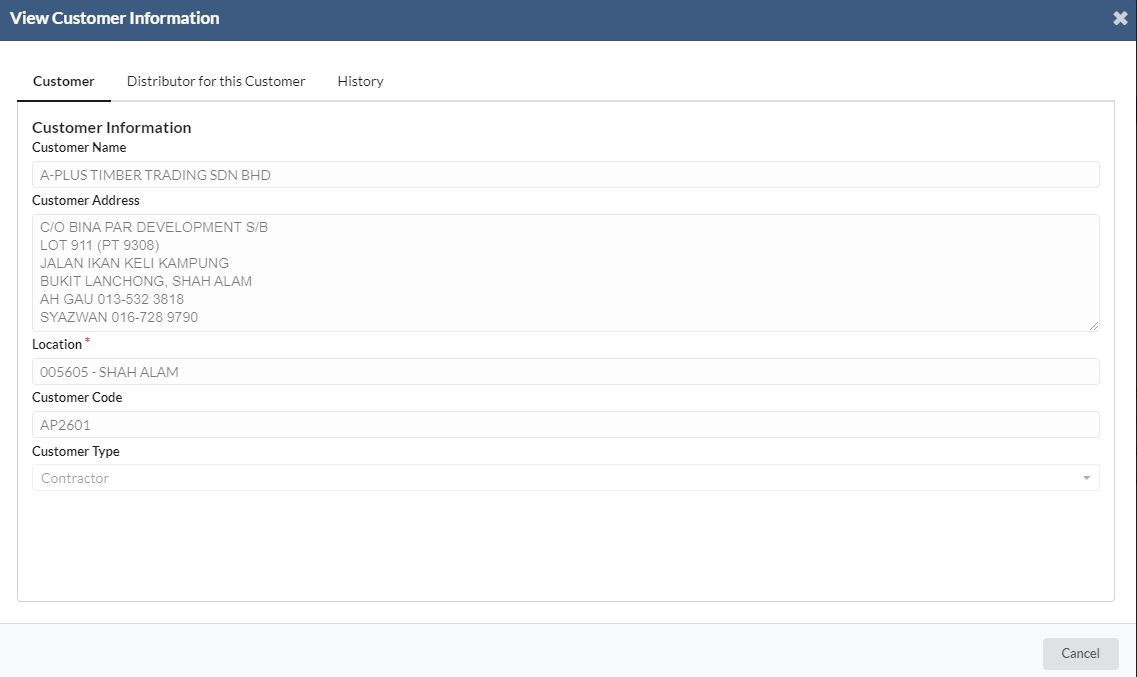
- In Distributor for this Customer tab, it is to show the list of distributors that allowed to submit orders for the customers.
- User has to select at any distributor name.
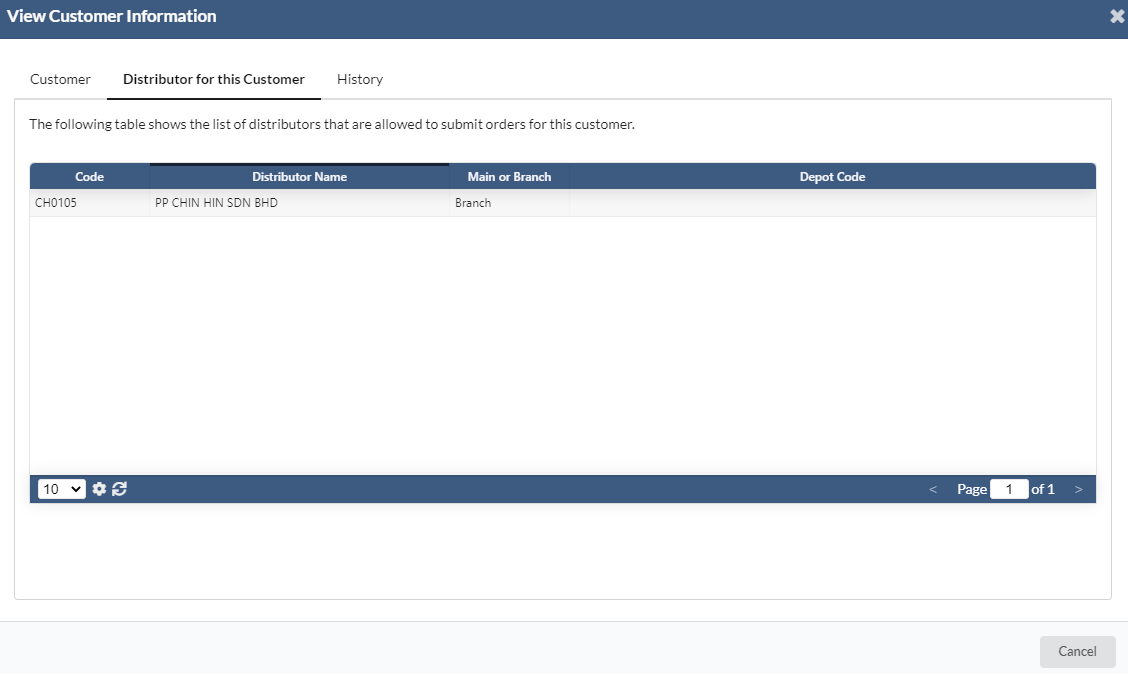
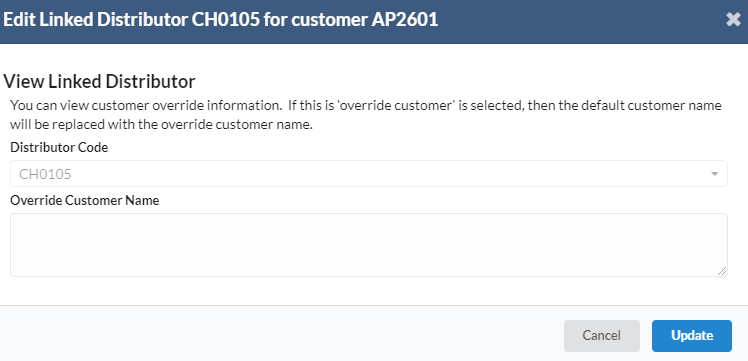
- A new dialog box will appear for user to view or edit the linked distributor.
- Click on “Update” button to save the changes.
4. SMS Customer
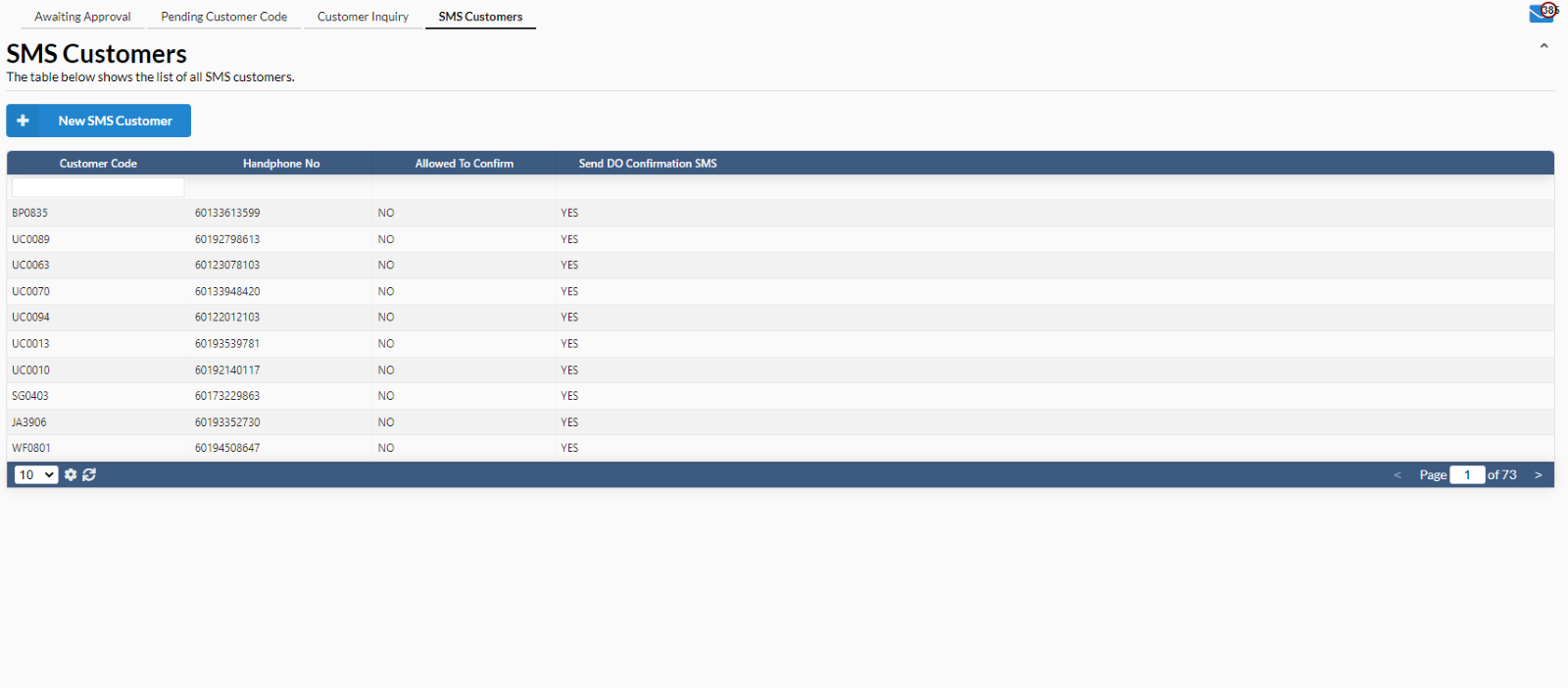
- To add new SMS Customer, user needs to click on “New SMS Customer” button.
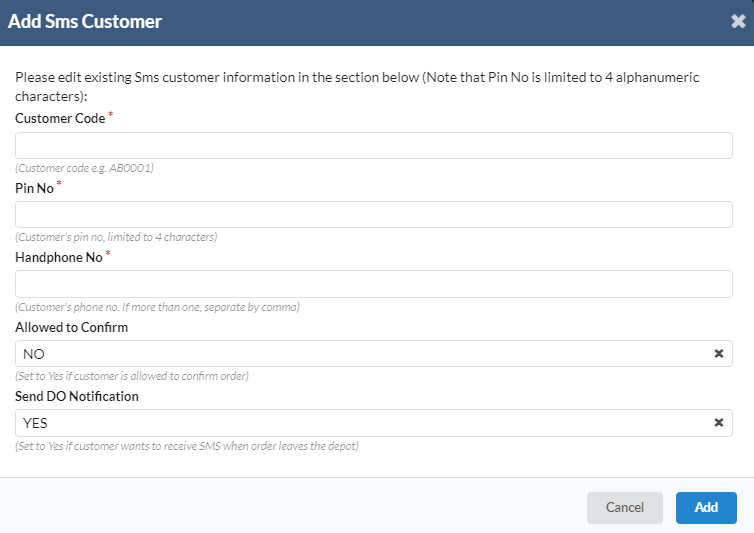
- A new dialog box will appear for user to add new SMS customer.
- Fill in all the required fields. Click on “Add” to insert a new SMS customer.
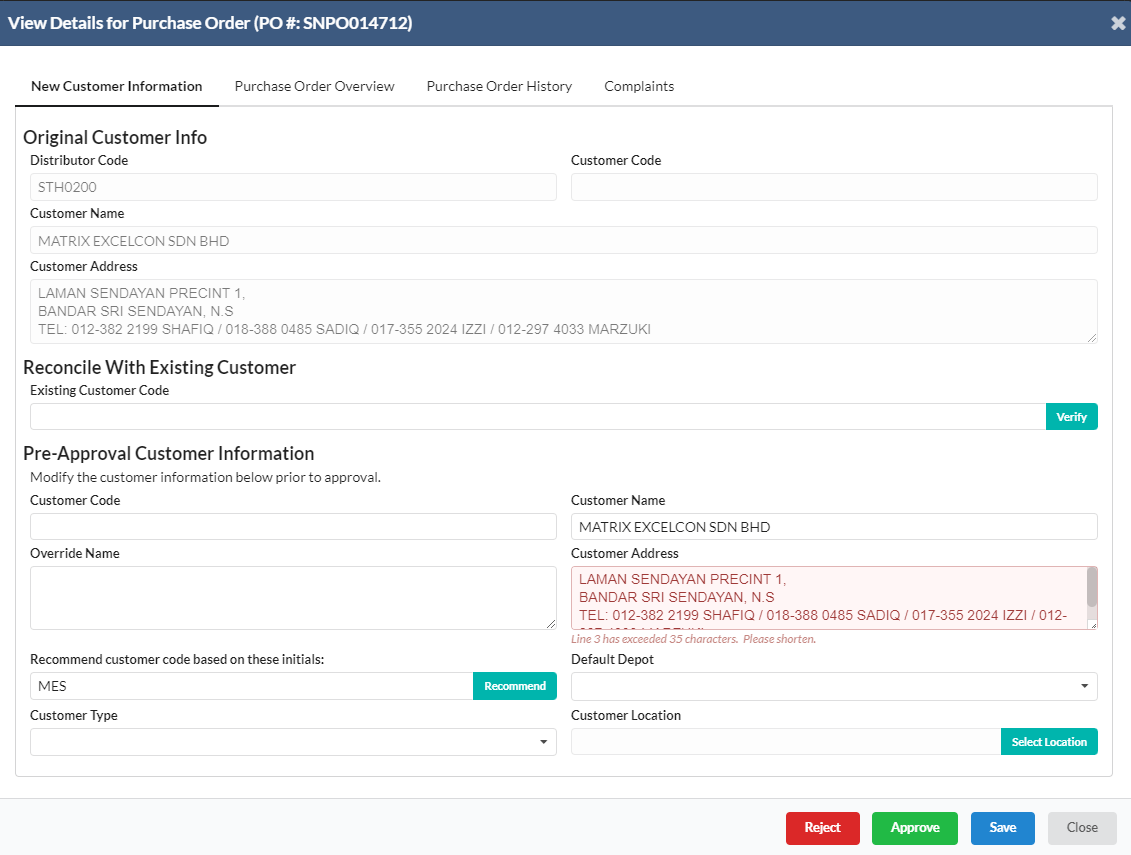
- To view/edit SMS customer, user needs to select at any SMS customer name.
- A new dialog box will appear for user to view/edit the SMS customer particular information.
- Click on “Update” button to save the changes.
- If the user wants to delete the record, click on “Delete this record” button.