1. User Manual
1.1 CA Cost Tracking – Setup
Before we begin with the Customer Analysis, firstly, user needs to do the setup in the system.
- Once login, navigate to CA Cost Tracking. Go to Setup tab.
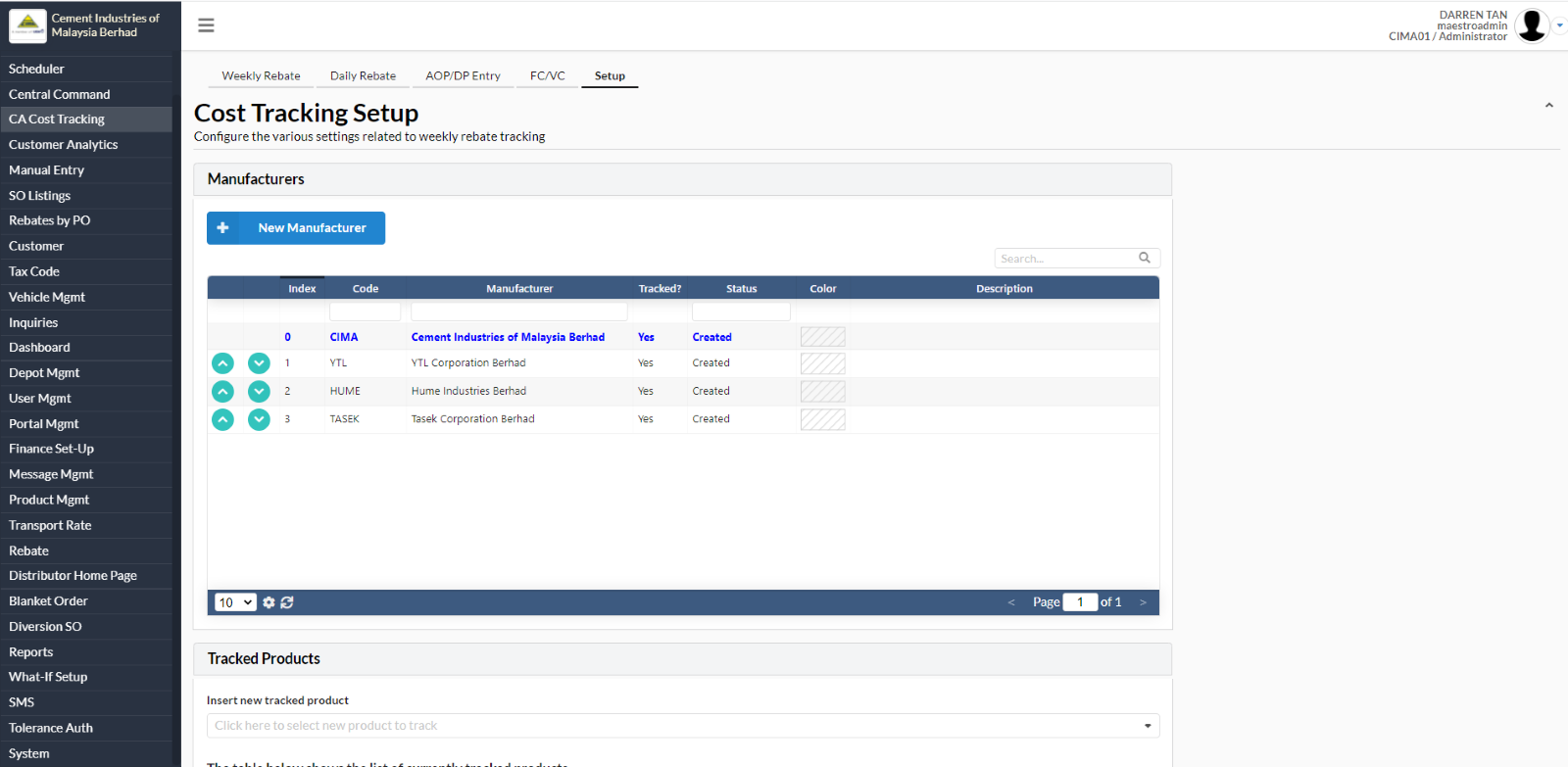
In this Setup tab, user can start to configure the various settings that are related to weekly rebate tracking, such as:
Manufacturers
Tracked Products
Tracked Customers
Public Holidays
Working Days
Forecast Types
Forecast Region
Customer Analytics
1.1.1 Manufacturers
- Under Setup tab, scroll down to Manufacturers.
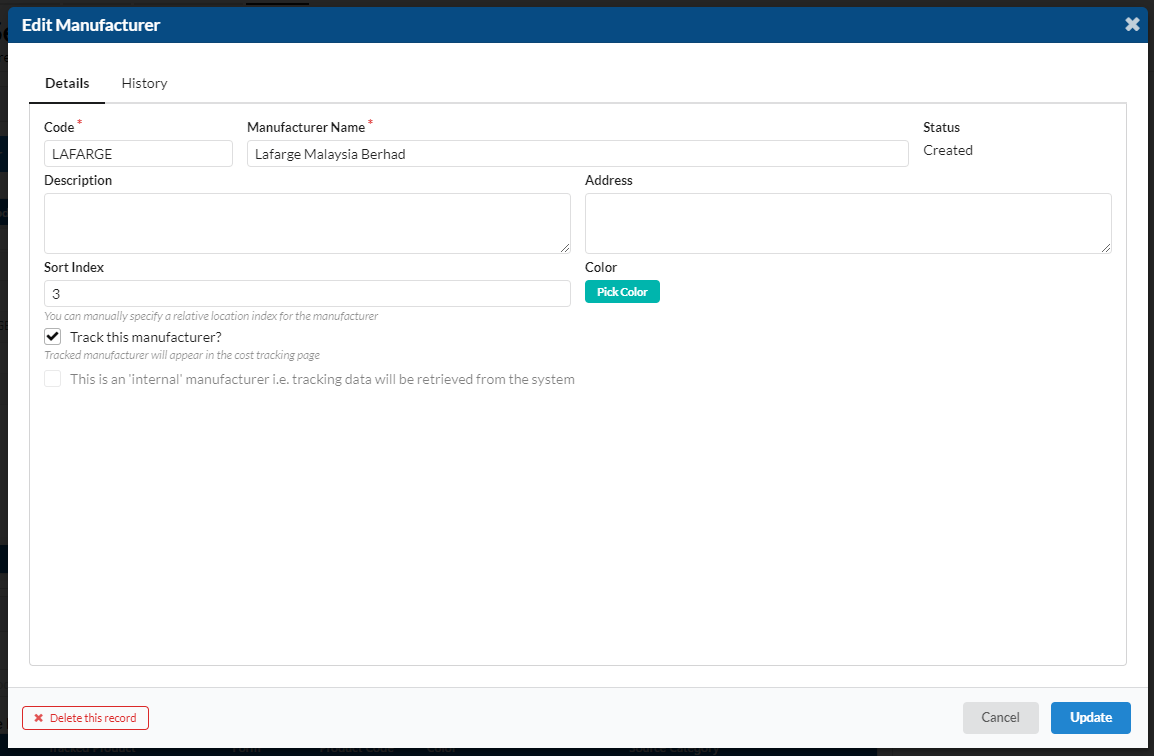
- For CIMA, since it is an ‘internal’ manufacturer, the tracking data will be retrieved from the system. This option is available by ticking the tick box in the Edit Manufacturer.
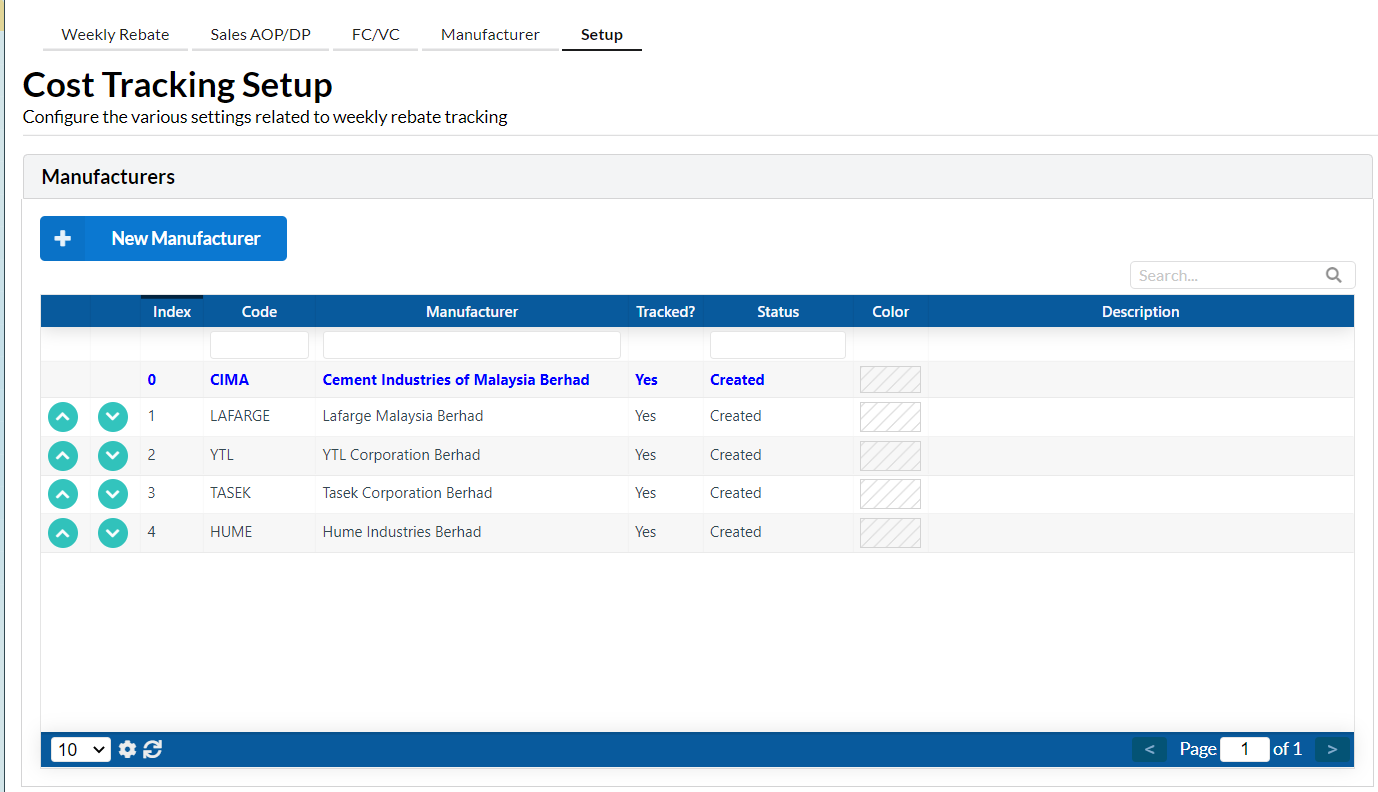
Click on New Manufacturer to add new. Once added user can still edit the manufacturer details.
1.1.2 Tracked Products
User can insert new tracked product in the Tracked Products as below:
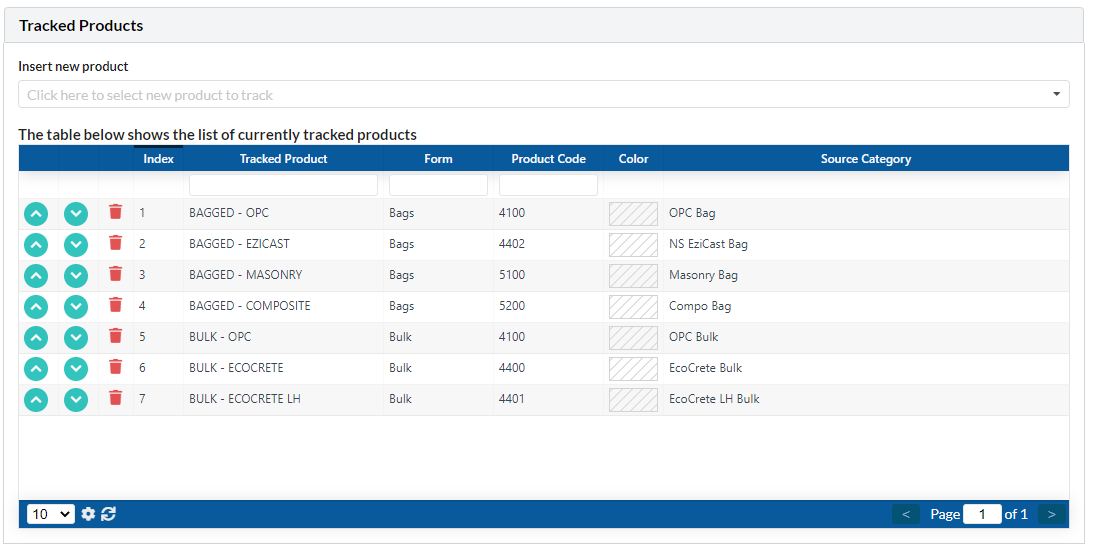
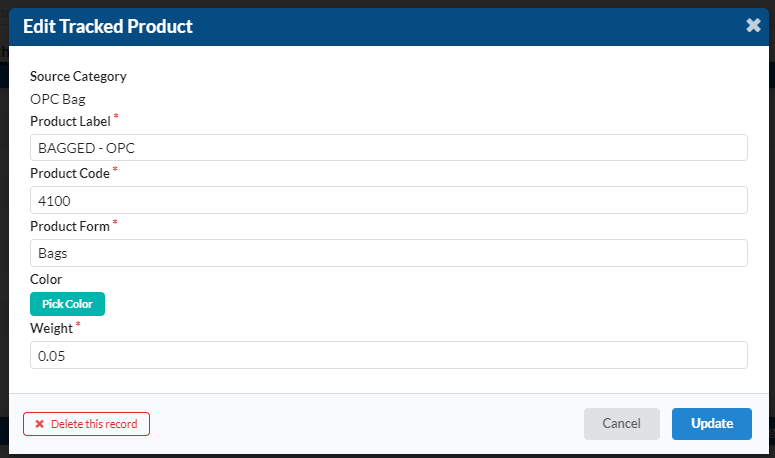
User also can edit the added tracked product by clicking on the product item.
1.1.3 Tracked Customers
User can add the customers to track under daily cost tracking.
To insert new tracked customers, type the customer’s name:
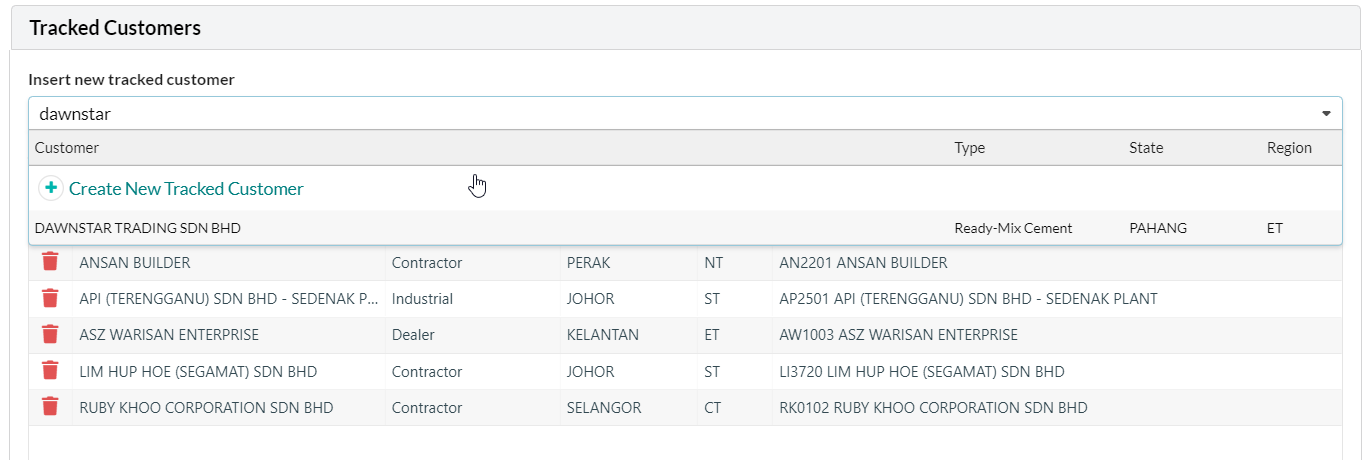
Select the customer from the list if its available. Then, setup the customer type.
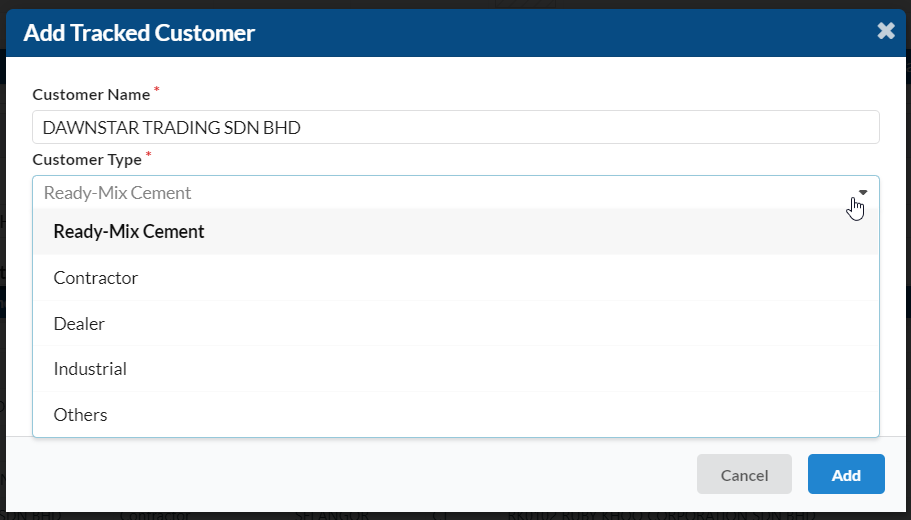
Once done, click on the Add button
1.1.4 Public Holidays (for AOP)
User also be able to add list of public holidays.
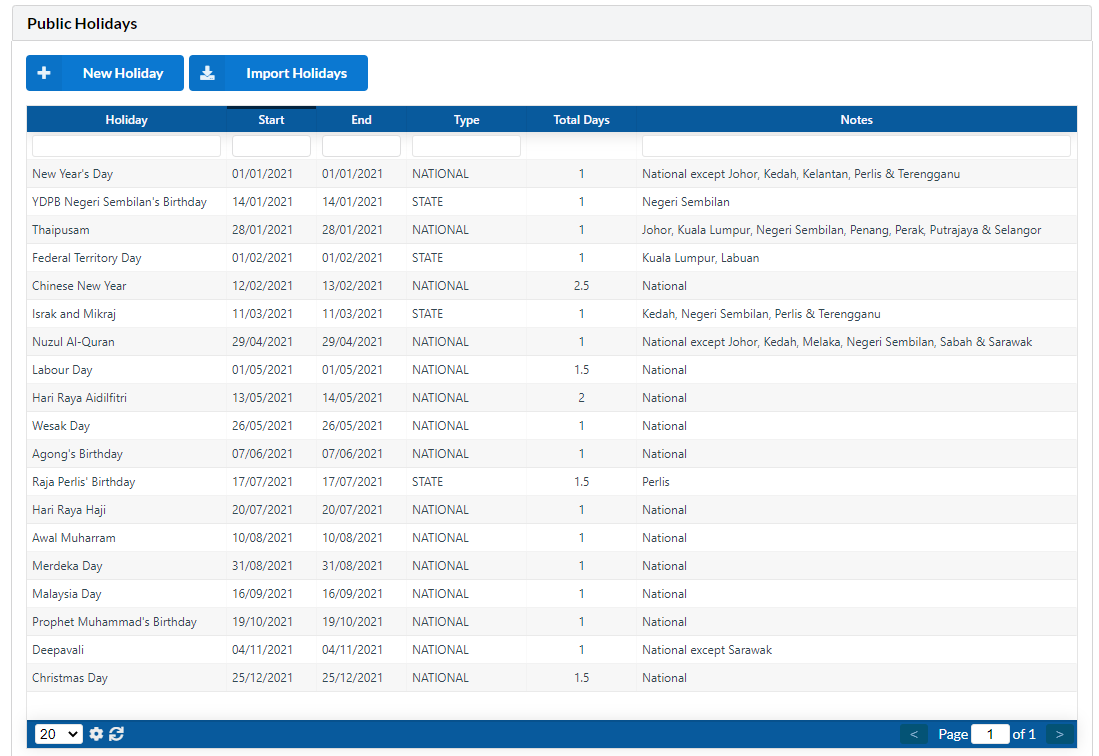
User also can use the importer to import the public holiday in future. Please contact optimalOne support for the importer format to be used.
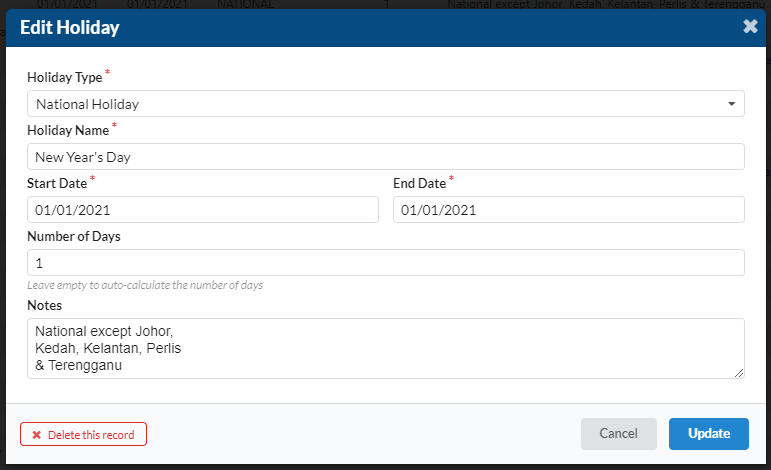
Click on the public holiday line item to edit the holiday.
1.1.5 Working Days
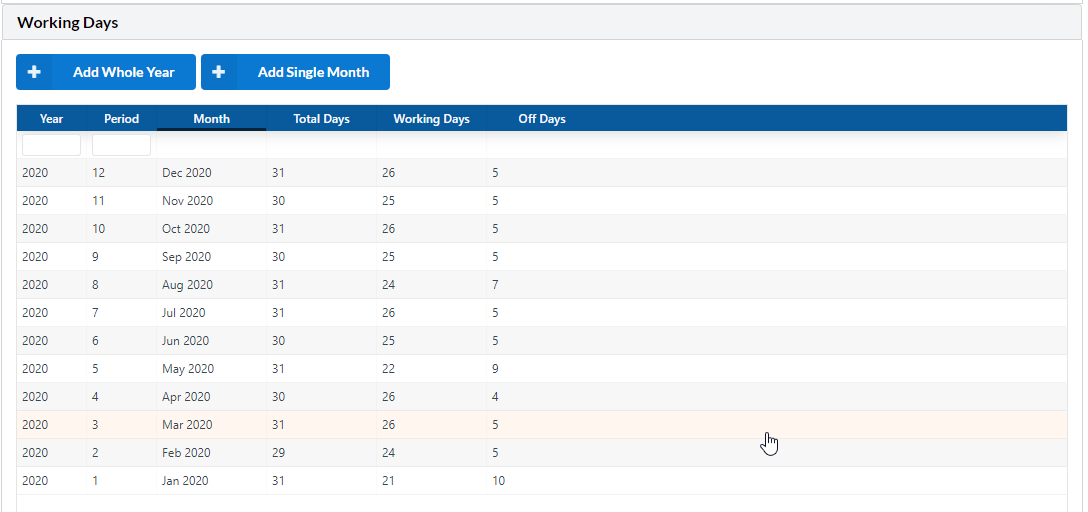
There is a new working days configuration for customer analysis module. System will populate the total based on company half day/off day configuration, as well as the configured holidays.
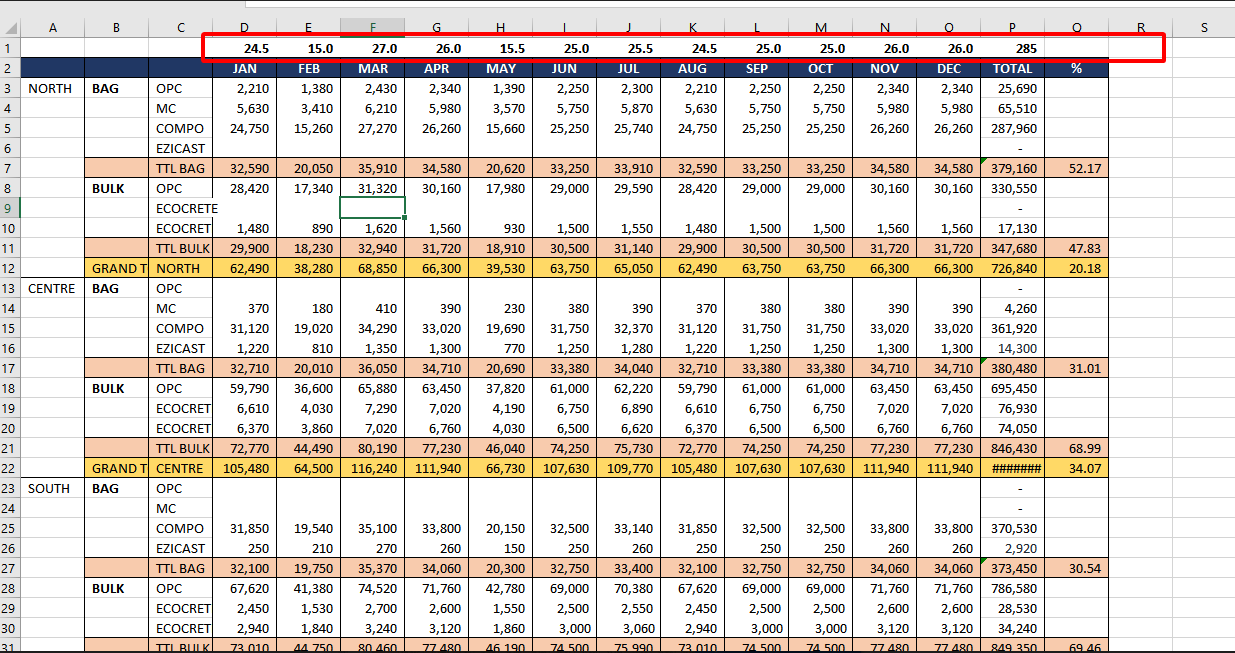
From the sample spreadsheet, CIMA has a unique calculation for the public holiday. User can update the number of working days in the system to match with the spreadsheet.
User can add working days for whole year, or add single month.
1.1.6 Forecast Types
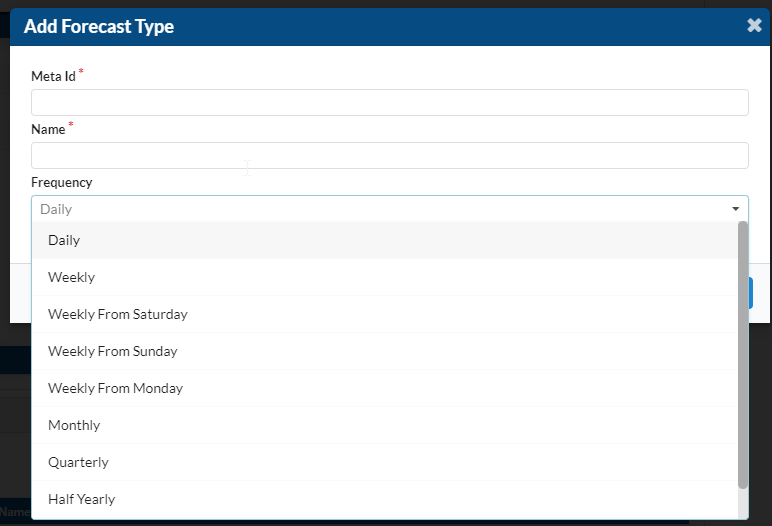
Forecast Types will allow user to configure the forecast 'templates' in case users need multiple AOPS for the year.
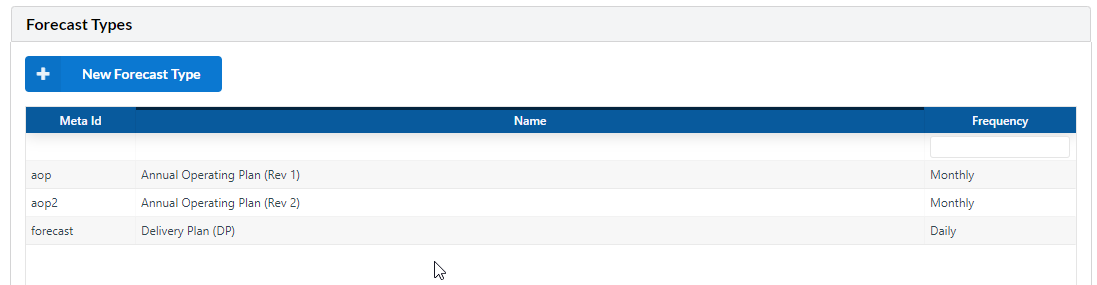
User can set the frequency whether daily, weekly, monthly, yearly etc.
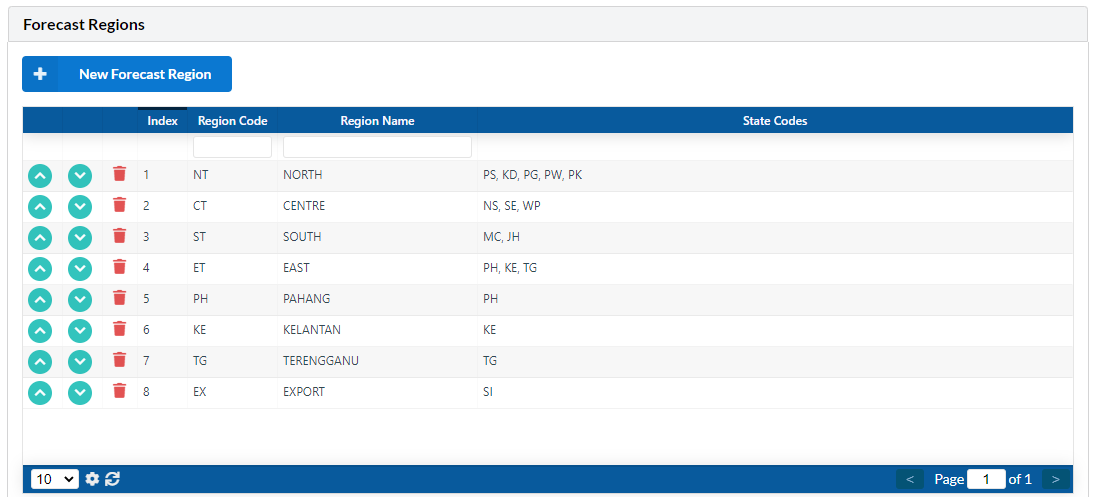
1.1.7 Forecast Regions
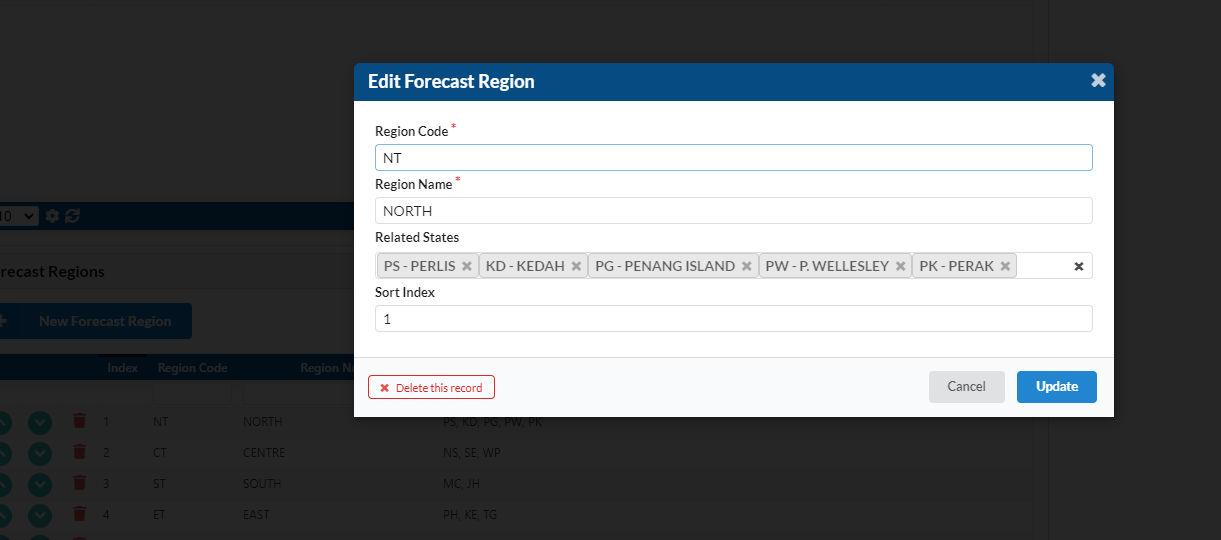
Forecast regions will allow the user to configure own forecast regions independently of the regions that the sales/operations are using.
To configure the region, user can specify the states. We can use this region info to prepare the report.
1.1.8 Customer Analysis
- In this section, user can set the competitor cist tracking for Customer Analytics.
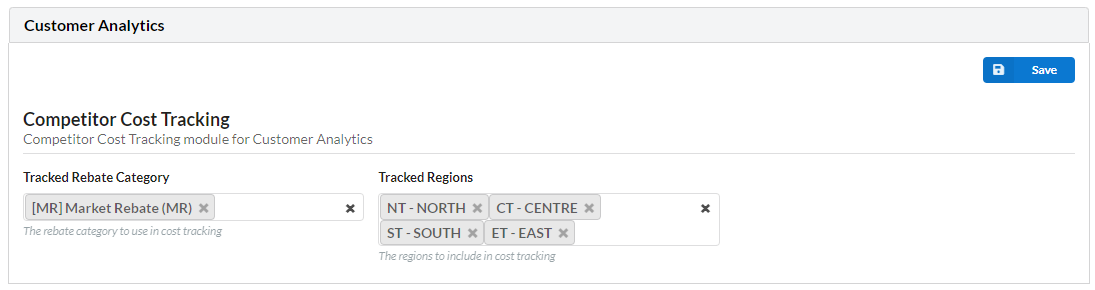
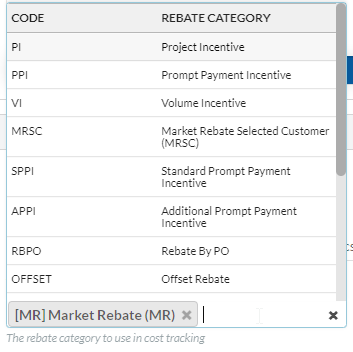
User can set the rebate category to use in cost tracking.
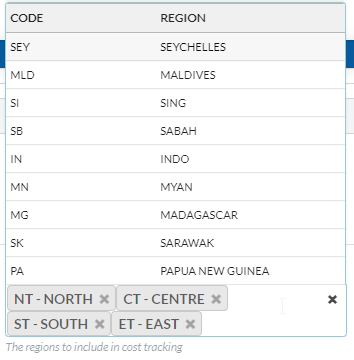
User also can set the regions include in cost tracking.
1.2 Product Categories
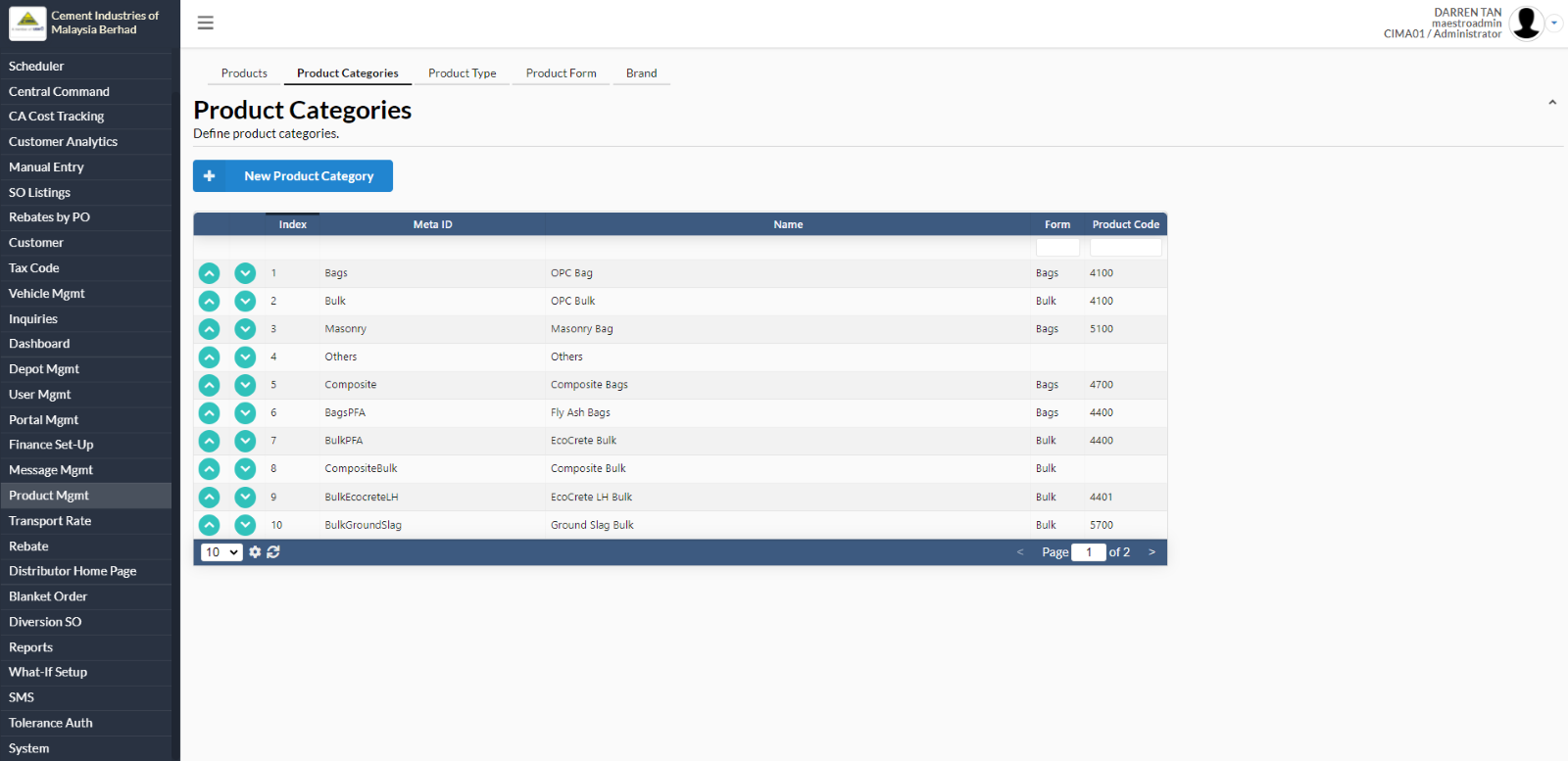
- For Forecast, system will use the product category directly in the system. Thus, user need to make sure the product categories appear in the required order.
- Navigate to Product Management > Product Categories.
- We have added sort index for product categories, which user can configure it from the page as below:
1.3 Distributor Class
1.3.1 Distributor Management
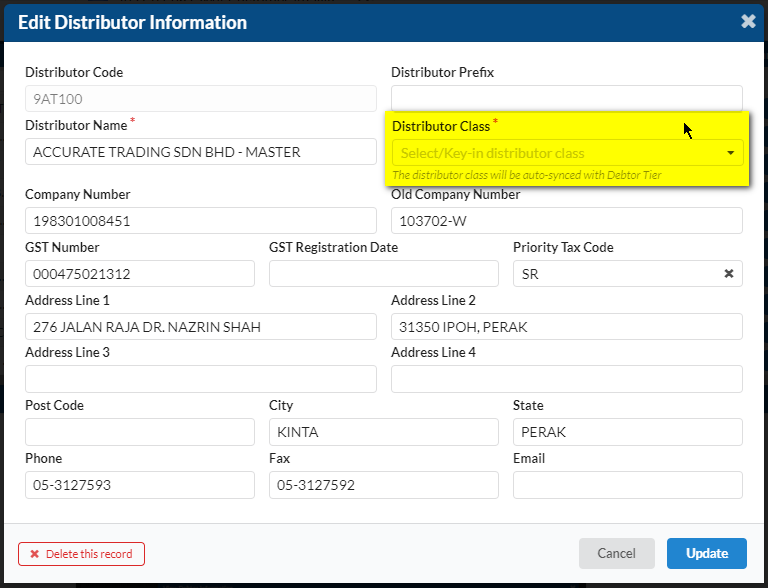
User can update the Distributor Class (Gold, Silver, Platinum) in Distributor Management page:
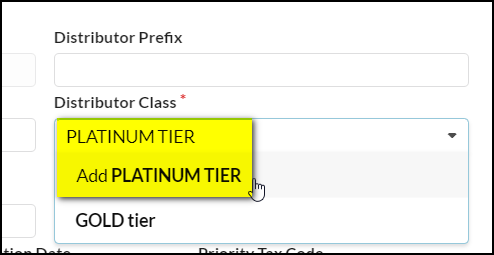
 User can add the more tiers dynamically by typing the new tier name.
1.4 Debtor Tier
1.4.1 Debtor Management
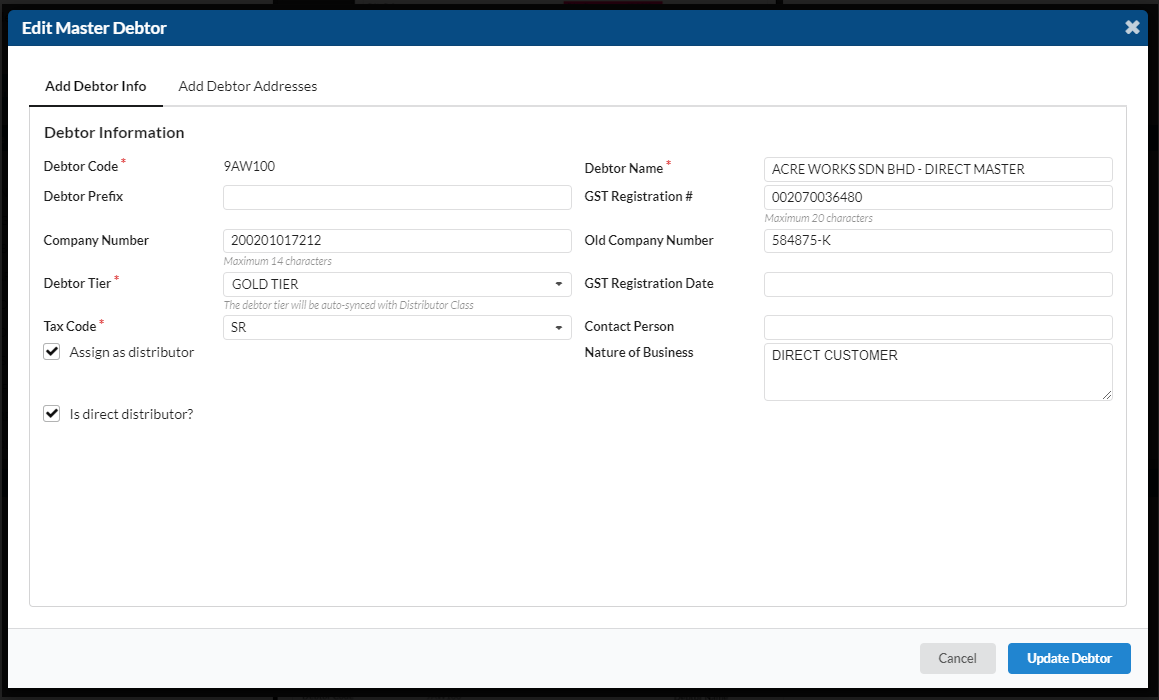
- User can add the debtor tier in Debtor Management screen as well:

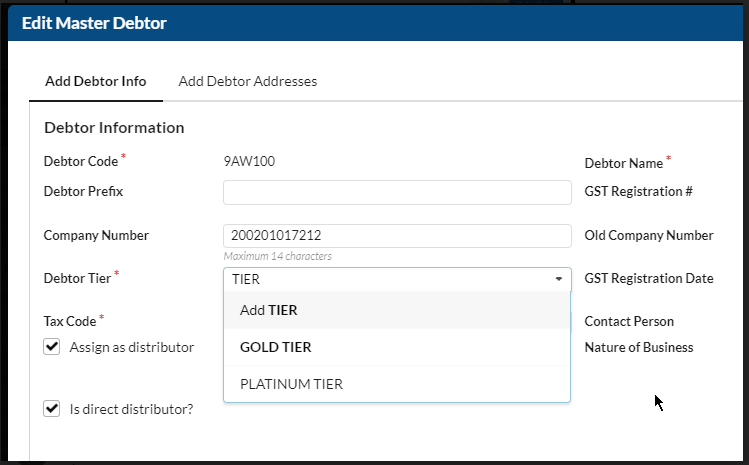
User can add more tiers dynamically.
Page Break
1.5 Competitor Analysis – Weekly Rebate Tracking
In the system, user shall be able to maintain the weekly Rebate Tracking for the Competitor Analysis
To do so, navigate to Customer Analysis > Weekly Rebate Tracking.
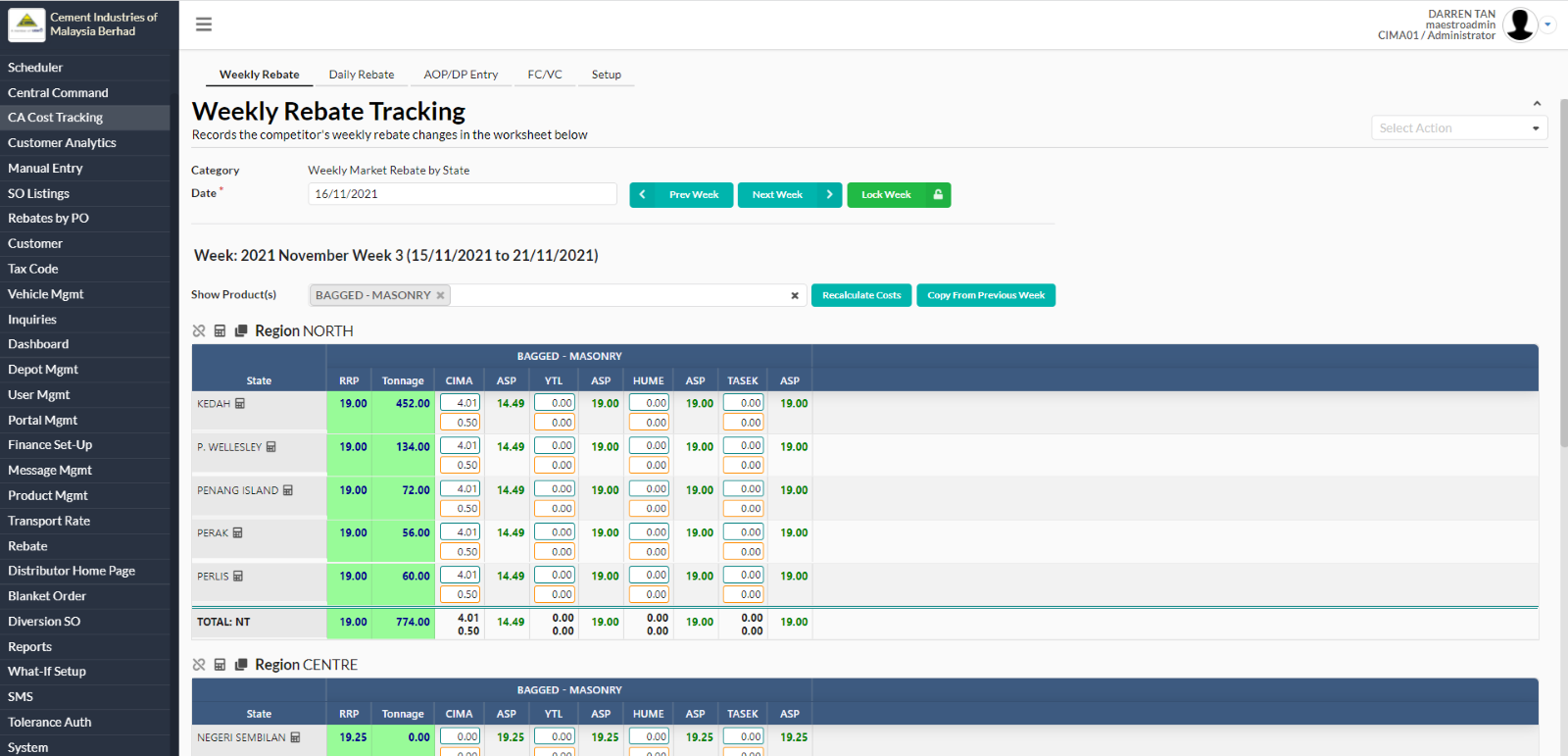
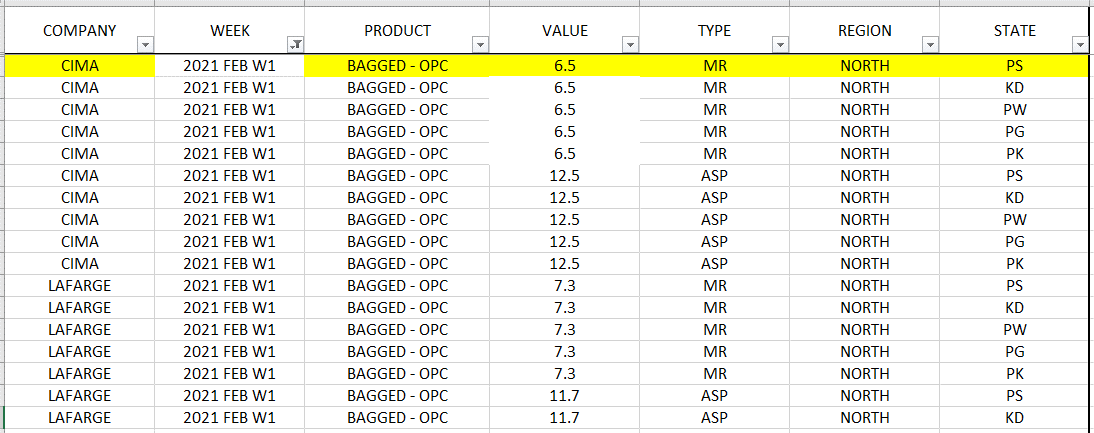
Similar to spreadsheet report Bagged Analysis & Bulk Analysis provided by Sales Team, user will be able to update the weekly market rebate directly in the system.
In this screen, user can start tracking the weekly rebate by selecting the week date, and choose the product to show:
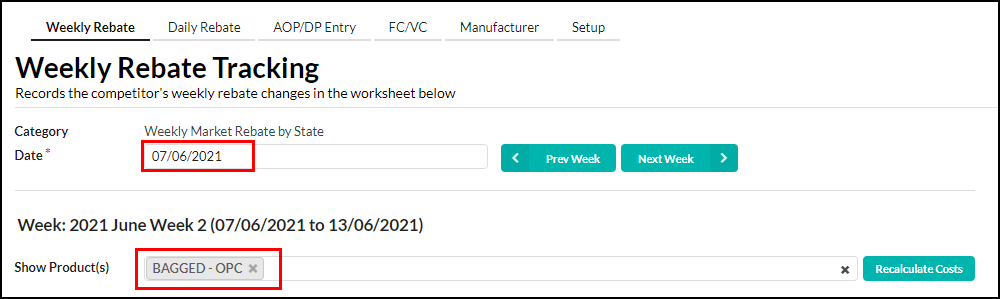
Once selected, system will generate the table for weekly rebate data entry as below:

The value for RRP and Tonnage are generated automatically from the system.
Refer to the screenshot above, the top column is for MR value, and the bottom column is for Other Incentives value.
Once these two columns are filled, ASP will be calculated.
Calculation formula as per below: ASP = RRP – (MR + Other Incentives)
The table is separated by Region & State. User can start to key in the Market Rebate for each manufacturer.
Next to the State name, there is a Refresh button. This button is to refresh the value according to what has been filled in Daily Rebate, just in case the value just filled in after the Weekly Rebate module has been opened.
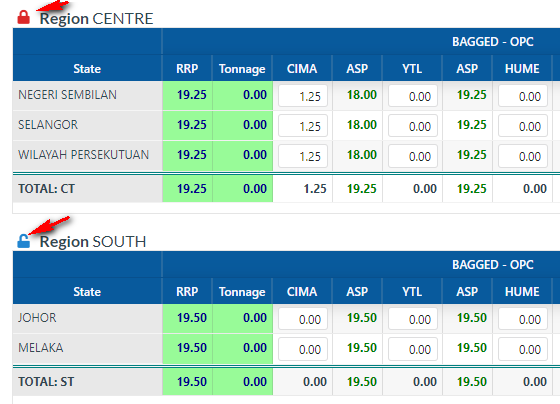
We have added in Lock and Unlock function to make it easier for user when key in the data.
The function works as below:
Lock - System will auto remember and copy the same number as per first row for the following row
Unlock - System will allow user to key the number manually.
Page Break
1.6 Updates of MR - Daily Rebate Tracking
- To start tracking daily rebate for customers, navigate to CA Cost Tracking > Daily Rebate.
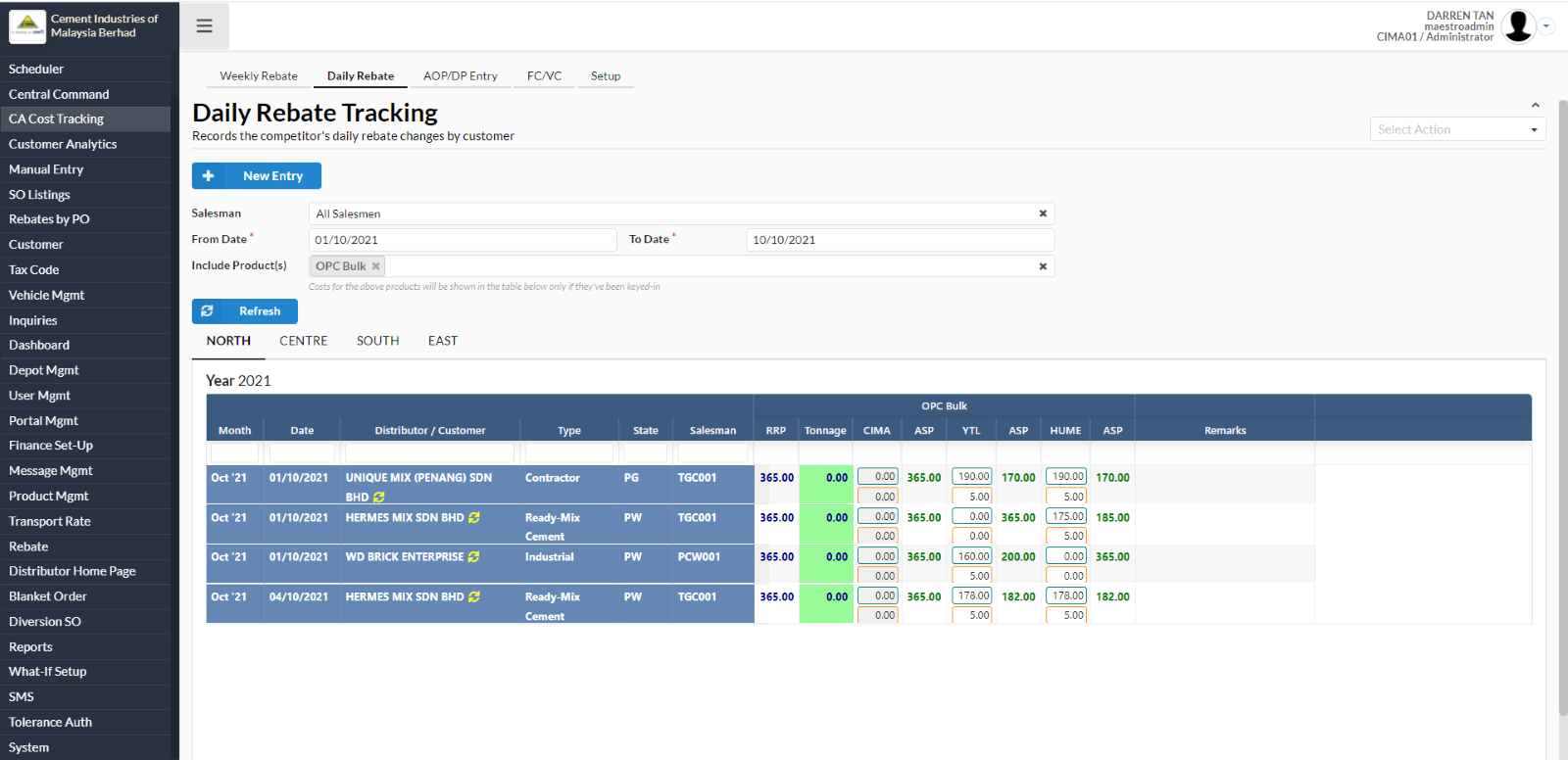
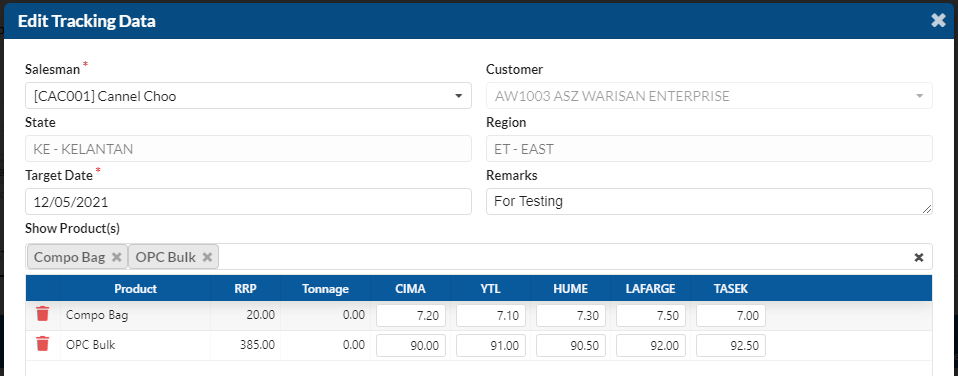
To add new daily rebate, click on New Entry. System will prompt a new dialog box to add new tracking data.
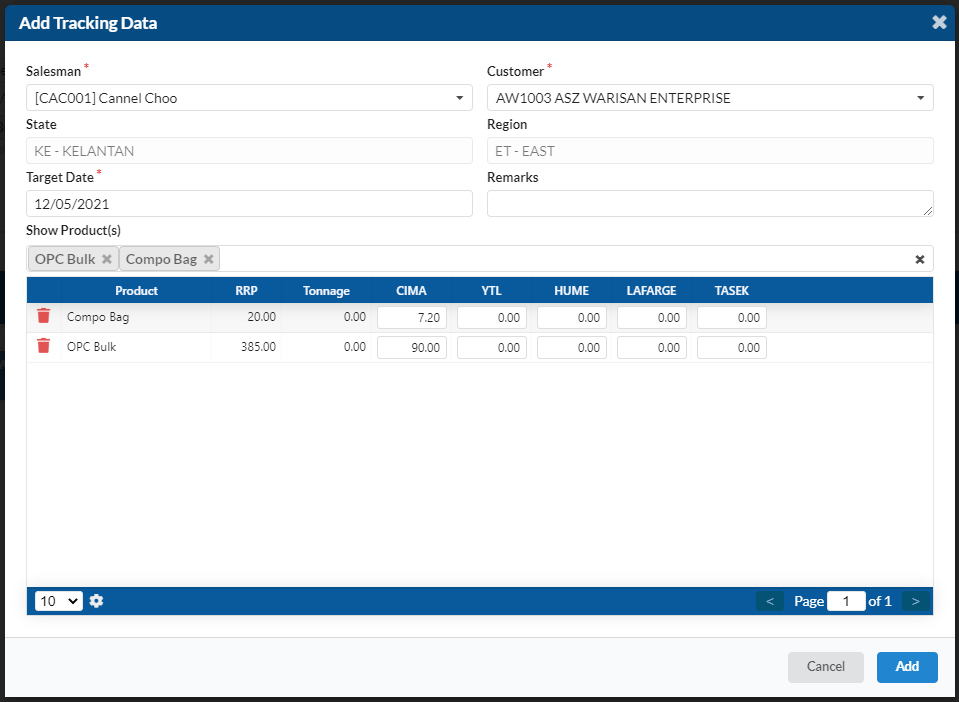
Fill in the required details such as: Salesman, Customer and Target Date. Next, select the product and add the rebate value in the filed provided as above.
Once done click on the Add button.
Select the region to view the added daily rebate.
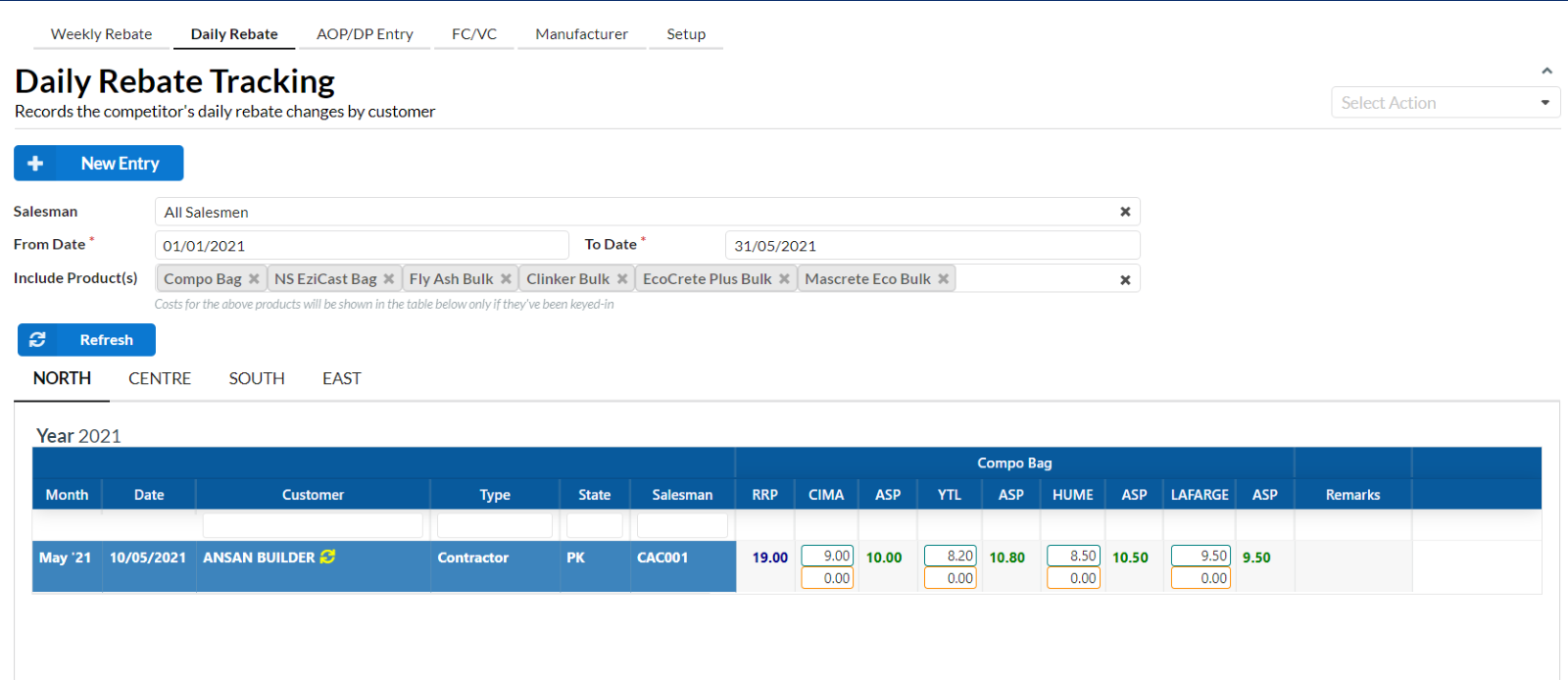
Similar to Weekly Rebate, we have updated the column for user to fill in both MR and Other Incentives.
To top column is for MR, and the bottom column is for Other Incentives.
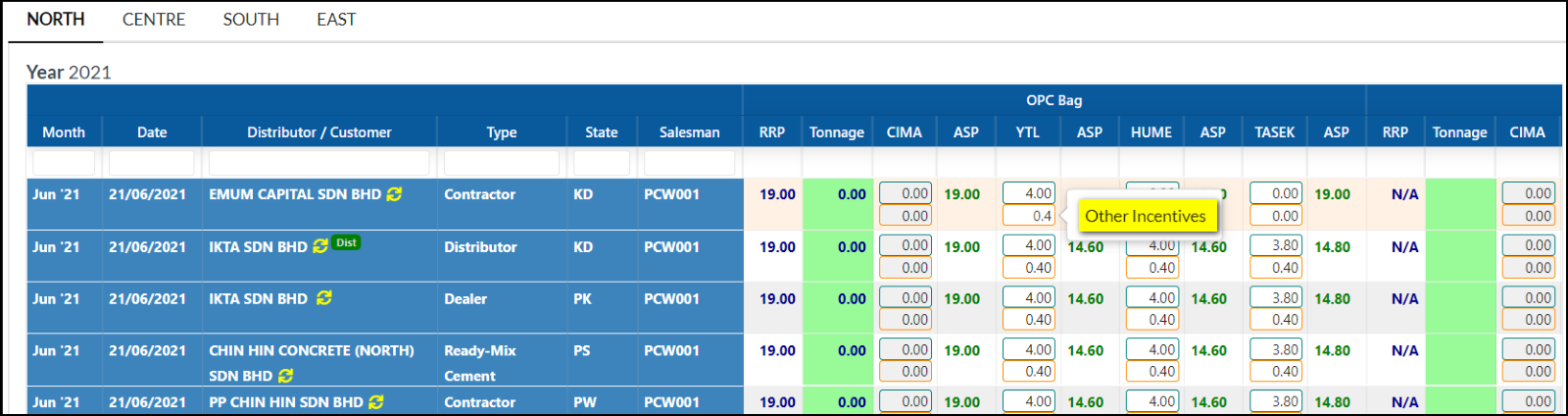
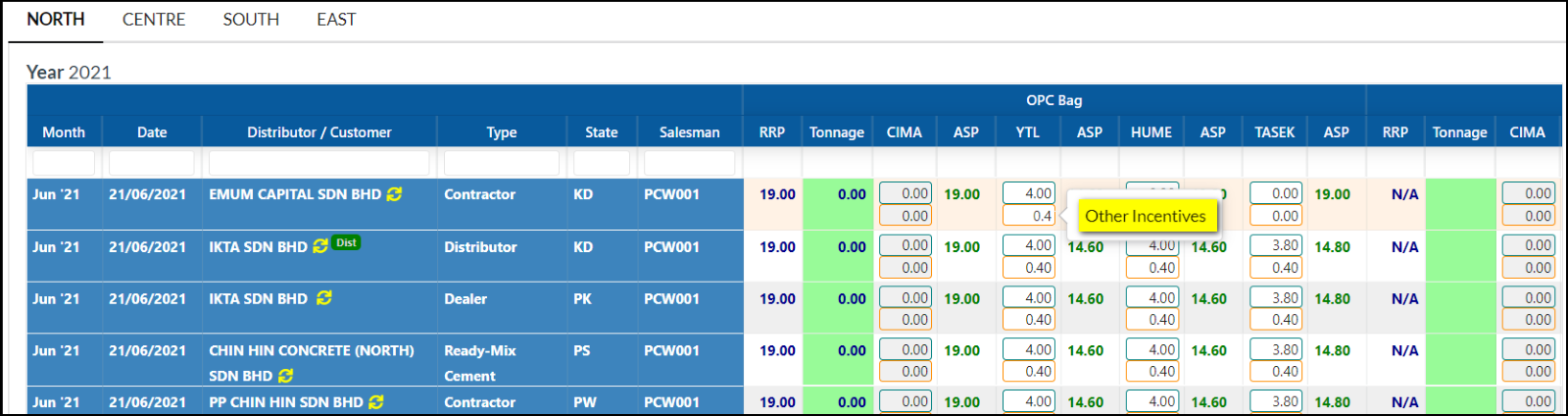
User still can edit the data entry by clicking on the line items.
1.7 AOP/DP Entry – Forecast
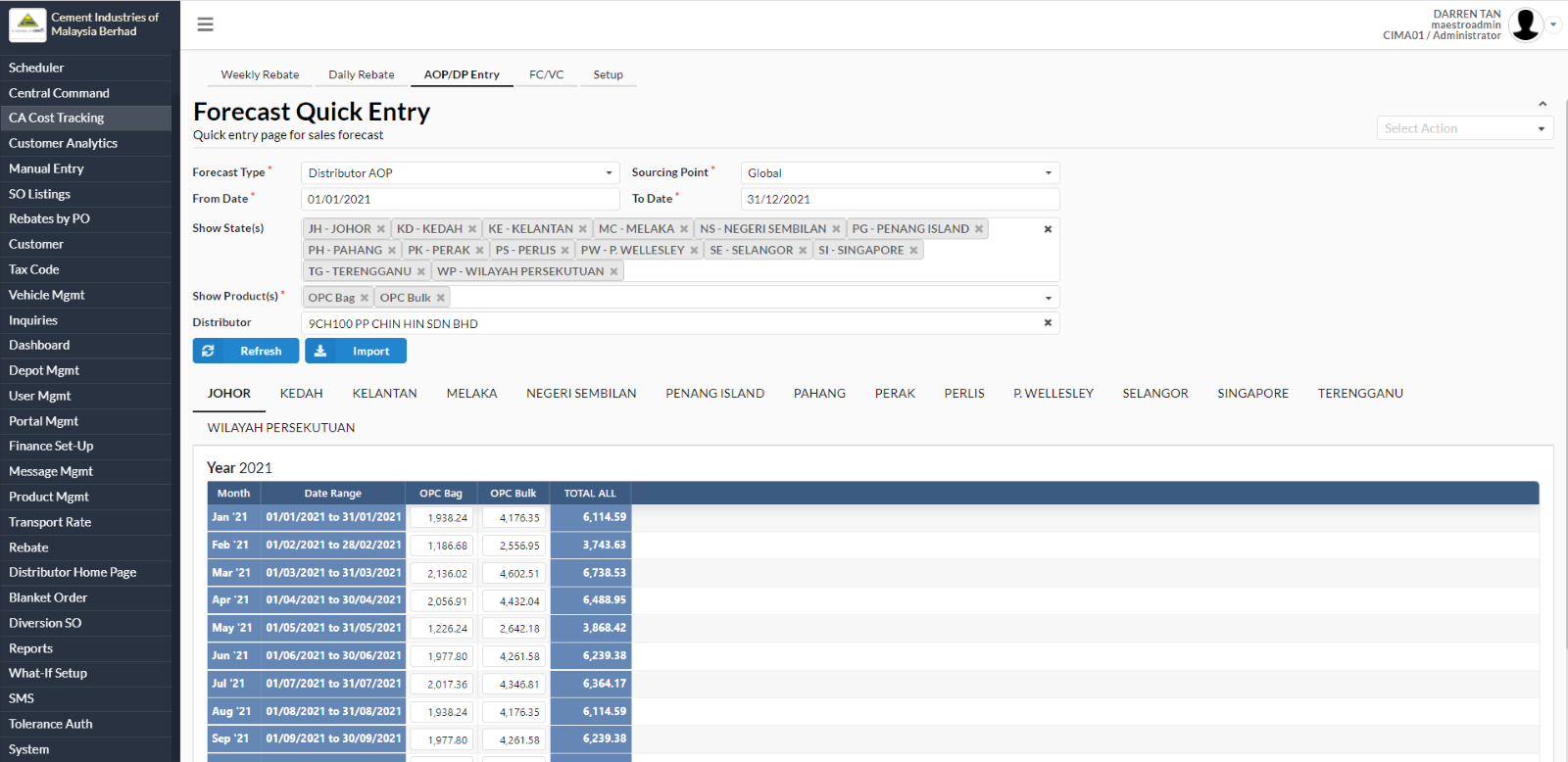
- To use the Forecast Quick Entry, navigate to CA Cost Tracking > AOP/DP Entry.
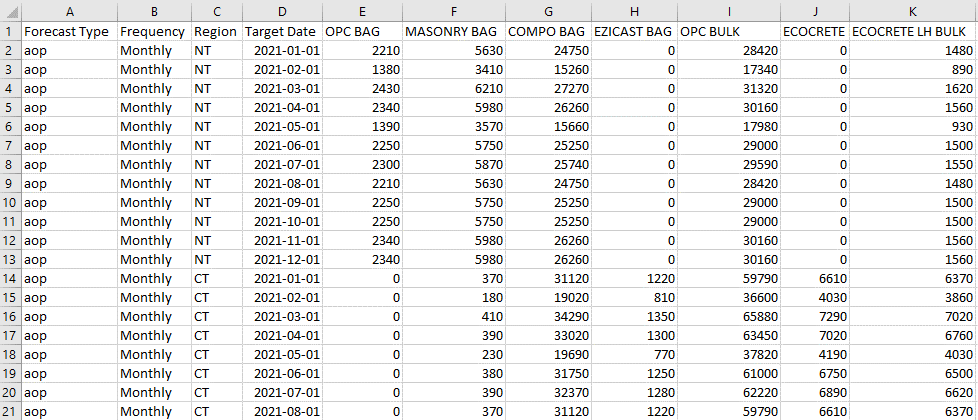
User can use the importer to upload the forecast data. The importer format as per below:
Alternatively, user can manually key in the forecast data into the system.
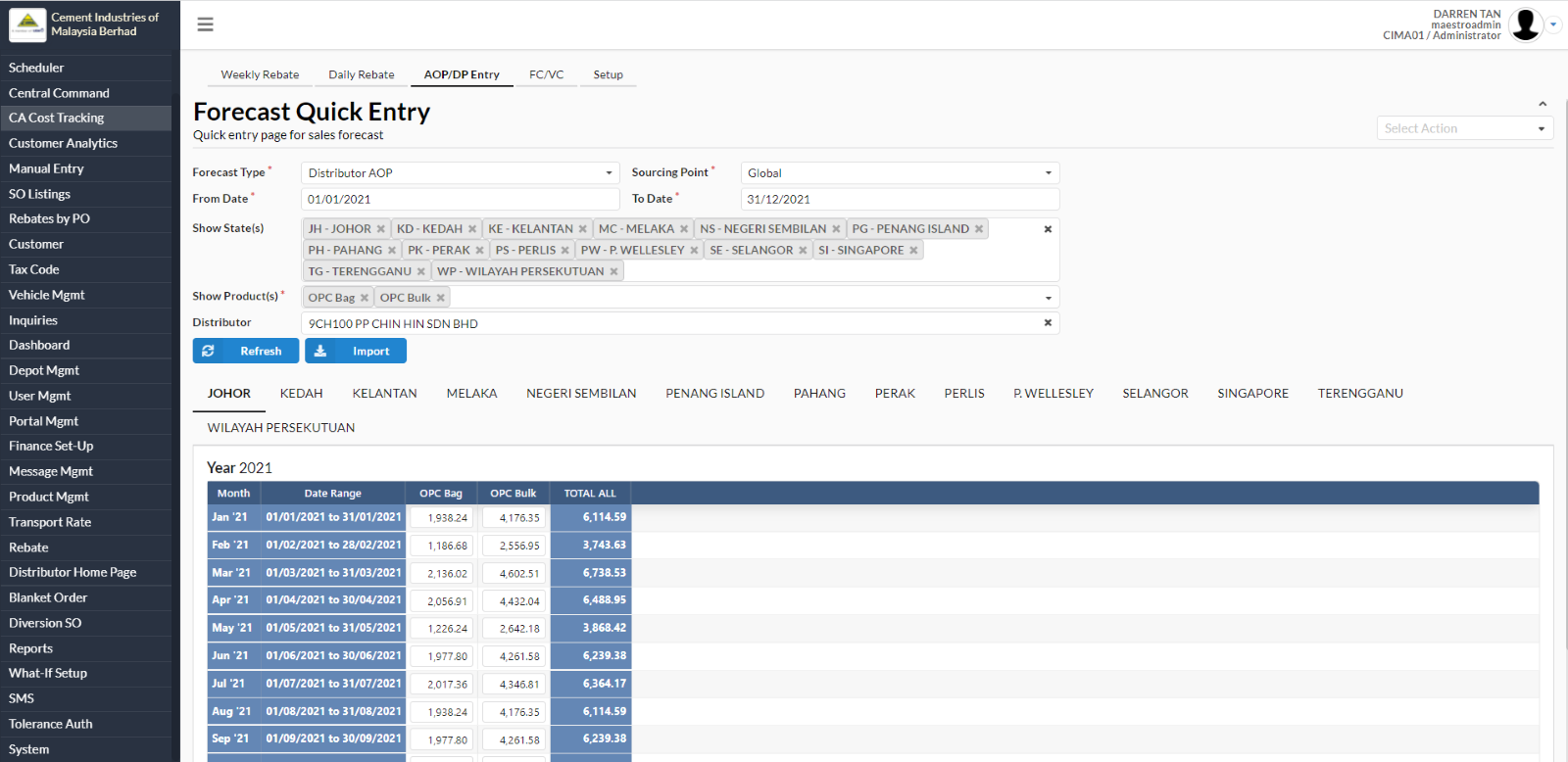
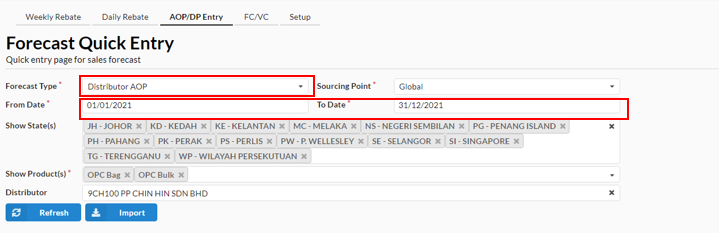
To begin with, user can select the Forecast type. This Forecast type can be set up in the Setup tab.
And then select start and end date.
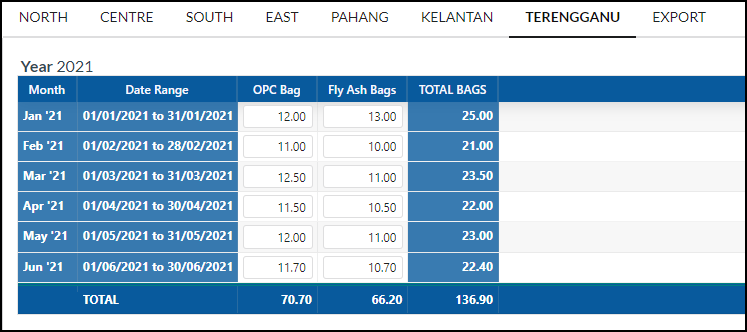
System will auto populate the table for user to enter the data. This interface is based on the selected Forecast Type. For example, below is the AOP (the frequency is setup to monthly). System will automatically calculate the range by month. If the selected Forecast Type is based on daily, then it will be per day.
1.8 Fixed Cost/Variable Cost Entry
- To start recording the manufacturing costs by depot and product, navigate to CA Cost Tracking > FC/VC.
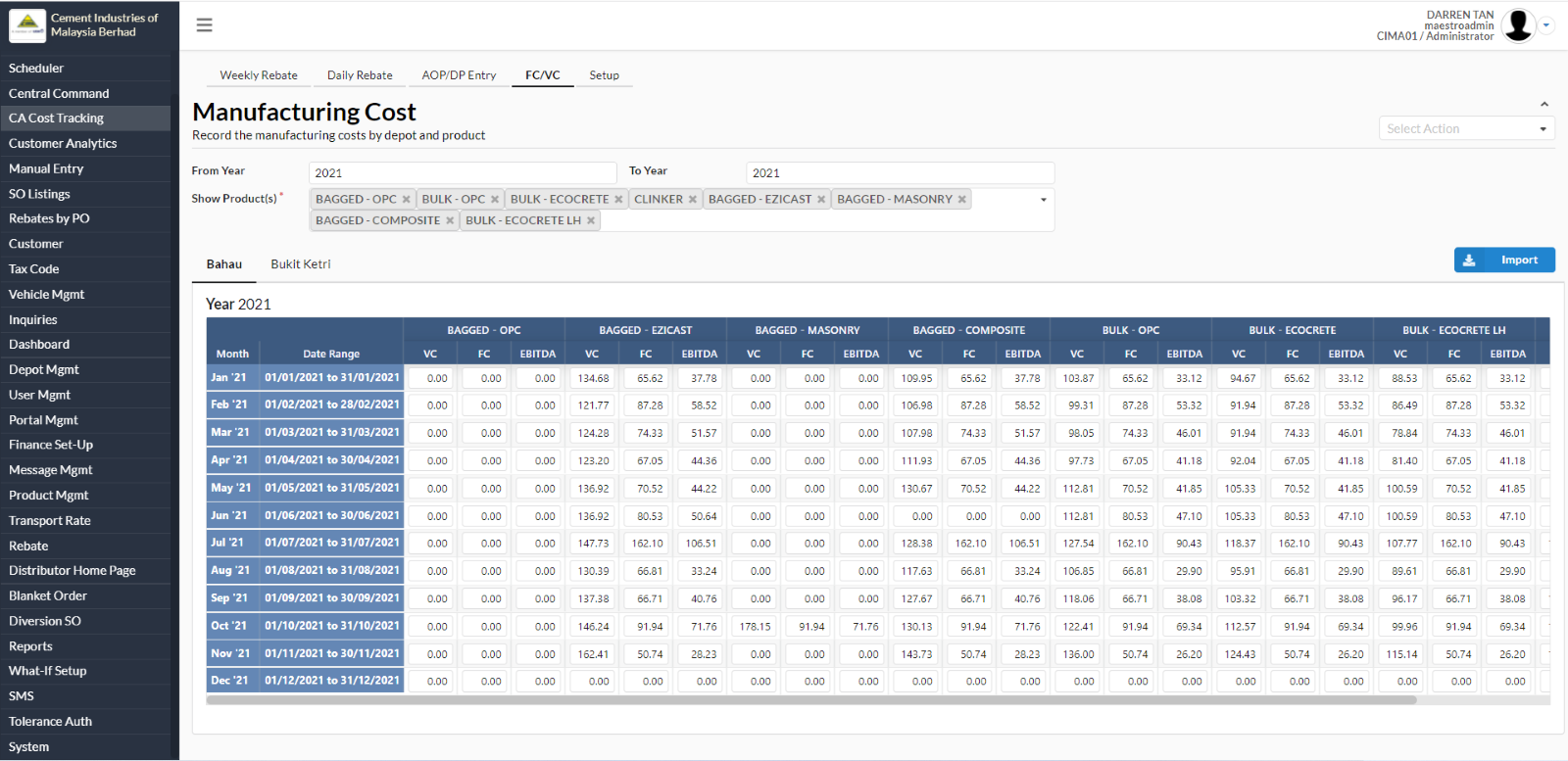
As per sample spreadsheet given by the Sales Team, user should be able to update the Fixed Cost and Variable Cost for the products by plant (Bahau & Bukit Ketri)
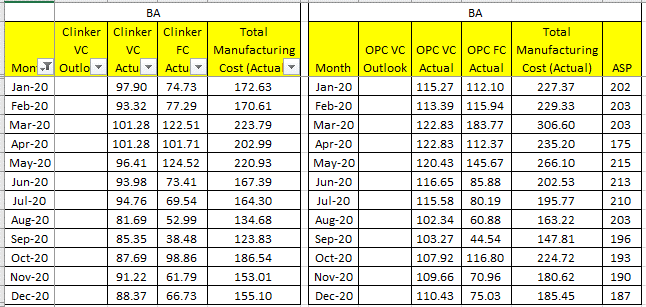
To begin, user can start by filtering the year and product.

Next, choose the plant by selecting the Bahau or Bukit Ketri tab.
Lastly, user can start to key in the VC, FC and EBITDA data in the system.
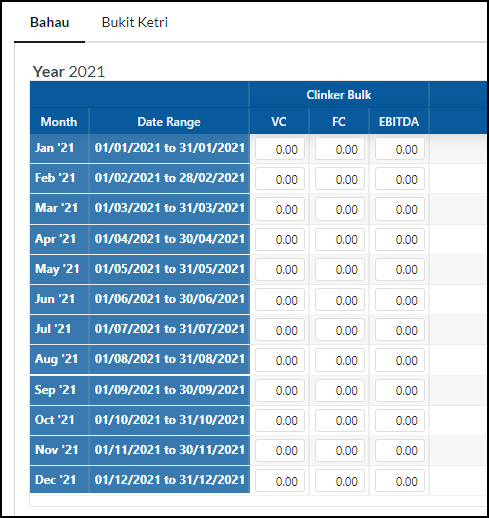
User also can upload the FC/VC data using the importer template as per below: