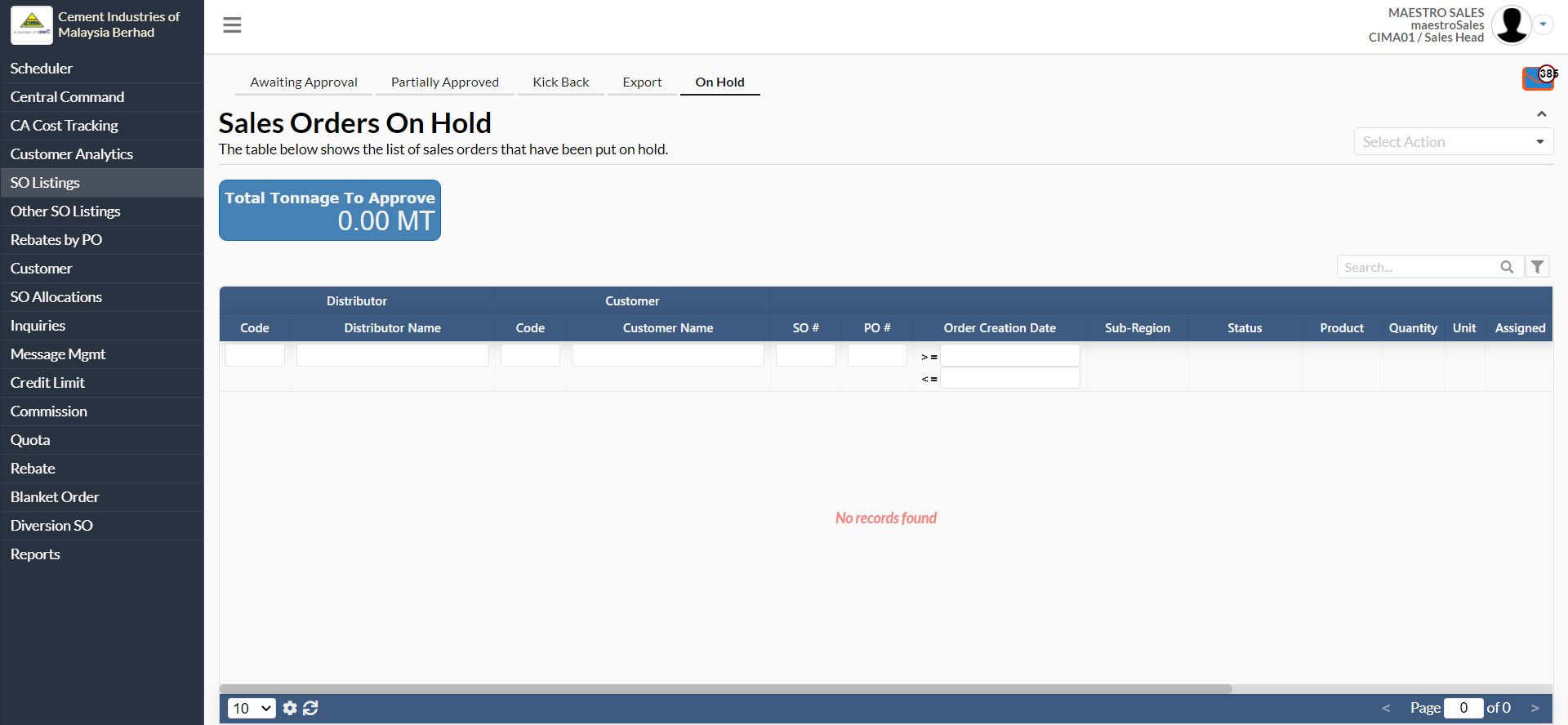
1. Processing Newly Submitted Orders
When a distributor has just submitted their Purchase Orders through optimalOne, these Purchase Orders will appear in the Sales Order Listing Page. There are three views (top navigation buttons) which are available on this page. They are:
- Awaiting Approval (Orders just submitted and awaiting approval)
- Partially Approved (Orders submitted which have already been partially approved)
- Kick Back (A listing of Orders that have been kick back by LCC)
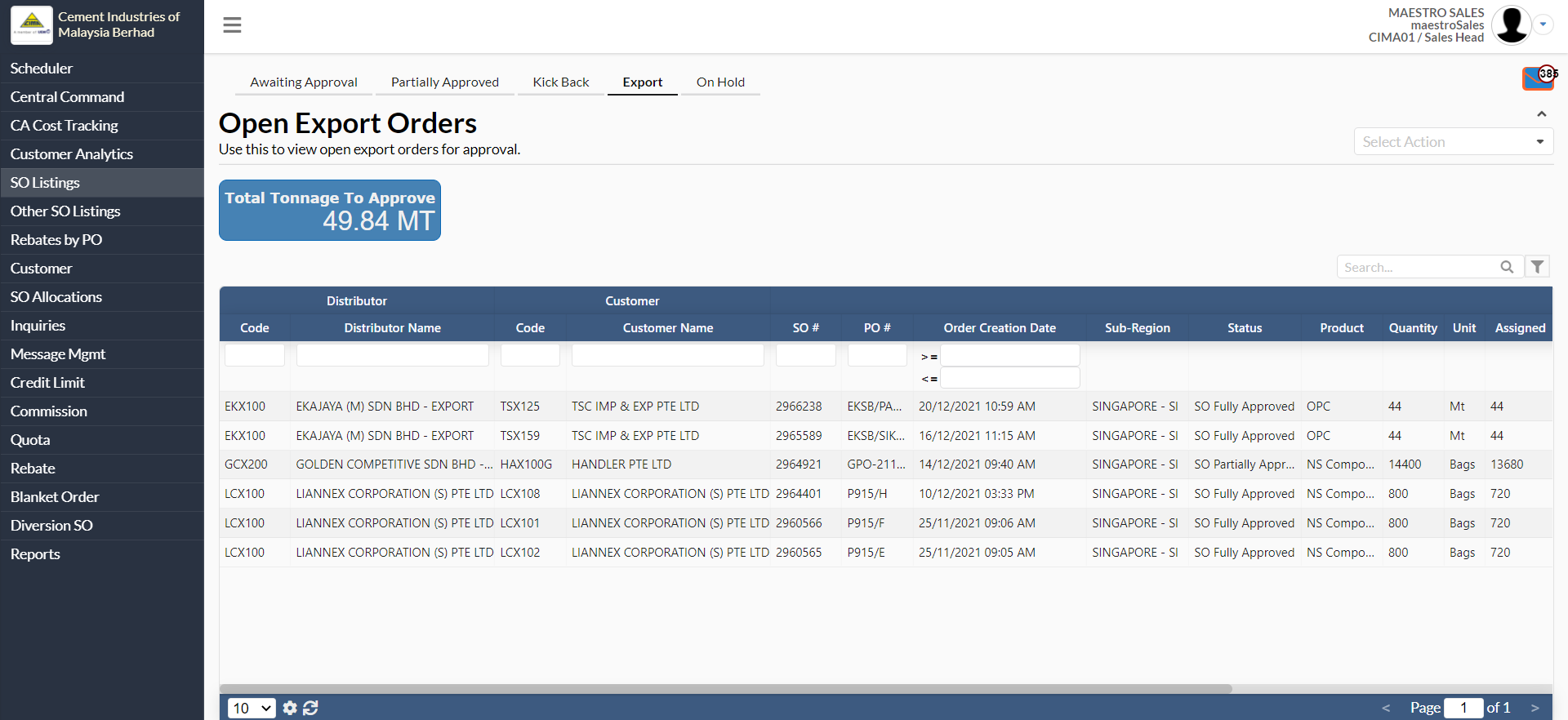
- Export (List of export orders for approval)
- On Hold (List of sales orders that have been put on hold)
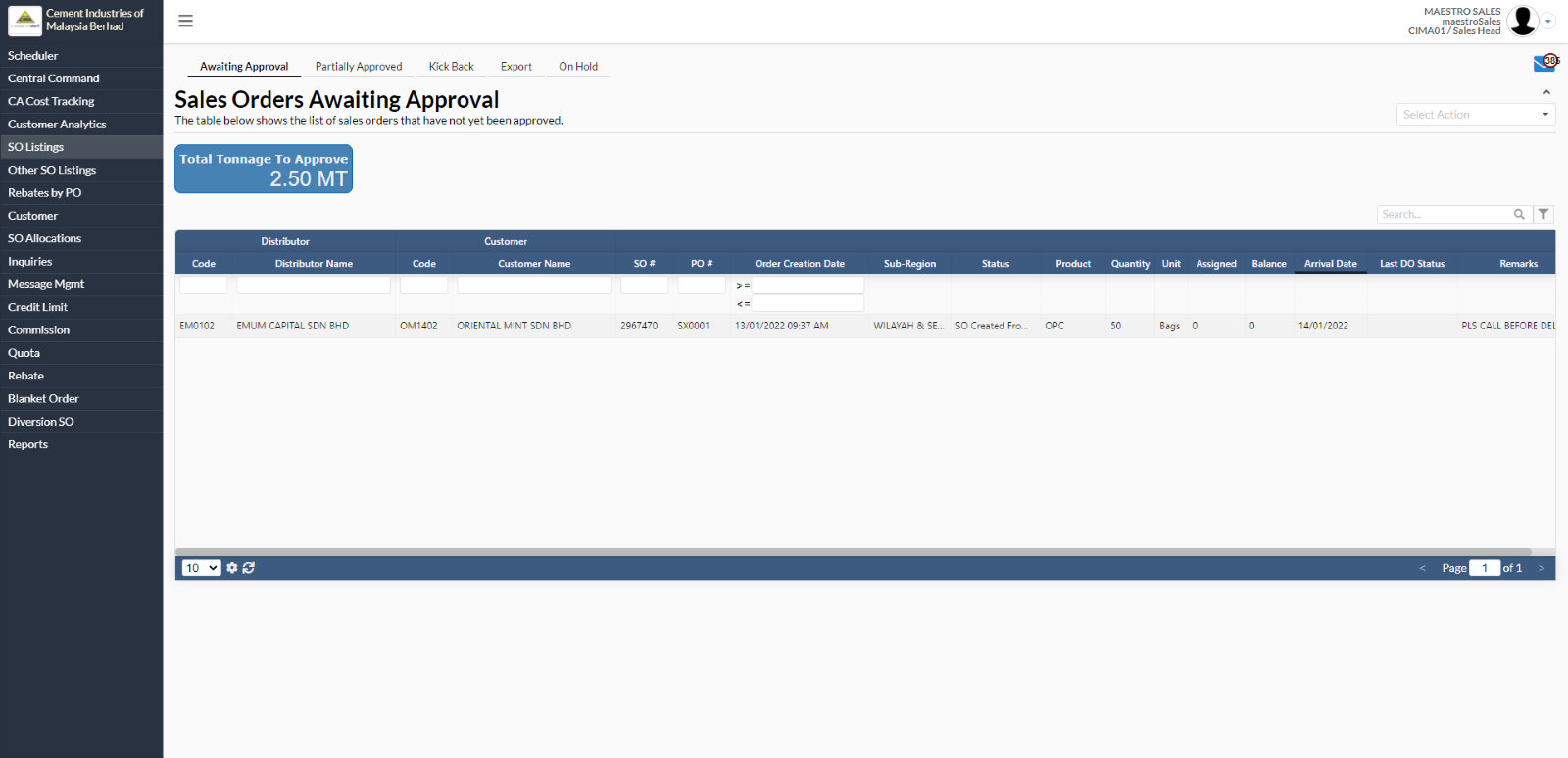
2. The View Sales Order #ABCDEFG Pop-up Box
In the Sales Order Listing View, click on one of the orders under the Awaiting Approval tab.
This will open the View Sales Order #ABCDEFG box which is shown below.
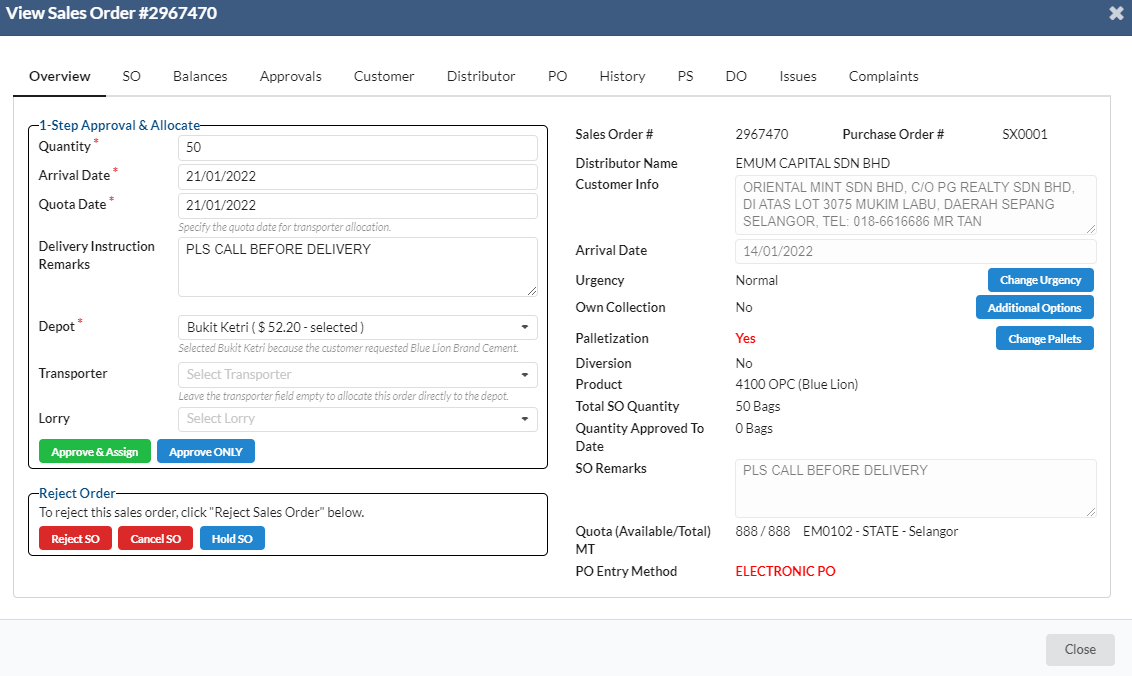
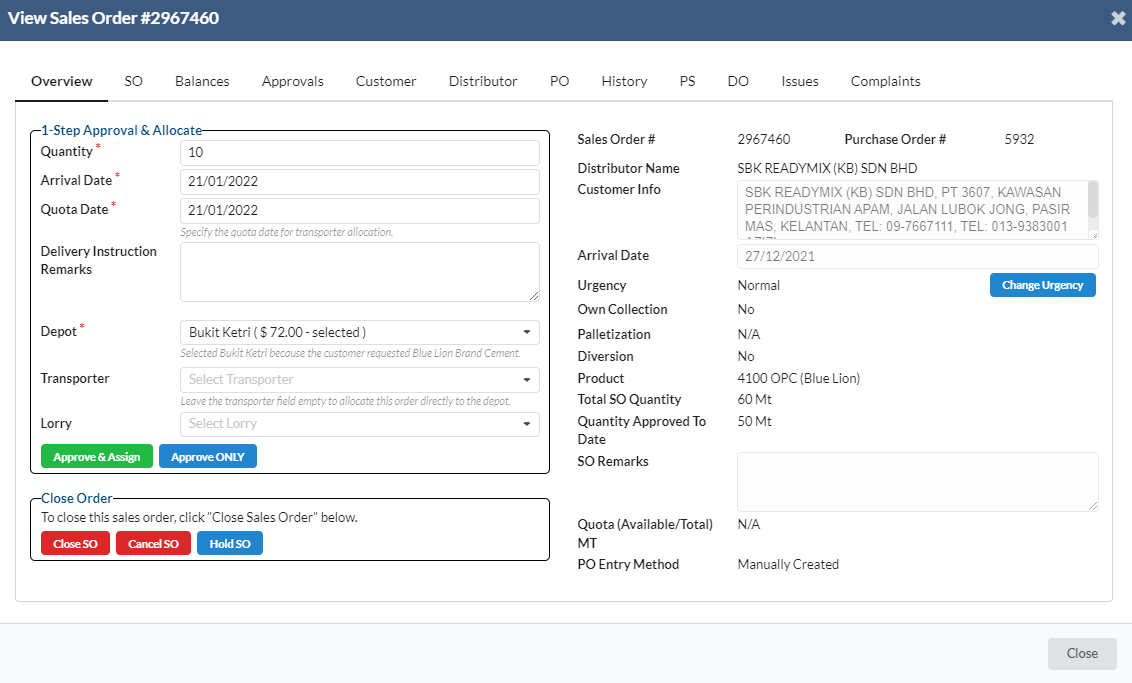
The tabs available in this view are as follows:
# | Tab Name | Description |
1 | Overview | Displays salient points of order for Sales team’s quick and easy reference. Also contains action boxes to Approve & Assign Approve ONLY Create Multiple Approvals Reject SO/Cancel SO/Hold SO Change Urgency Additional Options (Make changes to Orders based on new information) Change Pallets |
2 | SO | This is the Sales Order tab. Click on this to see specific information related to the Sales Order. |
3 | Balances | This is Balances tab which shows all the current balances and kick-back quantities. |
4 | Approvals | The Approvals tab displays all approvals for this sales order, including cancelled approvals. |
5 | Customer | Customer information tab |
6 | Distributor | Distributor information tab |
7 | PO | Displays PO# and area for Sales team to add in remarks |
8 | History | Displays a table which shows all the actions that have been done on this sales order which doubles up as an audit trail mechanism |
9 | PS | Displays all picking slips that have been created under this PS |
10 | DO | Displays a table of all delivery orders that have been created under this sales/purchase order. |
11 | Issues | A facility to capture any issues which may arise for each particular order |
12 | Complaints | A facility to capture any complaints made by customer/distributor |
2.1. Approving Orders
- In the Overview tab, there is an area labeled “1-Step Approval & Allocate”.
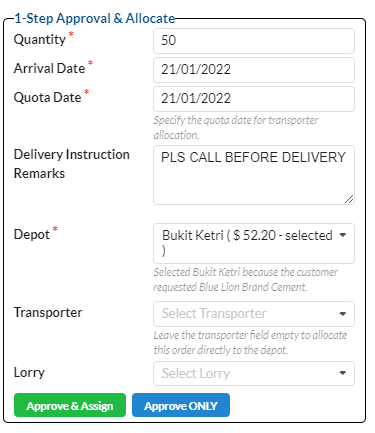
- Enter the quantity of cement which is to be approved now
- Choose the arrival date by clicking on the bar next to the arrival date
- Choose the quota date by clicking on the bar next to the quota date
- Fill in the delivery instruction remarks
- Choose the depot
- Select transporter and lorry
- Click on the Approve & Assign/Assign ONLY button.
2.2. Rejecting Orders
- To reject orders, click on the Reject SO button in the Reject Order Area.
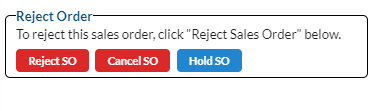
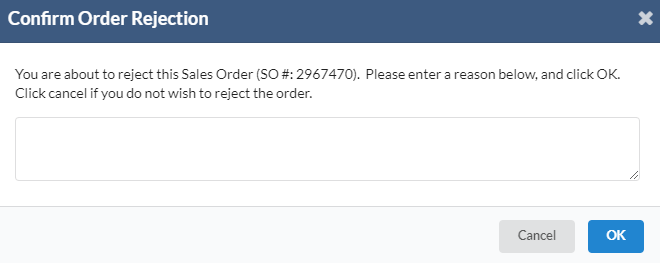
- This will pop up a confirmation box where users enter a reason on why the order is rejected.
3. Processing Partially Approved Orders
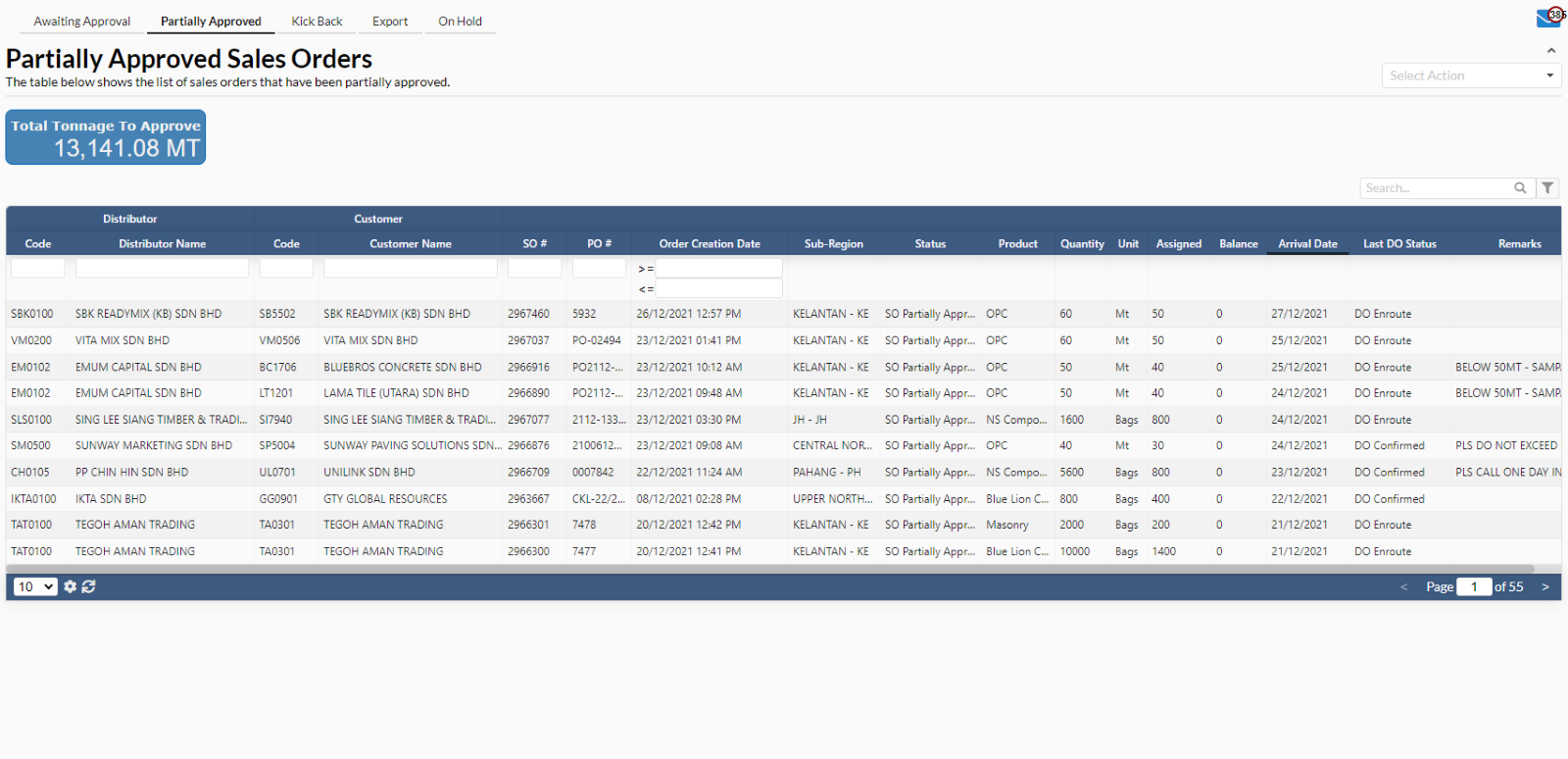
When an order has been partially approved, it is then listed in the Partially Approved section. Click on this button will list all the orders which are partially approved and clicking on one of the orders listed will pop up the View Sales Order #ABCDEFG as before.
Try this.
4. Kick Back
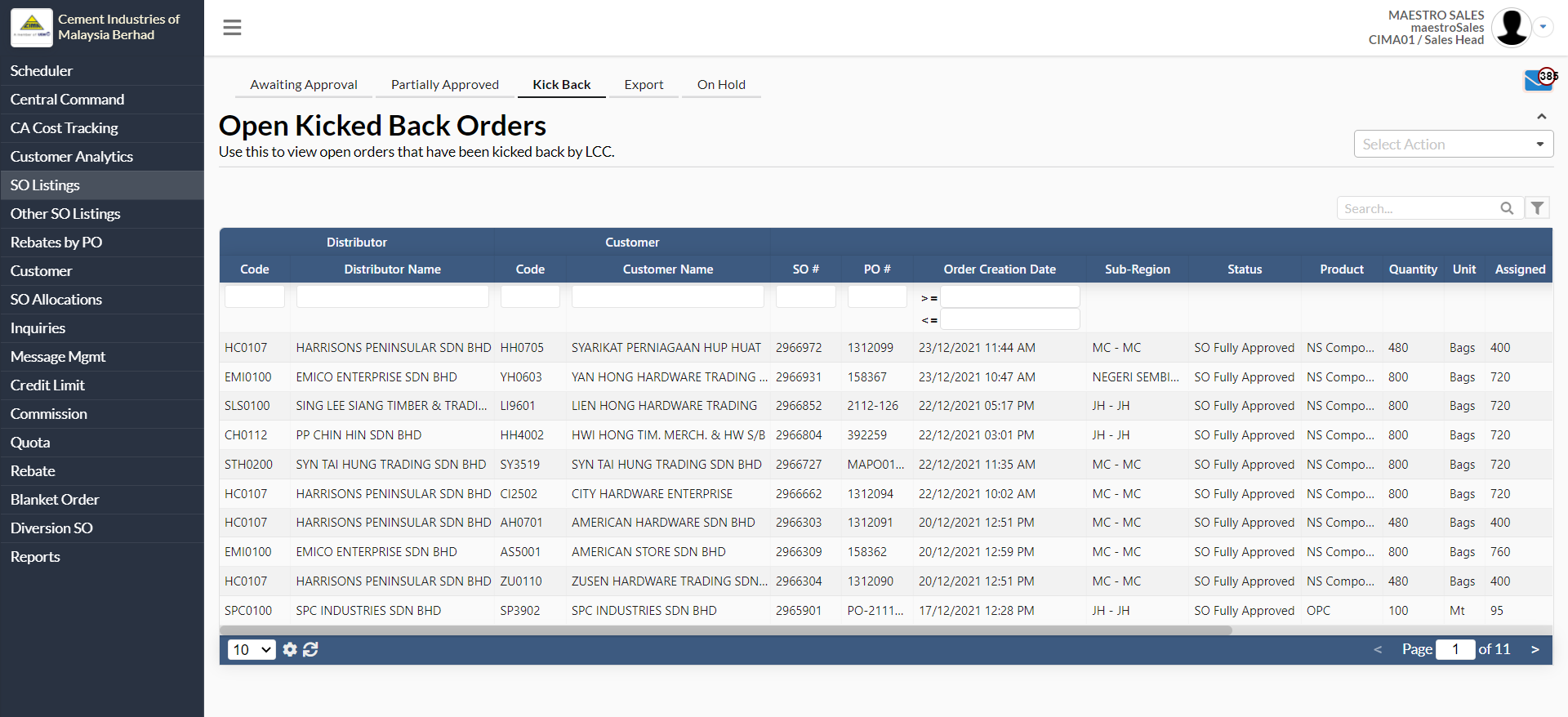
In the Kick Back tab, it shows all the open orders that have been kicked back by LCC. Click one of the orders from the table.
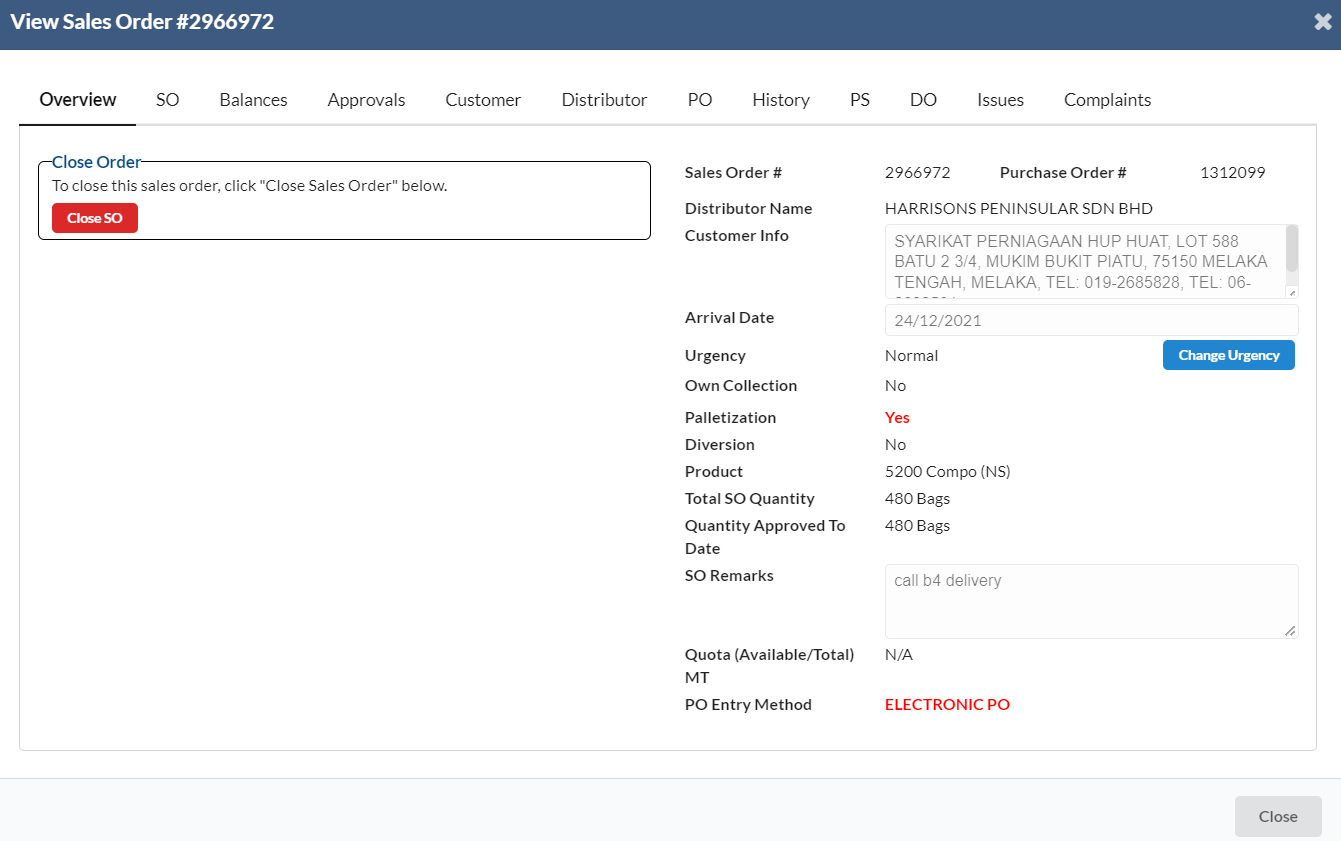
User can view the open order details and click "Close SO" button if the user wants to close order.
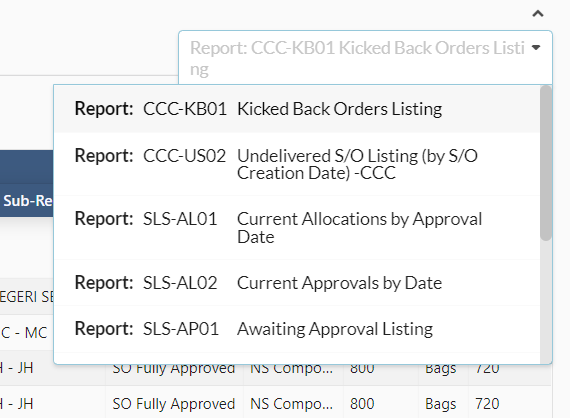
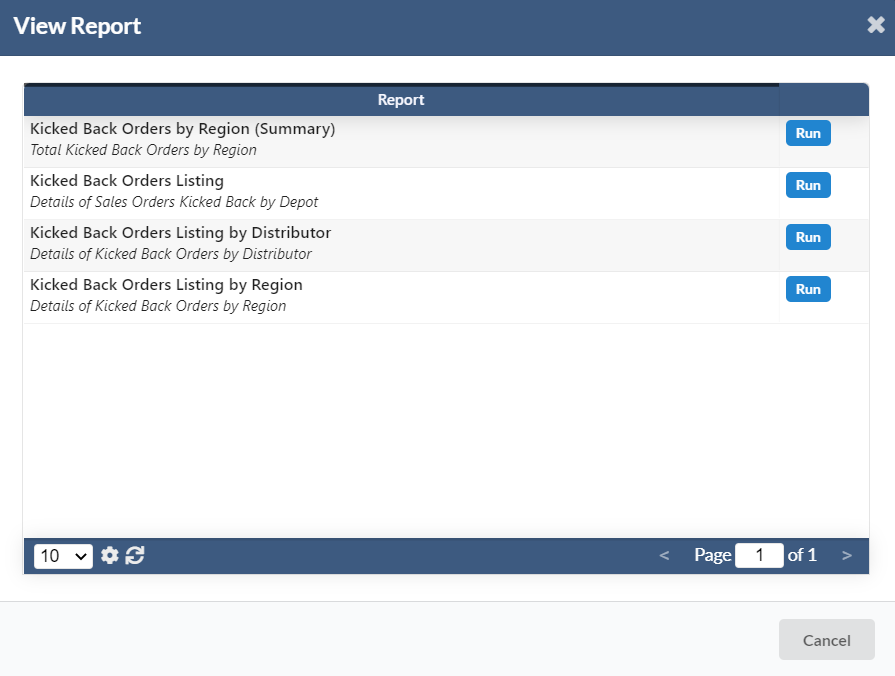
User can select any action from the dropdown list to run the report.
5. Export
In the Export tab, it will show all the open export orders for approval. Click on one of the orders.
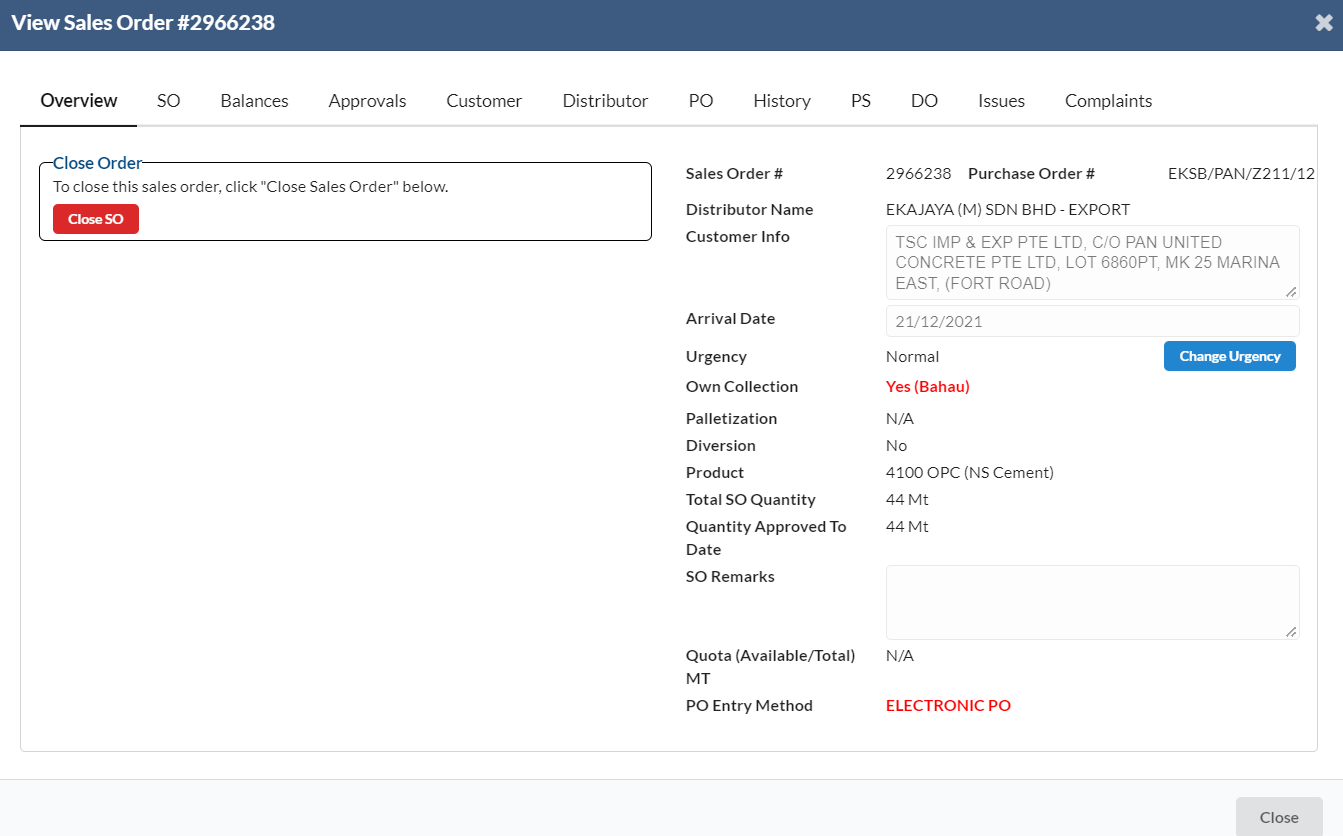
A new dialog box will appear for user to view the order details.
6. On Hold
In On Hold tab, it shows the list of sales orders that have been put on hold.